quaeroCNC - Instruction Manual Startup Guide Page 6
Startup Guide
GE Fanuc Automation Europe CNC S.A.
quaeroCNC Instruction Manual
Page 6 / 38 GFKE-0211-EN/05
Februar, 2006
3. OPERATION
3.1. STARTING THE PLUG-IN
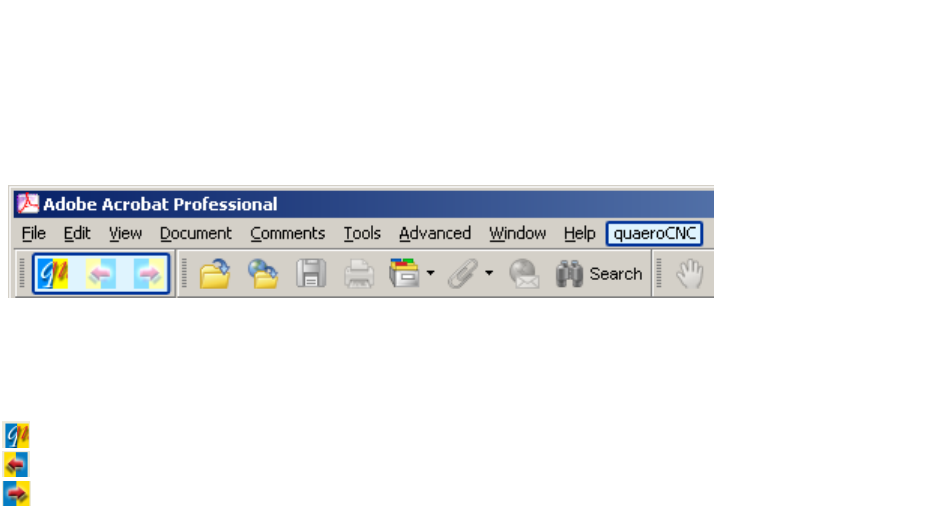
Once quaeroCNC has been successfully installed, a new quaeroCNC menu item which can be used to
start the plug-in appears in the Adobe Acrobat®/ Acrobat Reader® menu bar. Alternatively, quaeroCNC
can be opened via the icon in the toolbar. Select either option to open the quaeroCNC window.
Figure 2 Menu bar after successful installation
The quaeroCNC toolbar features 3 icons:
Start the plug-in
Back to previous hit (after the search)
Forward to next hit (after the search)
Note:
If quaeroCNC does not appear in the menu bar, please check that the “Use only certified plug-ins“ option
has been activated. To do this, proceed as follows:
• Open the Edit – Preferences menu. A new window containing possible settings is displayed.
• Select Options on the left-hand side.
• Deactivate the “Use only certified plug-ins “option (in Acrobat 5 located in the section: Options,
Acrobat 6: Startup , Acrobat 7: Startup) by clicking with the mouse to uncheck the box.
• Confirm your selection with OK and end the program.
• Restart the Adobe Acrobat®/ Acrobat Reader®.
Example Menu Language Setting
In the following example, you learn how to adjust the menu language.
• Start quaeroCNC and change to the Options tab.
• Open the drop-down list and select the desired menu language.
Contents Summary of quaeroCNC - Instruction Manual Startup Guide
- Page 1quaeroCNC Instruction Manual English GFKE-0211-EN/05 Februar, 2006
- Page 2GE Fanuc Automation Europe CNC S.A. quaeroCNC Instruction Manual 1. Introduction 3 2. Installation 3 2.1. System requirements 3 2.2. Installing quaeroCNC 3 2.3. Installing quaeroCNC on hard disk 4 3. Operation 6 3.1. Starting the Plug-in 6 3.2. Contents 8 • Filter 9 3.3. Favorites 12 3.4. Full-text
- Page 3GE Fanuc Automation Europe CNC S.A. quaeroCNC Instruction Manual 1. INTRODUCTION quaeroCNC is a plug-in for Adobe Acrobat®/Acrobat Reader® Version 5.0 and higher. It provides users with extensive and easy-to-use search functions for documents in PDF and enables a number of documents to be searched s
- Page 4GE Fanuc Automation Europe CNC S.A. quaeroCNC Instruction Manual If all requirements have been met, launch the installation program. The program creates a subdirectory \quaero in the C:\Program Files folder, which contains essential program information. If this directory already exists, having been
- Page 5GE Fanuc Automation Europe CNC S.A. quaeroCNC Instruction Manual Figure 1 Path for quaeroCNC on DVD-ROM Save and close the Quaero.ini. file. Example: quaeroCNC edition on DVD-ROM: Path=D:\pdf quaeroCNC edition on hard disk: Path=C:\Documentation Page 5 / 38 GFKE-0211-EN/05 Februar, 2006
- Page 6GE Fanuc Automation Europe CNC S.A. quaeroCNC Instruction Manual 3. OPERATION 3.1. STARTING THE PLUG-IN Once quaeroCNC has been successfully installed, a new quaeroCNC menu item which can be used to start the plug-in appears in the Adobe Acrobat®/ Acrobat Reader® menu bar. Alternatively, quaeroCNC c
- Page 7GE Fanuc Automation Europe CNC S.A. quaeroCNC Instruction Manual Figure 3 Menu Language selection • The plug-in is then restarted in the selected menu language. Page 7 / 38 GFKE-0211-EN/05 Februar, 2006
- Page 8GE Fanuc Automation Europe CNC S.A. quaeroCNC Instruction Manual 3.2. CONTENTS When you open quaeroCNC, the Contents table which takes the form of a tree structure appears. Levels are indicated by folders and PDF documents by the icon. The flag indicates the document language. A small plus sign in f
- Page 9GE Fanuc Automation Europe CNC S.A. quaeroCNC Instruction Manual • Filter The filter allows to restrict the documents according to the following criteria: – Document type – Language – With the button, you can reset the settings. Figure 5 Filter criteria These can be used separately or in combination
- Page 10GE Fanuc Automation Europe CNC S.A. quaeroCNC Instruction Manual • Open, for example, the Documentation node and then the quaeroCNC node by clicking with the left mouse button on the corresponding plus sign. Figure 6 Display of the quaeroCNC user documents • Click with the left mouse button on the p
- Page 11GE Fanuc Automation Europe CNC S.A. quaeroCNC Instruction Manual • You can now open other nodes of the table of contents by clicking on the plus sign or read the document in the Adobe Acrobat®/ Acrobat Reader®. • You can hide documents in certain languages and/or certain document types using the Sel
- Page 12GE Fanuc Automation Europe CNC S.A. quaeroCNC Instruction Manual 3.3. FAVORITES The favorites, like the contents, are displayed in a tree structure. All PDF documents of the quaeroCNC edition can be arranged user-specifically. Right-click to open a context menu displaying the following items: – Dele
- Page 13GE Fanuc Automation Europe CNC S.A. quaeroCNC Instruction Manual Figure 10 Example for Add to Favorites from Contents tab • Change to the Favorites tab. • There, you will find the Power Mate 0 node including all subfolders and documents. Figure 11 Tab Favorites, Add Element • In order to add a new f
- Page 14GE Fanuc Automation Europe CNC S.A. quaeroCNC Instruction Manual Figure 12 Tab Favorites, Rename Element • A new node named New is inserted. Select the node with the right mouse button and select Rename Element from the context menu in order to rename the node in My Documents , for example. • Enter
- Page 15GE Fanuc Automation Europe CNC S.A. quaeroCNC Instruction Manual 3.4. FULL-TEXT SEARCH The full text search can be used to find all words which appear in the documents of a quaeroCNC assembly. Exceptions include words known as “stop words” (a, and, or, corresponding to, etc.) which do not have a par
- Page 16GE Fanuc Automation Europe CNC S.A. quaeroCNC Instruction Manual Figure 13 Tab Full-Text Search If you open documents (max. 20) with [Ctrl]+click, they stay open when you open the next document. You can change this setting in the Options menu. If you click on the name in the hit list, the hits are s
- Page 17GE Fanuc Automation Europe CNC S.A. quaeroCNC Instruction Manual Example • Start quaeroCNC and change to the Full-Text Search tab. • Make sure that the textbox for the search term is empty and that there are no filters applied (see also Figure 14)! Figure 14 Listing documents • Click now on the butt
- Page 18GE Fanuc Automation Europe CNC S.A. quaeroCNC Instruction Manual • Open the Language drop-down list and select English. To close the filter, press ENTER or click with the left mouse button in a free area outside the opened drop-down list. The selected entries are thus accepted. • To restart the sear
- Page 19GE Fanuc Automation Europe CNC S.A. quaeroCNC Instruction Manual Example • Start quaeroCNC and change to the Full-Text Search tab. • Make sure that the textbox for the search term is empty and that there are no filters applied (see also Figure 14)! • Click on the button to list all new/updated docum
- Page 20GE Fanuc Automation Europe CNC S.A. quaeroCNC Instruction Manual Linking search terms – Quantitative logic quaeroCNC supports the linking of a number of search terms using the (+) and (-) operators. These operators should be entered without blank immediately in front of the search term. + the word m
- Page 21GE Fanuc Automation Europe CNC S.A. quaeroCNC Instruction Manual Searching with wildcards In quaeroCNC search operations, wildcards may be used. * none, one or more characters ? none or only one character ! one character only Example: form* will find results such as form, format, formula, formulate,
- Page 22GE Fanuc Automation Europe CNC S.A. quaeroCNC Instruction Manual Figure 19 Example for a search based on quantitative logic • Click, for example, on the plus sign next to the specification B-63604EN/01 to open a preview of the hits in the document, the KWIC list. Figure 20 KWIC list of a document •
- Page 23GE Fanuc Automation Europe CNC S.A. quaeroCNC Instruction Manual • Change now the search term to Rigid Tapping and activate the Match Phrase checkbox. If you use this search function, the search phrase must not contain any quantitative logic (see also Figure 21). • Start the search by pressing ENTER
- Page 24GE Fanuc Automation Europe CNC S.A. quaeroCNC Instruction Manual Favorites Search If the Search only in favorites checkbox is activated, the search is restricted to the documents selected as favorites. Filter and tree structure are not considered in this case. • Index Search The search term can also
- Page 25GE Fanuc Automation Europe CNC S.A. quaeroCNC Instruction Manual The Reset button resets all filters. Figure 24 Search mask with Document Type filter opened The complete index is searched, however, only those documents that correspond to the filter criteria are displayed. • Tree Structure and Checks
- Page 26GE Fanuc Automation Europe CNC S.A. quaeroCNC Instruction Manual (Update of quaeroCNC). This operation may take some time. If the hit list is empty, no download is performed. This function is only available in version GFME-0002-ML, however, not in version GFME-0004-ML! Example PDF Download Please re
- Page 27GE Fanuc Automation Europe CNC S.A. quaeroCNC Instruction Manual • After that, the listed documents are checked for their availability (see also Figure 27). In the dialog, you will see the note checking locally available pdf documents. The second entry indicates the name of the file that is currentl
- Page 28GE Fanuc Automation Europe CNC S.A. quaeroCNC Instruction Manual • Add PDFs to Favorites After a hit list has been generated, you can add these documents to favorites. Right-click on the PDF to open a context menu offering three options. • add this pdf to favorites • add selected pdf to favorites •
- Page 29GE Fanuc Automation Europe CNC S.A. quaeroCNC Instruction Manual 3.5. OPTIONS The Options tab comprises all adjustable parameters in a clearly arranged tree structure. This is used in the same way as the other tree structures. The selection box is used to select a language. The selected language is
- Page 30GE Fanuc Automation Europe CNC S.A. quaeroCNC Instruction Manual • quaeroCNC – Basic performance options o Plug-In Version – fixed– currently used plug-in version o Date of current index – Date of the currently used index, index version o Date of previous index – Date of the previous index, index ve
- Page 31GE Fanuc Automation Europe CNC S.A. quaeroCNC Instruction Manual o Check Documents (download) - New/Updated: only new/updated documents in the new index with respect to the previous index are checked for local availability and updating. - All: all documents in the new index are checked for local ava
- Page 32GE Fanuc Automation Europe CNC S.A. quaeroCNC Instruction Manual Figure 32 Document comparison, Example Document Closing Options • If you want to navigate to the next hit in the hit list, left-click on . The documents having been opened in the above described way (CTRL + click on the document) remai
- Page 33GE Fanuc Automation Europe CNC S.A. quaeroCNC Instruction Manual • Updating quaeroCNC To use this function, special authorization is required. It is quite time-consuming. The Update Index button downloads a new quaeroCNC index from the GE Fanuc Server. The URL of the Server is given in quaero.ini (s
- Page 34GE Fanuc Automation Europe CNC S.A. quaeroCNC Instruction Manual • A dialog window appears indicating the download status of the operation. In a first step, the UpdateCtrl.ini file is downloaded that contains important information about the currently valid index. In this step, access and license dat
- Page 35GE Fanuc Automation Europe CNC S.A. quaeroCNC Instruction Manual • After a successful log-in to the Server, the actual updating procedure starts. The procedure comprises 3 steps 1) index update, 2) availability check of documents (PDF files) on the target computer, and 3) download of not available d
- Page 36GE Fanuc Automation Europe CNC S.A. quaeroCNC Instruction Manual • If too many update index packages are required for an update, the system proposes to download a new full index. Some of the dialogs appearing during the index update by downloading a new full index are described below. • After a succ
- Page 37GE Fanuc Automation Europe CNC S.A. quaeroCNC Instruction Manual Figure 36 Checking availability of documents (PDF files) on target computer • On the basis of the results of step 2, the unavailable documents are downloaded in step 3 (see also Figure 37). Upon completion of the download, the plug-in
- Page 38GE Fanuc Automation Europe CNC S.A. quaeroCNC Instruction Manual 4. TABLE OF FIGURES Figure 1 Path for quaeroCNC on DVD-ROM............................................................................ 5 Figure 2 Menu bar after successful installation ..................................................