Open CNC Screen Display Function Operators manual Page 48
Operators manual
2.OPERATION B-63164EN/04
- 32 -
2.5 FUNCTION KEYS
This section explains how to select function keys by using the full
keyboard and mouse.
l
ll
l When the full keyboard is used
The function keys on the MDI keyboard are assigned to the full
keyboard as follows:
On FS160i/180i/210i/150i
Function key on the MDI
keyboard
→
→→
→
Full keyboard
[POS] → [1] on numeric keypad or [Ctrl]+[F1]
[PROG] → [2] on numeric keypad or [Ctrl]+[F2]
[OFFSET/SETTING] → [3] on numeric keypad or [Ctrl]+[F3]
[SYSTEM] → [4] on numeric keypad or [Ctrl]+[F4]
[MESSAGE] → [5] on numeric keypad or [Ctrl]+[F5]
[GRAPH] → [6] on numeric keypad or [Ctrl]+[F6]
[CUSTOM] → [7] on numeric keypad or [Ctrl]+[F7]
Unlabeled (or [FAPT]) → [8] on numeric keypad or [Ctrl]+[F8]
On FS150B
Function key on the MDI
keyboard
→
→→
→
Full keyboard
[POS] → [1] on numeric keypad or [Ctrl]+[F1]
[PROG] → [2] on numeric keypad or [Ctrl]+[F2]
[OFFSET] → [3] on numeric keypad or [Ctrl]+[F3]
[P-CHECK] → [4] on numeric keypad or [Ctrl]+[F4]
[SETTING] → [5] on numeric keypad or [Ctrl]+[F5]
[SERVICE] → [6] on numeric keypad or [Ctrl]+[F6]
[MESSAGE] → [7] on numeric keypad or [Ctrl]+[F7]
[OTHERS] → [8] on numeric keypad or [Ctrl]+[F8]
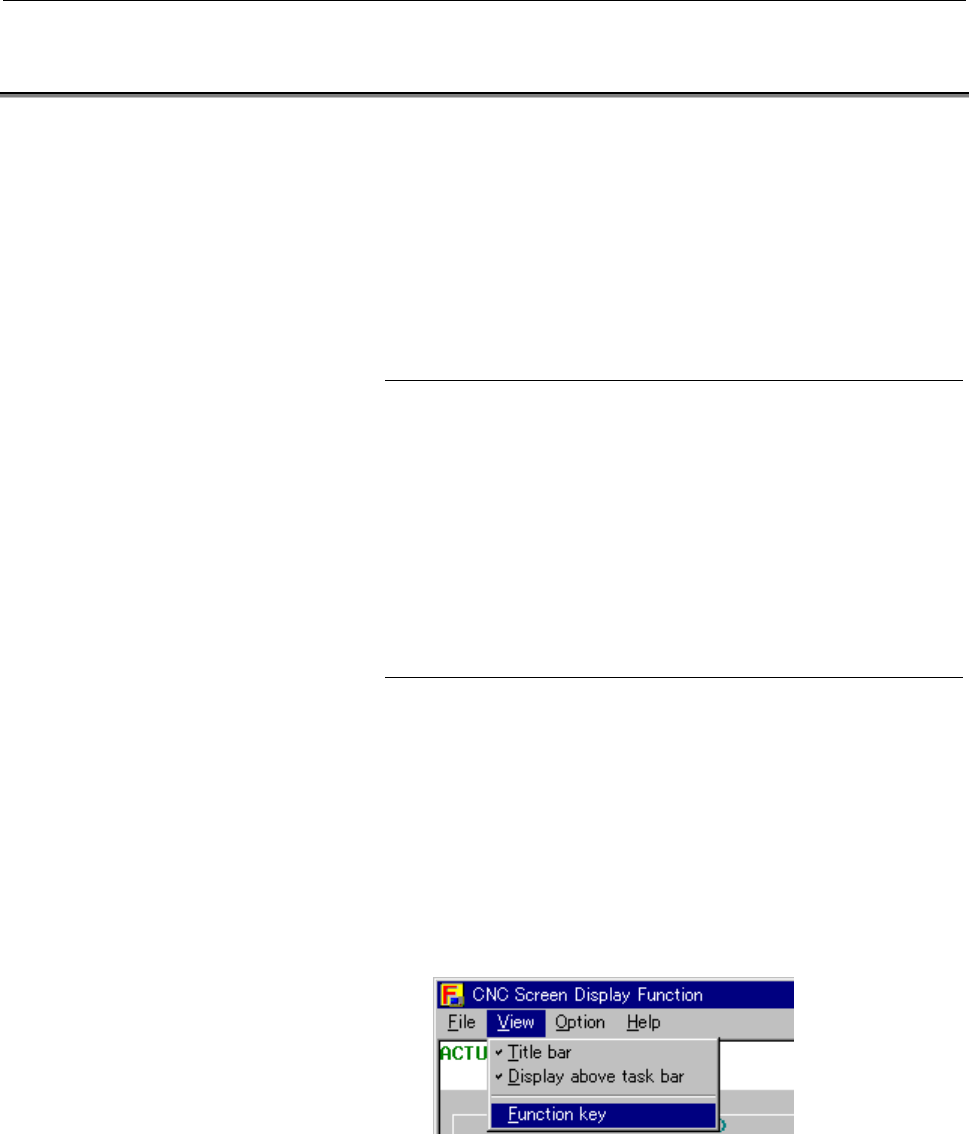
l When the mouse is used
1. Choose the [Function key] from the submenu of [View] on
the menu bar.
Contents Summary of Open CNC Screen Display Function Operators manual
- Page 1CNC Screen Display Function OPERRATOR’S MANUAL B-63164EN/04
- Page 2Ȧ No part of this manual may be reproduced in any form. Ȧ All specifications and designs are subject to change without notice. The export of this product is subject to the authorization of the government of the country from where the product is exported. In this manual we have tried as much as possi
- Page 3B-63164EN/04 SAFETY PRECAUTIONS SAFETY PRECAUTIONS This manual includes safety precautions for protecting the user and preventing damage to the machine. Precautions are classified into Warnings and Cautions according to their bearing on safety. Also, supplementary information is described as Notes.
- Page 4SAFETY PRECAUTIONS B-63164EN/04 GENERAL WARNINGS AND CAUTIONS The following warnings and cautions describe the safety precautions related to the use of CNC units. It is essential that these precautions be observed by users to ensure the safe operation of machines equipped with a CNC unit. WARNING 1
- Page 5B-63164EN/04 SAFETY PRECAUTIONS CAUTION 1 The operator's manual on the CNC screen display function does not cover the functions and operation of CNCs. For details of the functions and operation of a CNC, refer to the operator's manual for the CNC. 2 Some machine operations and screen functions are i
- Page 6SAFETY PRECAUTIONS B-63164EN/04 WARNINGS AND CAUTIONS RELATING TO THE CNC SCREEN DISPLAY FUNCTION Warnings and cautions relating to the CNC screen display function are explained in this manual. Before using the function, read this manual thoroughly to become familiar with the provided Warnings, Caut
- Page 7B-63164EN/04 PREFACE PREFACE Thank you for purchasing the FANUC Open CNC CNC screen display function. The FANUC Open CNC CNC screen display function (simply called "CNC screen display function" from here on) allows the same display and operation as the FS16i/18i/21i, FS15i, or FS15B to be performed
- Page 8PREFACE B-63164EN/04 FEATURES AND LIMITATIONS OF THE CNC SCREEN DISPLAY FUNCTION The CNC screen display function has the following features: Features l This function enables the same display and operation as for the Series 16i/18i/21i, Series 15i, or Series 15B to be performed on Windows, providing
- Page 9B-63164EN/04 PREFACE l The FS160i/180i/210i with the personal computer function, the FS160i/180i/210i or FS150i with a CNC Display Unit with Personal Computer Function, and a personal computer connected to the FS15i or FS15B via the high-speed serial bus Type 2 can display 14" images only. A persona
- Page 10PREFACE B-63164EN/04 (3) Operation l The memory card utility supported by the CNC screen display function of the FS160i/180i/210i with the personal computer function can be used only for the input/output of data. The types of the input/output data are the same as those of the data that the standard
- Page 11B-63164EN/04 PREFACE l When the CNC screen display function is terminated forcibly by using, for example, [Ctrl]+[Alt]+[Delete], the CNC cannot display the screen for about 30 seconds after termination. After forcibly terminating the CNC screen display function, wait at least 30 seconds until the CN
- Page 12PREFACE B-63164EN/04 CHECKING THE PRODUCT PACKAGE This product package software consists of the following: l System floppy disks (for HSSB) FANUC Open CNC CNC Screen Display Function (A02B-0207- K770#EN07) l System floppy disks (for Ethernet) FANUC Open CNC CNC Screen Display Function (A02B-0207- K7
- Page 13B-63164EN/04 PREFACE ORGANIZATION OF THIS MANUAL This manual has the following organization: SAFETY PRECAUTIONS Explains the general precautions which must be observed to ensure safety when using the CNC screen display function. PREFACE Briefly explains the features of the CNC screen display functio
- Page 14PREFACE B-63164EN/04 NOTATION CONVENTIONS The following explains the notation conventions used in this manual: l Menu, command, and screen notations Example Explanation [File] menu Menu names are enclosed in brackets [ ]. [Title bar] Command names are enclosed in brackets [ ].
button Command bu - Page 15B-63164EN/04 TABLE OF CONTENTS TABLE OF CONTENTS SAFETY PRECAUTIONS PRECAUTIONS................................ ................................................................ ................................................................................................ ..........................
- Page 16TABLE OF CONTENTS B-63164EN/04 3.2 SETTING ANIMATED SIMULATION FOR TURNING.............................................................. 43 3.3 CHANGING KEYBOARD ASSIGNMENT.................................................................................... 44 3.4 PS100/PS101 ALARM CLEAR ............
- Page 17B-63164EN/04 1.SETUP 1 SETUP This chapter explains how to set up the environment for operating the CNC screen display function, and how to prepare the CNC screen display function for operation. -1-
- Page 181.SETUP B-63164EN/04 1.1 SETUP (HSSB VERSION) This section describes information related to the setup of the HSSB version of the CNC screen display function. See Section 1.2, "Setup (Ethernet Version)," for explanations about the setup of the Ethernet version of the CNC screen display function. -2-
- Page 19B-63164EN/04 1.SETUP 1.1.1 Operating Environment The software operating environment for the CNC screen display function is as follows: l Computer - FS160i/180i/210i with the personal computer function - CNC Display Unit with Personal Computer Function or personal computer attached to high-speed seri
- Page 201.SETUP B-63164EN/04 1.1.2 Installing the CNC Ccreen Display Function This section explains how to install the CNC screen display function. NOTE Before the CNC screen display function can be installed, operations such as driver installation and setting of the following drivers must be performed acco
- Page 21B-63164EN/04 1.SETUP 1.1.3 Uninstalling the CNC Screen Display Function This section explains how to uninstall the CNC screen display function. Procedure for uninstalling the CNC screen display function 1. Choose the [Start] menu. 2. Choose [Settings], then choose the [Control Panel] command. 3. Exe
- Page 221.SETUP B-63164EN/04 1.2 SETUP (ETHERNET VERSION) This section describes information related to the setup of the Ethernet version of the CNC screen display function. See Section 1.1, "Setup (HSSB Version)," for explanations about the setup of the HSSB version of the CNC screen display function. -6-
- Page 23B-63164EN/04 1.SETUP 1.2.1 Operating Environment The software operating environment for the CNC screen display function is as follows: l Environmental requirements For the Windows 95/98 - Pentium 100 MHz or better processor - 16 MB of memory (minimum) For Windows NT4.0/2000 - Pentium 120 MHz or bett
- Page 241.SETUP B-63164EN/04 1.2.2 Installation This section explains how to install the CNC display function. NOTE The CNC screen display function is realized using socket communication (TCP/IP communication) with the FANUC Ethernet board. Before starting to use the function, check the following items by r
- Page 25B-63164EN/04 1.SETUP 1.2.3 Uninstallation This section explains how to uninstall the CNC screen display function. Procedure for uninstalling the CNC screen display function 1. Choose the [Start] menu. 2. Choose [Settings], then choose the [Control Panel] command. 3. Execute [Add/Remove Programs]. Th
- Page 262.OPERATION B-63164EN/04 2 OPERATION This chapter explains how to operate the CNC screen display function. - 10 -
- Page 27B-63164EN/04 2.OPERATION 2.1 START AND TERMINATION (HSSB VERSION) This section explains how to start and terminate the HSSB version of the CNC screen display function, and explains the points to be noted when the function is started. See Section 2.2, "Start and Termination (Ethernet Version)," for e
- Page 282.OPERATION B-63164EN/04 Example 1. CNC screen display function on the FS160i/180i/210i Example 2. CNC screen display function on the FS150i 4. When the resolution of the display is 640 × 480 dots, disable the display of the title bar by choosing [Title bar] from the submenu of [View] in the menu ba
- Page 29B-63164EN/04 2.OPERATION 5. To display the title bar, perform the following: When using the mouse : Click the right button. When using the full keyboard : [Shift]+[F10] When using the MDI keyboard : [SHIFT]+[GRAPH] A pop-up menu, shown below, appears. Choose [Title bar]. By choosing [Display above t
- Page 302.OPERATION B-63164EN/04 NOTE 1 When the CNC screen display function is started on the FS160i/180i/210i, the CNC display screen to be displayed is determined according to the following CNC parameters: CNC parameters: Nos. 3198 and 3199 (CNC parameter for enabling the above parameters: Bit 6 of param
- Page 31B-63164EN/04 2.OPERATION 2.1.2 Starting the CNC Screen Display Function (Multiple Connection) The CNC screen display function allows one personal computer to be used for operating up to eight CNCs (Series 16i/18i/21i, FS15B, FS15i) when these CNCs are connected to the personal computer via high-spee
- Page 322.OPERATION B-63164EN/04 l Starting the function When more than one CNC is connected or can be connected, the CNC screen display function can be executed more than once at the same time. In this case, each time the CNC screen display function is started, the following CNC select screen appears: The
- Page 33B-63164EN/04 2.OPERATION (1) CNC number The number of a CNC that can be connected is indicated. (2) CNC model The model of the CNC that is connected or which can be connected is indicated. (3) Connection status Disconnect : The power to the CNC is off, or the cable is not connected correctly. In thi
- Page 342.OPERATION B-63164EN/04 2.1.3 Terminating the CNC Screen Display Function The following explains how to terminate the CNC screen display function. As explained below, there are several termination methods. You can use any of these methods to terminate the CNC screen display function. Operation 1 Te
- Page 35B-63164EN/04 2.OPERATION l When the MDI keyboard type of the FS160i/180i/210i with the personal computer or the MDI keyboard type of the FS160i/180i/210i/150i with a CNC Display Unit with Personal Computer Function are used Press the unlabeled key (or [FAPT])+[SHIFT]+[DELETE]. NOTE During the termin
- Page 362.OPERATION B-63164EN/04 2.2 START AND TERMINATION (ETHERNET VERSION) This section explains how to start and terminate the Ethernet version of the CNC screen display function, and explains the points to be noted when the function is started. See Section 2.1, "Start and Termination (HSSB Version)," f
- Page 37B-63164EN/04 2.OPERATION When the function is started for the first time or the is selected, the screen changes to the following: On this screen, enter the following items. Host : Specify a host name (such as "CNC1") or an IP address (such as "190.0.2.31"). Port no. : Specify the port number for the
- Page 382.OPERATION B-63164EN/04 When the CNC is connected successfully, the CNC Screen Display Function screen appears. 6. When the resolution of the display is 640 × 480 dots, disable the display of the title bar by choosing the [Title bar] from the submenu of [View] in the menu bar, to maximize the size
- Page 39B-63164EN/04 2.OPERATION A pop-up menu, shown below, appears. Choose [Display above the task bar]. NOTE 1 When the CNC screen display function is started, the CNC display screen to be displayed is determined according to the following CNC parameters: CNC parameters: Nos. 3198 and 3199 (CNC parameter
- Page 402.OPERATION B-63164EN/04 2.2.2 Start (Multiple Connection) The Ethernet version of the CNC screen display function allows one personal computer to be used for operating two or more CNCs connected over an Ethernet network (the maximum number of connectable CNCs is determined according to the related
- Page 41B-63164EN/04 2.OPERATION 2.2.3 Termination The following explains how to terminate the CNC screen display function. As explained below, there are several termination methods. You can use any of these methods to terminate the CNC screen display function. Operation 1 Terminating from a pop-up menu Cli
- Page 422.OPERATION B-63164EN/04 NOTE During the termination processing for the CNC screen display function, the following message appears: If the CNC screen display function is restarted while this message is being displayed, the CNC screen display function may operate abnormally. When restarting the CNC s
- Page 43B-63164EN/04 2.OPERATION 2.2.4 Termination by Means of the PMC Signal The following explains how to terminate the CNC screen display function by means of the PMC signal. Not using this function does not influence the operation of the CNC screen display function. Use it as required. Turning on a spec
- Page 442.OPERATION B-63164EN/04 NOTE 1 The setting of the machine signal is preserved. It is impossible to start the CNC screen display function if the set signal is kept turned on with the PMC sequence program. 2 The PMC signal can be used to terminate only the Ethernet version of the CNC screen display f
- Page 45B-63164EN/04 2.OPERATION 2.3 INPUT FROM THE KEYBOARD This section explains the key input method. l Input from the MDI keyboard (MDI keyboard type of the Series 160i/180i/210i with the personal computer function and the MDI keyboard type of the FS160i/180i/210i/150i with a CNC Display Unit with Perso
- Page 462.OPERATION B-63164EN/04 Full keyboard Corresponding key on the MDI keyboard [Ctrl]+[F4] or [4] on numeric keypad → [SYSTEM] [Ctrl]+[F5] or [5] on numeric keypad → [MESSAGE] [Ctrl]+[F6] or [6] on numeric keypad → [GRAPH] [Ctrl]+[F7] or [7] on numeric keypad → [CUSTOM] [Ctrl]+[F8] or [8] on numeric k
- Page 47B-63164EN/04 2.OPERATION 2.4 INPUT WITH THE MOUSE AND TOUCH PANEL This section explains input with the mouse and touch panel. Operation 1 Click a soft key by using the mouse . For FS160i/180i/210i Operation 2 Physically press a soft key on the touch panel. NOTE Within a CNC screen, the mouse and tou
- Page 482.OPERATION B-63164EN/04 2.5 FUNCTION KEYS This section explains how to select function keys by using the full keyboard and mouse. l When the full keyboard is used The function keys on the MDI keyboard are assigned to the full keyboard as follows: On FS160i/180i/210i/150i Function key on the MDI → F
- Page 49B-63164EN/04 2.OPERATION 2. The function switch screen appears. Choose the button of a desired screen. FS160i/180i/210i/150i FS150B Button Key on MDI keyboard Button Key on MDI keyboard → [POS] → [POS] → [PROG] → [PROG] → [OFFSET/SETTING] → [OFFSET] → [CUSTOM] → [P-CHECK] → [SYSTEM] → [SETTING] → [M
- Page 502.OPERATION B-63164EN/04 2.6 DATA INPUT/OUTPUT (EXCEPT FOR THE FS150B) This section explains data input/output operations (input to and output from the memory card and hard disk). 2.6.1 When The FS160i/180i/210i With The Personal Computer Function or the FS160i/180i/210i/150i with a CNC Display Unit
- Page 51B-63164EN/04 2.OPERATION 2. The [Data Input/Output] dialog box appears. 3. Enter the memory card drive (D:¥), then click the
button. When the button is pressed on the above screen, the [Browse for Folder] dialog box appears. Choose an appropriate folder, then click the button. The - Page 522.OPERATION B-63164EN/04 l Assignment to a hard disk The I/O destination can be assigned to a hard disk as well as the memory card drive. Assignment to a hard disk is performed in the same way as for a memory card drive. A drive may be specified directly, or a subfolder may be specified. Once the as
- Page 53B-63164EN/04 2.OPERATION NOTE 1 When a subfolder is specified as an I/O folder, "." or ".." is indicated. FOLDER indicates a folder name. Any I/O operation for these folders results in an error. 2 Only uppercase alphanumeric characters can be displayed on the CNC screen. Any lowercase characters inc
- Page 542.OPERATION B-63164EN/04 2.6.2 When a Personal Computer Connected via High-Speed Serial Bus Type 2 or Ethernet Is Used When a personal computer connected to a CNC via high-speed serial bus Type 2 or Ethernet is used, a memory card slot is attached to the CNC. I/O operations for the memory card are p
- Page 55B-63164EN/04 2.OPERATION 2.7 DISPLAYING VERSION INFORMATION This section explains how to display information used for maintenance such as version information of the CNC screen display function. Procedure 1. Choose [About...] from the submenu of [Help] in the menu bar. 2. The About CNC Screen Display
- Page 563.SETTING B-63164EN/04 3 SETTING This chapter explains the settings for the CNC screen display function. - 40 -
- Page 57B-63164EN/04 3.SETTING 3.1 SWITCHING BETWEEN DISPLAY LANGUAGES This section explains how to switch from one display language to another. To switch between display languages, use the following procedure (where, an example for switching from English to Japanese is given): 1. Choose [Setting...] from t
- Page 583.SETTING B-63164EN/04 NOTE 1 Switching display languages in the CNC screen display function changes only the language of the displayed items specific to the CNC screen display function, such as the title bar, menu bar, and pop- up menus. The CNC screen display part is displayed in the specified CNC
- Page 59B-63164EN/04 3.SETTING 3.2 SETTING ANIMATED SIMULATION FOR TURNING This section explains how to set the data for animated simulation for turning. The setting screen is displayed for the Series 160i-T/TT, 180i-T/TT, and 210i-T (including the two-path control function). The animated simulation for tur
- Page 603.SETTING B-63164EN/04 3.3 CHANGING KEYBOARD ASSIGNMENT This section explains the assignment of the MDI keys to the full keyboard. Changes in keyboard assignment are reflected to the key definition file (keymat file) in the directory where the CNC screen display function has been installed. This fil
- Page 61B-63164EN/04 3.SETTING 3. Choose a desired key (Num-9) of the full keyboard from the list or the list in the combo box. 4. When the selected key is to be pressed together with the [Ctrl] key, check the attribute item. 5. Select the corresponding MDI key (PROG) from the combo box. 6. Click the button
- Page 623.SETTING B-63164EN/04 l Deleting an assignment To delete an assignment, use the procedure explained below. In the explanation, an example of deleting the [Delete] key is used. As the result of this deletion example, the full keyboard has no key that functions as the [DELETE] MDI key. 1. Choose [Key
- Page 63B-63164EN/04 3.SETTING l Notes on changing the keyboard assignment NOTE 1 When both the full keyboard and MDI keyboard are to be used, do not change the assignment. If the setting of a key common to an MDI key is changed, the MDI key assignment is also changed at the same time. 2 The result of editi
- Page 643.SETTING B-63164EN/04 3.4 PS100/PS101 ALARM CLEAR This section explains how to clear PS100/101 alarm. Choose [Setting...] from the submenu of [Option] on the menu bar. Select PS100 or PS101. NOTE This function is as same as the operation of pressing “CAN”+”RESET” or “PROG”+”RESET”. So if you execut
- Page 65APPENDI
- Page 66
- Page 67B-63164EN/04 APPENDIX A.ALARMS A ALARMS The alarms generated by the CNC screen display function are explained below. l CNC link failed. Explanation There is no response from the CNC. (1) Check whether the power to the CNC is turned on. (2) When the personal computer is connected via high- speed seri
- Page 68A.ALARMS APPENDIX B-63164EN/04 l Keyboard assignment file (%s) cannot save setup results as it is read-only. The save setup results cannot be saved as the file Explanation attributes for the keyboard assignment file to be displayed by %s are read-only. Action Change the file attributes, and cancel r
- Page 69B-63164EN/04 APPENDIX A.ALARMS l CNC type differs from HSSB device set value. The CNC Type of the HSSB device set value differs from Explanation the connected CNC. Change the CNC Type of the HSSB device set value to Action the same Type as the connected CNC. l CNC not supported by CNC screen display
- Page 70B.CNC SCREEN DISPLAY FUNCTION FOR THE FS160is/180is/210is APPENDIX B-63164EN/04 B CNC SCREEN DISPLAY FUNCTION FOR THE FS160is/180is/210is The specification of the FS160is/180is/210is CNC screen display function is somewhat different from that of the FS160i/180i/210i CNC screen display function. This
- Page 71B-63164EN/04 APPENDIX B.CNC SCREEN DISPLAY FUNCTION FOR THE FS160is/180is/210is Checking The Product Package This product package software consists of the following: l System floppy disks (for HSSB) [MODEL A] FANUC Open CNC CNC Screen Display Function (HSSB) for Windows CE (A02B-0207-K771#ZZ07) * Fo
- Page 72B.CNC SCREEN DISPLAY FUNCTION FOR THE FS160is/180is/210is APPENDIX B-63164EN/04 B.1 INSTALLING THE CNC SCREEN DISPLAY FUNCTION The HSSB version of the CNC screen display function has been preinstalled in the FS160is/180is/210is. Usually, it need not be installed again. To upgrade it or install the E
- Page 73B-63164EN/04 APPENDIX B.CNC SCREEN DISPLAY FUNCTION FOR THE FS160is/180is/210is B.2 START AND TERMINATION This appendix explains how to start and terminate the CNC screen display function, and explains the points to be noted when the function is started. Start procedure (HSSB version) 1. Open the ¥S
- Page 74B.CNC SCREEN DISPLAY FUNCTION FOR THE FS160is/180is/210is APPENDIX B-63164EN/04 B.3 INPUT FROM THE KEYBOARD The key input method for the FS160is/180is/210is is the same as that for the MDI keyboard type of the FS160i/180i/210i with the personal computer function. See Section 2.2, "Input from the Key
- Page 75B-63164EN/04 APPENDIX B.CNC SCREEN DISPLAY FUNCTION FOR THE FS160is/180is/210is B.4 DATA INPUT/OUTPUT To set up the data input/output unit, press the unlabeled key + [F], and choose [Data input/output...] from the [File] menu. The FS160is/180is/210is is equipped with a compact flash memory card inst
- Page 76B.CNC SCREEN DISPLAY FUNCTION FOR THE FS160is/180is/210is APPENDIX B-63164EN/04 B.5 SWITCHING BETWEEN DISPLAY LANGUAGES The FS160is/180is/210is CNC screen display function can be used in English or Japanese whichever is selected. (Japanese version of FS160is/180is/210is only) To select either langua
- Page 77B-63164EN/04 APPENDIX B.CNC SCREEN DISPLAY FUNCTION FOR THE FS160is/180is/210is B.6 COPYING THE CNC SCREENS (WindowsCE2.12 OR LATER) The FS160is/180is/210is CNC screen display function can output the CNC screen images which are displayed in the client area into the files as bitmap data (bmp file). O
- Page 78B.CNC SCREEN DISPLAY FUNCTION FOR THE FS160is/180is/210is APPENDIX B-63164EN/04 B.7 HOST SELECTION (ETHERNET VERSION ONLY) When the Ethernet version of the CNC screen display function is started for the first time, a screen for selecting the host CNC loaded with the FANUC Ethernet board for connecti
- Page 79B-63164EN/04 APPENDIX B.CNC SCREEN DISPLAY FUNCTION FOR THE FS160is/180is/210is B.8 COMMUNICATION LOG FUNCTION (ETHERNET VERSION ONLY) If an error occurs within the CNC screen display function, the communication log function is used to save the information about the cause of the error to a file for
- Page 80B.CNC SCREEN DISPLAY FUNCTION FOR THE FS160is/180is/210is APPENDIX B-63164EN/04 Controlling log information The output of the CNC screen display function can be specified using four different levels. Level 0 No log is output. Level 1 (default) Information about TCP/IP start/stop events and all error
- Page 81B-63164EN/04 APPENDIX B.CNC SCREEN DISPLAY FUNCTION FOR THE FS160is/180is/210is B.9 TERMINATION BY MEANS OF THE MACHINE SIGNAL (ETHERNET VERSION ONLY) Turning on a specified machine signal terminates the CNC screen display function. To specify the machine signal, follow the procedure below. (1) Choo
- Page 82
- Page 83B-63164EN/04 INDEX Index A N ALARMS ........................................................... 51 NOTATION CONVENTIONS............................ 8 C O CHANGING KEYBOARD ASSIGNMENT..... 44 OPERATION..................................................... 10 Checking The Product Package ..............
- Page 84
- Page 85Revision Record FANUC OPEN CNC CNC Screen Display Function OPERATOR'S MANUAL (B-63164EN) Addition of “Copying the CNC screens” and “Series 04 Dec., 2001 160is/180is/210is MODEL B” in Appendix B - Addition of Series 160is/180is/210is 03 Dec., 1999 - Addition of Series 150i-Addition of Ethernet 02 Oct
- Page 86