POWER MATE i - D/H Maintenance manual Page 54
Maintenance manual
1. DISPLAY AND OPERATION
B–63175EN/03
28
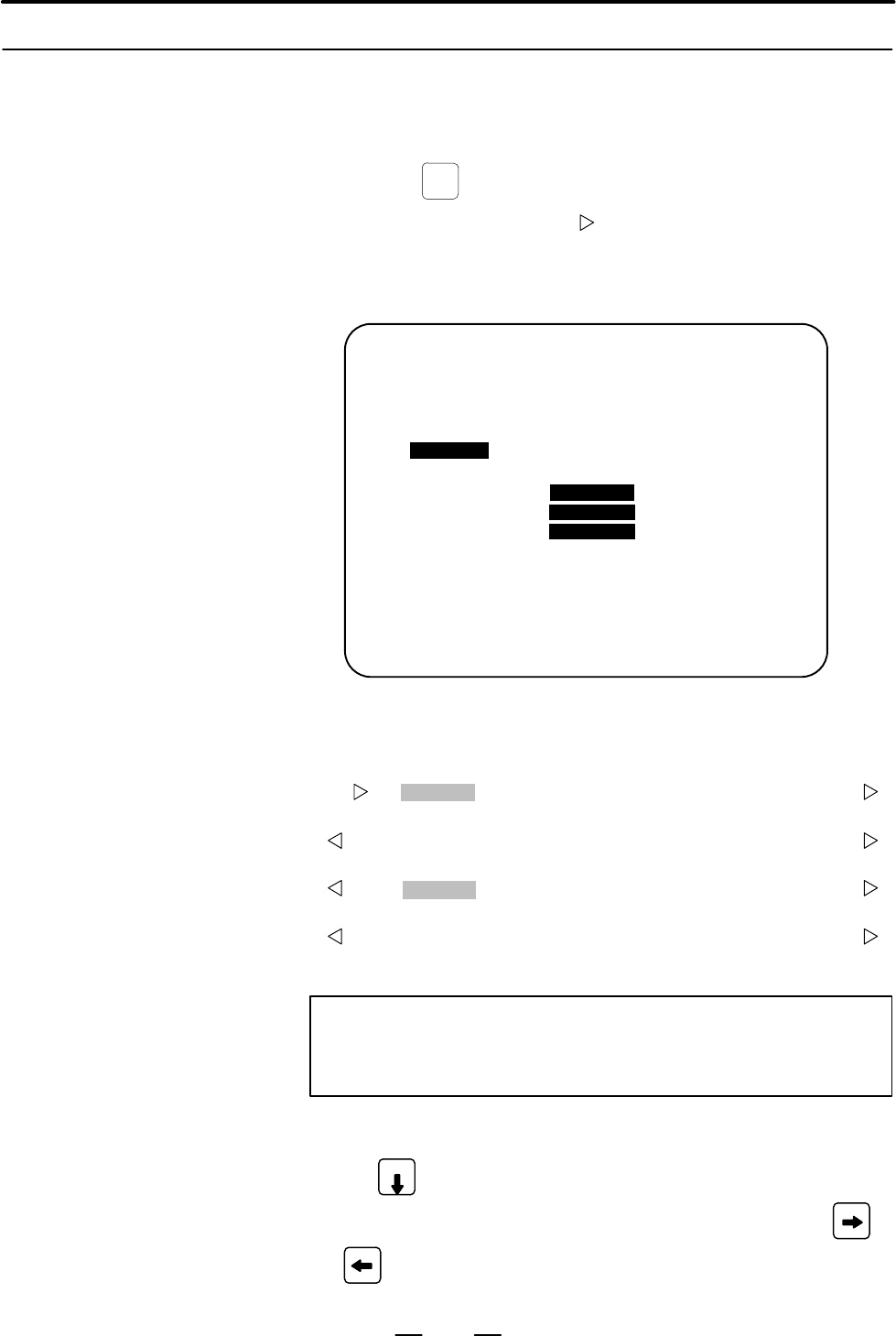
(1)Press the
SYSTEM
function key.
(2)Press the continue menu key [
]. The [OPEHIS] (operation history)
soft key are displayed.
(3)Press the [OPEHIS] soft key twice. The operation history screen is
displayed.
OPERATION HISTORY O1234 N12345
Page : 123
No.DATA No.DATA No.DATA
01 97/06/03 11 F0000.7↑ 21 F0001.0↓
02 08:40:00 12 F0000.5↑ 22 <POS>
03 <DELETE> 13 F0001.0↑ 23 <PROG>
04 F0000.6↑ 14 F0000.5↓ 24 <RESET>
05 MEM 15 P/S0010 25 EDIT
06 G0009.0↑ 16 97/06/03 26 O
07 G0009.1↑ 17 09:27:49 27 1
08 G0009.2↑ 18 <PROG> 28 2
09 ST↑ 19 <RESET> 29 3
10 ST↓ 20 F0000.7↓ 30 4
EDIT **** *** *** 08:20:52
[ TOP ][ BOTTOM ][ ][ ][PG.SRH]
On the operation history screen, the soft keys are configured as shown
below:
⇒ [
][PARAM ] [DGNOS] [PMC] [SYSTEM] [(OPE)][ ]
ãpush
[
] [ ] [ ] [ ] [OPEHIS] [(OPE)][ ]
ã push
[
][OPEHIS ] [SG–SEL] [ ] [ ] [(OPE)][ ]
ãpush
[ ] [ TOP ] [BOTTOM] [ ] [ ] [PG.SRH] [ ]
CAUTION
No additional history data is stored while the operation
history screen is being displayed.
(4)To display the next part of the operation history, press the page down
key
PAGE
. The next page is displayed.
To display the interface between two pages, press cursor key
or
. The screen is scrolled by one row.
1.5.2
Screen Display
D Displaying the operation
history
Contents Summary of POWER MATE i - D/H Maintenance manual
- Page 1FANUC Power Mate *-MODEL D FANUC Power Mate *-MODEL H MAINTENANCE MANUAL B-63175EN/03
- Page 2Ȧ No part of this manual may be reproduced in any form. Ȧ All specifications and designs are subject to change without notice. In this manual we have tried as much as possible to describe all the various matters. However, we cannot describe all the matters which must not be done, or which cannot be
- Page 3SAFETY PRECAUTIONS This section describes the safety precautions related to the use of FANUC Power Mate i–MODEL D/H. It is essential that these precautions be observed by users to ensure the safe operation of machines equipped with a Power Mate (all descriptions in this section assume this configura
- Page 4SAFETY PRECAUTIONS B–63175EN/03 1 DEFINITION OF WARNING, CAUTION, AND NOTE This manual includes safety precautions for protecting the maintenance personnel (herein referred to as the use) and preventing damage to the machine. Precautions are classified into Warnings and Cautions according to their b
- Page 5B–63175EN/03 SAFETY PRECAUTIONS 2 WARNINGS, CAUTIONS, AND NOTES RELATED TO CHECK OPERATION WARNING 1. When checking the operation of the machine with the cover removed (1) The user’s clothing could become caught in the spindle or other components, thus presenting a danger of injury. When checking th
- Page 6SAFETY PRECAUTIONS B–63175EN/03 3 WARNINGS AND NOTES RELATED TO REPLACEMENT WARNING 1. Always turn off the power to the Power Mate and the main power to the power magnetics cabinet. If only the power to the Power Mate is turned off, power may continue to be supplied to the serve section. In such a c
- Page 7B–63175EN/03 SAFETY PRECAUTIONS 4 WARNINGS AND NOTES RELATED TO PARAMETERS WARNING 1. When machining a workpiece for the first time after modifying a parameter, close the machine cover. Never use the automatic operation function immediately after such a modification. Instead, confirm normal machine
- Page 8SAFETY PRECAUTIONS B–63175EN/03 5 WARNINGS RELATED TO DAILY MAINTENANCE WARNING 1. Memory backup battery replacement When replacing the memory backup batteries, keep the power to the machine (CNC) turned on, and apply an emergency stop to the machine. Because this work is performed with the power on
- Page 9B–63175EN/03 SAFETY PRECAUTIONS WARNING 2. Absolute pulse coder battery replacement When replacing the memory backup batteries, keep the power to the machine (CNC) turned on, and apply an emergency stop to the machine. Because this work is performed with the power on and the cabinet open, only those
- Page 10SAFETY PRECAUTIONS B–63175EN/03 WARNING 3. Fuse replacement Before replacing a blown fuse, however, it is necessary to locate and remove the cause of the blown fuse. For this reason, only those personnel who have received approved safety and maintenance training may perform this work. When replacing
- Page 11B–63175EN/03 PREFACE PREFACE Description of 1.Display and operation this manual This chapter covers those items, displayed on the screen, that are related to maintenance. A list of all supported operations is also provided at the end of this chapter. It also presents a list of operations. 2.Hardware
- Page 12PREFACE B–63175EN/03 APPENDIX A. Alarm list B. List of maintenance parts C. Boot system D. Memory card operator’s manual E. Data backup F. Setting/display/maintenance using the main unit of the Power Mate i G. Maintenance using a notebook personal computer H. FSSB start–up procedure/materials I. Mai
- Page 13B–63175EN/03 PREFACE Related manuals The table below lists manuals related to MODEL D and H of Power Mate i. In the table, this manual is marked with an asterisk (*). Table 1 Manuals Related Specification Manual name Number DESCRIPTIONS B–63172EN CONNECTION MANUAL (HARDWARE) B–63173EN CONNECTION MAN
- Page 14
- Page 15B–63175EN/03 Table of Contents SAFETY PRECAUTIONS . . . . . . . . . . . . . . . . . . . . . . . . . . . . . . . . . . . . . . . . . . . . . . . . . . . . . s–1 PREFACE . . . . . . . . . . . . . . . . . . . . . . . . . . . . . . . . . . . . . . . . . . . . . . . . . . . . . . . . . . . . . . . . . .
- Page 16TABLE OF CONTENTS B–63175EN/03 1.14.3 Factory–set Maintenance Information . . . . . . . . . . . . . . . . . . . . . . . . . . . . . . . . . . . . . . . . . . . . 85 1.15 POWER MATE CNC MANAGER . . . . . . . . . . . . . . . . . . . . . . . . . . . . . . . . . . . . . . . . . . . . . . . . . . . 87 1.
- Page 17B–63175EN/03 TABLE OF CONTENTS 2.3.25 I/O Module for Operator’s Panel . . . . . . . . . . . . . . . . . . . . . . . . . . . . . . . . . . . . . . . . . . . . . . . 156 2.3.26 Interface Unit for Handy Machine Operator’s Panel . . . . . . . . . . . . . . . . . . . . . . . . . . . . . . . . 157 2.4 LIS
- Page 18TABLE OF CONTENTS B–63175EN/03 2.9.2 Replacing the Backlight of Detachable LCD/MDI . . . . . . . . . . . . . . . . . . . . . . . . . . . . . . . . . 205 2.9.3 Replacing the Backlight of Detachable LCD/MDI Type B . . . . . . . . . . . . . . . . . . . . . . . . . . . 206 2.9.4 Replacing the Backlight
- Page 19B–63175EN/03 TABLE OF CONTENTS 4.2 SPECIFICATION OF PMC . . . . . . . . . . . . . . . . . . . . . . . . . . . . . . . . . . . . . . . . . . . . . . . . . . . . . . . . 281 4.2.1 Specification . . . . . . . . . . . . . . . . . . . . . . . . . . . . . . . . . . . . . . . . . . . . . . . . . . . . . .
- Page 20TABLE OF CONTENTS B–63175EN/03 6.1.2.2 Spindle setting screen . . . . . . . . . . . . . . . . . . . . . . . . . . . . . . . . . . . . . . . . . . . . . . . . . . . . . . . . 386 6.1.2.3 Spindle tuning screen . . . . . . . . . . . . . . . . . . . . . . . . . . . . . . . . . . . . . . . . . . . . . .
- Page 21B–63175EN/03 TABLE OF CONTENTS 7.30 ALARM 972 (NMI ALARM) . . . . . . . . . . . . . . . . . . . . . . . . . . . . . . . . . . . . . . . . . . . . . . . . . . . . . . 453 7.31 ALARM 973 (NMI ALARM BY UNKNOWN CAUSE) . . . . . . . . . . . . . . . . . . . . . . . . . . . . . . . . . 454 7.32 ALARM 974 (
- Page 22TABLE OF CONTENTS B–63175EN/03 D.3.6 Using a Flash Memory Formatted by the Boot System in a Different Vendor’s System . . . . . 529 D.3.7 Using a Flash Memory Formatted by a Different Vendor’s System in the Boot System . . . . . 529 D.4 NAMES AND FUNCTION OF MEMORY COMPONENTS . . . . . . . . . . . .
- Page 23B–63175EN/03 TABLE OF CONTENTS G. MAINTENANCE USING A NOTEBOOK PERSONAL COMPUTER . . . . . . . . . . . . . . 562 G.1 OVERVIEW . . . . . . . . . . . . . . . . . . . . . . . . . . . . . . . . . . . . . . . . . . . . . . . . . . . . . . . . . . . . . . . . . . . . 563 G.2 INSTALLING THE DPL/MDI OPERATI
- Page 24TABLE OF CONTENTS B–63175EN/03 H.3 AUTOMATIC SETTING . . . . . . . . . . . . . . . . . . . . . . . . . . . . . . . . . . . . . . . . . . . . . . . . . . . . . . . . . . 621 H.3.1 [Sample Setting 1] General Configuration (Semi–Closed Loop) . . . . . . . . . . . . . . . . . . . . . . . 623 H.3.2 [Samp
- Page 25B–63175EN/03 TABLE OF CONTENTS I.8.1 Status Display of the LED on the Cabinet of CNC . . . . . . . . . . . . . . . . . . . . . . . . . . . . . . . . . 676 I.8.2 Status Display of the LED on the Display Unit . . . . . . . . . . . . . . . . . . . . . . . . . . . . . . . . . . . . 676 I.9 RESTRICTION .
- Page 26
- Page 27B–63175EN/03 1. DISPLAY AND OPERATION 1 DISPLAY AND OPERATION This chapter describes how to display various screens by the function keys. The screens used for maintenance are respectively displayed. 1.1 FUNCTION KEYS AND SOFT KEYS . . . . . . . . . . . . 2 1.2 SCREEN DISPLAYED IMMEDIATELY AFTER POWE
- Page 281. DISPLAY AND OPERATION B–63175EN/03 1.1 Operations and soft key display staturs for each function key are described below: FUNCTION KEYS AND SOFT KEYS 1.1.1 To display a more detailed screen, press a function key followed by a soft key at CRT, PDP, LCD, or handy operator’s panel. Soft keys are als
- Page 29B–63175EN/03 1. DISPLAY AND OPERATION POSITION SCREEN Soft key transition triggered by the function key POS POS Absolute coordinate display [ABS] [(OPRT)] [PTSPRE] [EXEC] [RUNPRE] [EXEC] Relative coordinate display [REL] [(OPRT)] (Axis or numeral) [PRESET] [ORIGIN] [ALLEXE] [Axis name] [EXEC] [PTSPR
- Page 301. DISPLAY AND OPERATION B–63175EN/03 PROGRAM SCREEN Soft key transition triggered by the function key PROG in the AUTO mode PROG Program display screen [PRGRM] [(OPRT)] [BG–EDT] See “When the soft key [BG–EDT] is pressed” (O number) [O SRH] (N number) [N SRH] [REWIND] [F SRH] [CAN] (N number) [EXEC
- Page 31B–63175EN/03 1. DISPLAY AND OPERATION PROGRAM SCREEN Soft key transition triggered by the function key PROG in the EDIT mode 1/3 PROG Program display [PRGRM] [(OPRT)] [BG–EDT] See “When the soft key [BG–EDT] is pressed” (O number) [O SRH] (Address) [SRH↓] (Address) [SRH↑] [REWIND] [F SRH] [CAN] (N n
- Page 321. DISPLAY AND OPERATION B–63175EN/03 2/3 (1) Program directory display [LIB] [(OPRT)] [BG–EDT] See “When the soft key [BG–EDT] is pressed” (O number) [O SRH] Return to the program [READ] [CHAIN] [STOP] [CAN] (O number) [EXEC] [PUNCH] [STOP] [CAN] (O number) [EXEC] Floppy directory display [FLOPPY]
- Page 33B–63175EN/03 1. DISPLAY AND OPERATION 3/3 (2) I/O CHANNEL (parameter No. 0020) is 4 Memory card directory display CARD [PRGRM] [DIR] [(OPRT)] [F SRH] (Numeral) [F SET] [CAN] [EXEC] [F READ] (Numeral) [F SET] (Numeral) [O SET] [STOP] [CAN] [EXEC] [N READ] (Numeral) [F SET] (Numeral) [O SET] [STOP] [C
- Page 341. DISPLAY AND OPERATION B–63175EN/03 PROGRAM SCREEN Soft key transition triggered by the function key PROG in the MDI mode PROG Program display [PRGRM] [(OPRT)] [BG–EDT] See “When the soft key [BG–EDT] is pressed” Program input screen [MDI] [(OPRT)] [BG–EDT] See “When the soft key [BG–EDT] is press
- Page 35B–63175EN/03 1. DISPLAY AND OPERATION PROGRAM SCREEN Soft key transition triggered by the function key PROG in the HANDLE/STEP, JOG, or ZRN mode PROG Program display [PRGRM] [(OPRT)] [BG–EDT] See “When the soft key [BG–EDT] is pressed” Current block display screen [CURRNT] [(OPRT)] [BG–EDT] See “Whe
- Page 361. DISPLAY AND OPERATION B–63175EN/03 PROG PROGRAM SCREEN Soft key transition triggered by the function key (When the soft key [BG–EDT] is pressed in all modes) 1/2 PROG Program display [PRGRM] [(OPRT)] [BG–END] (O number) [O SRH] (Address) [SRH↓] (Address) [SRH↑] [REWIND] [F SRH] [CAN] (N number) [
- Page 37B–63175EN/03 1. DISPLAY AND OPERATION 2/2 (1) Program directory display [LIB] [(OPRT)] [BG–EDT] (O number) [O SRH] Return to the program [READ] [CHAIN] [STOP] [CAN] (O number) [EXEC] [PUNCH] [STOP] [CAN] (O number) [EXEC] Floppy directory display [FLOPPY] [PRGRM] Return to the program [DIR] [(OPRT)]
- Page 381. DISPLAY AND OPERATION B–63175EN/03 OFFSET/SETTING SCREEN OFFSET Soft key transition triggered by the function key SETTING OFFSET SETTING Tool offset screen [OFFSET] [(OPRT)] (Number) [NO SRH] (Axis name) [INP.C.] (Numeral) [+INPUT] (Numeral) [INPUT] [DELETE] [ALL] [READ] [CAN] [EXEC] [PUNCH] [CAN
- Page 39B–63175EN/03 1. DISPLAY AND OPERATION SYSTEM SCREEN Soft key transition triggered by the function key SYSTEM 1/3 SYSTEM Parameter screen [PARAM] [(OPRT)] (Number) [NO SRH] [ON:1] [OFF:0] (Numeral) [+INPUT] (Numeral) [INPUT] [READ] [CAN] [EXEC] [PUNCH] [ALL] [CAN] [EXEC] [SELECT] [CAN] [EXEC] To ente
- Page 401. DISPLAY AND OPERATION B–63175EN/03 (1) (2) (3) 2/3 [WINDOW] [DIVIDE] [CANCEL] [DELETE] [SELECT] [WIDTH] [DUMP] [SEARCH] [BYTE] [WORD] [D.WORD] [DRARA]/[NDPARA] [PMCDGN] [TITLE] [STATUS] [SEARCH] [ALARM] [TRACE] [T.DISP]/[TRCPRM] [EXEC] [M.SRCH] [SEARCH] [INPUT] [PMCPRM] [TIMER] [COUNTR] [KEEPRL]
- Page 41B–63175EN/03 1. DISPLAY AND OPERATION (4) 3/3 Pitch error compensation screen [PITCH] [(OPRT)] (No.) [NO SRH] [ON:1] [OFF:0] (Numeral) [+INPUT] (Numeral) [INPUT] [READ] [CAN] [EXEC] To enter a file number: Press N , enter a file [PUNCH] [CAN] number, then press , [F–SRCH], and [EXEC] [EXEC] on the P
- Page 421. DISPLAY AND OPERATION B–63175EN/03 MESSAGE SCREEN Soft key transition triggered by the function key MESSAGE MESSAGE Alarm display screen [ALARM] Message display screen [MSG] Alarm history screen [HISTRY] [(OPRT)] [CLEAR] HELP SCREEN Soft key transition triggered by the function key HELP HELP Alar
- Page 43B–63175EN/03 1. DISPLAY AND OPERATION 1.1.2 Key Configuration of DPL/MDI FANUC Power Mate X DGNOS O N G AXIS PARAM POS Y K/A G X OPR F M S T PRGRM Function key F ALARM RD WRT NOT & @ H # / EOB No. VAR SUB OR AND STK P Data input key 7 8 9 READ INSRT I Q Program edit key 4 5 6 J WRITE DELET T/C R 1 2
- Page 441. DISPLAY AND OPERATION B–63175EN/03 (1) Function keys Function keys indicate large items like chapters in a document.
Indicates the current position. Conducts the following: In EDIT mode ...edits and displays the program in the memory In automatic operation ...displays command value. - Page 45B–63175EN/03 1. DISPLAY AND OPERATION CAUTION Pressing the READ or WRITE key activates the corresponding function. Be careful to press the correct key.If the wrong key is pressed, data may be transferred in the direction opposite to the desired direction.
Power Mate ← I/O device or memory car - Page 461. DISPLAY AND OPERATION B–63175EN/03 1.2 SCREEN DISPLAYED IMMEDIATELY AFTER POWER IS TURNED ON 1.2.1 Types of PCBs mounted on the slots are displayed. Slot Status Display If a hardware trouble or an incorrect mounting is found, this screen is displayed. D Slot state screen SLOT CONFIGURATION DISPLA
- Page 47B–63175EN/03 1. DISPLAY AND OPERATION 1.2.2 Setting Module Screen END : Setting 88E0–01 completed SLOT 01 (3046) : END Space : SLOT 02 (0050) : Setting incom- pleted Module ID Slot number 1.2.3 When the CRT/MDI has started normally and communication with the Configuration Display Power Mate i starts
- Page 481. DISPLAY AND OPERATION B–63175EN/03 1.2.4 1) When the CRT/MDI has started normally, but cannot communicate If it is Definitely with the Power Mate i (if the screen shown in Section 1.2.1 has not yet been displayed) Impossible to Start the Controller *** INTELLIGENT CRT/MDI 8813/03 *** ROM PARITY C
- Page 49B–63175EN/03 1. DISPLAY AND OPERATION 1.3 After the system has been installed correctly, you can find the PCBs installed and the softwares integrated on the system configuration screen. SYSTEM CONFIGURATION SCREEN 1.3.1 (1) Press SYSTEM key. Display Method (2) Press soft key [SYSTEM], then the syste
- Page 501. DISPLAY AND OPERATION B–63175EN/03 D Module ID See subsec. 1.2.1. D Software ID 40 : Basic function 1.3.3 Kind of software Software Configuration Software series Screen SYSTEM CONFIG (SOFTWARE) 01234 N12345 PAGE:02 SYSTEM 88E0 0001 Software version BASIC Software SERVO 9090 0001 configuration PMC
- Page 51B–63175EN/03 1. DISPLAY AND OPERATION 1.3.4 Configuration of the modules displayed on PCB. (1) Module Configuration Screen SYSTEM CONFIG (MODULE) 01234 N12345 PAGE:03 SLOT 00 MOTHER BOARD (2) AXIS CTRL CARD : 0D DISPLAY CTRL CARD : 0E CPU CARD : 01 FROM DIMM : 47 SRAM DIMM : 23 (4) DRAM DIMM : 86 PM
- Page 521. DISPLAY AND OPERATION B–63175EN/03 1.4 ALARM HISTORY SCREEN 1.4.1 Alarms generated in the Power Mate are recorded. The latest 50 alarms generated are recorded. The 50th and former alarms are deleted. General Alarm history cannot be displayed on DPL/MDI or DPL/MDI operation package. 1.4.2 (1) Pres
- Page 53B–63175EN/03 1. DISPLAY AND OPERATION 1.5 This function displays the key and signal operations performed by the NC operator upon the occurrence of a fault or the output of an NC alarm, OPERATION together with the corresponding NC alarms. Operation history HISTORY information cannot be displayed on t
- Page 541. DISPLAY AND OPERATION B–63175EN/03 1.5.2 Screen Display D Displaying the operation (1) Press the SYSTEM function key. history (2) Press the continue menu key [ ]. The [OPEHIS] (operation history) soft key are displayed. (3) Press the [OPEHIS] soft key twice. The operation history screen is displa
- Page 55B–63175EN/03 1. DISPLAY AND OPERATION These soft keys can also be used: 1) Pressing the [TOP] soft key displays the first page (oldest data). 2) Pressing the [BOTTOM] soft key displays the last page (latest data). 3) Pressing the [PG.SRH] soft key displays a specified page. Example) By entering 50 t
- Page 561. DISPLAY AND OPERATION B–63175EN/03 Mode selection signals and rapid traverse override signals are displayed as indicated below: Input signal Name displayed MD1 ND2 MD4 ZRN DNCI 0 0 0 0 0 MDI 1 0 0 0 0 AUTO 1 0 0 0 1 RMT 0 1 0 0 0 NOMODE 1 1 0 0 0 EDIT 0 0 1 0 0 STEP 1 0 1 0 0 JOG 1 0 1 1 0 ZRN 0
- Page 57B–63175EN/03 1. DISPLAY AND OPERATION 1) The power–on time is displayed as shown below: 97/01/20 ==== Year/Month/Day 09:15:30 ==== Hour:Minute:Second 2) The power–off time and the time when an alarm occurred are displayed in reverse video. 97/01/20 ==== Year/Month/Day 09:15:30 ==== Hour:Minute:Secon
- Page 581. DISPLAY AND OPERATION B–63175EN/03 1.5.3 (1) On the operation history signal selection screen, press the [(OPE)] soft Setting the Input Signal key. or Output Signal to be OP_HIS SIGNAL SELECT O1000 N02000 Recorded in the Operation History No. ADDRES SIGNAL No. ADDRES SIGNAL 01 G0004 00000010 11 *
- Page 59B–63175EN/03 1. DISPLAY AND OPERATION (8) Pressing the return menu key [ ] causes the [OPEHIS] (OPE) soft key to be displayed again. D Input signals and output signals to be recorded in the history NOTE 1 A cross (×) indicates that a signal will not be recorded. Also, any signal for which an address
- Page 601. DISPLAY AND OPERATION B–63175EN/03 #7 #6 #5 #4 #3 #2 #1 #0 G046 DRN KEY4 KEY3 KEY2 KEY1 f SBK f G047 f f f f f f f f ∼∼ G060 f f f f f f f f G061 f f f f f f f RGTA G062 f f f f f f f f ∼∼ G099 f f f f f f f f G100 +J8 +J7 +J6 +J5 +J4 +J3 +J2 +J1 G101 f f f f f f f f G102 –J8 –J7 –J6 –J5 –J4 –J3
- Page 61B–63175EN/03 1. DISPLAY AND OPERATION #7 #6 #5 #4 #3 #2 #1 #0 G126 SVF8 SVF7 SVF6 SVF5 SVF4 SVF3 SVF2 SVF1 G127 f f f f f f f f ∼∼ G129 f f f f f f f f G130 *IT8 *IT7 *IT6 *IT5 *IT4 *IT3 *IT2 *IT1 G131 f f f f f f f f G132 f f f f +MIT4 +MIT3 +MIT2 +MIT1 G133 f f f f f f f f G134 f f f f –MIT4 –MIT3
- Page 621. DISPLAY AND OPERATION B–63175EN/03 2. List of Address for 2–path control MT→PMC #7 #6 #5 #4 #3 #2 #1 #0 X000 f f f f f f f f ∼∼ X127 f f f f f f f f PMC→CNC (Signals for 1st path) #7 #6 #5 #4 #3 #2 #1 #0 G000 f f f f f f f f ∼∼ G003 f f f f f f f f G004 f f f f FIN f f f G005 f f f f TFIN SFIN f
- Page 63B–63175EN/03 1. DISPLAY AND OPERATION #7 #6 #5 #4 #3 #2 #1 #0 G100 +J8 +J7 +J6 +J5 +J4 +J3 +J2 +J1 G101 f f f f f f f f G102 –J8 –J7 –J6 –J5 –J4 –J3 –J2 –J1 G103 f f f f f f f f ∼∼ G105 f f f f f f f f G106 MI8 MI7 MI6 MI5 MI4 MI3 MI2 SMI1 G107 f f f f f f f f G108 f f f f f f f f G109 f f f f f f f
- Page 641. DISPLAY AND OPERATION B–63175EN/03 #7 #6 #5 #4 #3 #2 #1 #0 G133 f f f f f f f f G134 f f f f –MIT4 –MIT3 –MIT2 –MIT1 G135 f f f f f f f f ∼∼ G255 f f f f f f f f PMC→CNC (Signals for the 2nd path) #7 #6 #5 #4 #3 #2 #1 #0 G1000 f f f f f f f f ∼∼ G1003 f f f f f f f f G1004 f f f f FIN f f f G1005
- Page 65B–63175EN/03 1. DISPLAY AND OPERATION #7 #6 #5 #4 #3 #2 #1 #0 G1062 f f f f f f f f ∼∼ G1099 f f f f f f f f G1100 +J8 +J7 +J6 +J5 +J4 +J3 +J2 +J1 G1101 f f f f f f f f G1102 –J8 –J7 –J6 –J5 –J4 –J3 –J2 –J1 G1103 f f f f f f f f ∼∼ G1105 f f f f f f f f G1106 MI8 MI7 MI6 MI5 MI4 MI3 MI2 SMI1 G1107 f
- Page 661. DISPLAY AND OPERATION B–63175EN/03 #7 #6 #5 #4 #3 #2 #1 #0 G1131 f f f f f f f f G1132 f f f f +MIT4 +MIT3 +MIT2 +MIT1 G1133 f f f f f f f f G1134 f f f f –MIT4 –MIT3 –MIT2 –MIT1 G1135 f f f f f f f f ∼∼ G1255 f f f f f f f f PMC→MT #7 #6 #5 #4 #3 #2 #1 #0 Y000 f f f f f f f f ∼∼ Y127 f f f f f f
- Page 67B–63175EN/03 1. DISPLAY AND OPERATION 1.5.4 Recorded data can be output to an input/output unit connected via a Inputting and reader/punch interface. An output record can be input from the input/output unit. Outputting the Set the input/output unit to be used in setting parameters No. 0020 and Opera
- Page 681. DISPLAY AND OPERATION B–63175EN/03 1) Header T 0 C O P E R A T I O N H I S T O R Y ; C: Data word 2) MDI/soft key T 5 0 P 0 to 1 H * * ; P0: Usually P1: At power–on H **: Key code (See the following table.) 3) Signal T 5 1 P 0 to 6 N 0 to 255 H * * , * * ; New data Old data P0: X0000 and above P2
- Page 69B–63175EN/03 1. DISPLAY AND OPERATION 4) Alarm T 5 2 P 0 to 10 N * * * * ; P0: P/S No. 100 P1: P/S No. 000 P2: P/S No. 101 P3: P/S No. 0001 to 254 P4: Overtravel alarm P5: Overheat alarm P6: Servo alarm P7: System alarm P8: APC alarm P9: Spindle alarm P10: P/S alarm No. 5000 to 5999 P15: External al
- Page 701. DISPLAY AND OPERATION B–63175EN/03 6) MDI/soft key of path 2 T 5 4 P 0 to 1 H * * ; P0: Usually P1: At power–on H **: KCB code (See the following table.) 7) Signal of path 2 T 5 5 P 2, 6 N 1000 to 1255 H * * , * * ; New data Old data P2: G1000 and above P6: F1000 and above N***: DI/DO number H **
- Page 71B–63175EN/03 1. DISPLAY AND OPERATION Key codes (MDI/soft key) (00H to 7FH) 0 1 2 3 4 5 6 7 0 Space 0 @ P 1 ! 1 A Q 2 ” 2 B R 3 # 3 C S 4 $ 4 D T 5 % 5 E U 6 & 6 F V 7 ’ 7 G W 8 ( 8 H X 9 ) 9 I Y A ; * : J Z (EOB) B + K [ C ’ < L ¥ D – = M ] E . > N F / ? O – 45
- Page 721. DISPLAY AND OPERATION B–63175EN/03 (80H to FFH) 8 9 A B C D E F 0 Reset F0 * * 1 F1 * 2 F2 * 3 F3 * 4 Shift Insert F4 * * 5 Delete * 6 CAN Alter * 7 8 Cur→ Input POS * * * 9 Cur← PROG * * A Cur↓ Help OFFSET SETTING * * * B Cur↑ SYSTEM * * C MESSAGE * D CUSTOM GRAPH E Page↓ FR * * F Page↑ FL * * *
- Page 73B–63175EN/03 1. DISPLAY AND OPERATION 1.5.5 (1) While the operation history screen is displayed, no information can be Supplements recorded to the history. (2) An input signal having an on/off width of up to 16 msec is not recorded in the history. Some signals are not recorded in the history. (3) On
- Page 741. DISPLAY AND OPERATION B–63175EN/03 1.6 HELP FUNCTION 1.6.1 The help function displays alarm information, operation method and a General table of contents for parameters. This function is used as a handbook. DPL/MDI, DPL/MDI operation package and handy operator’s panel can not use the help functio
- Page 75B–63175EN/03 1. DISPLAY AND OPERATION (2) Pressing soft key [OPERAT], (alarm No.), and soft key [SELECT] in this order, a help message corresponding to the input alarm number is displayed. D Help for operation (1) Press [OPERAT], then a menu for operation method is displayed. HELP (OPERATION METHOD)
- Page 761. DISPLAY AND OPERATION B–63175EN/03 D Parameter table Press soft key [PARAM], then a parameter table is displayed. HELP (PARAMETER TABLE) O1234 N12345 1/4 Current page/ Total ·SETTING (NO.0000~ ) page ·READER/PUNCHER INTERFACE (NO.0100~ ) ·AXIS CONTROL/SETTING UNIT (NO.1000~ ) ·COORDINATE SYSTEM (
- Page 77B–63175EN/03 1. DISPLAY AND OPERATION 1.7 DISPLAYING DIAGNOSTIC PAGE 1.7.1 Displaying Diagnostic Page D CRT, PDP, Hand (1) Press SYSTEM key. operator’s panel, and LCD with touch panel (2) Press soft key [DGNOS], then a diagnostic screen is displayed. D DPL/MDI DGNOS (1) Press the PARAM key to select
- Page 781. DISPLAY AND OPERATION B–63175EN/03 D Cause of the cycle start LED turned off 020 CUT SPEED UP/DOWN 1 0 0 0 1 0 0 021 RESET BUTTON ON 0 0 1 0 0 0 0 022 RESET AND REWIND ON 0 0 0 1 0 0 0 023 EMERGENCY STOP ON 1 0 0 0 0 0 0 024 RESET ON 1 1 1 1 0 0 0 025 STOP MOTION OR DWELL 1 1 1 1 1 1 0 Input of e
- Page 79B–63175EN/03 1. DISPLAY AND OPERATION #7 #6 #5 #4 #3 #2 #1 #0 DGN 0202 CSA BLA PHA RCA BZA CKA SPH CSA: Hardware of serial pulse coder is abnormal BLA: APC battery voltage is low (warning) PHA: Serial pulse coder or feedback cable is erroneous. RCA: Serial pulse coder is faulty. Counting of feedback
- Page 801. DISPLAY AND OPERATION B–63175EN/03 D Details of stand–alone type serial pulse coder alarms #7 #6 #5 #4 #3 #2 #1 #0 DGN 205 OHA LDA BLA PHA CMA BZA PMA SPH #7(OHA): Overheat occurred in the stand–alone type pulse coder. #6(LDA): An LED error occurred in the stand–alone type pulse coder. #5(BLA): A
- Page 81B–63175EN/03 1. DISPLAY AND OPERATION D Cause of the APZ bit (bit 4 of parameter 1815) brought to 0 #7 #6 #5 #4 #3 #2 #1 #0 DGN 310 DTH ALP BZ2 PR2 PR1 PR1: The setting of the following parameters has been changed: Parameters 1821, 1850, 1860, 1861. PR2: The setting of the ATS bit (bit 1 of paramete
- Page 821. DISPLAY AND OPERATION B–63175EN/03 #7 #6 #5 #4 #3 #2 #1 #0 DGN 321 XE3 XE2 XE1 XE0 ER3 ER2 ER1 ER0 Indicates the cause of an FSSB error. #0(ER0): INFORMED ERROR #1(ER1): (RESERVE) #2(ER2): Master port disconnection #3(ER3): External EMG input Indicates the cause of an FSSB error resulting from a
- Page 83B–63175EN/03 1. DISPLAY AND OPERATION #7 #6 #5 #4 #3 #2 #1 #0 DGN 331 DMA TP1 TP0 HA2 HA1 HA0 #7 #6 #5 #4 #3 #2 #1 #0 DGN 333 DMA TP1 TP0 HA2 HA1 HA0 XX #7 #6 #5 #4 #3 #2 #1 #0 DGN 349 DMA TP1 TP0 HA2 HA1 HA0 #0, #1, #2(HA0, HA1, HA2): Indicates the host LSI address specified as a DMA destination. #
- Page 841. DISPLAY AND OPERATION B–63175EN/03 See the following table for the displayed detail numbers and the corresponding causes. For further detail information that could be used to take measures, refer to FANUC AC Servo Motor αSeries Parameter Manual (B–65150E). D Detailed descriptions about invalid se
- Page 85B–63175EN/03 1. DISPLAY AND OPERATION Detail Parameter Cause Measure number number 0884 2088 The internal value of the machine velocity Decrease the machine velocity feedback 0885 feedback coefficient has overflowed. coefficient. 0886 Alternatively, use the damping control function, which has an equ
- Page 861. DISPLAY AND OPERATION B–63175EN/03 Detail Parameter Cause Measure number number 10053 2018#0 The scale reverse connection bit has The scale reverse connection bit cannot been set up for a linear motor. be used for linear motors. 10062 2209#4 The amplifier in use does not support the If you want t
- Page 87B–63175EN/03 1. DISPLAY AND OPERATION D Serial spindle #7 #6 #5 #4 #3 #2 #1 #0 DGN 0400 SAI SSR POS This data indicates the offset data received by the CNC while it is calculating the machine coordinates. SAI 0 : Spindle analog control is not used. 1 : Spindle analog control is used. SSR 0 : Spindle
- Page 881. DISPLAY AND OPERATION B–63175EN/03 DGN 0410 Load meter of spindle [%] DGN 0411 Speed meter of spindle [%] DGN 0417 Feedback information of spindle position coder DGN 0418 Position error of spindle position loop mode D Diagnostic data related to rigid tapping DGN 450 Spindle position error during
- Page 89B–63175EN/03 1. DISPLAY AND OPERATION D Diagnostic data related to simple synchronous control DGN 540 Difference in the position error between the master and slave axes in simple synchronas control DGN 541 Difference in the position error between the master and slave axes in simple synchronas contro
- Page 901. DISPLAY AND OPERATION B–63175EN/03 The data items displayed on the diagnosis screen are obtained at the following positions: Semi–closed loop error (No. 551) Motor Command + + + S Kp Speed Machine - + control - Servo amplifier Ps Conversion coefficients Closed loop error (Parameters No. 2078 and
- Page 91B–63175EN/03 1. DISPLAY AND OPERATION 830 F–code being executed Unit: 0.001 mm/min or 0.00001 inch/min (When no decimal point is entered, units are 1 mm/min or 0.01 inch/min.) 831 Actual feedrate Unit: mm/min, deg/min, or 0.01 inch/min 832 Actual spindle speed Unit: rpm 833 Analog input value added
- Page 921. DISPLAY AND OPERATION B–63175EN/03 1.8 Power Mate STATE ACTUAL POSITION (ABSOLUTE) O1000 N00010 DISPLAY X 217.940 Y 363.233 PART COUNT 5 RUN TIME 0H15M CYCLE TIME 0H 0M38S ACT.F 3000MM/M S 0 T0000 MDI STRT MTN *** 09:06:35 [ ABS ] [ REL ] [ TOTAL ] [ HNDL ] [ OPRT ] MDI STRT MTN *** ALM/BAT (Alar
- Page 93B–63175EN/03 1. DISPLAY AND OPERATION 1.9 LIST OF OPERATIONS (SETTING AND DISPLAY UNIT (CRT, PDP, LCD, HANDY OPERATOR’S PANEL, AND LCD WITH TOUCH PANEL)) Reset Function KEY SETTING Mode Function Operation SW PWE=1 key Resetting the operating time _ POS [(OPRT)] [TIME: 0] → [EXEC] Resetting the numbe
- Page 941. DISPLAY AND OPERATION B–63175EN/03 File operation from the FANUC Handy File Function KEY SETTING Mode Function Operation SW PWE=1 key Searching a file for its beginning EDIT PROG N → FILE No. → [ ] → [F SRH] → [EXEC] Deleting a file OFF EDIT PROG N → FILE No. → [ ] → [F DELETE] → [EXEC] Verifying
- Page 95B–63175EN/03 1. DISPLAY AND OPERATION Output to FANUC Handy File Function KEY SETTING Mode Function Operation SW PWE=1 key Outputting parameters EDIT SYSTEM [(OPRT)] → [ ] → [PUNCH] → [EXEC] (PARAM) Outputting PMC parameters EDIT SYSTEM [ ] → [I/O]→ (CHANNEL NO) 1 (PMC) INPUT → (DEVICE NAME) [FDCAS]
- Page 961. DISPLAY AND OPERATION B–63175EN/03 Edit Function KEY SETTING Mode Function Operation SW PWE=1 key Displaying the amount of memory EDIT PROG [LIBRARY] used Deleting all the programs OFF EDIT PROG O → –9999 → DELETE Deleting one program OFF EDIT PROG O → Program No. → DELETE Deleting some blocks OF
- Page 97B–63175EN/03 1. DISPLAY AND OPERATION Clear Function KEY SETTING Mode Function Operation SW PWE=1 key Memory all clear When the _ CRT/MDI power is on RESET and DELETE or 7 and 9 At 2–path control (with Power Mate i–D2) Path 1 side : CAN and 1 Psth 2 side : CAN and 2 LCD with touch panel Turn on the
- Page 981. DISPLAY AND OPERATION B–63175EN/03 KEY SETTING Function Function SW PWE=1 Mode key Operation Program clear f When the _ CRT/MDI power is on DELETE At 2–path control (with Power Mate i–D2) Path 1 side : DELETE and 1 Path 2 side : DELETE and 2 LCD with touch panel Turn on the power while holding do
- Page 99B–63175EN/03 1. DISPLAY AND OPERATION Switching of 1–path mode (Power Mate i–D) and 2–path mode (Power Mate i–D2) Function KEY SETTING Mode Function Operation SW PWE=1 key From 1–path mode to 2–path When the _ CRT/MDI mode power is on Turn on the power while holding down S and 2 LCD with touch panel
- Page 1001. DISPLAY AND OPERATION B–63175EN/03 1.10 LIST OF OPERATIONS (SETTING AND DISPLAY UNIT (DPL/MDI)) Clear Function KEY SETTING Mode Function Operation SW PWE=1 key All memory clear Power ON _ 7 and 9 Parameter/offset clear f Power ON _ PARAM Power Mate i–D: 1 path side of dual paths system 1 + PARAM
- Page 101B–63175EN/03 1. DISPLAY AND OPERATION KEY SETTING Function Function SW PWE=1 Mode key Operation Offset data input f – VAR Offset data screen → No. → Data Number → INPUT → Data → INPUT Macro variable data input f – VAR Macro variable screen → No. → Data Number → INPUT → Data → INPUT Search Function K
- Page 1021. DISPLAY AND OPERATION B–63175EN/03 Registration from external I/O Function KEY SETTING Mode Function Operation SW PWE=1 key Parameter input f EDIT or DGNOS / PARAM screen → READ emergency PARAM stop Program input f EDIT PRGRM READ Pitch error compensation data f EDIT DGNOS / Pitch error compensat
- Page 103B–63175EN/03 1. DISPLAY AND OPERATION KEY SETTING Function Function SW PWE=1 Mode key Operation PMC parameterLadder program f Emergency DGNOS / DGNOS screen → No. → FileNumber → input Only when stop PARAM READ PMC Data type is automaticallyidentified. (The baud rate is fixed to 4800 bps.) PMC parame
- Page 1041. DISPLAY AND OPERATION B–63175EN/03 1.11 The Power Mate i requires some items to be set using switches on the main unit of the Power Mate i. When no setting/display unit is connected to LIST OF the Power Mate i, simple maintenance operations such as the display of OPERATIONS the status of the Powe
- Page 105B–63175EN/03 1. DISPLAY AND OPERATION 1.12 WARNING SCREEN DISPLAYED WHEN AN OPTION IS CHANGED D Warning screen Power Mate i displays a warning screen when the configuration of the options using the SRAM area is changed. The data for the function indicated on the screen is cleared the next time the s
- Page 1061. DISPLAY AND OPERATION B–63175EN/03 D Allocation error screen When an option which uses the SRAM area is added, the system software may require more SRAM than is currently installed in the system. In this case, an allocation error screen appears the first time the system is turned on after the add
- Page 107B–63175EN/03 1. DISPLAY AND OPERATION 1.13 System software can be replaced only with compatible system software. Otherwise, the first time the Power Mate i is turned on after the system WARNING SCREEN software is replaced, the following screen will be displayed and the DISPLAYED WHEN system will not
- Page 1081. DISPLAY AND OPERATION B–63175EN/03 1.14 The maintenance information screen is provided to record the history of maintenance performed by a service person of FANUC or machine tool MAINTENANCE builder. INFORMATION The screen has the following features: SCREEN D MDI alphabetical input is allowed. D
- Page 109B–63175EN/03 1. DISPLAY AND OPERATION Status display ⋅ OVER/INSERT : OVER : Overwrite mode ; INSERT: Insert mode ⋅ EDIT/VIEW : EDIT : Editing allowed ; VIEW : Editing inhi bited ⋅ Number of empty character spaces ⋅ Current cursor line ⋅ Current cursor column D Screen operation The maintenance inform
- Page 1101. DISPLAY AND OPERATION B–63175EN/03 Operation of the soft keys (1) View mode Edit Jump (2) (5) (2) Edit mode END I/O ALLDEL Jump (3) (4) (6) (5) (3) Edit saving MAINTE- NANCE IGNORE CANCEL (1) (1) (2) (4) I/O READ PUNCH CANCEL (6) (6) (2) (5) Jump BEGIN- END CANCEL ING (1) (2) (1) (2) (1) (2) (6)
- Page 111B–63175EN/03 1. DISPLAY AND OPERATION 1.14.2 The maintenance information can be read and punched. Maintenance When the maintenance information is input from or output to a memory card, a file name MAINTINF.DAT is used. Information (1) Format Input/Output %% Data (2) Reading When a MAINTINF.DAT file
- Page 1121. DISPLAY AND OPERATION B–63175EN/03 Example of stored maintenance information ***** TOP OF DATA SHEET ***** CUSTOMER : ² Customer name MODEL NO. :A02B–0259–B501 ² Basic unit specification SERIAL NO. :E98106944 ² Contract number DATE OF TEST :1998–01–24 ² Test date DATE OF MANUFACTURE:1998–01 ² Man
- Page 113B–63175EN/03 1. DISPLAY AND OPERATION 1.15 If the β servo amplifier is connected to Power Mate i, it is possible to display and set up the data related to the slave function on the Power Mate POWER MATE CNC i side, using the Power Mate CNC manager. MANAGER The power motion manager enables the follow
- Page 1141. DISPLAY AND OPERATION B–63175EN/03 The currently active soft key is displayed in reverse video. Pressing a soft key enables the corresponding function, as indicated below: POS: Current position display SYSTEM: System information MSG: Alarm list To select another function after one of the function
- Page 115B–63175EN/03 1. DISPLAY AND OPERATION 2. Press the [SYSTEM] soft key again. The system configuration screen appears. While this screen is displayed, the [SYSTEM] soft key is left displayed in reverse video. POWER MATE CNC MANAGER SYSTEM CONFIGURATION 1.GROUP0 / β SYSTEM
88A1 01 [ PA - Page 1161. DISPLAY AND OPERATION B–63175EN/03 D Searching for a parameter A search can be made for the parameter to be displayed. 1. Select the active slave. 2. Press the [(OPRT)] soft key. The following soft keys appear. [ NO.SRC ][ ][ ][ ][ INPUT ] 3. Enter a desired number in the key–in field by using MD
- Page 117B–63175EN/03 1. DISPLAY AND OPERATION D Current position display The screen shows the current position on the workpiece coordinate system or machine coordinate system. 1. Press the [POS] function selection soft key. The following soft keys appear: [ WORK ][ ][MACHIN][ ][ (OPRT) ] 2. To see the absol
- Page 1181. DISPLAY AND OPERATION B–63175EN/03 D Operating the active The active slave is subjected to the ZOOM function, which will be slave described later, and parameter overwrite. The title of the active slave is displayed in a color different from the display color of the other slave titles. The active
- Page 119B–63175EN/03 1. DISPLAY AND OPERATION POWER MATE CNC MANAGER O12345678 N12345 SYSTEM CONFIGURATION 1.GROUP0 / β SYSTEM
88A101 [ POS ][ DGNOS ][ ][ SYSTEM ][ MSG ] D Guidance message While the following soft keys are being displayed, a guidance message is displayed in the message fi - Page 1201. DISPLAY AND OPERATION B–63175EN/03 1.15.3 Parameter Input/Output D Saving parameters Slave parameters can be saved in built–in SRAM of Power Mate i or a memory card as a data file of program format. Specify the first digit of the registration program number in parameter 8760. Programs with predet
- Page 121B–63175EN/03 1. DISPLAY AND OPERATION D Writing parameters The data file of parameters saved in memory or a memory card as a program is written into the slave determined by the program number. The program number and memory device are determined as described in “Saving parameters.” 1. Select the acti
- Page 1221. DISPLAY AND OPERATION B–63175EN/03 1.15.4 Notes D Connecting an I/O Link When the servo unit β series is used as a slave of an I/O Link, the Power Mate i assigns I/O addresses. The salve data is input and output in units of 16 bytes. Therefore, 128 input/output points are necessary. Up to eight s
- Page 123B–63175EN/03 1. DISPLAY AND OPERATION 1.16 Using the periodic maintenance screens makes it easy to manage consumables (such as LCD unit backlight and backup battery) that are to PERIODIC be replaced periodically. MAINTENANCE SCREENS Setting the name and service life of consumables, and the countdown
- Page 1241. DISPLAY AND OPERATION B–63175EN/03 1.16.3 Up to 10 consumable items can be registered for management. Their Status Screen Display remaining service time and count status are displayed on the status screen. and Setting PERIODICAL MAINTENANCE O0001 N12345 (STATUS) ITEM NAME REMAIN *01 BATTERY FOR C
- Page 125B–63175EN/03 1. DISPLAY AND OPERATION Format G10 L61 Px [n] x… Registration number n… Item name [Alphanumeric characters*two–byte characters*alphanumeric characters] (b) MDI keypad–based registration An item name can be registered on the machine system menu screen by first entering it in the followi
- Page 1261. DISPLAY AND OPERATION B–63175EN/03 To erase the registered data for an item, place the cursor on the target item name, and press soft key [CLEAR], then soft key [EXEC]. [Machine system] menu screen PERIODICAL MAINTENANCE O0001 N12345 (MACHINE) ITEM NAME 01 02 03 04 05 06 07 08 09 10 >_ EDIT *** *
- Page 127B–63175EN/03 1. DISPLAY AND OPERATION [NC system] menu screen PERIODICAL MAINTENANCE O0001 N12345 (NC) ITEM NAME 01 BATTERY FOR CONTROLLER 02 BATTERY FOR PULSECODER 03 FAN MOTOR 04 LCD BACK LIGHT 05 06 07 08 09 10 >_ EDIT *** ***** *** **** 19:27:05 [ ][ STATUS ][ MACHIN ][ NC ][ (OPRT) ] [ SELECT ]
- Page 1281. DISPLAY AND OPERATION B–63175EN/03 NOTE 1 “*” cannot be used in item names, because it is used as control code. “[”, “]”, “(“, or “)” also cannot be used in item names. 2 When both alphanumeric and two–byte characters are used in an item name to be registered, the warning message “DATA IS OUT OF
- Page 129B–63175EN/03 1. DISPLAY AND OPERATION 1.16.4 The setting screen lets you specify the service life, the remaining service Setting Screen Display time, and count type for a registered item name. It also displays the same count status information as displayed on the and Setting status screen. PERIODICA
- Page 1301. DISPLAY AND OPERATION B–63175EN/03 (2) Remaining service time The remaining service time of an item (the time allowed before the item is replaced) is determined by count–down and displayed under “Remaining service time.” When the remaining service time decreases to a specified percentage (specifi
- Page 131B–63175EN/03 1. DISPLAY AND OPERATION NOTE 1 An attempt to set up the count type for a non–registered item or an item for which the service life has not been set up results in the warning message “EDIT REJECTED”. 2 Soft keys [INPUT] and [+INPUT] are ignored. 3 In leap years, an error of 24 hours occ
- Page 1321. DISPLAY AND OPERATION B–63175EN/03 a : Service life r : Remaining service time n : Item name [Alphanumeric characters*two–byte characters * alphanumeric characters q : count type 0 = not to count 1 = count at all times 2 = count during power–on time 3 = count during operation 4 = count during cut
- Page 133B–63175EN/03 1. DISPLAY AND OPERATION 1.16.6 FANUC Two–Byte Character Code Table 107
- Page 1341. DISPLAY AND OPERATION B–63175EN/03 108
- Page 135B–63175EN/03 1. DISPLAY AND OPERATION 109
- Page 1361. DISPLAY AND OPERATION B–63175EN/03 110
- Page 137B–63175EN/03 1. DISPLAY AND OPERATION 111
- Page 1381. DISPLAY AND OPERATION B–63175EN/03 112
- Page 139B–63175EN/03 2. HARDWARE 2 HARDWARE This chapter describes structure of Power Mate i control section, connection of units and the functions of PCBs and modules mounted on PCBs. 2.1 TOTAL CONNECTION DIAGRAM . . . . . . . . . . . . . 114 2.2 CONFIGURATION OF THE UNIT . . . . . . . . . . . . . . 117 2.
- Page 1402. HARDWARE B–63175EN/03 2.1 TOTAL CONNECTION DIAGRAM Base PCB J22 I/O Link slave–IN(JD1B) FANUC I/O Link Upper step J22 I/O Link slave–OUT(JD1A) FANUC I/O Link Lower step 24V–IN(CP1) J30 24VDC power 24V–OUT(CP2) I/O device, CRT/MDI, and etc. J30 CRT/MDI, etc. CPD1 J142 DISPLAY(JD41) JD13 RS–232–C(J
- Page 141B–63175EN/03 2. HARDWARE J40, J147 Position coder, POSITION(JA46) external pulse generator J38 Analog spindle control circuit SPINDLE(JA11) Breaker 200VAC AC reactor JA11 is not 200VAC used for Power MCC breaker Mate i–H CX1A TB2 CX3 J39 PSM TB1 CX4 CX1B CX2B JX1B Position coder CX1A TB1 CX2A JX1A J
- Page 1422. HARDWARE B–63175EN/03 I/O Link–II board From unit above the I/O Link–II JEMA(TB1) To unit below the I/O Link–II HSSB board HSSB(COP7) PC Ethernet board Ethernet(CD38) Hub PROFIBUS–DP board From unit above the Profibus–DP Profibus–DP(CN1) To unit below the Profibus–DP DeviceNet board From unit abo
- Page 143B–63175EN/03 2. HARDWARE 2.2 CONFIGURATION OF THE UNIT 2.2.1 The control units of the Power Mate i consist of below components. Configuration of the Table 2.2.1 Configuration of the control unit Control Unit No. Name Remarks 1 Control unit 2 Fan unit 3 Back panel Connection port of the first option
- Page 1442. HARDWARE B–63175EN/03 2.2.2 Connector Locations on the Control Unit Front view Bottom view BAT1: Battery JD41: Display (Display link) JD1A: To the I/O Link (slave) at the following stage JD47: Manual pulse generator analog input JD42: RS–232–C CNM1B: JD1A1: I/O Link (master) Memory card JA11: Spi
- Page 145B–63175EN/03 2. HARDWARE 2.2.3 The Power Mate i has the following LEDs and switches. LEDs and Switches on the Control Units D 7–segment LED (LEDM1) LEDM1 displays the status information of the Power Mate. It is used along with the MTSW rotary switch and PSW pushbutton switch also to control setting
- Page 1462. HARDWARE B–63175EN/03 Front view LEDM2: Blown fuse indicator LED LEDM1: LED indicator MTSW: Rotary switch PSW: Pushbutton switch Fig. 2.2.3 LEDs and switches on the control units 120
- Page 147B–63175EN/03 2. HARDWARE 2.2.4 The Power Mate i is equipped with a fan unit. It is easy to dismount and Fan Unit Configuration mount. There are two fans on the fan unit. Their cables are connected to the fan connection printed–circuit board. Each fan cable connector on the fan connection printed–cir
- Page 1482. HARDWARE B–63175EN/03 Name Specification Storage location Remark Application software for the A02B–0259–J550#6557 Memory module NC software for the PROFIBUS–DP PROFIBUS–DP slave/master slave/master function function Control software for the A02B–0259–J552#6553 Memory module Firmware for the PROFI
- Page 149B–63175EN/03 2. HARDWARE 2.3 CONFIGURATION OF PRINTED CIRCUIT BOARD AND LED DISPLAY 2.3.1 Base Printed Circuit Board D Specification Name Specification Base printed circuit board A16B–3200–0260 123
- Page 1502. HARDWARE B–63175EN/03 D Connector and LED locations CNM1B: Memory card BAT1: Battery JD41: Display link CPU: JA47: MPG, analog input CPU card JD42: RS–232–C JD1A1: I/O Link (master) JA11: Spindle JA46: Position coder JD40: RS–422 (DPL/MDI) LEDM2: Blown fuse indicator LED POS AI: CP1 (lower): 24 V
- Page 151B–63175EN/03 2. HARDWARE 2.3.2 Card Printed Circuit Board D Mounting location (1) CPU card (3) Option card (2) Axis control card D Specification No. Name Specification Function D H Remarks (1) CPU card A A20B–3300–0071 CNC control f f 486DX2 CPU card B A20B–3300–0051 f Pentium CPU card C A20B–3300–0
- Page 1522. HARDWARE B–63175EN/03 No. Name Specification Function D H Remarks (3) Option card 1 A20B–3300–0131 Analog spindle f f Option External pulse input Option card 2 A20B–3300–0130 Analog input f f Analog spindle External pulse input 126
- Page 153B–63175EN/03 2. HARDWARE 2.3.3 Memory Module D Mounting location (1) Memory module D Specification No. Name Specification Function D H Remarks (1) 4M/256K A20B–3900–0080 FROM 4MB f f Memory SRAM 256KB module 6M/1M A20B–3900–0120 FROM 6MB f Memory SRAM 1MB module 8M/1M A20B–3900–0141 FROM 8MB f f Mem
- Page 1542. HARDWARE B–63175EN/03 2.3.4 DRAM Module D Mounting location (2) DRAM module Connector DIMM module socket CPU card Side–B D Specification No. Name Specification Function Remarks (2) 12M DRAM A20B–3900–0040 DRAM 12MB For CPU card A, B module A20B–3900–0130 SRAM 12MB For CPU card C 8M DRAM A20B–3900
- Page 155B–63175EN/03 2. HARDWARE 2.3.5 Fan Connection Printed–circuit Board D Specification Name Specification Fan connection PCB A20B–9002–0240 D Connector locations Connector for connecting fan 1, Connector for CA39A connecting fan 2, CA39B Connector for connecting the base printed– circuit board, CN3 129
- Page 1562. HARDWARE B–63175EN/03 2.3.6 Backpanel D Specification Name Specification Backpanel A20B–2002–0680 D Connector locations Test Slot 2 connector, connection, JNATP JNA1P Slot 1 Base printed– connection, circuit board JNA1P connection, JNAM 130
- Page 157B–63175EN/03 2. HARDWARE 2.3.7 FANUC I/O Link–II Slave Board NOTE Refer to ”FANUC I/O Link–II CONNECTION MANUAL (B–62714EN)” for details. D Specification Name Printed–circuit board specification FANUC I/O Link–II slave board A20B–8100–0310 FANUC I/O Link–II slave board B A20B–8100–0381 D Connector a
- Page 1582. HARDWARE B–63175EN/03 NOTE 1 The I/O Link–II connection terminal board (TBA) can be mounted and dismounted with the I/O Link–II cable attached. After the TBA has been reconnected, tighten the terminal board screws again. 2 When replacing this printed–circuit board from the basic unit, detach the
- Page 159B–63175EN/03 2. HARDWARE 2.3.8 High–speed Serial Bus (HSSB) Board NOTE Refer to Technical report ”FANUC HIGH SPEED SERIAL BUS TYPE 2 CONNECTING AND MAINTENANCE MANUAL (A–73527E)” for details. D Specification Name Printed–circuit board specification High–speed serial bus (HSSB) board A20B–8001–0730 D
- Page 1602. HARDWARE B–63175EN/03 Green LED status display J : on and j : off 4 3 2 1 Status JJJJ The power has just been switched on. JJJj The HSSB board is being initialized. JJjJ The HSSB is waiting for the PC to complete booting. JJjj The CNC screen is displayed on the PC. Jjjj Start–up has been complete
- Page 161B–63175EN/03 2. HARDWARE 2.3.9 PROFIBUS–DP Board NOTE Refer to ”FANUC PROFIBUS–DP Board OPERATOR’S MANUAL (B–62924EN)” for details. D Specification Name Specification PROFIBUS–DP slave board A20B–8100–0440 PROFIBUS–DP master board A20B–8100–0470 D Connector and LED locations LED B LED 3 LED 2 LED 1
- Page 1622. HARDWARE B–63175EN/03 [PROFIBUS–DP slave board] Name Color Meaning Required action LED1 Green The software (firmware) on If LED1 is kept off: the communication board 1) Check the connection of has started running after the the board to the backpanel. reset of the CPU on the 2) Replace the board.
- Page 163B–63175EN/03 2. HARDWARE 2.3.10 Ethernet Board NOTE Refer to ”FANUC Ethernet Board/DATA SERVER Board OPERATOR’S MANUAL (B–63354EN)” for details. Refer to ”FANUC Fast Ethernet Board/Fast DATA SERVER Board OPERATOR’S MANUAL (B–63644EN)” for details of fast Ethernet board. D Specification Name Specific
- Page 1642. HARDWARE B–63175EN/03 D Status indication In the following explanation, the LED status is indicated as shown below: j : Off J : On l : Blinking z : To be ignored At power–up NO. LED 4321 Description 1 STATUS jjjj Power off 2 STATUS JJJJ Initial status immediately after power–up 3 STATUS JJJj MPU
- Page 165B–63175EN/03 2. HARDWARE 2.3.11 FL–net Board D Specification Name Specification FL–net board A20B–8100–0530 NOTE Refer to ”FANUC FL–net Board OPERATOR’S MANUAL (B–63434EN)” for details. D Connector and LED locations Setting pin TM1 HER COM POK LNK RES POS LIL Connector for COL connection with the ba
- Page 1662. HARDWARE B–63175EN/03 D LED indication transition at power–on NO. LED indication FL–net board state 4 3 2 1 POK LNK RES POS 1 j j j j Power off 2 J J J J Initial state immediately after power–on 3 J J J j Completion of MPU initialization 4 J J j j Completion of downloading of firmware 5 J j j j T
- Page 167B–63175EN/03 2. HARDWARE 2.3.12 DeviceNet Board (B) NOTE Refer to ”FANUC DeviceNet Board OPERATOR’S MANUAL (B–63404EN)” for details. Refer to ”FANUC DeviceNet Board OPERATOR’S MANUAL (B–63404EN)” for details of DeviceNet board C. D Specification Name Specification DeviceNet board A20B–8100–0490 Devi
- Page 1682. HARDWARE B–63175EN/03 Name Color Meaning Required action LED1 to 3 Green These LEDs indicate whether the DeviceNet board is the master board or slave mode. At power–up, these LEDs are off. LED1 LED2 LED3 Master board On Off Off Slave board On On Off LEDA Red An abnormality occurred in the If this
- Page 169B–63175EN/03 2. HARDWARE 2.3.13 Display Link Adapter D Specification Name Specification Display link adapter A20B–1007–0360 D Connector locations Display link Connector for connection with the preceding Display link stage, JD41B Connector for connection with the following stage, JD41A Connector for
- Page 1702. HARDWARE B–63175EN/03 D Connector and LED locations LED5 LED3 LED4 LED2 (GREEN) (RED) (GREEN) (RED) Channel 2 Channel 1 DC–DC Power supply Power supply CONVERTER connector connector CP2 CP1 I/O Link connector F +5V I/O Link connector (to the next stage) (to the next stage) JD1A2 JD1A1 (COPA2) (CO
- Page 171B–63175EN/03 2. HARDWARE 2.3.15 FSSB I/O Module Basic Unit D Specification Name Specification Printed circuit board for FSSB I/O A20B–2100–0390 module basic unit D Connector and LED locations Power supply connector On the board side: CP11B Connector for connection FUSE1 On the upper side: CP11A with
- Page 1722. HARDWARE B–63175EN/03 2.3.16 FSSB I/O Module Expansion Unit D Specification Name Specification Printed circuit board for FSSB I/O A20B–2002–0860 module expansion unit D Connector and LED locations LED1 LED DAL2 Connector for LED DAL1 connection with LED DAL0 the basic unit, CNF2 DI/DO connector O
- Page 173B–63175EN/03 2. HARDWARE 2.3.17 Basic Unit of the Analog Servo Interface Unit D Specification Name Specification Printed circuit board for basic unit of A20B–2100–0460 the analog servo interface unit D Connector and LED locations Power supply connector On the board side: CP11M FUSE1 On the upper sid
- Page 1742. HARDWARE B–63175EN/03 2.3.18 Expansion Unit of the Analog Servo Interface Unit D Specification Name Specification Printed circuit board for expansion unit A20B–2002–0870 of the analog servo interface unit D Connector and LED locations LED 1 Connector for connection with the basic unit, JV13L (Thi
- Page 175B–63175EN/03 2. HARDWARE 2.3.19 Basic Unit of the Separate Detector Interface Unit D Specification Name Specification Printed circuit board basic unit of the A20B–2100–0270 separate detector interface unit D Connector and LED locations Power supply connector On the board side: CP11B On the upper sid
- Page 1762. HARDWARE B–63175EN/03 2.3.20 Expansion Unit of the Separate Detector Interface Unit D Specification Name Specification Printed circuit board for expansion unit A20B–2002–0570 of the separate detector interface unit D Connector and LED locations Connector for connection with the basic unit, JF105
- Page 177B–63175EN/03 2. HARDWARE 2.3.21 The CRT control printed–circuit board is located on the rear of the CRT Control CRT/MDI, LCD/MDI, detachable LCD/MDI, detachable LCD/MDI type B, and separate MDI. The picture display CRT control Printed–circuit Board printed–circuit board is located on the rear of the
- Page 1782. HARDWARE B–63175EN/03 2.3.22 LCD with Touch Panel D Specification Name Specification Printed–circuit board for LCD with A20B–8100–040* touch panel D Connector and LED locations Connector for Connector for connection with LCD, CNP1 the inverter PCB, CN3 Connector for touch panel, Device No. Connec
- Page 179B–63175EN/03 2. HARDWARE Table 2.3.22 (a) Meaning of LED indications (when the power to the LCD with touch panel is turned on) Internal status of the LCD with touch panel and LEDR1 LEDG2 LEDG3 LEDG4 measures to be taken Red Green Green Green j : Off J : On L : Blinks j j j J Status: The LCD is suppl
- Page 1802. HARDWARE B–63175EN/03 D Rotary switch SWR1 This rotary switch is for future expansion. Keep it factory–set (0). D Setting pin 1) STM1, STM2 This setting pin works as a terminator for the display link. Usually, keep it factory–set (left side). To use this LCD with touch panel by connecting it in t
- Page 181B–63175EN/03 2. HARDWARE Name Color Meaning Required action DB2 Green The power has been turned If this LED remains off: on to the unit, and the power 1) Check the input power supply circuit of the unit supply. operates normally. 2) Check the fuse FU1. 3) Replace the printed–circuit board. DB1 Red A
- Page 1822. HARDWARE B–63175EN/03 2.3.24 I/O Module for Connector Panel D Specification Name Specification Printed–circuit board for I/O module for A20B–2100–0150 connector panel (basic) Printed–circuit board for I/O module for A20B–2002–0400 connector panel (extension A) Printed–circuit board for I/O module
- Page 183B–63175EN/03 2. HARDWARE 2.3.25 I/O Module for Operator’s Panel D Specification Name Specification Printed–circuit board for I/O module for A20B–2002–0470 operator’s panel A1 Printed–circuit board for I/O module for A20B–2002–0520 operator’s panel B1 Printed–circuit board for I/O module for A20B–200
- Page 1842. HARDWARE B–63175EN/03 2.3.26 Interface Unit for Handy Machine Operator’s Panel D Specification Name Specification Printed–circuit board for interface unit A20B–2003–0320 for handy machine operator’s panel D Connector and LED locations LED Connector terminal Fuse board TNB LI LD PO MS E0 E1 E2 Con
- Page 185B–63175EN/03 2. HARDWARE Detailed descriptions of LED error indications (f : On, : Off) MS E0 E1 E2 Error category Description Major cause Interface unit peripheral f f This unit is abnormal. This unit is defective. error Interface unit RAM parity f f This unit is abnormal. This unit is defective. e
- Page 1862. HARDWARE B–63175EN/03 2.4 LIST OF UNITS AND PRINTED CIRCUIT BOARDS 2.4.1 Control Unit Name D H Specification Remarks Power Mate i basic unit f f A02B–0259–B501 CPU card B f A02B–0259–H001 Pentium CPU card A f f A02B–0259–H002 486DX2 CPU card C f f A02B–0259–H003 MMX–Pentium 2 axes control card f
- Page 187B–63175EN/03 2. HARDWARE Name D H Specification Remarks I/O Link–II slave board B f f A02B–0259–J202 Ethernet board f f A02B–0259–J230 Fast Ethernet board f f A02B–0259–J293 PROFIBUS–DP board f f A02B–0259–J220 PROFIBUS–DP master board f f A02B–0259–J221 DeviceNet board f f A02B–0259–J240 DeviceNet
- Page 1882. HARDWARE B–63175EN/03 Name D H Specifications Remarks Display link terminal unit f f A02B–0259–D001 Display link adapter f f A02B–0259–C301 Handy operator’s panel f f A02B–0211–C020#R English key f f A02B–0211–C020#S Symbol key Handy operator’s panel f f A02B–0211–C050#R English key Type B f f A0
- Page 189B–63175EN/03 2. HARDWARE 2.4.4 Printed–circuit Boards of the Control Unit Type Name D H Specifications ID Remarks Base PCB Base PC board f f A16B–3200–0260 DD Card PCB CPU card B f f A20B–3300–0051 01 Pentium CPU card A f f A20B–3300–0071 09 486DX2 CPU card C f f A20B–3300–0171 11 MMX–Pentium A20B–3
- Page 1902. HARDWARE B–63175EN/03 Type Name D H Specifications ID Remarks DIMM module DRAM module f f A20B–3900–0042 85 For CPU card A, B f f A20B–3900–0041 86 f f A20B–3900–0040 87 SDRAM module A20B–3900–0132 A5 CPU card C f f A20B–3900–0131 A6 f f A20B–3900–0130 A7 Memory module f f A20B–3900–0080 41 FROM
- Page 191B–63175EN/03 2. HARDWARE 2.4.6 Other Printed–circuit Type Name D H Specifications Remarks Boards I/O External I/O card D f f A16B–2202–0733 External I/O card E f f A16B–2202–0732 Operator’s panel I/O f f A20B–2002–0470 module A1 Operator’s panel I/O f f A20B–2002–0520 module B1 Operator’s panel I/O
- Page 1922. HARDWARE B–63175EN/03 2.5 METHODS FOR WARNING DISMOUNTING AND When opening the cabinet and replacing a fan unit, be MOUNTING FAN careful not to touch the high–voltage circuits (marked and UNITS AND FANS fitted with an insulating cover). Touching the uncovered high–voltage circuits presents an ext
- Page 193B–63175EN/03 2. HARDWARE (2) Put your finger on the lower section of the front surface of the fan unit, and lift it up. Lift up the fan unit. (3) Lift up the fan unit until it is tilted to about 30 degrees. (4) Dismount the fan unit by pulling it upward and toward you. (3)Lift this portion of the fa
- Page 1942. HARDWARE B–63175EN/03 (4) Push down the latch on the upper section of the fan unit to latch it. Push down the latch. Unlatched state Latched state (5) Switch on the power, and make sure that no fan alarm condition does not occur and that both fans are rotating. NOTE 1 If the fan unit has not been
- Page 195B–63175EN/03 2. HARDWARE (5) Attach the cable connector of a replacement fan to the left–side connector (CA39A) on the fan connection printed–circuit board first, and place the fan at a location labeled FAN1 with the cable held to the right, then latch it. Be sure to lay the fan cable under FAN2. FA
- Page 1962. HARDWARE B–63175EN/03 2.6 METHODS FOR WARNING DISMOUNTING AND Do not dismount or mount printed–circuit boards unless you MOUNTING have received maintenance and safety training. PRINTED–CIRCUIT When opening the cabinet and replacing a printed–circuit BOARDS board, be careful not to touch the high–
- Page 197B–63175EN/03 2. HARDWARE 2.6.1 Methods for Dismounting and CAUTION 1 The fan unit must be removed before the base Mounting the Base printed–circuit board can be dismounted. If you attempt to Printed–circuit Board dismount the base printed–circuit board without removing the fan unit, both the fan uni
- Page 1982. HARDWARE B–63175EN/03 Mounting procedure 1) Hold the base printed–circuit board by grabbing its handles, A and B, and insert it into the rack all the way through, then engage it with the backpanel connector. 2) Place the fan unit back into the previous location by following the mounting procedure
- Page 199B–63175EN/03 2. HARDWARE Replacement procedure CAUTION 1 Before replacing the base printed–circuit board, remove the card PCBs and DIMM modules on the base printed–circuit board, and mount them on a new base printed–circuit board. As the memory module is removed, the SRAM memory contents are erased.
- Page 2002. HARDWARE B–63175EN/03 2.6.2 Mounting and Demounting Card CAUTION 1 The base printed–circuit board must be removed before the PCBS PCB card can be dismounted and mounted. Observe the CAUTIONS in Section 2.6.1. 2 Be careful not install the PCB card in an incorrect location. Otherwise, the printed–c
- Page 201B–63175EN/03 2. HARDWARE Demounting a card PCB 1) Dismount the base printed–circuit board by following the dismounting procedure described in Section 2.6.1. 2) Pull outward the claw of each of the four spacers used to secure the card PCB, then release each latch. (See Fig. a.) 3) Extract the card PC
- Page 2022. HARDWARE B–63175EN/03 Mounting a card PCB 1) Check that the claw of each of the four spacers is latched outward, then insert the card PCB into the connector. (See Fig. c.) 2) Push the claw of each spacer downward to secure the card PCB. (See Fig. d.) 3) Mount the base printed–circuit board by fol
- Page 203B–63175EN/03 2. HARDWARE 2.6.3 The DIMM module in the Power Mate i is either a memory or DRAM Mounting and module. Demounting DIMM The memory module is installed on the DIMM connector on the base printed–circuit board. To dismount the memory module, it is necessary Modules to remove the axis control
- Page 2042. HARDWARE B–63175EN/03 Demounting a DIMM 1) Open the claw of the socket outward. (See Fig. a.) Module 2) Extract the module slantly upward. (See Fig. b.) Mounting a DIMM 1) Insert the module slantly into the module socket, with side B facing Module upward. (See Fig. b.) 2) Push the module downward
- Page 205B–63175EN/03 2. HARDWARE 2.6.4 Methods for Dismounting and Mounting the Option Board Dismounting procedure 1) To pull out the option board, first detach any interfering cable. (Make sure that the detached cable is labeled the number of the mating connector.) 2) Hold the option board by grabbing its
- Page 2062. HARDWARE B–63175EN/03 2.6.5 The DeviceNet board must be dismounted from and mounted on the Methods for control unit according to the procedure described below. Dismounting and CAUTION Mounting the To dismount and mount the DeviceNet board, it is necessary DeviceNet Board to remove the base printe
- Page 207B–63175EN/03 2. HARDWARE Mounting the DeviceNet (1) Dismounting the base printed–circuit board board Before mounting the DeviceNet board, dismount the base printed–circuit board. For how to dismount the base printed–circuit board, see Section 2.6.1. CAUTION The base printed–circuit board must be dis
- Page 2082. HARDWARE B–63175EN/03 2.6.6 Methods for Dismounting and Mounting the Backpanel Dismounting procedure 1) Remove the base printed–circuit board and option board in advance by referring to Sections 2.6.1 and 2.6.4. 2) Detach latch A from the backpanel. (See Fig. 2.6.6.) 3) Detach latches B and C als
- Page 209B–63175EN/03 2. HARDWARE 2.6.7 Methods for Dismounting and Mounting the Fan Connection Printed–circuit Board Dismounting procedure 1) Dismount the fan unit by following the fan unit dismounting procedure described in Section 2.5.2. 2) Detach the fan cables from the fan connection printed–circuit boa
- Page 2102. HARDWARE B–63175EN/03 2.6.8 (1) The CRT control printed–circuit board turns on the power to the Replacing the CRT installed setting display unit and Power Mate i. Control Printed–circuit (2) The CRT control PC board is located behind the MDI. Remove all cables connected to the PC board. Board Mak
- Page 211B–63175EN/03 2. HARDWARE 2.6.11 (1) The CRT control PC board that is behind the MDI keyboard can be Replacing the MDI seen from the rear of the setting and display unit with MDI or separate type MDI. Remove the CRT control PC board as in 2.6.8 above. Keyboard (2) Remove the two connectors from the b
- Page 2122. HARDWARE B–63175EN/03 (8) Put back the cables removed before, attach the protection plate, and fasten it with nuts. When attaching the protection plate, make sure that the 2 cables leading to the inverter printed–circuit board run on the inside of the protection plate. (9) Adjust the LCD and the
- Page 213B–63175EN/03 2. HARDWARE 2.7 REPLACING THE WARNING FUSE Before replacing a blown fuse, it is necessary to remove the cause of the blown fuse. For this reason, only the personnel who have a working knowledge of maintenance and safety are allowed to carry out this work. When replacing a fuse with the
- Page 2142. HARDWARE B–63175EN/03 Base PC board LEDM2 CPU card FUS1 Power supply connector CP1/CP2 Fuse Built–in I/O connector Axis control card 188
- Page 215B–63175EN/03 2. HARDWARE 2.7.2 This subsection applies to the CRT control printed–circuit board installed The CRT Control PCB in the setting display unit. The table below lists the drawing number of the CRT/MDI control PCB. The CRT control PCB is mounted on the Fuse back of the CRT/MDI, LCD/MDI, CRT
- Page 2162. HARDWARE B–63175EN/03 2.7.3 This subsection applies to the 7.2” monochrome LCD printed–circuit Fuse for 7.2” LCD board used in the LCD/MDI, separate LCD, and detachable LCD/MDI. Table 2.7.3(a) Drawing number of the printed–circuit board for 7.2” monochrome LCD Name Specification Printed–circuit b
- Page 217B–63175EN/03 2. HARDWARE 2.7.5 This subsection applies to the detachable LCD/MDI. Detachable–LCD/MDI Table 2.7.5(a) Specification of detachable LCD/MDI Fuse Name Specification Detachable LCD/MDI A02B–0166–C271#R A02B–0166–C271#S The detachable LCD/MDI is equipped with the CRT control printed–circuit
- Page 2182. HARDWARE B–63175EN/03 Fuse on the 8.4” color The following applies to the 8.4” color LCD printed–circuit board used LCD printed–circuit in the detachable LCD/MDI type B. board Table 2.7.6(b) Specification of printed–circuit board for 8.4” color LCD Name Specification Printed–circuit board for 8.4
- Page 219B–63175EN/03 2. HARDWARE 2.7.8 This section describes the replacement of the Power Mate external I/O The External I/O Card card D, E fuses. The table below lists the names and drawing numbers of the I/O cards D, E. D, E Fuses 2.7.8 (a) I/O card drawing numbers Name Number of I/O points Drawing numbe
- Page 2202. HARDWARE B–63175EN/03 Table 2.7.9 (b) Capacity and specification of the fuse of the FSSB I/O module Name Capacity Specification FUSE1 1.0A A03B–0815–K001 Fuse FUSE1 LED 1 2.7.10 This section applies to the analog servo interface unit (basic unit). Analog Servo Interface There is no fuse on the ex
- Page 221B–63175EN/03 2. HARDWARE 2.7.11 This section applies to the I/O module for connector (basic). Panel I/O Module for Table 2.7.11 (a) Drawing number of I/O module for connector Connector Name Specification I/O module for connector (basic) A03B–0815–C001 The I/O module for connector contains a 24 VDC p
- Page 2222. HARDWARE B–63175EN/03 2.7.12 This section applies to the I/O module for operator’s panel. I/O Module for Table 2.7.12 (a) Drawing numbers of the I/O modules for operator’s panel Operator’s Panel Name Specification I/O module A1 for operator’s panel A20B–2002–0470 I/O module B1 for operator’s pane
- Page 223B–63175EN/03 2. HARDWARE 2.8 BATTERY REPLACEMENT 2.8.1 The part programs, offset data, and system parameters are stored in the Battery for Memory SRAM on the control unit. The power to the SRAM memory is backed up by a lithium battery mounted on the front panel of the control unit. Backup (3 VDC) Ev
- Page 2242. HARDWARE B–63175EN/03 Battery latch Battery connector Lithium battery (5) Remove the old battery, insert a new one into the battery holder, and attach the connector. Confirm that the battery is latched firmly. WARNING Using other than the recommended battery may result in the battery exploding. R
- Page 225B–63175EN/03 2. HARDWARE Dispose of used batteries as follows. (1) Small quantities (less than 10) Discharge the batteries and dispose of them as ordinary unburnable waste. (2) Large quantities Please consult FANUC. Replacing the alkaline (1) Prepare two new alkaline dry cells (size D). dry cells (s
- Page 2262. HARDWARE B–63175EN/03 2.8.2 Replacing Batteries for Absolute Pulse Coder WARNING (Servo Amplifier α Absolute pulse coder battery replacement Series) When replacing the memory backup batteries, keep the power to the machine (Servo amplifier) switched on, and hold the machine at an emergency stop.
- Page 227B–63175EN/03 2. HARDWARE WARNING Using other than the recommended battery may result in the battery exploding. Replace the battery only with the specified type (A06B–0073–K001). CAUTION 1 Replace the batteries for absolute pulse coder when servo amplifier power is ON. Replacing the batteries with po
- Page 2282. HARDWARE B–63175EN/03 (1) Turn machine (servo amplifier) power ON. (2) Remove the battery case from under the β series servo amplifier module by holding the case at both sides and pulling downwards. 6V litium battery for absolute pulse coder A98L–0031–0011 Battery cover A230–0533–X003 (3) Remove
- Page 229B–63175EN/03 2. HARDWARE 2.8.4 Prepare 4 alkaline batteries (UM–1type) commercially available in Replacing Batteries in advance. the Separate Battery (1) Turn machine (servo amplifier, separate type detector interface unit, and analog servo interface unit) power ON. Case (2) Loosen screws on the bat
- Page 2302. HARDWARE B–63175EN/03 2.9 SETTING AND DISPLAY UNIT WARNING BACKLIGHT Only those personnel who have received approved safety and maintenance training may perform this replacement REPLACEMENT AND work. ADJUSTMENT When opening the cabinet and replacing a unit, be careful not to touch the high–voltag
- Page 231B–63175EN/03 2. HARDWARE (6) The manufacturer of the LCD can be identified by the way its backlight lid is mounted. Hitachi Make the LCD screen face toward you, remove the 3 latches from the left side and then the lid. (See Fig. 2.9.1 (b).) Sharp Make the LCD screen face toward you, remove the 3 scr
- Page 2322. HARDWARE B–63175EN/03 Connector Display surface of LCD unit Backlight Fig. 2.9.1 (c) For the backlight manufactured by Sharp 2.9.2 This subsection applies to the replacement of the detachable LCD/MDI Replacing the backlight. Backlight of Table 2.9.2(a) Specification of detachable LCD/MDI Detachab
- Page 233B–63175EN/03 2. HARDWARE (8) The manufacturer of the LCD can be identified by the way its backlight lid is mounted. Hitachi, Ltd. Remove the 3 latches from the left side and then the lid. (See Fig. 2.9.1 (b).) Sharp Corp Remove the 3 screws from the left side and then the lid. (See Fig. 2.9.1 (c).)
- Page 2342. HARDWARE B–63175EN/03 (2) Remove the 10 screws from the rear of the detachable LCD/MDI type B, and then take out the metal plate on which the CRT control printed–circuit board and power supply are mounted. (Be careful because the metal plate is connected with main unit through cables.) (3) Remove
- Page 235B–63175EN/03 2. HARDWARE 2.9.4 This subsection applies to the replacement of the backlight of the color Replacing the LCD with touch panel. Backlight of the Color Table 2.9.4(a) Specification of color LCD with touch panel LCD with Touch Panel Name Specification Color LCD with touch panel A02B–0259–C
- Page 2362. HARDWARE B–63175EN/03 Connector Projection hole Projection LCD unit rear viewer Backlight Fig. 2.9.4(b) How to remove the backlight 2.9.5 This subsection applies to the replacement of the backlight of the Replacing the monochrome LCD with touch panel. Backlight of Table 2.9.5(a) Specification of
- Page 237B–63175EN/03 2. HARDWARE (5) Make the display screen of the LCD face upward, and remove the 3 latches from the left side and then the lid. (6) Replace the backlight in the case with a new one. (7) To assemble, reverse the above procedure. When mounting the unit on the cabinet, run the backlight powe
- Page 2382. HARDWARE B–63175EN/03 2.9.6 The 7.2–inch monochrome LCD is provided with a contrast adjustment 7.2–inch Monochrome potentiometer and video signal adjustment switches. The contrast is adjusted when the printed–circuit board for LCD or panel LCD Adjustment is replaced. Otherwise, it should not be n
- Page 239B–63175EN/03 2. HARDWARE HS CLK (3) Horizontal position adjustment Switch SW1 This switch is factory–set and normally need not be adjusted by the user. If the setting is changed by mistake, re–adjust it according to the following procedure. (a) Switch SW1 is used to move the display horizontally in
- Page 2402. HARDWARE B–63175EN/03 2.9.8 Fine adjustment of the video signal is supported to enable its use with Adjusting the Separate plasma displays of separate type PDP. This adjustment is necessary to compensate for errors resulting from the combination of NC devices and Type PDP cables. Adjustment of th
- Page 241B–63175EN/03 2. HARDWARE 2.9.9 LCD with Touch Panel LCD with a touch panel The touch panel is operated by directly touching the LCD screen. For this operation, be sure to use a FANUC–supplied pen (A02B–0236–K111) dedicated to the touch panel. If a sharp–pointed pen is used, for example, to touch the
- Page 2422. HARDWARE B–63175EN/03 Old protection sheet White protection sheet on the back side of a new protection sheet Touch panel compensation D Condition that requires Touch panel compensation is required: compensation 1 When the LCD unit is replaced 2 When the touch panel is replaced 3 When the touch pa
- Page 243B–63175EN/03 2. HARDWARE 2.10 By changing the setting (rotary switch) on an expansion module, a connection can be made to skip an expansion module or expansion SETTING OF I/O modules as shown below. MODULE FOR CONNECTOR PANEL Basic module Basic module 1 Basic module 2 Basic module 3 Basic module Bas
- Page 2442. HARDWARE B–63175EN/03 Setting Indication Meaning of setting position 2 2 Set the rotary switch of an expansion module to this position when the two preceding expansion mod- ules are skipped. 3 – Setting prohibited 4~F 4, –, 6, –, 4, 8, or C has the effect of 0. 8, –, A, –, 5, 9, or D has the effe
- Page 245B–63175EN/03 2. HARDWARE NOTE To expansion module A (DI/DO = 24/16, with a manual pulse generator interface) (A03B–0815–C002), a rotary switch is added as the other modules are modified. However, expansion module A is always installed at the location of expansion module 1, so that the setting of exp
- Page 2462. HARDWARE B–63175EN/03 2.11 The peripheral units and the control unit have been designed on the assumption that they are housed in closed cabinets. In this manual ENVIRONMENTAL “cabinet” refers to the following: REQUIREMENTS D Cabinet for housing the control unit or peripheral units; D Operation p
- Page 247B–63175EN/03 2. HARDWARE 2.12 The following regulated power supply is required for the input power supply of the Power Mate controller and peripheral units. POWER SUPPLY FOR 24 VDC ±10% (including instantaneous changes and ripple). CONTROL UNITS Ripple voltage x 1.2 Vp–p Table 2.12 (a) Power supply
- Page 2482. HARDWARE B–63175EN/03 Table 2.12 (a) Power supply capacity for control unit Unit Power supply capacity Operator’s panel I/O 300 + 7.3 x n (mA) where n is the number of module B1/B2 input points that are turned on simultaneously (*1) FSSB I/O module basic 300 + 7.3 x n (mA) where n is the number o
- Page 249B–63175EN/03 2. HARDWARE 2.13 HEAT DISSIPATED Table 2.13 (a) Heat dissipated for control unit BY EACH UNIT Unit Heat loss Control unit 25W (No option board is included.) Option board HSSB board 4W I/O Link–II slave board 6W I/O Link–II slave board B 6W PROFIBUS–DP master board 6W PROFIBUS–DP slave b
- Page 2502. HARDWARE B–63175EN/03 Table 2.13 (a) Heat dissipated for control unit Unit Heat loss Analog servo interface unit, basic unit 10W (type F) 17W (type M) Analog servo interface unit, basic unit 14W (type F) + expansion unit 28W (type M) NOTE 1 For other peripheral devices (I/O, etc.), see the heat d
- Page 251B–63175EN/03 2. HARDWARE 2.14 The CNC has been steadily reduced in size using surface–mount and custom LSI technologies for electronic components. The CNC also is ACTION AGAINST designed to be protected from external noise. However, it is difficult to NOISE measure the level and frequency of noise q
- Page 2522. HARDWARE B–63175EN/03 NOTE 1 The groups must be 10 cm or more apart from one another when binding the cables in each group. 2 The electromagnetic shield refers to shielding between groups with grounded steel plates. Cabinet Servo Spindle Control amp. amp. unit Cable of group B, C Duct To operator
- Page 253B–63175EN/03 2. HARDWARE 2.14.2 The following ground systems are provided for the machine : Ground D Signal ground Signal ground connects the reference potential (0 V) to the electrical signals to ground. D Protection grounding Protection grounding is used for safety and suppressing noise. More spec
- Page 2542. HARDWARE B–63175EN/03 2.14.3 Connect the Power Mate i signal ground terminal (FG terminal) to the Connecting the Signal grounded plate of the cabinet. The grounded plate must be connected to the protection grounding (PE) as shown below. Ground Terminal of the Control Unit Cabinet FG terminals (Fa
- Page 255B–63175EN/03 2. HARDWARE 2.14.4 The AC/DC solenoid and relay are used in the power magnetics cabinet. Noise Suppressor A high pulse voltage is caused by coil inductance when these devices are turned on or off. This pulse voltage induced through the cable causes the electronic circuits to be disturbe
- Page 2562. HARDWARE B–63175EN/03 Diode Diode (used for direct–current circuits) – + Diode Use a diode which can withstand a DC relay voltage up to two times the applied voltage and a current up to two times the applied current. 2.14.5 If a cable connected to the CNC, servo amplifier, spindle amplifier, or C
- Page 257B–63175EN/03 2. HARDWARE ÇÇ Machine side installation ÇÇ board ÇÇ Control unit ÇÇ ÇÇ ÇÇ ÇÇ ÇÇ ÇÇ ÇÇ ÇÇ Ground plate ÇÇ ÇÇ ÇÇ Metal fittings ÇÇ ÇÇ for clamp Shield cover Fig. 2.14.5 (b) Cable clamp (2) Prepare ground plate like the following figure. Ground terminal (grounded) Hole for securing metal
- Page 2582. HARDWARE B–63175EN/03 Ground 8mm plate 12mm 20mm Fig. 2.14.5 (d) Ground plate holes (Reference) Outer drawings of metal fittings for clamp. Max. 55mm 28mm 6mm 17mm Fig. 2.14.5 (e) Outer drawings of metal fittings for clamp Ordering specification for metal fittings for clamp A02B–0124–K001 (8 piec
- Page 259B–63175EN/03 3. INPUT AND OUTPUT OF DATA 3 INPUT AND OUTPUT OF DATA Once the memory module or base printed–circuit board is replaced, or the memory is cleared, it becomes necessary to re–set data in the memory. This chapter explains how to input parameters, part programs, and tool offset amounts fro
- Page 2603. INPUT AND OUTPUT OF DATA B–63175EN/03 3.1 SETTING PARAMETERS FOR INPUT/OUTPUT D Setting procedure of 1. Set to emergency stop state. parameters (CRT/MDI) 2. Press OFFSET SETTING key several times or press soft key [SETING] to display SETTING (HANDY) screen. 3. Set the cursor to PARAMETER WRITE an
- Page 261B–63175EN/03 3. INPUT AND OUTPUT OF DATA NOTE There are two reader/punch interfaces. Specify which to use in parameter No. 20. 6. After the parameters have been input, set PARAMETER WRITE on the SETTING screen to 0. Press RESET to release alram 100. 7. Convenient method 1) To change parameters in bi
- Page 2623. INPUT AND OUTPUT OF DATA B–63175EN/03 DPL/MDI 1. Set emergency stop. 2. Press the [VAR] key to display the settings screen. 3. Use the cursor keys to position the cursor at PWE, then press the 1 key and the INPUT key, in that order, to enable parameters to be written. The Power Mate will generate
- Page 263B–63175EN/03 3. INPUT AND OUTPUT OF DATA 3.2 The Power Mate i memorized the following data. Save a backup copy of the latest data to the flash memory card or an I/O INPUTTING/ unit beforehand, while the controller is running normally. OUTPUTTING DATA (1) CNC paramter (2) PMC parameter (3) Pitch erro
- Page 2643. INPUT AND OUTPUT OF DATA B–63175EN/03 0102 pecification number of input/output device Table 3.2.1 Set value and Input/Output Device Set value Input/Output device 0 RS–232–C (except the following for connection with a PC) 3 FANUC Handy File NOTE If I/O CHANNEL = 2 (parameter No. 122), it is imposs
- Page 265B–63175EN/03 3. INPUT AND OUTPUT OF DATA Explanations (Output to a floppy) D File output location When output is conducted to the floppy, the program is output as the new file after the files existing in the floppy. New files are to be written from the beginning with making the old files invalid, us
- Page 2663. INPUT AND OUTPUT OF DATA B–63175EN/03 11.In DEVICE item, press soft key [FDCAS]. (for handy file) 12.In KIND DATA item, press soft key [PARAM]. 13.In FUNCTION item, press soft key [WRITE]. 14.In FILE No item, specify a file name. In this example input as follows: # P M C INPUT 15.Press soft key [
- Page 267B–63175EN/03 3. INPUT AND OUTPUT OF DATA 3.2.5 Outputting Custom Macro Variable Values Procedure (CRT/MDI) 1. Select EDIT mode. 2. Press OFFSET SETTING key. 3. Press key and soft key [MACRO] to select custom macro variable screen. 4. Press soft key [(OPRT)] and then key . 5. Press soft key [PUNCH] a
- Page 2683. INPUT AND OUTPUT OF DATA B–63175EN/03 5. In order to stop output of data from a tape before it has finished, turn on external reset signal ERS (bit 7 of G008). Once data output from a tape has been stopped, it cannot be restarted. 3.2.7 Outputting Part Program Procedure (CRT/MDI) 1. Confirm the f
- Page 269B–63175EN/03 3. INPUT AND OUTPUT OF DATA 3.2.8 Outputting Ladder Programs Procedure (CRT/MDI) 1. Select MDI mode. 2. Press OFFSET SETTING key then soft key [SETTING] to select a setting screen. 3. Set the cursor to PARAMETER WRITE and input 1 and INPUT . At this time, alarm 100 will be generated. 4.
- Page 2703. INPUT AND OUTPUT OF DATA B–63175EN/03 3.2.9 Inputting CNC CAUTION Parameters For a system using an absolute pulse coder, reference position setting is required once all parameters have been input. Procedure (CRT/MDI) 1. Set to the emergency stop state. 2. Press SYSTEM key and soft key [PARAM] to
- Page 271B–63175EN/03 3. INPUT AND OUTPUT OF DATA 7. Set the cursor to K17 (SB5) or K900 (SB6) and set bit 1 to 1. Enter: X X X X X X 1 X INPUT . where X represents a value that is displayed before entry. Entering this way selects the data input/output screen. 8. Press key and key. 9. Press soft key [I/O] an
- Page 2723. INPUT AND OUTPUT OF DATA B–63175EN/03 Procedure (DPL/MDI) 1. Select EDIT mode. 2. The Pitch Error Compensation data screen is selected by pressing the [DGNOS/PARAM] key. 3. Press [READ] key. 4. Pitch Error Compensation data are input to the memory by this operation. 3.2.12 Inputting Custom Macro
- Page 273B–63175EN/03 3. INPUT AND OUTPUT OF DATA 3.2.13 Inputting Tool Compensation Amount Procedure (CRT/MDI) 1. Select the EDIT mode. 2. Turn off the program protect (KEY=1). 3. Press PROG key, and press soft key[PRGRM] to display the program contents screen. 4. Press soft key [(OPRT)], , [F SRH], and 5 [
- Page 2743. INPUT AND OUTPUT OF DATA B–63175EN/03 NE8 l 0 : Programs of 8000s can be edited. 1 : Programs of 8000s are protected. 1. Confirm that mode is EDIT mode. 2. Turn off the program protect (KEY3=1). 3. Press PROG key and press soft key [PRGRM] to select a part program file. 4. Press soft key [(OPRT)]
- Page 275B–63175EN/03 3. INPUT AND OUTPUT OF DATA 12.Press soft key [EXEC] and the PMC ladder are started to be input. 13.Store the input ladder into FROM. (On the screen displayed by pressing the [PMC] key, then the [I/O] key, set FROM for DEVICE and press the [WRITE] key, in the same way as in steps 8 to 1
- Page 2763. INPUT AND OUTPUT OF DATA B–63175EN/03 3.3 To input/output a particular type of data, the corresponding screen is usually selected. For example, the parameter screen is used for parameter DATA INPUT/OUTPUT input from or output to an external input/output unit, while the program ON THE ALL IO scree
- Page 277B–63175EN/03 3. INPUT AND OUTPUT OF DATA 3.3.1 Input/output–related parameters can be set on the ALL IO screen. Setting Parameters can be set, regardless of the mode. Input/output–related Parameters Setting input/output–related parameters Procedure 1 Press function key SYSTEM . 2 Press the rightmost
- Page 2783. INPUT AND OUTPUT OF DATA B–63175EN/03 3.3.2 A program can be input and output using the ALL IO screen. Inputting and When entering a program using a handy file or memory card, the user must specify the input file containing the program (file search). Outputting Programs File search Procedure 1 Pr
- Page 279B–63175EN/03 3. INPUT AND OUTPUT OF DATA Inputting a program Procedure 1 Press soft key [PRGRM] on the ALL IO screen, described in Section 3.3.1. 2 Select EDIT mode. A program directory is displayed. 3 Press soft key [(OPRT)] . The screen and soft keys change as shown below. ⋅ A program directory is
- Page 2803. INPUT AND OUTPUT OF DATA B–63175EN/03 Outputting programs Procedure 1 Press soft key [PRGRM] on the ALL IO screen, described in Section 3.3.1. 2 Select EDIT mode. A program directory is displayed. 3 Press soft key [(OPRT)] . The screen and soft keys change as shown below. ⋅ A program directory is
- Page 281B–63175EN/03 3. INPUT AND OUTPUT OF DATA Deleting files Procedure 1 Press soft key [PRGRM] on the ALL IO screen, described in Section 3.3.1. 2 Select EDIT mode. A program directory is displayed. 3 Press soft key [(OPRT)] . The screen and soft keys change as shown below. ⋅ A program directory is disp
- Page 2823. INPUT AND OUTPUT OF DATA B–63175EN/03 3.3.3 Parameters can be input and output using the ALL IO screen. Inputting and Outputting Parameters Inputting parameters Procedure 1 Press soft key [PARAM] on the ALL IO screen, described in Section 3.3.1. 2 Select EDIT mode. 3 Press soft key [(OPRT)] . Sof
- Page 283B–63175EN/03 3. INPUT AND OUTPUT OF DATA 3.3.4 Offset data can be input and output using the ALL IO screen. Inputting and Outputting Offset Data Inputting offset data Procedure 1 Press soft key [OFFSET] on the ALL IO screen, described in Section 3.3.1. 2 Select EDIT mode. 3 Press soft key [(OPRT)] .
- Page 2843. INPUT AND OUTPUT OF DATA B–63175EN/03 3.3.5 Custom macro common variables can be output using the ALL IO screen. Outputting Custom Macro Common Variables Outputting custom macro common variables Procedure 1 Press soft key [MACRO] on the ALL IO screen, described in Section 3.3.1. 2 Select EDIT mod
- Page 285B–63175EN/03 3. INPUT AND OUTPUT OF DATA 3.3.6 The ALL IO screen supports the display of a directory of floppy files, as Inputting and well as the input and output of floppy files. Outputting Floppy Files Displaying a file directory Procedure 1 Press the rightmost soft key (continuous menu key) on t
- Page 2863. INPUT AND OUTPUT OF DATA B–63175EN/03 READ/PUNCH (FLOPPY) O1234 N12345 No. FILE NAME (Meter) VOL 0001 PARAMETER 46.1 0002 ALL.PROGRAM 12.3 0003 O0001 11.9 0004 O0002 11.9 0005 O0003 11.9 0006 O0004 0007 O0005 11.9 0008 O0010 11.9 0009 O0020 11.9 11.9 F SRH File No.=2 >2_ EDIT * * * * * * * * * *
- Page 287B–63175EN/03 3. INPUT AND OUTPUT OF DATA Inputting a file Procedure 1 Press the rightmost soft key (continuous menu key) on the ALL IO screen, described in Section 3.3.1. 2 Press soft key [FLOPPY] . 3 Select EDIT mode. The floppy screen is displayed. 4 The screen and soft keys change as shown below.
- Page 2883. INPUT AND OUTPUT OF DATA B–63175EN/03 Outputting a file Procedure 1 Press the rightmost soft key (continuous menu key) on the ALL IO screen, described in Section 3.3.1. 2 Press soft key [FLOPPY] . 3 Select EDIT mode. The floppy screen is displayed. 4 The screen and soft keys change as shown below
- Page 289B–63175EN/03 3. INPUT AND OUTPUT OF DATA Deleting a file Procedure 1 Press the rightmost soft key (continuous menu key) on the ALL IO screen, described in Section 3.3.1. 2 Press soft key [FLOPPY] . 3 Select EDIT mode. The floppy screen is displayed. 4 The screen and soft keys change as shown below.
- Page 2903. INPUT AND OUTPUT OF DATA B–63175EN/03 3.3.7 Data held in SRAM memory of Power Mate i can be saved to a memory Memory Card Output card in MS–DOS format. A save operation can be performed using soft keys while the Power Mate i is operating. READ/PUNCH(M–CARD) O1234 N12345 *1 : SRAM memory size of P
- Page 291B–63175EN/03 3. INPUT AND OUTPUT OF DATA Saving memory data Data held in SRAM memory of Power Mate i can be saved to a memory card in MS–DOS format. Saving memory data Procedure 1 Press the rightmost soft key (continuous menu key) twice on the ALL IO screen, described in Section 3.3.1. 2 Press soft
- Page 2923. INPUT AND OUTPUT OF DATA B–63175EN/03 Memory card formatting Before a file can be saved to a memory card, the memory card must be formatted. Formatting a memory card Procedure 1 Press the rightmost soft key (continuous menu key) on the ALL IO screen, described in Section 3.3.1. 2 Press soft key [
- Page 293B–63175EN/03 3. INPUT AND OUTPUT OF DATA Deleting files Unnecessary saved files can be deleted from a memory card. Deleting files Procedure 1 Press the rightmost soft key (continuous menu key) on the ALL IO screen, described in Section 3.3.1. 2 Press soft key [M–CARD]. 3 Place the Power Mate i in th
- Page 2943. INPUT AND OUTPUT OF DATA B–63175EN/03 File name and messages D File name The file name used for save operation is determined by the amount of SRAM mounted in the Power Mate i. A file holding saved data is divided into blocks of 512KB. SRAM file Amount of SRAM 256KB 1.0MB Number of files 1 SRAM256
- Page 295B–63175EN/03 3. INPUT AND OUTPUT OF DATA File system error codes Code Meaning 102 The memory card does not have sufficient free space. 105 No memory card is mounted. 106 A memory card is already mounted. 110 The specified directory cannot be found. 111 There are too many files under the root directo
- Page 2963. INPUT AND OUTPUT OF DATA B–63175EN/03 3.4 By setting the I/O channel (parameter No. 20) to 4, files on a memory card can be referenced, and different types of data such as part programs, DATA INPUT/OUTPUT parameters, and offset data on a memory card can be input and output in USING A MEMORY text
- Page 297B–63175EN/03 3. INPUT AND OUTPUT OF DATA Displaying a directory of stored files Procedure 1 Select EDIT mode. 2 Press function key PROG . 3 Press the rightmost soft key (continuous menu key). 4 Press soft key [CARD]. The screen shown below is displayed. Using page keys and , the screen can be scroll
- Page 2983. INPUT AND OUTPUT OF DATA B–63175EN/03 Searching for a file Procedure 1 Select EDIT mode. 2 Press function key PROG . 3 Press the rightmost soft key (continuous menu key). 4 Press soft key [CARD]. The screen shown below is displayed. DIRECTORY (M–CARD) O0034 N00045 No. FILE NAME SIZE DATE 0001 O10
- Page 299B–63175EN/03 3. INPUT AND OUTPUT OF DATA Reading a file Procedure 1 Select EDIT mode. 2 Press function key PROG . 3 Press the rightmost soft key (continuous menu key). 4 Press soft key [CARD]. Then, the screen shown below is displayed. DIRECTORY (M–CARD) O0034 N00045 No. FILE NAME SIZE DATE 0001 O10
- Page 3003. INPUT AND OUTPUT OF DATA B–63175EN/03 8 To specify a file with its file name, press soft key [N READ] in step 6 above. The screen shown below is displayed. DIRECTORY (M–CARD) O0001 N00010 No. FILE NAME COMMENT 0012 O0050 (MAIN PROGRAM) 0013 TESTPRO (SUB PROGRAM–1) 0014 O0060 (MACRO PROGRAM) ~ ~ R
- Page 301B–63175EN/03 3. INPUT AND OUTPUT OF DATA Writing a file Procedure 1 Select EDIT mode. 2 Press function key PROG . 3 Press the rightmost soft key (continuous menu key). 4 Press soft key [CARD]. The screen shown below is displayed. DIRECTORY (M–CARD) O0034 N00045 No. FILE NAME SIZE DATE 0001 O1000 123
- Page 3023. INPUT AND OUTPUT OF DATA B–63175EN/03 Deleting a file Procedure 1 Select EDIT mode. 2 Press function key PROG . 3 Press the rightmost soft key (continuous menu key). 4 Press soft key [CARD]. The screen shown below is displayed. DIRECTORY (M–CARD) O0034 N00045 No. FILE NAME SIZE DATE 0001 O1000 12
- Page 303B–63175EN/03 3. INPUT AND OUTPUT OF DATA Batch input/output with a memory card On the ALL IO screen, different types of data including part programs, parameters, offset data, pitch error data, and custom macros can be input and output using a memory card; the screen for each type of data need not be
- Page 3043. INPUT AND OUTPUT OF DATA B–63175EN/03 7 When this screen is displayed, the program data item is selected. The soft keys for other screens are displayed by pressing the rightmost soft key (continuous menu key). Soft key [M–CARD] represents a separate memory card function for saving and restoring s
- Page 305B–63175EN/03 3. INPUT AND OUTPUT OF DATA Error codes Memory card error codes Code Meaning 102 The memory card does not have sufficient free space. 105 No memory card is mounted. 106 A memory card is already mounted. 110 The specified directory cannot be found. 111 There are too many files under the
- Page 3064. INTERFACE BETWEEN NC AND PMC B–63175EN/03 4 INTERFACE BETWEEN NC AND PMC This chapter describes the signals between the machine operator’s panel, magnetics cabinet and the PMC, connection of the signals between PMC and CNC, and confirmation method of on/off state of these signals. It also describ
- Page 3074.1 GENERAL OF B–63175EN/03 High–speed processing signal PMCDGN Input Contacts *DEC a , *ESP,SKIP,ESKIP,SKZP2,SKZP3,SKZP4,*RILK [0] . . 0V Open [1] . . 24V Close INTERFACE PMCDGN PMCDGN * DI/DO CNC PMC–SB MT (Machine Tool builder) G 0000 ~ 0255 X 0000 ~0127 ST1 DOOR ST ST1 G X RV X0.1 X0.0 G007.2 ST
- Page 3084. INTERFACE BETWEEN NC AND PMC B–63175EN/03 4.2 SPECIFICATION OF PMC 4.2.1 Specification Power Mate i–MODEL D/H Model PMC–SB5 PMC–SB6 Programmingmethod language Ladder Ladder Step sequence Number of ladder level 2 2 Level–1 Cycle Time 8 ms 8 ms Basic Instruction Execution Time 0.085 0.085 (us/step)
- Page 309B–63175EN/03 4. INTERFACE BETWEEN NC AND PMC 4.2.2 Address Model Character Signal description Power Mate i–MODEL D/H PMC–SB5 PMC–SB6 X0 to X127 Input signal from the machine X to the PMC (MT to PMC) X1000 to X1003 X1020 to 1051 Y0 to Y127 Output signal from the PMC to Y the machine (PMC to MT) Y1000
- Page 3104. INTERFACE BETWEEN NC AND PMC B–63175EN/03 4.2.3 Built–in Debug Function Contents Function Display of sequence program Dynamic display of ladder diagram (This function cannot be operated using the Handy Operator’s Panel, DPL/MDI, or DPL/MDI operation package.) Diagnostic function S Title data disp
- Page 311B–63175EN/03 4. INTERFACE BETWEEN NC AND PMC (3) R9002 to R9005 (Operation output registers for the DIVB functional instruction) The data remaining after the DIVB functional instruction is executed in output. #7 #6 #5 #4 #3 #2 #1 #0 R9002 R9003 Register for remainder R9004 (used by DIVB instruction)
- Page 3124. INTERFACE BETWEEN NC AND PMC B–63175EN/03 4.2.5 Level 1 is put in operation at intervals of 8 ms. Execution Period of Level 2 runs on a no–division basis. Its one cycle is 8 ms n, where n varies with the situation. PMC Sequence program 1st level (High–speed se- (1) quence) END1 2nd level (Normal
- Page 313B–63175EN/03 4. INTERFACE BETWEEN NC AND PMC 4.2.6 Input signals (M function, T function, etc.) from the CNC and those (cycle Processing I/O Signals start, feed hold, etc.) from the machine tool are sent to the PMC. Signals for the CNC (cycle start, feed hold, etc.) and those for the machine tool (t
- Page 3144. INTERFACE BETWEEN NC AND PMC B–63175EN/03 4.3 PMC SCREEN (CRT/MDI) 4.3.1 1. Press SYSTEM . Display Method 2. Press soft key [PMC], then PMC screen is displayed and the following soft keys are displayed: PMC CONTROL SYSTEM MENU MONIT RUN SELECT ONE OF FOLLOWING SOFT KEYS PMCLAD : DYNAMIC LADDER DI
- Page 315B–63175EN/03 4. INTERFACE BETWEEN NC AND PMC 4.3.2 Press soft key [PMCLAD], and a sequence program is displayed PMCLAD Screen dynamically and operation monitoring can be confirmed : This screen can not be displayed with the handy operator’s panel. Number of net displayed Ladder display RUN/STOP stat
- Page 3164. INTERFACE BETWEEN NC AND PMC B–63175EN/03 [Remarks] ⋅ The search function searches a signal in the forward direction and displays the ladder with the searched signal at its head. Because there may exist plural contacts, repeat the search operation to find plural locations, repeat the search opera
- Page 317B–63175EN/03 4. INTERFACE BETWEEN NC AND PMC D Display of setting trigger The setting address, condition and counter are displayed at the title line. “MODE:ON : X0000. 0 : 0 : 0001 ” COUNT: Trigger checking number (default 1) POINT: Trigger checking number (default 0) 0 : the top of the 1st level 1
- Page 3184. INTERFACE BETWEEN NC AND PMC B–63175EN/03 D Divided display of ladder This function is used for displaying the divided screen. It can display diagram max. six division. For this operation, depress [WINDOW] soft key to bring the following menu. SEARCH ADRESS TRIGER WINDOW RET DIVIDE CANCEL DELETE
- Page 319B–63175EN/03 4. INTERFACE BETWEEN NC AND PMC 4.3.3 Press soft key [PMCDGN] then PMC’s diagnostic screen is displayed. PMCDGN Screen D TITLE screen The title data registered when a ladder program is prepared is displayed. Page number PMC TITLE DATA #1 MONIT RUN PMC PROGRAM NO. : EDITION NO. : PMC CON
- Page 3204. INTERFACE BETWEEN NC AND PMC B–63175EN/03 D STATUS screen On/Off state of input/output signals and internal relay is displayed. PMC SIGNAL STATUS MONIT RUN ADDRESS 7 6 5 4 3 2 1 0 ED7 ED6 ED5 ED4 ED3 ED2 ED1 Signal ED0 name G0000 0 0 0 0 1 0 1 0 Signal state ED15 ED14 ED13 ED12 ED11 ED10 ED9 ED8
- Page 321B–63175EN/03 4. INTERFACE BETWEEN NC AND PMC D TRACE screen Every time a specified signal changes, the signal status is memorized in the trace memory. This function is useful for identifying intermittent troubles. This screen can not be displayed with the handy operator’s panel. 1 Trace parameter sc
- Page 3224. INTERFACE BETWEEN NC AND PMC B–63175EN/03 2 Trace memory contents display screen PMC SIGNAL TRACE MONIT RUN 1ST ADDRESS=X008(E1) 2ND ADDRESS=G000(FF) Trace address NO. 7 6 5 4 3 2 1 0 7 6 5 4 3 2 1 0 and mask 0000 . . . . . . . . . . . . . . . . data(in pa- rentheses) ÀÀÀÀÀÀÀÀÀÀÀÀÀÀ 0001 I * * *
- Page 323B–63175EN/03 4. INTERFACE BETWEEN NC AND PMC 4.3.4 Memory Display (M.SRCH) D Display of Screen and 1) Pressing the [M.SRCH] soft key changes the screen. The displayed Operation soft keys also change. 2) Enter a physical address in hexadecimal from which the contents of the memory are to be displayed
- Page 3244. INTERFACE BETWEEN NC AND PMC B–63175EN/03 PMC CONTENTS OF MEMORY MONIT RUN 100000 0000 0000 0000 0000 0000 0000 0000 0000 ................ 100010 4142 4344 4546 4748 494A 4B4C 4D4E 4F50 ABCDEFGHIJKLMNOP 100020 2020 2020 2020 2020 2020 2020 2020 2020 100030 5152 5354 5556 5758 595A 2020 2020 2020
- Page 325B–63175EN/03 4. INTERFACE BETWEEN NC AND PMC NOTE CONDITION 1 and 2 are valid when TRIGGER ADDRESS is set. (d) Set a trigger mode 0 : Record signal status after the trigger condition is satisfied 1 : Record signal status before and after the trigger condition is satisfied. 2 : Record signal status b
- Page 3264. INTERFACE BETWEEN NC AND PMC B–63175EN/03 3 SCOPE screen PMC SIGNAL ANALYSIS(PARAM) MONIT RUN SAMPLING TIME : 10 CONDITION : 1 TRIGGER ADDRESS : G0007.2 TRIGGER MODE : 0 +–––––––––+–––––––––+–––––––––+–––––– X0000.0 X0000.1 X0002.0 X0005.0 +–––––––––+–––––––––+–––––––––+–––––– 0 256(MSEC) SGNPRM
- Page 327B–63175EN/03 4. INTERFACE BETWEEN NC AND PMC 4.3.5 PMCPRM Screen D Inputting PMC 1 Place the sequence program in the stopped state (STOP). parameters from the MDI 2 When the sequence program is running (RUN), set the following: a) Set to MDI mode or emergency stop state. b) Set PARAMETER WRITE (on s
- Page 3284. INTERFACE BETWEEN NC AND PMC B–63175EN/03 D COUNTER screen This screen sets and displays max. value of counter and current value of the counter instruction (SUB 4). Page no. (screen is scrolled by page key) Max. value of counter (Minimum value is specified by counter ins.) Current value of counte
- Page 329B–63175EN/03 4. INTERFACE BETWEEN NC AND PMC 1 Nonvolatile memory control K016 ÀÀÀÀÀÀ #7 ÀÀÀÀÀÀ #6 #5 #4 #3 #2 #1 #0 MWRTF2 : For checking the writing status in nonvolatile memory MWRTF1 : Writing status in nonvolatile memory 2 PMC system parameter The following keep relays are used by the system, t
- Page 3304. INTERFACE BETWEEN NC AND PMC B–63175EN/03 K018 #7 #6 ÀÀÀÀÀÀÀÀÀÀÀÀÀÀÀÀ #5 ÀÀÀÀÀÀÀÀÀÀÀÀÀÀÀÀ #4 #3 #2 #1 #0 CHKPRTY 0 : The parity check is performed for the system ROM and program ROM/RAM. 1 : The parity check is not performed for the system ROM and program ROM/RAM. CALCPRTY 0 : The built–in progra
- Page 331B–63175EN/03 4. INTERFACE BETWEEN NC AND PMC This operation is done usually when a sequence program is prepared. When PMC parameters are set, internal parameters are not affected. PARAMETER #7 #6 #5 #4 #3 ÀÀÀÀÀÀÀÀÀ #2 #1 #0 ÀÀÀÀÀÀÀÀÀ K019 0 : Binary format 1 : BCD format 0 : Without protection for i
- Page 3324. INTERFACE BETWEEN NC AND PMC B–63175EN/03 4.4 The DPL/MDI panel is used to set PMC system parameters and create and execute the sequence program. OPERATION ON THE (1) Setting and displaying PMC system parameters (SYSTEM PARAM) DPL/MDI – The type of counter data (BCD or binary) can be selected. (2
- Page 333B–63175EN/03 4. INTERFACE BETWEEN NC AND PMC The screen configuration for the PMC programmer (DPL/MDI) function is as follows: PMC programmer menu Sequence program start and stop INPUT or READ PMC PRG MENU 1/4 LADDER RUN/STOP >RUN/STOP MONITOR(STOP) CAN or WRITE Editing ladder INPUT or READ PMC edit
- Page 3344. INTERFACE BETWEEN NC AND PMC B–63175EN/03 4.4.1 To operate the PMC programmer, set K17#1(PMC–SB5) or K900#1=1 Selecting the PMC (PMC–SB6) of the keep relay area for PMC parameters to 1, then press the [PRGRM] key two times on the DPL/MDI (press the [PRGRM] key Programmer Menu further when the pro
- Page 335B–63175EN/03 4. INTERFACE BETWEEN NC AND PMC 4.4.2 Selecting SYSTEM PARAM on the PMC programmer menu displays the Setting and Displaying system parameter screen. If the sequence program is running, selecting this function automatically stops the program. System Parameters (SYSTEM PARAM) 1. Display t
- Page 3364. INTERFACE BETWEEN NC AND PMC B–63175EN/03 4.4.3 Selecting EDIT on the PMC programmer menu displays the editing Editing Sequence menu. Program (EDIT) 1. Display the PMC programmer menu. 2. Display the EDIT item by pressing the [ ↓ ] or [ ↑ ] key. PMC PRG MENU 2/4 >EDIT 3. Press the [INPUT] or [REA
- Page 337B–63175EN/03 4. INTERFACE BETWEEN NC AND PMC 5. Enter the password and press the [INPUT] key. NOTE The entered password is not displayed. (Echo back is not performed.) When the password is not correctly specified, the error message is displayed. FALSE PASSWORD At this time, the display returns to th
- Page 3384. INTERFACE BETWEEN NC AND PMC B–63175EN/03 4. Relay coil search Entering [S], [address number], then [ ↓ ] searches for the relay coil including the entered address. (Example) [WRT], [Y], [3], [3], [.], [5], [ ↓ ] N0187 WRT.NOT Y0033.5 5. Functional instruction search Entering [SUB],[functional in
- Page 339B–63175EN/03 4. INTERFACE BETWEEN NC AND PMC N1234 OR Y0032.4 After change NOTE If changing the instruction causes the memory capacity to be exceeded, the [ALTER] key is ignored without changing the instruction. 2 Deleting an instruction (a) Display the instruction to be deleted. (b) Press the [DELE
- Page 3404. INTERFACE BETWEEN NC AND PMC B–63175EN/03 NOTE 1 When K19#0(SB5) or K902#0(SB6) of the keep relay area for PMC parameter is set to 1, the screen for storing the sequence program into F–ROM is displayed after ladder editing. DEVICE=F–ROM >WRITE Y/N[YES] Please refer to the Subsec. 4.4.7 and storin
- Page 341B–63175EN/03 4. INTERFACE BETWEEN NC AND PMC 4 The current execution state of the sequence program is displayed on the screen. Pressing the [ ↑ ] or [ ↓ ] key switches the state between running and stopped. 5 Pressing the [CAN] or [WRITE] key displays the PMC programmer menu. NOTE When the sequence
- Page 3424. INTERFACE BETWEEN NC AND PMC B–63175EN/03 NOTE Use a memory card for ladder diagram editing or the CONDENSE function of FAPT LADDER (for personal computers). These methods may, however, not be effective. 4.4.7 Selecting I/O on the PMC programmer menu displays the screen for Storing the Sequence s
- Page 343B–63175EN/03 4. INTERFACE BETWEEN NC AND PMC To return to the sequence program storage screen, press the [ ↑ ] or [ ↓ ] key. 5. Pressing the [CAN] key displays the PMC programmer menu. Error details The table below lists the details of the errors which may occur during storage into F–ROM using the D
- Page 3444. INTERFACE BETWEEN NC AND PMC B–63175EN/03 D Method of Outputting Ladder (1) Select ”Diagnose screen” by key in [DGNOS/PARAM] key. (2) Key in [No.] key. (3) Key in [WRITE.] key. D Method of Outputting PMC–Parameter. (1) Key in [DGNOS/PARAM] key. (2) Key in [No.] key and optionally key in [File No.
- Page 345B–63175EN/03 4. INTERFACE BETWEEN NC AND PMC R9047 #0 : #1 : ER25 SOFTWARE VERSTION ERROR (PMCAOPT) #2 : ER26 PMC CONTOROL MODULE ERROR (PMCAOPT) #3 : ER27 LADDER FUNC. PRM IS OUT OF RANGE #4 : #5 : #6 : #7 : R9084 #0 : ER40 I/O LINK–II SETTING ERROR (CH1) #1 : ER41 I/O LINK–II MODE ERROR (CH1) #2 :
- Page 3464. INTERFACE BETWEEN NC AND PMC B–63175EN/03 4.5 The on–line debugging function enables the monitoring and modification of ladder programs and signal status on personal computer’s screen using ON–LINE a personal computer connected to the Power Mate through an RS–232–C DEBUGGING cable. FUNCTION FANUC
- Page 347B–63175EN/03 4. INTERFACE BETWEEN NC AND PMC D Setting by the rotary switch on Power Mate i equipment. The detail of the setting method is referring to the chapter F.4.2. The first selection mode is ”3” The second selection mode is 0 : Cancel of the selection of the RS–232–C port by the second selec
- Page 3484. INTERFACE BETWEEN NC AND PMC B–63175EN/03 4.6 LIST OF SIGNALS BY EACH MODE D Automatic operation MODE INPUT/OUTPUT SIGNAL FEED RATE, ETC EDIT [PMC ⇒ CNC] KEY3(Program protect key) [PMC ⇒ CNC) [PMC ⇒ CNC] ST (Cycle start) *FV0∼7 *SP (Feed hold) (Feed rate SBK (Single block) override) DRN (Dry run)
- Page 349B–63175EN/03 4. INTERFACE BETWEEN NC AND PMC D Manual operation MODE INPUT/OUTPUT SIGNAL FEED RATE, ETC Handle/ [PMC ⇒ CNC] [PMC ⇒ CNC] incremental HSnA∼D (Axis selection) MP1, MP2 M n:1∼3 (No. of MPGs) (Multiplier) A +α, –α (Jog feed) N JOG [PMC ⇒ CNC] [PMC ⇒ CNC] U RT (Rapid traverse) *JV0∼15 A (M
- Page 3504. INTERFACE BETWEEN NC AND PMC B–63175EN/03 4.7 The address relationships between the Power Mate i–D/H and PMC interface signals are shown below. ADDRESS LIST CNC PMC MT G000 or later X000 or later/ X1000 or later Y000 or later/ F000 or later Y1000 or later The details of the Power Mate i–D/H and P
- Page 351B–63175EN/03 4. INTERFACE BETWEEN NC AND PMC MT → PMC D Power Mate i–D (1–path control) When external I/O is used Address Bit No. #7 #6 #5 #4 #3 #2 #1 #0 X0000 SKIP *RILK *DEC1 *ESP ESKIP SKIP4 SKIP3 SKIP2 X0001 *DEC2 When built–in I/O is used #7 #6 #5 #4 #3 #2 #1 #0 X1000 SKIP *RILK *DEC1 *ESP ESKI
- Page 3524. INTERFACE BETWEEN NC AND PMC B–63175EN/03 (When the speed switching function is used) When external I/O is used #7 #6 #5 #4 #3 #2 #1 #0 X0000 SKIP#1 EXF3#1 *DEC#1 *ESP#1 SKIP4#1 EXF2#1 EXF1#1 X0001 SKIP#2 EXF3#2 *DEC#2 *ESP#2 SKIP4#2 EXF2#2 EXF1#2 X0011 EXF5 #2 EXF4 #2 EXF5 #1 EXF4 #1 When built–
- Page 353B–63175EN/03 4. INTERFACE BETWEEN NC AND PMC PMC → CNC Address Bit No. #7 #6 #5 #4 #3 #2 #1 #0 G000 ED7 ED6 ED5 ED4 ED3 ED2 ED1 ED0 G001 ED15 ED14 ED13 ED12 ED11 ED10 ED9 ED8 G002 ESTB EA6 EA5 EA4 EA3 EA2 EA1 EA0 G003 G004 MFIN3 MFIN2 FIN G005 AFL TFIN SFIN#D MFIN G006 SKIPP OVC *ABSM G007 RLSOT *FL
- Page 3544. INTERFACE BETWEEN NC AND PMC B–63175EN/03 #7 #6 #5 #4 #3 #2 #1 #0 G034 to G040 G041 HS2ID#H HS2IC#H HS2IB HS2IA HS1ID#H HS1IC#H HS1IB HS1IA G042 HS3ID#H HS3IC#H HS3IB#H HS3IA#H G043 ZRN DNCI#D MD4 MD2 MD1 G044 MLK BDT1 G045 BDT9 BDT8 BDT7 BDT6 BDT5 BDT4 BDT3 BDT2 G046 DRN KEY4 KEY3 KEY2 KEY1 SBK
- Page 355B–63175EN/03 4. INTERFACE BETWEEN NC AND PMC #7 #6 #5 #4 #3 #2 #1 #0 G073 MPOFA#D SLVA#D MORCMA#D G074 to G077 G078 SHA07#D SHA06#D SHA05#D SHA04#D SHA03#D SHA02#D SHA01#D SHA00#D G079 SHA11#D SHA10#D SHA09#D SHA08#D G080 to G090 G091 SRLNI3 SRLNI2 SRLNI1 SRLNI0 G092 BGEN BGIALM BGION IOLS IOLACK G0
- Page 3564. INTERFACE BETWEEN NC AND PMC B–63175EN/03 #7 #6 #5 #4 #3 #2 #1 #0 G114 *+L8#H *+L7#H *+L6#H *+L5#H *+L4#H *+L3#H *+L2 *+L1 G115 G116 *–L8#H *–L7#H *–L6#H *–L5#H *–L4#H *–L3#H *–L2 *–L1 G117 to G123 G124 DTCH8#H DTCH7#H DTCH6#H DTCH5#H DTCH4#H DTCH3#H DTCH2 DTCH1 G125 G126 SVF8#H SVF7#H SVF6#H SVF
- Page 357B–63175EN/03 4. INTERFACE BETWEEN NC AND PMC #7 #6 #5 #4 #3 #2 #1 #0 G149 EID31A EID30A EID29A EID28A EID27A EID26A EID25A EID24A G150 DRNE RTE OVCE ROV2E ROV1E G151 *FV7E *FV6E *FV5E *FV4E *FV3E *FV2E *FV1E *FV0E G152 G153 G154 EBUFB ECLRB ESTPB ESOFB ESBKB EMBUFB ELCKZB EFINB G155 EMSBKB EC6B EC5B
- Page 3584. INTERFACE BETWEEN NC AND PMC B–63175EN/03 #7 #6 #5 #4 #3 #2 #1 #0 G183 EID15D#H EID14D#H EID13D#H EID12D#H EID11D#H EID10D#H EID9D#H EID8D#H G184 EID23D#H EID22D#H EID21D#H EID20D#H EID19D#H EID18D#H EID17D#H EID16D#H G185 EID31D#H EID30D#H EID29D#H EID28D#H EID27D#H EID26D#H EID25D#H EID24D#H G1
- Page 359B–63175EN/03 4. INTERFACE BETWEEN NC AND PMC #7 #6 #5 #4 #3 #2 #1 #0 G226 HCPL#H HMD#H G227 HOVC8#H HOVC7#H HOVC6#H HOVC5#H HOVC4#H HOVC3#H HOVC2#H HOVC1#H G228 HPST07#H HPST06#H HPST05#H HPST04#H HPST03#H HPST02#H HPST01#H HPST00#H G229 HPST15#H HPST14#H HPST13#H HPST12#H HPST11#H HPST10#H HPST09#H
- Page 3604. INTERFACE BETWEEN NC AND PMC B–63175EN/03 #7 #6 #5 #4 #3 #2 #1 #0 G456 HSBKM8#H HSBKM7#H HSBKM6#H HSBKM5#H HSBKM4#H HSBKM3#H HSBKM2#H HSBKM1#H G457 HERSM8#H HERSM7#H HERSM6#H HERSM5#H HERSM4#H HERSM3#H HERSM2#H HERSM1#H G458 HFIN8#H HFIN7#H HFIN6#H HFIN5#H HFIN4#H HFIN3#H HFIN2#H HFIN1#H to G462
- Page 361B–63175EN/03 4. INTERFACE BETWEEN NC AND PMC #7 #6 #5 #4 #3 #2 #1 #0 G492 EID7G#H EID6G#H EID5G#H EID4G#H EID3G#H EID2G#H EID1G#H EID0G#H G493 EID15G#H EID14G#H EID13G#H EID12G#H EID11G#H EID10G#H EID9G#H EID8G#H G494 EID23G#H EID22G#H EID21G#H EID20G#H EID19G#H EID18G#H EID17G#H EID16G#H G495 EID31
- Page 3624. INTERFACE BETWEEN NC AND PMC B–63175EN/03 CNC → PMC Address Bit No. #7 #6 #5 #4 #3 #2 #1 #0 F000 OP SA STL SPL RWD F001 MA TAP#D ENB#D DEN BAL RST AL F002 CUT CSS#D F003 MTCHIN MEDT MAUT MRMT MMDI MJ MSTP F004 MZRN F005 F006 F007 TF SF#D MF F008 MF5#H MF4#4 MF3 MF2 F009 DM00 DM01 DM02 DM30 F010 M
- Page 363B–63175EN/03 4. INTERFACE BETWEEN NC AND PMC #7 #6 #5 #4 #3 #2 #1 #0 F030 to F033 F034 GR3O#D GR2O#D GR1O#D F035 F036 R08O#D R07O#D R06O#D R05O#D R04O#D R03O#D R02O#D R01O#D F037 R12O#D R11O#D R10O#D R09O#D F038 to F044 F045 ORARA#D TLMA#D LDT2A#D LDT1A#D SARA SDTA SSTA ALMA F046 MORA2A#D MORA1A#D P
- Page 3644. INTERFACE BETWEEN NC AND PMC B–63175EN/03 #7 #6 #5 #4 #3 #2 #1 #0 F070 PSW08 PSW07 PSW06 PSW05 PSW04 PSW03 PSW02 PSW01 F071 PSW10 PSW09 F072 OUT7 OUT6 OUT5 OUT4 OUT3 OUT2 OUT1 OUT0 F073 ZRNO MD4O MD2O MD1O F074 F075 *SPO KEYO DRNO MLKO SBKO BDTO F076 ROV2O ROV1O RTAP#D MP2O MP1O F077 RTO HS1DO#H
- Page 365B–63175EN/03 4. INTERFACE BETWEEN NC AND PMC #7 #6 #5 #4 #3 #2 #1 #0 F106 MVD8#H MVD7#H MVD6#H MVD5#H MVD4#H MVD3#H MVD2 MVD1 F107 F108 MMI8#H MMI7#H MMI6#H MMI5#H MMI4#H MMI3#H MMI2 MMI1 F109 F110 MDTCH8#H MDTCH7#H MDTCH6#H MDTCH5#H MDTCH4#H MDTCH3#H MDTCH2 MDTCH1 F111 to F119 F120 ZRF8#H ZRF7#H ZR
- Page 3664. INTERFACE BETWEEN NC AND PMC B–63175EN/03 #7 #6 #5 #4 #3 #2 #1 #0 F149 F150 F151 EM48D#H EM44D#H EM42D#H EM41D#H EM38D#H EM34D#H EM32D#H EM31D#H F152 to F167 F168 SW8 SW7 SW6 SW5 SW4 SW3 SW2 SW1 F169 SW16 SW15 M–OPE SW13 SW12 SW11 SW10 SW09 F170 SW24 SW23 SW22 SW21 SW20 SW19 SW18 SW17 F171 SW32 S
- Page 367B–63175EN/03 4. INTERFACE BETWEEN NC AND PMC #7 #6 #5 #4 #3 #2 #1 #0 F210 K7 K6 K5 K4 K3 K2 K1 K0 F211 KCAN KEOB KSLH KNO KPRD KMNS K9 K8 F212 KRED KWRT KINP KDLT KINS KAST F213 KALM KPRM KVAR KPRG KPOS F214 KH KQ KP KUP KDWN F215 KK KJ KI KE KD KC KB KA F216 KEXIT KAMP KZ KY KW KV KU KL F217 KX KR
- Page 3684. INTERFACE BETWEEN NC AND PMC B–63175EN/03 #7 #6 #5 #4 #3 #2 #1 #0 F242 APBL7#H APBV7#H APBZ7#H APPS7#H APPE7#H APFE7#H APOV7#H APCM7#H F243 APBL8#H APBV8#H APBZ8#H APPS8#H APPE8#H APFE8#H APOV8#H APCM8#H F244 to F247 F248 FANAL2 FANAL1 DVALM2 DVALM1 DVALM0 F249 F250 ALSV ALOH ALOT ALPS ALPS3 ALPS
- Page 369B–63175EN/03 4. INTERFACE BETWEEN NC AND PMC #7 #6 #5 #4 #3 #2 #1 #0 F497 EM48H#H EM44H#H EM42H#H EM41H#H EM38H#H EM34H#H EM32H#H EM31H#H to F500 EBSYE#H EOTNE#H EOTPE#H EGENE#H EDENE#H EIALE#H ECKZE#H EINPE#H F501 EABUFE#H EMFE#H F502 EM28E#H EM24E#H EM22E#H EM21E#H EM18E#H EM14E#H EM12E#H EM11E#H
- Page 3704. INTERFACE BETWEEN NC AND PMC B–63175EN/03 4.8 SIGNAL SUMMARY (IN ORDER OF f : Available FUNCTIONS) – : Unavailable Symbol Signal name Address PM i–D PM i–H *+L1 to *+L8 G114 f f Overtravel signals *–L1 to *–L8 G116 f f *ABSM Manual absolute signal G006#2 f f X000#5 f – *DEC1 X1000#5 f – X002 – f
- Page 371B–63175EN/03 4. INTERFACE BETWEEN NC AND PMC Symbol Signal name Address PM i–D PM i–H +EDITA G462#0 f f +EDITB G462#1 f f +EDITC G462#2 f f +EDITD G462#3 f f Axis direction–specific interlock forward signal +EDITE (PMC axis control) G462#4 f f +EDITF G462#5 f f + +EDITG G462#6 f f +EDITH G462#7 f f
- Page 3724. INTERFACE BETWEEN NC AND PMC B–63175EN/03 Symbol Signal name Address PM i–D PM i–H ALOT Over travel alarm signal F250#4 f f ALPS P/S alarm signal F250#3 f f ALPS1 P/S alarm 100 signal F250#0 f f ALPS2 P/S alarm 000 signal F250#1 f f ALPS3 P/S alarm 101 signal F250#2 f f ALPS4 P/S alarm (No. 5001
- Page 373B–63175EN/03 4. INTERFACE BETWEEN NC AND PMC Symbol Signal name Address PM i–D PM i–H Differential speed mode command signals DEFMDA G072#3 f – (serial spindle) DEN Distribution end signal F001#3 f f DI30 to DI37 High–speed skip signals X1003 – f DM00 F009#7 f f DM01 F009#6 f f Decode M signals DM02
- Page 3744. INTERFACE BETWEEN NC AND PMC B–63175EN/03 Symbol Signal name Address PM i–D PM i–H EBSYA F130#7 f f EBSYB F133#7 f f EBSYC F136#7 – f EBSYD F139#7 – f Axis control command read completion signals EBSYE (PMC axis control) F500#7 – f EBSYF F503#7 – f EBSYG F506#7 – f EBSYH F509#7 – f EBUFA G142#7 f
- Page 375B–63175EN/03 4. INTERFACE BETWEEN NC AND PMC Symbol Signal name Address PM i–D PM i–H ECLRA G142#6 f f ECLRB G154#6 f f ECLRC G166#6 – f ECLRD G178#6 – f Reset signals (PMC axis control) ECLRE G464#6 – f ECLRF G476#6 – f ECLRG G488#6 – f ECLRH G500#6 – f ECMCP1 to ECMCP4 Phase matching completion si
- Page 3764. INTERFACE BETWEEN NC AND PMC B–63175EN/03 Symbol Signal name Address PM i–D PM i–H EFINA G142#0 f f EFINB G154#0 f f EFINC G166#0 – f EFIND G178#0 – f Auxiliary function completion signals EFINE (PMC axis control) G464#0 – f EFINF G476#0 – f EFING G488#0 – f EFINH G500#0 – f EGENA F130#4 f f EGEN
- Page 377B–63175EN/03 4. INTERFACE BETWEEN NC AND PMC Symbol Signal name Address PM i–D PM i–H EIF0A to EIF15A G144,G145 f f EIF0B to EIF15B G156,G157 f f EIF0C to EIF15C G168,G169 – f EIF0D to EIF15D G180,G181 – f Axis control feedrate signals (PMC axis control) EIF0E to EIF15E G466,G467 – f EIF0F to EIF15F
- Page 3784. INTERFACE BETWEEN NC AND PMC B–63175EN/03 Symbol Signal name Address PM i–D PM i–H EM11A to EM48A F132,F142 f f EM11B to EM48B F135,F145 f f EM11C to EM48C F138,F148 – f EM11D to EM48D F141,F151 – f Auxiliary function code signals (PMC axis control) EM11E to EM48E F502,F496 – f EM11F to EM48F F50
- Page 379B–63175EN/03 4. INTERFACE BETWEEN NC AND PMC Symbol Signal name Address PM i–D PM i–H ENB Spindle enable signal F001#4 f – ENBEX1 to ENBEX8 External device enable signal G455 – f ENBKY External key input mode selection signal G066#1 f f EOTNA F130#6 f f EOTNB F133#6 f f EOTNC F136#6 – f EOTND F139#6
- Page 3804. INTERFACE BETWEEN NC AND PMC B–63175EN/03 Symbol Signal name Address PM i–D PM i–H ESBKA G142#3 f f ESBKB G154#3 f f ESBKC G166#3 – f ESBKD G178#3 – f Block stop signals (PMC axis control) ESBKE G464#3 – f ESBKF G476#3 – f ESBKG G488#3 – f ESBKH G500#3 – f ESEND Search completion signal for exter
- Page 381B–63175EN/03 4. INTERFACE BETWEEN NC AND PMC Symbol Signal name Address PM i–D PM i–H EXF1, X000#0 EXF2 X000#1 EXF3 Federate switch signal X000#6 f f EXF4 X011#4 EXF5 X011#5 EXIO1, Channel selection signal (a specification supporting G248#0 E f f EXIO2 I/O device external control and memory card) G2
- Page 3824. INTERFACE BETWEEN NC AND PMC B–63175EN/03 Symbol Signal name Address PM i–D PM i–H HOPENB Handy operator’s panel deadman switch state signal F175#6 f f Handy operator’s panel emergency stop button HOPSTP F175#5 f f state signal HOVC1 to HOVC8 Motion program override cancel signal G227 – f HPST00
- Page 383B–63175EN/03 4. INTERFACE BETWEEN NC AND PMC Symbol Signal name Address PM i–D PM i–H IOLNKM Slave I/O Link selection signal F177#0 f f IOLS I/O Link specification signal G092#1 f f I IPL1 to IPL8 Distributing signals F221 f f ITPS FSSB I/O module start signal F082#0 f f K0 to K9, KMNS, KPRD, KNO, K
- Page 3844. INTERFACE BETWEEN NC AND PMC B–63175EN/03 Symbol Signal name Address PM i–D PM i–H MCFNA Power line switch completion signals (serial spindle) G071#3 f – MD1,MD2,MD4 Mode selection signals G043#0 to #2 f f MD1O Software operator’s panel signal (MD1) F073#0 f f MD2O Software operator’s panel signa
- Page 385B–63175EN/03 4. INTERFACE BETWEEN NC AND PMC Symbol Signal name Address PM i–D PM i–H Manual handle feed amount selection signals MP1, MP2 G019#4,#5 f f (incremental feed signals) MP1O Software operator’s panel signal (MP1) F076#0 f f MP2O Software operator’s panel signal (MP2) F076#1 f f MPOFA Moto
- Page 3864. INTERFACE BETWEEN NC AND PMC B–63175EN/03 Symbol Signal name Address PM i–D PM i–H PRGDPL Program screen display mode signal F053#1 f f P PRTSF Target part count reached signal F062#7 f f PSW01 to PSW10 Position switch signals F070#0 to F071#1 f f G032#0 to R01I to R12I Spindle motor speed comman
- Page 387B–63175EN/03 4. INTERFACE BETWEEN NC AND PMC Symbol Signal name Address PM i–D PM i–H RTNT Rigid tapping retraction start signal G212#6 f – RTNT Tapping retraction start signal G212#6 f – RTO Software operator’s panel signal (RT) F077#6 f f R RTPT Tapping retraction completion signal F209#5 f – RTPT
- Page 3884. INTERFACE BETWEEN NC AND PMC B–63175EN/03 Symbol Signal name Address PM i–D PM i–H SPSLA Spindle selection signals (serial spindle) G071#2 f – SRLNI0 to SRLNI3 Group number specification signals G091#0 to #3 f f SRLNO0 to SRLNO3 Group number output signals F178#0 to #3 f f SRVA CCW command signal
- Page 389B–63175EN/03 4. INTERFACE BETWEEN NC AND PMC Symbol Signal name Address PM i–D PM i–H ZP1 to ZP8 Reference position return end signal F094 f f ZP21 to ZP28 2nd reference position return completion signals F096 f f ZP31 to ZP38 3rd reference position return completion signals F098 f f ZPEXT1 to ZPEXT
- Page 3905. DIGITAL SERVO B–63175EN/03 5 DIGITAL SERVO This chapter describes servo tuning screen required for maintenance of digital servo and adjustment of reference position. 5.1 INITIAL SETTING SERVO PARAMETERS . . . . . . 365 5.2 SERVO TUNING SCREEN . . . . . . . . . . . . . . . . . . . . 375 5.3 ADJUST
- Page 391B–63175EN/03 5. DIGITAL SERVO 5.1 This section describes how to set initial servo parameters, which is used for field adjustment of machine. INITIAL SETTING Servo tuning screen and FSSB setting screen can not be displayed with SERVO DPL/MDI or DPL/MDI operation package. PARAMETERS 1. Turn on power a
- Page 3925. DIGITAL SERVO B–63175EN/03 (2) Motor number For a series servo motor Model name a 1/3000 a 2/2000 a 2.5/3000 a 3/3000 Drawing number 0371 0372 0374 0123 Format number 61 46 84 15 Model name a 6/2000 a 6/3000 a 12/2000 a 12/3000 a 22/1500 Drawing number 0127 0128 0142 0143 0146 Format number 16 17
- Page 393B–63175EN/03 5. DIGITAL SERVO For a M series servo motor Model name a M2/3000 a M2.5/3000 a M3/3000 a M6/3000 a M9/3000 Drawing number 0376 0377 0161 0162 0163 Format number 97 98 24 25 26 Model name a a a M22/3000 M30/3000 M50/3000 Drawing number 0165 0166 0169 Format number 100 101 108 Model name
- Page 3945. DIGITAL SERVO B–63175EN/03 (7) Number of velocity pulses and position pulses 1) For serial pulse coder A or B, or serial a pulse coder Paramter Increment system : 1/1000mm Increment system : 1/10000mm No. Closed loop Semi–closed loop Closed loop Semi–closed loop High resolution setting 2000 xxxx
- Page 395B–63175EN/03 5. DIGITAL SERVO The FSSB setting screens include: AMP SET, AXIS SET, and AMP MAINTENANCE. Pressing soft key [AMP] causes the AMP SET screen to appear. Pressing soft key [AXIS] causes the AXIS SET screen to appear. Pressing soft key [MAINTE] causes the AMP MAINTENANCE screen to appear.
- Page 3965. DIGITAL SERVO B–63175EN/03 D The following items are displayed as pulse module information: ⋅ SEPARATE This display consists of the letter M, which stands for “pulse module” and a number indicating the placing of the pulse module, as counted from that nearest to the CNC. ⋅ TYPE This display is a
- Page 397B–63175EN/03 5. DIGITAL SERVO 3) Amplifier maintenance screen The amplifier maintenance screen displays maintenance information for servo amplifiers. This screen consists of the following two pages, either of which can be selected by pressing the or key. AMPLIFIER MAINTENANCE O1000 N00001 AXIS NAME
- Page 3985. DIGITAL SERVO B–63175EN/03 D MAINTENANCE NO. (engineering change number for an amplifier connected to each axis) D Setting On an FSSB setting screen (other than the amplifier maintenance screen), pressing soft key [(OPRT)] displays the following soft keys: SET READ INPUT To enter data, place the
- Page 399B–63175EN/03 5. DIGITAL SERVO The amplifier setting screen displays the following items: D AXIS NO. (controlled axis number) For this item, enter a value of between 1 and the maximum number of controlled axes. If a number that falls outside this range is entered, the warning message “INVALID FORMAT”
- Page 4005. DIGITAL SERVO B–63175EN/03 D TANDEM Enter odd and even numbers for the master and slave axes for tandem control. These numbers must be consecutive and in the range of between 1 and 8. If a number that falls outside the valid range is entered, the warning message “INVALID FORMAT” is displayed. Whe
- Page 401B–63175EN/03 5. DIGITAL SERVO 5.2 SERVO TUNING SCREEN 5.2.1 Set a parameter to display the servo tuning screen. Parameter Setting #7 #6 #5 #4 #3 #2 #1 #0 3111 SVS SVS 0 : Servo tuning screen is not displayed. 1 : Servo tuning screen is displayed. Servo tuning screen can not be displayed with DPL/MDI
- Page 4025. DIGITAL SERVO B–63175EN/03 #7 #6 #5 #4 #3 #2 #1 #0 Alarm1 OVL LV OVC HCA HVA DCA FBA OFA DGN No. 200 : OVL : Overload alarm LV : Insufficient voltage alarm OVC : Overcurrent alarm HCA : Abnormal current alarm HVA : Excessive voltage alarm DCA : Regenerative discharge registance alarm FBA : Discon
- Page 403B–63175EN/03 5. DIGITAL SERVO #7 #6 #5 #4 #3 #2 #1 #0 Alarm4 DTE CRC STB PRM DGN No. 203 : DTE : Communication error of serial pulse coder. There is no response. CRC : Communication error of serial pulse coder. Transmitted data is in error. STB : Communication error of serial pulse coder. Transmitte
- Page 4045. DIGITAL SERVO B–63175EN/03 5.3 ADJUSTING REFERENCE POSITION (DOG METHOD) 5.3.1 General Speed Rapid traverse FL rate (Parameter 1420α) (Parameter 1425 α ) Time Rapid traverse acc./dec. time constant (Parameter 1620 α ) *DECα PCZ Grid Grid shift amount Reference counter capacity (Parameter 1850) (P
- Page 405B–63175EN/03 5. DIGITAL SERVO 1850 Grid shift amount per axis [P] When the resolution is 0.0001mm, set the value in the unit ten times the detection unit. #7 #6 #5 #4 #3 #2 #1 #0 1815 APC APZ OPT APC 0 : Position detector is other than absolute pulse coder. 1 : Position detector is absolute pulse co
- Page 4065. DIGITAL SERVO B–63175EN/03 5.4 When there are no dog nor limit switch for reference position return, this function enables the tool to return the reference position that is set by DOGLESS MTB. REFERENCE When the absolute position detector is used, the reference position once POSITION SETTING set
- Page 407B–63175EN/03 5. DIGITAL SERVO 5.4.3 Associated Parameters #7 #6 #5 #4 #3 #2 #1 #0 1002 DLZ DLZ 0 : Dog is used for reference position return l 1 : Dogless reference position setting Parameter 1005 can be used to set individual axes. #7 #6 #5 #4 #3 #2 #1 #0 1006 ZMI ZMI 0 : Reference position return
- Page 4086. AC SPINDLE (SERIAL INTERFACE) B–63175EN/03 6 AC SPINDLE (SERIAL INTERFACE) This chapter outlines the serial interface and analog interface spindle amplifiers and explains related parameters. 6.1 AC SPINDLE (SERIAL INTERFACE) . . . . . . . . . . . 383 6.2 AC SPINDLE (ANALOG INTERFACE) . . . . . .
- Page 409B–63175EN/03 6. AC SPINDLE (SERIAL INTERFACE) 6.1 AC SPINDLE (SERIAL INTERFACE) 383
- Page 4106. AC SPINDLE (SERIAL INTERFACE) B–63175EN/03 6.1.1 An additional option is necessary for the serial interface. Outline of Spindle Control S instruction M instruction NC PMC M03,M04,M05,M19 FIN *SSTP(Spindle stop) Motor speed SOVx( Spindle override) SF,GR10,GR20,GR30 S SOR( Orientation) (PRM 3735X37
- Page 411B–63175EN/03 6. AC SPINDLE (SERIAL INTERFACE) 6.1.1.1 Method A of gear change Output Motor speed (parameter 3705#2=0) 4095 Max Parameter Gear 2 Gear 3 3736 Gear 1 Parameter 0 3735 0 Parameter Parameter Parameter S code 3741 3742 3743 6.1.1.2 Method B of gear change Output Motor speed (parameter 3705
- Page 4126. AC SPINDLE (SERIAL INTERFACE) B–63175EN/03 6.1.2 Spindle Setting and Tuning Screen 6.1.2.1 (1) Confirm the parameters Display method #7 #6 #5 #4 #3 #2 #1 #0 3111 SPS SPS 0 : The spindle tuning screen is not displayed. l 1 : The spindle tuning screen is displayed. (2) Press the SYSTEM key to selec
- Page 413B–63175EN/03 6. AC SPINDLE (SERIAL INTERFACE) 6.1.2.2 Spindle setting screen SPINDLE SETTING (1)GEAR SELECT : 1 (2)SPINDLE : S11 (PARAMETER) (3)GEAR RATIO 50 (4)MAX SPINDLE SPEED 3000 (5)MAX MOTOR SPEED 6000 D Gear selection The gear select status on the machine side is displayed. Indication CTH1 CT
- Page 4146. AC SPINDLE (SERIAL INTERFACE) B–63175EN/03 6.1.2.3 Spindle tuning screen SPINDLE TUNING OPERATION : NORMAL OPERATION GEAR SELECT : 1 SPINDLE : S11 (PARAMETER) (MONITOR) PROP.GAIN 20 MOTOR SPEED 100 INT.GAIN 50 SPINDLE SPEED 150 LOOP GAIN 3000 MOTOR VOLT 30 REGENERATIVE POWER : 100 D Operation mod
- Page 415B–63175EN/03 6. AC SPINDLE (SERIAL INTERFACE) 6.1.2.4 Spindle monitor screen SPINDLE MONITOR SCREEN ALARM : AL–27(POSITION CODER DIS.) OPERATION : NORMAL OPERATION SPINDLE SPEED : 100 DEG/MIN MOTOR SPEED : 150 RPM 0 50 100 150 200 LOAD METER (%) JJJJJ CONTROL INPUT : ORCM MRDY *ESP CONTROL OUTPUT :
- Page 4166. AC SPINDLE (SERIAL INTERFACE) B–63175EN/03 D Operation Following 5 modes are available: a. Normal operation b. Orientation c. Rigid tapping D Load meter The load meter displays spindle load in a unit of 10%. 1) Load meter[%] + Load meter data Max.output value 3276 of load meter (*) (*) PRM 4127:
- Page 417B–63175EN/03 6. AC SPINDLE (SERIAL INTERFACE) 6.1.2.5 Correspondence between operation mode and parameters on spindle tuning screen D Normal operation mode Proportional gain(HIGH) 4040 Proportional gain (LOW) 4041 Integral gain(HIGH) 4048 Integral gain(LOW) 4049 Motor voltage 4083 Regenerative power
- Page 4186. AC SPINDLE (SERIAL INTERFACE) B–63175EN/03 6.1.3 The standard parameters related to each motor model can be set Automatic Setting of automatically. Standard Parameters D The specifications for controlling a motor depend on the specifications defined by the machine tool builder. The parameters def
- Page 419B–63175EN/03 6. AC SPINDLE (SERIAL INTERFACE) 6.2 AC SPINDLE (ANALOG INTERFACE) 6.2.1 Option card 1 or 2 is necessary for the analog interface. Outline of Spindle Control 393
- Page 4206. AC SPINDLE (SERIAL INTERFACE) B–63175EN/03 6.2.1.1 Block diagram S command M command PMC NC M03 to M05, M06, M19 CW/CCW command, Spindle speed orientation, etc. conversion FIN Miscellaneous function end Motor speed *SSTP Gear 1 Gear 2 Spindle stop GR1O, GR2O, GR3O Gear selection S Maximum spindle
- Page 421B–63175EN/03 6. AC SPINDLE (SERIAL INTERFACE) 6.2.1.2 Calculation of S analog voltage and related parameters [M series] 1 Gear change method A (bit 2 of parameter 3705 = 0) SVC Motor speed Gear 1 Gear 2 Gear 3 (4095) 10V Max Parameter 3736 PRM 3742 PRM 3743 (RPM) Parameter 3735 0V S code 0 Parameter
- Page 4226. AC SPINDLE (SERIAL INTERFACE) B–63175EN/03 3741 Max. spindle speed of gear 1 (1 to 9999) [min–1] 3742 Max. spindle speed of gear 2 (1 to 9999) [min–1] 3743 Max. spindle speed of gear 3 (1 to 9999) [min–1] 3736 Upper limit of the output to the spindle motor 3735 Lower limit of the output to the sp
- Page 423B–63175EN/03 7. TROUBLESHOOTING 7 TROUBLESHOOTING This chapter describes troubleshooting procedure. 7.1 CORRECTIVE ACTION FOR FAILURES . . . . . . . 399 7.2 POWER CANNOT BE TURNED ON . . . . . . . . . . . 404 7.3 NO MANUAL OPERATION NOR AUTOMATIC OPERATION CAN BE EXECUTED . . . . . . . . . . . . 406
- Page 4247. TROUBLESHOOTING B–63175EN/03 7.29 ALARM 951 (PMC WATCH DOG ALARM) . . . . . 454 7.30 ALARM 972 (NMI ALARM) . . . . . . . . . . . . . . . . . . 454 7.31 ALARM 973 (NMI ALARM BY UNKNOWN CAUSE) . . . . . . . . . . . . . . . . . . . . . . . . 455 7.32 ALARM 974 (F-BUS ERROR) . . . . . . . . . . . . .
- Page 425B–63175EN/03 7. TROUBLESHOOTING 7.1 When a failure occurs, it is important to correctly grasp what kind of failure occured and take appropriate action, to promptly recover the CORRECTIVE machine. ACTION FOR Check for the failure according to the following procedure : FAILURES When? With what What fa
- Page 4267. TROUBLESHOOTING B–63175EN/03
⋅ For a failure related to feed axis servo 1) Occurred at both low feedrate and high feedrate ? 2) Ocurred only for a certain axis ? ⋅ For a failure related to spindles When did the failure occur ? (during power–on, acceleration, deceleration, - Page 427B–63175EN/03 7. TROUBLESHOOTING 5) Specifications of the spindle amplifier and spindle motor (for a failure related to a spindle) 6) Name and contact of the person who is most familiar with the failure conditions (for a failure related to the servo) ⋅ See the drawing issued by the machine tool build
- Page 4287. TROUBLESHOOTING B–63175EN/03 (2) PMC address X PMC address X is assigned a signal that is to be allocated at a specified location in order to use a specific function. The descriptions herein focus on the signals input from the FANUC I/O Link of the Power Mate i–H. For the one–path Power Mate i–D
- Page 429B–63175EN/03 7. TROUBLESHOOTING Input from the built–in I/O (bit 3 of parameter No. 3008 = 1) To use *DEC#1 and *DEC#2, set also bit 0 of parameter No. 3005 to 1. #7 #6 #5 #4 #3 #2 #1 #0 X1000 SKIP#1 *RILK#1 *DEC#1 *ESP#1 SKIP4#1 SKIP3#1 SKIP2#1 X1001 SKIP#2 *RILK#2 *DEC#2 *ESP#2 SKIP4#2 SKIP3#2 SKI
- Page 4307. TROUBLESHOOTING B–63175EN/03 7.2 POWER CANNOT BE TURNED ON Points If the 7–segment LED, LEDM1, is not lit when the 24–V power is turned on, check LEDM2, the red LED on the front of the controller. When LEDM2 is lit, the fuse for the Power Mate is blown. Causes and Remedies (1) FUS1 (fuse in the c
- Page 431B–63175EN/03 7. TROUBLESHOOTING 0V +24V CP2 CP1 7–segment LED, LEDM1 Fig. 7.2 Pins of connector CP2 405
- Page 4327. TROUBLESHOOTING B–63175EN/03 7.3 NO MANUAL OPERATION NOR AUTOMATIC OPERATION CAN BE EXECUTED Points (1) Execute the following procedure when no manual nor automatic operation is done (2) Check whether position display shows correct position (3) Check Power Mate status display (4) Check Power Mate
- Page 433B–63175EN/03 7. TROUBLESHOOTING (Example of display) JOG : Manual continuous feed (JOG) mode STEP : Manual handle/Step feed (HANDLE/STEP) MDI : Manual data input (MDI) mode AUTO : Automatic operation (Memory) mode EDIT : EDIT (Memory edit) mode
#7 #6 #5 #4 #3 #2 #1 #0 G0043 MD4 - Page 4347. TROUBLESHOOTING B–63175EN/03 #7 #6 #5 #4 #3 #2 #1 #0 3003 DIT ITX HITL ITL ITL=0 shows interlock signal *IT is effective. To 1 HITL = 1 shows interlock signal *RILK is effective. To 2 ITX=0 shows interlock signal *ITn is effective. To 3 DIT=0 shows interlock signal "MITn is effective. To 4 Check
- Page 435B–63175EN/03 7. TROUBLESHOOTING 2. When machine (1) Machine lock signal (MLK) is input. coordinate value does not update on position display #7 #6 #5 #4 #3 #2 #1 #0 G0044 MLK MLK :All axes machine lock When the signal is 1, the corresponding machine lock signal is input. 409
- Page 4367. TROUBLESHOOTING B–63175EN/03 7.4 JOG OPERATION CANNOT BE DONE Points (1) Check whether position display is operating. (2) Check status display (3) Check internal status using Diagnostic funciton Causes and Remedies 1. Position display (1) Check mode selection status (JOG mode is not selected) (re
- Page 437B–63175EN/03 7. TROUBLESHOOTING (3) Check CNC’s diagnostic function 000 to 015. Check the items for which 1 is displayed at right side. No. Message Display 000 WAITING FOR FIN SIGNAL :0 001 MOTION :0 002 DWELL :0 a. 003 IN–POSITION CHECK :0 004 FEEDRATE OVERRIDE 0% :0 b. 005 INTERLOCK / START LOCK (
- Page 4387. TROUBLESHOOTING B–63175EN/03 2 High–speed interlock signal (*RILK) is input. #7 #6 #5 #4 #3 #2 #1 #0 X0000 *RILK *RILK = 0 shows interlock signal is input. 3 Axis interlock signal (*ITn) is input #7 #6 #5 #4 #3 #2 #1 #0 G0130 *IT8 *IT7 *IT6 *IT5 *IT4 *IT3 *IT2 *IT1 *ITn=0 shows interlock signal i
- Page 439B–63175EN/03 7. TROUBLESHOOTING 7.5 HANDLE OPERATION CANNOT BE DONE Points (1) Check another manual operation (JOG) is accepted. (2) Check status display. Causes and Countermeasure 1 JOG operation is not Consult with Sections 7.3 and 7.4. acceptable, either 2 When only handle (1) Check CRT status di
- Page 4407. TROUBLESHOOTING B–63175EN/03 (3) Manual handle feed multiplication is not correct Check the following signals using PMC’s PMCDGN. Also confirm the following parameters based on the parameter list. #7 #6 #5 #4 #3 #2 #1 #0 G0019 MP2 MP1 ↓ ↓ MP2 MP1 Multiplication 0 0 1 1 0 10 0 1 m 1 1 n 7110 No. o
- Page 441B–63175EN/03 7. TROUBLESHOOTING (2) Connection with the FANUC I/O Link I/O module for connector panel Power Mate I/O module for operator’s panel Manual pulse JA3 #1 generator 1 IOLINK JD1B (JD1A1) Manual pulse #2 generator 2 Manual pulse #3 generator 3 I/O module for connector panel I/O module for o
- Page 4427. TROUBLESHOOTING B–63175EN/03 (b) Manual pulse generator is faulty When you rotate the MPG, the following signal is output. Measure the signal with synchroscope at screw terminal on back of MPG. If no signal is output, measure +5V voltage. Back of MPG Screw terminal A: A phase signal B: B phase si
- Page 443B–63175EN/03 7. TROUBLESHOOTING [Connection with a 1) One–path Power Mate i–D manual pulse generator] In basic mode, a manual pulse generator interface for one axis is provided. Whether this manual pulse generator interface is used for the first or second axis can be selected by the PMC. An optional
- Page 4447. TROUBLESHOOTING B–63175EN/03 7.6 AUTOMATIC OPERATION CANNOT BE DONE Points (1) Check manual operation is possible. (2) Check the status of cycle start LED on machine operator’s manual. (3) Check status of Power Mate. Causes and Remedies When manual operation is either impossible, perform counterm
- Page 445B–63175EN/03 7. TROUBLESHOOTING #7 #6 #5 #4 #3 #2 #1 #0 G0008 *SP *SP : Feed hold signal 2. When an automatic Power Mate’s status display shows “STRT” on the CRT. operation is in progress (1) Check the contents of diagnostic nos. 000 to 015. (Cycle start LED is lit) No. Message Display a. 000 WAITIN
- Page 4467. TROUBLESHOOTING B–63175EN/03 #7 #6 #5 #4 #3 #2 #1 #0 G0005 TFIN SFIN MFIN MFIN : M function finish signal SFIN : S function finish signal TFIN : T function finish signal #7 #6 #5 #4 #3 #2 #1 #0 F0007 TF SF MF MF : M function strobe signal SF : S function strobe signal TF : T function strobe signa
- Page 447B–63175EN/03 7. TROUBLESHOOTING
*FV7@@@@@@@*FV0 11 1 1 1 1 1 1 0% 11 1 1 1 1 1 0 1% : : 10 0 1 1 0 1 1 100% : : 00 0 0 0 0 0 1 254% 00 0 0 0 0 0 0 0% f. Interlock signal is input There are a plural number of interlock functions. Parameters are set by machine tool builders - Page 4487. TROUBLESHOOTING B–63175EN/03 When signal MDTHn is “1” ,the axis detach function is in valid. The control axis detach function becomes valid by the following signal issued from the PMC or a parameter. Check as in the following procedure : 1) The control axis detach signal (DTCHn) is input. #7 #6 #
- Page 449B–63175EN/03 7. TROUBLESHOOTING i. Power Mate is in a reset In this case, the CNC’s status display shows RESET. Refer to item 1. state (2) Only rapid traverse in positioning (G00) does not function Confirm the following parameter and signals from the PMC. (a) Setting value of rapid traverse rate 142
- Page 4507. TROUBLESHOOTING B–63175EN/03
(Optical I/O SPINDLE link adapter) Power Mate (JA11) Optical fiber Serial spindle 200VAC JD1 COP1 CN11A POSITION JA713 (JA46) (Note) Spindle Position coder or motor Don’t connect to Built–in sensor PC the JA46 Spindle - Page 451B–63175EN/03 7. TROUBLESHOOTING 7.7 CYCLE START LED SIGNAL HAS TURNED OFF Points (1) After cycle operation is started, then stopped, check as follows: (2) Confirm cycle start LED on machine operator’s panel. (3) Confirm diagnostic function. Causes and Remedies The reason why cycle start LED signal (
- Page 4527. TROUBLESHOOTING B–63175EN/03 d. Reset & rewind signal is input #7 #6 #5 #4 #3 #2 #1 #0 G0008 RRW RRW : When this signal is 1, the reset & rewind signal is input. This signal is usually used for a confirmation signal of M30 when an M30 is specified in a program as the end of a program. Therefore,
- Page 453B–63175EN/03 7. TROUBLESHOOTING 7.8 WHEN MANIPULATION IS NOT POSSIBLE WITH THE CRT/MDI AND SO ON Points Check whether it is a trouble of display or a trouble of the system. Judgement of the point Check what is displayed with the 7–segment LED (LEDM1) on the controller. 1) If nothing appears → See Se
- Page 4547. TROUBLESHOOTING B–63175EN/03 7.9 ALARM 85 TO 87 (START) (READER/PUNCHER INTERFACE ALARM) YES Alarm 85? NO · Check baud rate and other I/O pa rameters YES · I/O device is Alarm 86? faulty NO Is I/O NO parameter correct? YES Set correct parameters OFF Is power of I/O ? ON Turn on I/O device Is cabl
- Page 455B–63175EN/03 7. TROUBLESHOOTING Countermeasures (a) Parameters on reader/puncher interface are not correct. Check the following setting data and parameters:
PUNCH CODE=0 OR 1 (0: EIA,1:ISO) Select ISO or EIA according to the type of I/O device. If punch code does not match, alarm 86 will g - Page 4567. TROUBLESHOOTING B–63175EN/03 0102 Type of I/O device 0112 0122 Set Value Input/output device 0 RS–232–C (except the following for connection with a PC) 3 FANUC Handy File NOTE I/O channel 2 has no control line. It can use only an I/O unit that can be controlled using DC codes. 0103 Baud rete 0113
- Page 457B–63175EN/03 7. TROUBLESHOOTING 7.10 REFERENCE (START) POSITION DEVIATES YES By 1 grid ? NO Length of NO deceleration dog sufficient ? YES Exchange dog. As a temporary work, lower rapid traverse rate in reference posi- tion return Does deceleration sig- nal *DECα change between grids ? YES NO Wrong
- Page 4587. TROUBLESHOOTING B–63175EN/03 7.11 ALARM 90 (REFERENCE POSITION RETURN IS ABNORMAL) Contents An attempt was made to return to the reference position without satisfying the condition that, when the tool is moving toward the reference position with a positional deviation (DGN. 300) of 128 or more pu
- Page 459B–63175EN/03 7. TROUBLESHOOTING Countermeasures (START) YES α absolute pulse? NO Ensure that, after the occur- rence of a battery alarm (306), the battery was restored to its normal state, the motor was rotated through at least one turn, and that the power was turned off then on again. Was the YES m
- Page 4607. TROUBLESHOOTING B–63175EN/03 (1) Check whether the motor ratated more than one rotation (one rotation signal is issued ) at faster than 128 pulses of position error amount. NO Return start position is too close Rotated ? · Chagne the return start position. · Move the machine at faster that 128 YE
- Page 461B–63175EN/03 7. TROUBLESHOOTING 7.12 Absolute position data in the serial pulse coder was lost. [This alarm occurs if the serial pulse coder is replaced, the position ALARM 300 feedback signal line is removed from the serial pulse coder, the battery or (REQUEST FOR its cable is removed, or parameter
- Page 4627. TROUBLESHOOTING B–63175EN/03 7.13 ALARM 401 (V READY OFF) Causes and actions This alarm is issued if the servo ready signal (VRDY) of a servo amplifier does not turn on or if the signal turns off during operation. There are cases in which this alarm is issued because another servo alarm is issued
- Page 463B–63175EN/03 7. TROUBLESHOOTING D Example of connection around the amplifier (Typical example) Power Mate (servo (servo amplifier) amplifier) Control power supply Emergency stop circuit Serial spindle Servo Servo Spindle motor motor motor 3–phase Breaker AC reactor Single– phase Breaker Check items
- Page 4647. TROUBLESHOOTING B–63175EN/03 7.14 ALARM 404 (V READY ON) Causes and actions This alarm is issued if the servo ready signal (VRDY) of a servo amplifier remains on. The servo amplifier or the axis control cards on the Power Mate may be defective. D VRDY Power Mate Servo amplifier MCON: From the CNC
- Page 465B–63175EN/03 7. TROUBLESHOOTING 7.15 ALARM 462 (SEND CNC DATA FAILED) Alarm 463 (SEND SLAVE DATA FAILED) Causes and actions Alarm 462 is issued if a slave (servo amplifier) cannot receive correct data due to an FSSB communication error. Alarm 463 is issued if the Power Mate cannot receive correct da
- Page 4667. TROUBLESHOOTING B–63175EN/03 7.16 Digital servo parameters are abnormal. (Digital servo parameters are set incorrectly.) ALARM 417 When alarm 315 is occured at the same time, check the cause of alarm 351 (DIGITAL SERVO of section 9.16. SYSTEM IS ABNORMAL) D Causes 1 Confirm the setting value of t
- Page 467B–63175EN/03 7. TROUBLESHOOTING 7.17 Because an ambient temperature of Power Mate becomes high, a thermostat mounted on Power Mate and informs an alarm. ALARM 700 (OVERHEAT AT CONTROL SIDE) Remedies (START) Check fan on the top of controller of Power Mate is operating when power is on. NO Operating
- Page 4687. TROUBLESHOOTING B–63175EN/03 7.18 The spindle speed changes abnormally due to load, so the spindle is overheated. ALARM 704 (SPINDLE SIDE OVERHEAT) Remedies Check whether spindle speed is constant by view of the speed meter on CRT. YES Constant ? NO Is a heavy cutting being per- formed ? Confirm
- Page 469B–63175EN/03 7. TROUBLESHOOTING 7.19 Communication error has generated in serial spindle ALARM 749 (SERIAL SPINDLE COMMUNICATION ERROR) Causes and Remedies Improper connection between the Power Mate and the serial spindle. The following reason is considered. Power Mate JA11 α series spindle amplifie
- Page 4707. TROUBLESHOOTING B–63175EN/03 7.20 When the spindle amplifier does not become normal state immediately after power is turned on in the serial spindle system, this alarm is ALARM 750 informed. (SPINDLE SERIAL LINK CANNOT BE STARTED) Points This alarm does not occur once the system becomes ready inc
- Page 471B–63175EN/03 7. TROUBLESHOOTING Remedies Reform the following countermeasures based on the above configurations: (1) SPE=1 : In spindle serial control, the serial spindle parameters does not satisfy the starting conditions for spindle amplifier. ↓ Confirm the settings of parameters 4000s. Especially
- Page 4727. TROUBLESHOOTING B–63175EN/03 7.21 ALARM 5134 (FSSB: OPEN READY TIME OUT) ALARM 5135 (FSSB: ERROR MODE) ALARM 5137 (FSSB: CONFIGURATION ERROR) ALARM 5139 (FSSB: ERROR) ALARM 5197 (FSSB: OPEN TIME OUT) ALARM 5198 (FSSB: ID DATA NOT READ) Causes and actions These alarms are issued if any of the axis
- Page 473B–63175EN/03 7. TROUBLESHOOTING 5 The Power Mate checks that the FSSB did not detect a configuration error. 6 The Power Mate allows the FSSB to open. 7 The Power Mate checks that the FSSB has opened. 8 The servo returns the second ready signal. 9 Normal operation If the FSSB does not become ready to
- Page 4747. TROUBLESHOOTING B–63175EN/03 7.22 ROM parity error occurred. ALARM 900 (ROM PARITY ERROR) Causes (1) Based PC board mounted on the base PC board or BOOT software on the CPU card is defective. SYSTEM ALARM 88E0–01 900 ROM PARITY CNC ROM Defective file F82 or ROM is displayed Confirm the series and
- Page 475B–63175EN/03 7. TROUBLESHOOTING 7.23 A parity error has occurred in the SRAM used for data backup. ALARM 910, 911 (SRAM PARITY ERROR) Causes and countermeasures D SRAM module is faulty. If the alarm is issued immediately after the power is turned on, turn off Stored data is faulty. the power, then t
- Page 4767. TROUBLESHOOTING B–63175EN/03 7.24 A parity error occurred in the DRAM module. ALARM 912 TO 919 (DRAM PARITY ERROR) Cause and The DRAM module on the CPU card may be faulty. Replace the DRAM countermeasure module. 7.25 Watch dog alarm or RAM parity in servo control modul has occurred in servo contr
- Page 477B–63175EN/03 7. TROUBLESHOOTING 7.26 930: CPU error has generated. Alternatively, a FANUC I/O Link cable wire has broken, or the ALARM 930 power of the master or another slave has been switched off. (CPU ERROR) Causes and Remedies 1) Base PC board or CPU card is faulty An interrupt which will not oc
- Page 4787. TROUBLESHOOTING B–63175EN/03 7.27 ALARM 935 (SRAM ECC ERROR) Causes and Remedies An ECC error occurred in the SRAM that contains data such as parameters and machining programs. This error occurs when the battery mounted on the faceplate of the base printed–circuit board becomes weak or when data
- Page 479B–63175EN/03 7. TROUBLESHOOTING 7.28 An error occurred when RAM test is being executed. ALARM 950 Alternatively, there is a poor connection in the FANUC I/O Link master function, or the power for a slave unit has been switched off. (PMC SYSTEM ALARM) Causes and Remedies (1) Defective unit The follow
- Page 4807. TROUBLESHOOTING B–63175EN/03 7.29 A watch dog alarm has generated in PMC. ALARM 951 (PMC WATCH DOG ALARM) Causes and Remedies Base PC board is falty. Replace the base PC board. CAUTION When the base printed–circuit board is replaced, all data in the memory will be lost because the memory module i
- Page 481B–63175EN/03 7. TROUBLESHOOTING 7.31 An unknown NMI has generated. This alarm may also be issued when the FANUC I/O link is disconnected ALARM 973 while the Power Mate is being used as the slave of the I/O link. (NMI ALARM BY UNKNOWN CAUSE) Causes and Remedies 1) Base PC board or CPU board is faulty
- Page 4827. TROUBLESHOOTING B–63175EN/03 7.32 ALARM 974 (F–BUS ERROR) Causes and actions A bus error occurred on the FANUC–BUS connecting each option board. This alarm indicates that a fault occurred during the exchange of data between the base printed–circuit board and an option board. This alarm is also is
- Page 483B–63175EN/03 7. TROUBLESHOOTING 7.33 ALARM 975 (BUS ERROR) Causes and actions A bus error occurred on the base printed–circuit board. This alarm indicates that an error occurred during the exchange of data within the base printed–circuit board. D Replacing the CPU card Replace the CPU card on the ba
- Page 4847. TROUBLESHOOTING B–63175EN/03 7.35 For an explanation of the following servo alarms, refer to the FANUC CONTROL MOTOR α Series Maintenance Manual (B–65165). SERVO ALARMS Number Message Contents * 417 n–TH AXIS–PARAMETER INCORRECT The setting of a servo–related parameter is 417 incorrect. 430 n AXI
- Page 485B–63175EN/03 7. TROUBLESHOOTING 7.36 For an explanation of the following SPC alarms (serial pulse coder alarms), refer to the FANUC SERVO MOTOR α Series Maintenance SPC ALARMS Manual (B–65165E). Number Message Contents * 360 n AXIS: ABNORMAL CHECKSUM (INT) A checksum error occurred in the built–in 3
- Page 4867. TROUBLESHOOTING B–63175EN/03 7.38 NO SIGNAL CHANGE IN FANUC I/O Link MASTER Point Determine whether the FANUC I/O link is established. Turn on the power to the Power Mate and the slave of the FANUC I/O link (such as an I/O card or I/O unit). After the Power Mate i screen has appeared, turn off on
- Page 487B–63175EN/03 7. TROUBLESHOOTING 7.39 FSSB ALARMS FSSB alarms This section explains the following FSSB alarms: Alarm No. Alarm message Description 926 FSSB ALARM System alarm related to FSSB 462 n AXIS : SEND CNC DATA Because of an FSSB FAILED communication error, the slave cannot receive correct dat
- Page 4887. TROUBLESHOOTING B–63175EN/03 D Determining a faulty On the system alarm screen, alarm 926 is displayed as well as additional location from the screen information displayed in the lower part of the screen as follows: displayed on the CNC NMIC 11100000 00100000 11110111 11111111 Mode Status informa
- Page 489B–63175EN/03 7. TROUBLESHOOTING For pattern A, the possible faulty locations are as follows: 1) The optical cable that connects the slave indicated by bits 12 to 15 of the mode information and the preceding slave is faulty. Alternatively, one of the slaves connected by that optical cable is faulty.
- Page 4907. TROUBLESHOOTING B–63175EN/03 7.40 EMERGENCY STOP CANNOT BE RELEASED FROM HANDY OPERATOR’S PANEL Point The emergency stop state is regarded when the handy operator’s panel is in the following conditions: 1) The emergency stop button is pressed on the handy operator’s panel. 2) When the deadman’s s
- Page 491B–63175EN/03 7. TROUBLESHOOTING 3) ATCH1 (CRS10–15) or ATCH2 (CRS10–16) of the handy operator’s panel is in the poor contact state. Check the contact state by using a multimeter. 4) The 24 V is not applied to EMGTP (CRS10–11) of the hand operator’s panel. Check the cable connector attached to the co
- Page 4927. TROUBLESHOOTING B–63175EN/03 NOTE 1 The HOPSTP, HOPENB, and HOPEMG signals are valid only when the HOPATH signal is 1. 2 Unless cables are connected correctly, correct signal values cannot be output. 3 When the handy operator’s panel (Type B) is used, this signal is ignored. The deadman’s switch
- Page 493APPENDI
- Page 494
- Page 495B–63175EN/03 APPENDIX A. ALARM LIST A ALARM LIST A.1 LIST OF ALARM CODES (CNC) . . . . . . . . . . . . . . 470 A.2 LIST OF ALARMS (PMC) . . . . . . . . . . . . . . . . . . . . 488 A.3 SPINDLE ALARMS (SERIAL SPINDLE) . . . . . . . . 495 469
- Page 496A. ALARM LIST APPENDIX B–63175EN/03 A.1 LIST OF ALARM CODES (CNC) 1) Program errors (P/S alarm) Number Message Contents 000 PLEASE TURN OFF POWER A parameter which requires the power off was input, turn off power. 001 TH PARITY ALARM TH alarm (A character with incorrect parity was input). Correct th
- Page 497B–63175EN/03 APPENDIX A. ALARM LIST Number Message Contents 031 ILLEGAL P COMMAND IN G10 In setting an offset amount by G10, the offset number following address P was excessive or it was not specified. Modify the program. 032 ILLEGAL OFFSET VALUE IN G10 In setting an offset amount by G10 or in writi
- Page 498A. ALARM LIST APPENDIX B–63175EN/03 Number Message Contents 087 BUFFER OVERFLOW When entering data in the memory by using Reader / Puncher interface, though the read terminate command is specified, input is not interrupted after 10 characters read. I/O unit or base P.C.B. of Power Mate i is defectiv
- Page 499B–63175EN/03 APPENDIX A. ALARM LIST Number Message Contents 122 DUPLICATE MACRO MODAL–CALL Four nesting levels of macro calls and/or macro modal calls have been specified. Modify the program. 123 CAN NOT USE MACRO COMMAND Macro control command is used during DNC operation. IN DNC Modify the program.
- Page 500A. ALARM LIST APPENDIX B–63175EN/03 Number Message Contents 205 RIGID MODE DI SIGNAL OFF Rigid tapping signal (G061#1) is not 1 when G84 (G74) is executed though the rigid M code (M29) is specified.Consult the PMC ladder diagram to find the reason the DI signal is not turned on. Modify the program.
- Page 501B–63175EN/03 APPENDIX A. ALARM LIST Number Message Contents 5138 FSSB : AXIS SETTING NOT In automatic setting mode, axis setting has not been made yet. COMPLETE Perform axis setting on the FSSB setting screen. 5139 FSSB : ERROR Servo initialization did not terminate normally. The optical cable may b
- Page 502A. ALARM LIST APPENDIX B–63175EN/03 2) Background edit alarm Number Message Contents ??? BP/S alarm BP/S alarm occurs in the same number as the P/S alarm that occurs in ordinary program edit. (070, 071, 072, 073, 074 085,086,087 etc.) 140 BP/S alarm It was attempted to select or delete in the backgr
- Page 503B–63175EN/03 APPENDIX A. ALARM LIST 4) Serial pulse coder (SPC) alarms If one of the following alarms is issued, replace the pulse coder, feedback cable, and servo amplifier in this order: Number Message Contents 360 n AXIS : ABNORMAL CHECKSUM (INT) A checksum error occurred in the built–in pulse co
- Page 504A. ALARM LIST APPENDIX B–63175EN/03 D The details of serial The details of serial pulse coder alarm No. 351 (communication alarm) pulse coder alarm are displayed in the diagnosis display (No. 203) as shown below. No.351 #7 #6 #5 #4 #3 #2 #1 #0 203 DTE CRC STB PRM PRM : An invalid parameter was found
- Page 505B–63175EN/03 APPENDIX A. ALARM LIST Number Message Contents 411 SERVO ALARM: n–TH AXIS – The position deviation value when the n–th axis (axis 1 to 8) moves is EXCESS ERROR larger than the set value. The limit for each axis must be set in parameter No. 1828. 413 SERVO ALARM: n–th AXIS – LSI The cont
- Page 506A. ALARM LIST APPENDIX B–63175EN/03 Number Message Contents 440 n AXIS : CNV. EX DECELERATION A regenerative discharge circuit alarm is issued. POW. 441 n AXIS : ABNORMAL CURRENT A/D switching of the digital servo current value is abnormal. OFFSET 442 n AXIS : CNV. CHARGE FAULT/INV. The contact of t
- Page 507B–63175EN/03 APPENDIX A. ALARM LIST D Details of servo The details of servo alarm are displayed in the diagnosis display (No.200, alarm No.201, and No.204) as shown below. #7 #6 #5 #4 #3 #2 #1 #0 200 OVL LV OVC HCA HVA DCA FBA OFA OFA : An overflow alarm is being generated inside of digital servo. F
- Page 508A. ALARM LIST APPENDIX B–63175EN/03 6) Over travel alarms Number Message Contents 500 OVER TRAVEL : +n Exceeded the n–th axis + side stored stroke limit I. (Parameter No.1320) 501 OVER TRAVEL : –n Exceeded the n–th axis – side stored stroke limit I. (Parameter No.1321) 506 OVER TRAVEL : +n Exceeded
- Page 509B–63175EN/03 APPENDIX A. ALARM LIST 9) Spindle alarms Number Message Contents 749 S–SPINDLE LSI ERROR A communication error occurred for the serial spindle. The cause may be the disconnection of an cable or the interruption of the power to the spindle amplifier. See Chapter 7. (Note) Unlike spindle
- Page 510A. ALARM LIST APPENDIX B–63175EN/03 10) System alarms (These alarms cannot be reset with reset key.) Number Message Contents 900 ROM PARITY A ROM parity alarm condition has occurred in the FROM where the CNC and servo system programs, macro programs, and C macro programs are stored. Correct the cont
- Page 511B–63175EN/03 APPENDIX A. ALARM LIST 11) I/O Link–II alarms Number Message Contents 5130 P/S ALARM The frame inspection system includes an error. 5131 P/S ALARM The data link procedure includes an error. 5132 P/S ALARM A communication monitor time–out was detected. 5133 P/S ALARM An overrun error was
- Page 512A. ALARM LIST APPENDIX B–63175EN/03 Number Message Contents 5268 NON–SYNCHRO AXIS IS Synchronization was specified for an axis not related to synchroniza- COMMANDED tion or for an axis with no parent (namely, top–parent axis). Check the execution program, the parent axis parameter (parameter No. 838
- Page 513B–63175EN/03 APPENDIX A. ALARM LIST Number Contents 1001 G codes of group 00 and group 01 are specified in the same block. 1002 The number of words in a block exceeded the maximum allowable number of words. 1010 In a G31 block, no axis is specified, or two or more axes are specified. 1011 In a G31 b
- Page 514A. ALARM LIST APPENDIX B–63175EN/03 A.2 LIST OF ALARMS (PMC) (1) Alarm messages (PMC) Message Contents and solution ALARM NOTHING Normal status ER01 PROGRAM DATA The sequence program is defective. ERROR(RAM) (solution) Please clear the RAM and input LADDER again. ER02 PROGRAM SIZE OVER The size of s
- Page 515B–63175EN/03 APPENDIX A. ALARM LIST Message Contents and solution ER21 MESSAGE DATA ERROR Editing the message data was interrupted by the power off or the switch to the CNC screen by the function key etc. (solution) Please edit message data once on PMC. Or, please input message data again. ER22 PROG
- Page 516A. ALARM LIST APPENDIX B–63175EN/03 Message Contents and solution WN03 ABORT NC–WINDOW/ LADDER was stopped while CNC and PMC were communicating. EXIN The functional instruction WINDR, WINDW, EXIN, DISPB, and etc. may not work normally. (solution) When restarting the system, this alarm will be releas
- Page 517B–63175EN/03 APPENDIX A. ALARM LIST Message Contents and solution 4 PC060 FBUS A bus error occurred in the PMC. xxxxxxxx:yyyyyyyy aa, xxxxxxxx, and yyyyyyyy indicate internal error code. PC061 FL–R xxxxxxxx:yyyyyyyy If this error occurs, the hardware may be faulty. PC062 FL–W aa: xxxxxxxx:yyyyyyyy S
- Page 518A. ALARM LIST APPENDIX B–63175EN/03 (3) Alarm messages (For EDIT) Message Contents and solution ADDRESS BIT NOTHING The address of the relay/coil is not set. FUNCTION NOT FOUND There is no functional instruction of the input number. COM FUNCTION MISSING The funcitonal instruction COM (SUB29) is not
- Page 519B–63175EN/03 APPENDIX A. ALARM LIST Message Contents and solution PLEASE KEY IN SUB NO. Please input the number of the functional instruction. (solution) If you do not input the functional instruction, please push soft key “FUNC” again. PROGRAM MODULE NOTHING You tried to edit though there was neith
- Page 520A. ALARM LIST APPENDIX B–63175EN/03 (4) Alarm messages (For I/O) Message Contents and solution I/O OPEN ERROR nn An error occurs when the reader/puncher interface was started. nn= –1 Because the interface is used with NC etc., the interface is not able to be opened by PMC side. (solution) After othe
- Page 521B–63175EN/03 APPENDIX A. ALARM LIST A.3 SPINDLE ALARMS NOTE (SERIAL SPINDLE) Er–xx is not displayed on the screen. Message Contents Countermeasure Er–01 *Although ESP (there are 2 types : connection signal and *Confirm the sequence of ESP and MRDY. PMC→CNC) and MRDY (machine ready signal) are not in
- Page 522A. ALARM LIST APPENDIX B–63175EN/03 Alarms (Serial spindle) Alarm No. Message Meaning Description Remedy No. “A” Program ROM Detects that control program is Install normal program display abnormality not started (due to program ROM (not installed) ROM not installed, etc.) 7n01 SPN_n_ : MOTOR AL–01 M
- Page 523B–63175EN/03 APPENDIX A. ALARM LIST Alarm No. Message Meaning Description Remedy No. 7n16 SPN_n_ : RAM FAULT AL–16 RAM Detects abnormality in RAM Remove cause, then reset abnormality for external data. This check is alarm. made only when power is turned on. 7n18 SPN_n_ : SUMCHECK AL–18 Program ROM D
- Page 524A. ALARM LIST APPENDIX B–63175EN/03 Alarm No. Message Meaning Description Remedy No. 7n33 SPN_n_ : SHORTAGE AL–33 Insufficient DC Detects insufficient charging of Remove cause, then reset POWER link section direct current power supply alarm. CHARGE charging voltage in power circuit section when magn
- Page 525B–63175EN/03 APPENDIX A. ALARM LIST Alarm No. Message Meaning Description Remedy No. 7n46 SPN_n_ : SCREW AL–46 Alarm for Detects failure in detecting Make 1–rotation signal 1–ROT POS– indicating position coder 1–rotation adjustment for signal COD. ALARM failure in signasl in thread cutting conversio
- Page 526A. ALARM LIST APPENDIX B–63175EN/03 Alarm No. Message Meaning Description Remedy No. 7n58 SPN_n_ : OVERLOAD IN AL–58 Overload on The temperature of the Eliminate the cause, then PSM the PSM main radiator of the main circuit has reset the alarm. circuit increased abnormally. (Cooling fan failure, dir
- Page 527B–63175EN/03 APPENDIX B. LIST OF MAINTENANCE PARTS B LIST OF MAINTENANCE PARTS Name Drawing number Parts specification Remarks Fan for control unit A02B–0259–K120 A90L–0001–0385 (two) Battery for control unit A02B–0200–K102 A98L–0031–0012 3 V lithium battery Separate absolute pulse A06B–6050–K061 A9
- Page 528B. LIST OF MAINTENANCE PARTS APPENDIX B–63175EN/03 Name Drawing number Parts specification Remarks Fuse for LCD with touch Color LCD with touch panel A02B–0265–K101 A60L–0001–0290#LM20C panel Monochrome LCD with touch panel Protection sheet of touch A990–0165–0001 or panel for color LCD with A02B–02
- Page 529B–63175EN/03 APPENDIX B. LIST OF MAINTENANCE PARTS Name Drawing number Parts specification Remarks — A290–7202–X910 Belt for the handy operator’s panel Emergency stop section of the handy A05B–2301–D002 — operator’s panel ON/OFF switch section of the handy A05B–2301–D003 — operator’s panel Emergency
- Page 530C. BOOT SYSTEM APPENDIX B–63175EN/03 C BOOT SYSTEM C.1 OVERVIEW . . . . . . . . . . . . . . . . . . . . . . . . . . . . . . . . 505 C.2 SCREEN CONFIGURATION AND OPERATING PROCEDURE . . . . . . . . . . . . . . . . . . . . . . . . . . . . . . 507 C.3 ERROR MESSAGES AND REQUIRED ACTIONS . . . . . . . .
- Page 531B–63175EN/03 APPENDIX C. BOOT SYSTEM C.1 The Power Mate i system software (basic functions, servo, and PMC) are stored in the FROM (flash ROM). OVERVIEW The boot system load the system software (FROM→DRAM), then starts it so that system software can be executed. The boot system provides the followin
- Page 532C. BOOT SYSTEM APPENDIX B–63175EN/03 C.1.1 In ordinary system activation, the boot system automatically transfers Starting the Boot files from FROM to DRAM in the background. The user is not aware of this operation. However, the boot system must System be operated manually, from menu screen, when ma
- Page 533B–63175EN/03 APPENDIX C. BOOT SYSTEM C.2 When the boot system is first started, the MAIN MENU screen is displayed. This screen is described below : SCREEN CONFIGURATION AND OPERATING PROCEDURE D MAIN MENU screen (CRT/MDI) (1) SYSTEM MONITOR MAIN MENU 881I-01 (2) 1. SYSTEM DATA LOADING (3) 2. SYSTEM
- Page 534C. BOOT SYSTEM APPENDIX B–63175EN/03 D MAIN MENU screen (DPL/MDI) SYSTEM MONITOR 881I– 01 When the above BOOT SYSTEM screen is displayed, pressing the [↓] key on the DPL displays the following screens, in the order shown. 1. SYSTEM DATA : Write a system file or use file to flash LOADING. memory 2. S
- Page 535B–63175EN/03 APPENDIX C. BOOT SYSTEM C.2.1 System Data Loading Screen D Description This screen is used to read a system or user file from a memory card into FROM. D Screen configuration (CRT/MDI) (1) SYSTEM DATA LOADING 1/1 FILE DIRECTORY (2) 88E0_B.MEM 88E0_AI.MEM (3) END *** MESSAGE *** (4) SELEC
- Page 536C. BOOT SYSTEM APPENDIX B–63175EN/03 3 To start loading, press the [YES] soft key. To cancel, press the [NO] key. *** MESSAGE *** LOADING FROM MEMORY CARD. 4 When loading terminates normally, the system displays the following message. Press the [SELECT] soft key. If an error occurs, see C.3 *** MESS
- Page 537B–63175EN/03 APPENDIX C. BOOT SYSTEM File name Contents File type NC BASIC Basic System file DG SERVO Servo System file NCj OPTN Optional System file PMCj**** PMC control software, etc. System file PCD **** P–CODE macro file User file PD1M **** P–CODE macro file User file CEX **** C–language executo
- Page 538C. BOOT SYSTEM APPENDIX B–63175EN/03 D Screen configuration and 1 Select the file whose details are required. For example, select “1 NC operating procedure BASIC (10).” (DPL/MDI) 2 The numbers of management units in the selected file are listed, together with the series and edition of the software i
- Page 539B–63175EN/03 APPENDIX C. BOOT SYSTEM C.2.3 System Data Delete Screen D Description This screen is used to delete a user file from FROM. D Screen configuration (CRT/MDI) (1) SYSTEM DATA CHECK 1/1 FILE DIRECTORY (FLASH ROM : 4MB) (2) 1 NC BASIC ( 10) 2 DG SERVO ( 1) 3 PMC0BSC ( 2) 4 PMC–RB ( 1) 5 PCD
- Page 540C. BOOT SYSTEM APPENDIX B–63175EN/03 D Operation (DPL/MDI) Selecting SYSTEM DATA DELETE displays the file selection screen, shown below. Pressing the [↑] or [↓] key on the DPL displays the names of the files in flash memory. Once the name of the file to be deleted appears, pressing the [INPUT] key d
- Page 541B–63175EN/03 APPENDIX C. BOOT SYSTEM (3) : Returning to the previous menu (4) : Message D Screen configuration and 1 Position the cursor to the name of the file to be deleted. Press the operating procedure [SELECT] soft key. (DPL/MDI) 2 The system displays the following confirmation message : *** ME
- Page 542C. BOOT SYSTEM APPENDIX B–63175EN/03 2 Names of saved files Files saved from FROM to a memory card have the following names: FROM Memory card PMC–RB ³ PMC_RB. XXX PD1M256K ³ PD1M256K.XXX PD1M512K ³ PD1M512K.XXX CEX1.0M ³ CEX_10M.XXX CEX 2.0M ³ CEX_20M.XXX XXX corresponds to the file extension of MS–
- Page 543B–63175EN/03 APPENDIX C. BOOT SYSTEM (3) : Returning to the previous menu (4) : Size of SRAM memory on the Power Mate i (5) : File name (6) : Message D Operating procedure [For batch backup] 1 Select “1. SRAM BACKUP.” The following confirmation message is displayed. The file name may be displayed ac
- Page 544C. BOOT SYSTEM APPENDIX B–63175EN/03 3 Upon terminating normally, the system displays the following message. Press the [SELECT] soft key. *** MESSAGE *** RESTORE COMPLETE. HIT SELECT KEY. D Screen configuration and Selecting FILE DATA BACKUP/RESTORE displays the selection operation procedure screen,
- Page 545B–63175EN/03 APPENDIX C. BOOT SYSTEM C.2.6 MEMORY CARD FILE DELETE Screen D Description This screen is used to delete a file from a memory card. D Screen configuration (CRT/MDI) (1) SRAM DATA LOADING 1/1 FILE DIRECTORY (2) B1F1A_B.MEM 88E0A_A1.MEM (3) END *** MESSAGE *** (4) SELECT FILE AND HIT SELE
- Page 546C. BOOT SYSTEM APPENDIX B–63175EN/03 D Screen configuration and Selecting MEMORY CARD FILE DELETE displays the file selection operation procedure screen, shown below. Pressing the [↑] or [↓] key on the DPL displays the (DPL/MDI) names of the files stored on the memory card. Once the name of the file
- Page 547B–63175EN/03 APPENDIX C. BOOT SYSTEM D Operation (DPL/MDI) Selecting MEMORY CARD FORMAT displays the confirmation screen, shown below. Pressing the [INPUT] key starts formatting. To cancel formatting, press the [CAN] key. The initial screen is displayed again. CARD FORMAT OK? : Confirmation screen ”
- Page 548C. BOOT SYSTEM APPENDIX B–63175EN/03 2 If the [NO] soft key is pressed, the system returns to the processing selection state as shown below : *** MESSAGE *** SELECT MENU AND HIT [SELECT] KEY. [ SELECT ][ YES ][ NO ][ UP ][ DOWN ] D Operation (DPL/MDI) Selecting SYSTEM MONITOR EXIT displays the confi
- Page 549B–63175EN/03 APPENDIX C. BOOT SYSTEM C.3 The following table lists and explains error messages in alphabetical order. ERROR MESSAGES AND REQUIRED ACTIONS Message Description and required action ( ) is displayed data on DPL/MDI B BOOT ROM PARITY. The contents of the flash memory including BOOT system
- Page 550C. BOOT SYSTEM APPENDIX B–63175EN/03 Message Description and required action ( ) is displayed data on DPL/MDI M MAX EXTENSION OVER. The extension number added to a file name exceeds 031. Delete HIT SELECT KEY. any unnecessary backup files from the memory card. (ERROR–022) MEMORY CARD BATTERY ALARM.
- Page 551B–63175EN/03 APPENDIX C. BOOT SYSTEM CAUTION Action to be taken when an SRAM parity error is detected during backup of SRAM in the boot system The SRAM area of each Power Mate i shipped from the factory is cleared and is free of parity errors. However, shock applied to the Power Mate i during transp
- Page 552D. MEMORY CARD OPERATOR’S MANUAL APPENDIX B–63175EN/03 D MEMORY CARD OPERATOR’S MANUAL D.1 OUTLINE . . . . . . . . . . . . . . . . . . . . . . . . . . . . . . . . . . 527 D.2 SUPPORTED AND UNSUPPORTED CARDS . . . . 527 D.3 ADVICE FOR USE . . . . . . . . . . . . . . . . . . . . . . . . . . 528 D.4 NA
- Page 553D. MEMORY CARD OPERATOR’S B–63175EN/03 APPENDIX MANUAL D.1 FANUC–specified flash memory card, the SRAM memory card, and the ATA card can be used as a data exchanging media for CNC unit. OUTLINE The memory card is easy to use and a data exchanging media which can be input and output data with high sp
- Page 554D. MEMORY CARD OPERATOR’S MANUAL APPENDIX B–63175EN/03 D.3 ADVICE FOR USE D.3.1 (1) The SRAM memory card needs the battery for data backup, but does SRAM Memory Card not include the battery when you get it. Please insert the battery, according to “D.6 Change Battery”. (2) The SRAM memory card, data
- Page 555D. MEMORY CARD OPERATOR’S B–63175EN/03 APPENDIX MANUAL D.3.5 CardPro formats a flash memory card by using the flash file system by Note on Formatting a default. When using CardPro to format a flash memory card which is to be used in the boot system, format the card by issuing the following Flash Mem
- Page 556D. MEMORY CARD OPERATOR’S MANUAL APPENDIX B–63175EN/03 D.4 NAMES AND FUNCTION OF MEMORY COMPONENTS Name Function 1 Write Protect The memory card can be protected from writing data Switch into the memory card by setting of the write protect switch. Non Write Protect Write protect 2 Battery Case Incas
- Page 557D. MEMORY CARD OPERATOR’S B–63175EN/03 APPENDIX MANUAL D.5 OPERATING OF MEMORY CARD D.5.1 (1) Insert the memory card in the direction shown in the figure through the Connection of Memory memory card insertion slot. Card (2) The memory card cannot be inserted with wrong side, because the memory card
- Page 558D. MEMORY CARD OPERATOR’S MANUAL APPENDIX B–63175EN/03 D.6 BATTERY CHANGE D.6.1 CR2325 or equivalent battery can be used for the SRAM memory card. Change to CR2025 was made in May, 1997. Battery D.6.2 The battery life is as follows. Battery Life But the battery life in the table is only reference da
- Page 559D. MEMORY CARD OPERATOR’S B–63175EN/03 APPENDIX MANUAL D.6.4 The SRAM memory cards supplied by FANUC used CR2325 or BR2325 Battery batteries. These batteries are not easily available. In May 1997, therefore, FANUC changed the battery used in the SRAM memory card to the CR2025. This type easily avail
- Page 560D. MEMORY CARD OPERATOR’S MANUAL APPENDIX B–63175EN/03 D.7 Among those memory cards that are compliant with the PC Card Standard, those which are operational at 3.3 V cannot be used. SPECIFICATIONS OF D Memory cards which are operational at 3.3 V MEMORY CARDS ³ This type of memory card cannot be ins
- Page 561D. MEMORY CARD OPERATOR’S B–63175EN/03 APPENDIX MANUAL D.8 ATA CARD D.8.1 The PCMCIA card interface in the FANUC Power Mate i–D/H main unit Overview can be used for data input/output with flash ATA cards (for operation on 5 V). D.8.2 Corresponding Model Series Edition Software Versions Power Mate i–
- Page 562D. MEMORY CARD OPERATOR’S MANUAL APPENDIX B–63175EN/03 D.8.4 Listed below are the flash ATA cards that have proved to be operable on Flash ATA Cards That the Power Mate i–D/H as of August 2001. (All of these cards are of a 5/3.3 V automatic–switching type). Have Proved to Be 1) Flash ATA cards used
- Page 563D. MEMORY CARD OPERATOR’S B–63175EN/03 APPENDIX MANUAL D.8.5 Functions Supported on Various Cards 1) Boot system function SRAM Flash Flash SYSTEM MONITOR MENU function Operation memory card memory card ATA card 1. SYSTEM DATA LOADING File List Ę Ę Ę Note 2) File Read Ę Ę Ę 4. SYSTEM DATA SAVE File W
- Page 564D. MEMORY CARD OPERATOR’S MANUAL APPENDIX B–63175EN/03 NOTE 1 Flash ATA cards are formatted using a Quick Format (by clearing the file allocation table and the route directory in the root directory). Use a PC to format them. 2 The first to 64th files in the root directory on the memory card can be d
- Page 565D. MEMORY CARD OPERATOR’S B–63175EN/03 APPENDIX MANUAL D.9 MEMORY CARDS USABLE ON THE LCD WITH TOUCH PANEL D.9.1 Several types of SRAM memory cards and flash ATA cards can be used Overview on the PCMCIA interface of the LCD with touch panel supporting the display link. NOTE 1 The functions that can
- Page 566D. MEMORY CARD OPERATOR’S MANUAL APPENDIX B–63175EN/03 5) Conditions under which cards can be used with the LCD with touch panel that supports the display link S Memory mode map S No variable wait time S Address access time of 250 ns or shorter D.9.4 Listed below are the cards that have proved to be
- Page 567D. MEMORY CARD OPERATOR’S B–63175EN/03 APPENDIX MANUAL NOTE 1 We do not guarantee that any card not listed above will operate on the LCD with touch panel. 2 The flash ATA cards listed above are of a 5/3.3 V automatic–switching type. 3 No 3.3 V–only type can be used on the LCD with touch panel. 4 A f
- Page 568D. MEMORY CARD OPERATOR’S MANUAL APPENDIX B–63175EN/03 S Chapter 3 ”Input and Output of Data” With the following functions, it is impossible to perform data input/output on the PCMCIA card interface of the LCD with touch panel. S Boot system function (So, the PCMCIA card interface of the LCD with to
- Page 569B–63175EN/03 APPENDIX E. DATA BACKUP E DATA BACKUP E.1 DATA IN THE Power Mate i . . . . . . . . . . . . . . . . . . . 544 E.2 BACKUP USING A FLASH MEMORY CARD . . . 544 E.3 BACKUP ONTO THE HARD DISK OF THE PC . . 545 E.4 DATA BACKUP ONTO A FLOPPY DISK USING THE Handy File . . . . . . . . . . . . . .
- Page 570E. DATA BACKUP APPENDIX B–63175EN/03 E.1 Data in the Power Mate i includes the following: DATA IN THE Power Item Storage location Mate i Parameter SRAM on the memory module Program Ladder program FROM on the memory module User program of the macro executor User program of the C executor Data stored
- Page 571B–63175EN/03 APPENDIX E. DATA BACKUP E.3 Data is copied onto the SRAM memory card in the same way as described in Appendix E.2 above, then its backup copy is created on the hard disk BACKUP ONTO THE of the PC. A flash memory card cannot be used as the medium. Since the HARD DISK OF THE SRAM memory c
- Page 572F. SETTING/DISPLAY/MAINTENANCE USING THE MAIN UNIT OF THE Power Mate i APPENDIX B–63175EN/03 F SETTING/DISPLAY/MAINTENANCE USING THE MAIN UNIT OF THE Power Mate i F.1 OVERVIEW . . . . . . . . . . . . . . . . . . . . . . . . . . . . . . . . 547 F.2 SWITCHES AND LED . . . . . . . . . . . . . . . . . .
- Page 573F. SETTING/DISPLAY/MAINTENANCE USING THE MAIN UNIT OF B–63175EN/03 APPENDIX THE Power Mate i F.1 Whenever the memory module of the Power Mate i has been replaced, all–clear operation must be performed by switch operation on the main OVERVIEW unit of the Power Mate i. In addition, some settings must
- Page 574F. SETTING/DISPLAY/MAINTENANCE USING THE MAIN UNIT OF THE Power Mate i APPENDIX B–63175EN/03 F.3 The status of the Power Mate i is indicated with the 7–segment LED (LEDM1) of the main unit of the Power Mate i. When no alarm is 7–SEGMENT LED generated in the Power Mate i, the LED indicates the status
- Page 575F. SETTING/DISPLAY/MAINTENANCE USING THE MAIN UNIT OF B–63175EN/03 APPENDIX THE Power Mate i F.3.2 The 7–segment LED blinks, indicating the number of an alarm type. Indication in Alarm LED indication (blinking) Meaning of alarm Condition P/S alarm 100 P/S alarm 000 P/S alarm 101 P/S alarm other than
- Page 576F. SETTING/DISPLAY/MAINTENANCE USING THE MAIN UNIT OF THE Power Mate i APPENDIX B–63175EN/03 F.3.3 When a system alarm is issued, the 7–segment LED blinks, and the Number Displayed number of the corresponding alarm type is displayed with a decimal point. When a System Alarm LED number (blinking) Sys
- Page 577F. SETTING/DISPLAY/MAINTENANCE USING THE MAIN UNIT OF B–63175EN/03 APPENDIX THE Power Mate i F.3.4 7–segment LED Number on LED (stays on) Meaning Indication Status Power is not on. Change at Power–up The CPU does not operate after power–up. Start of boot system operation Start of system operation Wa
- Page 578F. SETTING/DISPLAY/MAINTENANCE USING THE MAIN UNIT OF THE Power Mate i APPENDIX B–63175EN/03 F.3.5 Any indication other than explained above will not usually occur. If such Information about an indication occurs, it is likely that the hardware may have malfunctioned. Other 7–Segment LED Indications
- Page 579F. SETTING/DISPLAY/MAINTENANCE USING THE MAIN UNIT OF B–63175EN/03 APPENDIX THE Power Mate i F.4 SETTING/ MAINTENANCE USING THE Power Mate i MAIN UNIT F.4.1 Follow the procedure explained below to perform setting and maintenance operation by using the rotary switch (MTSW), pushbutton Operation at Po
- Page 580F. SETTING/DISPLAY/MAINTENANCE USING THE MAIN UNIT OF THE Power Mate i APPENDIX B–63175EN/03 The items that can be set by following the selection method explained above are listed below. Tertiary and Primary Secondary subsequent Explanation operation Normal condition When completing setting and main
- Page 581F. SETTING/DISPLAY/MAINTENANCE USING THE MAIN UNIT OF B–63175EN/03 APPENDIX THE Power Mate i Tertiary and Primary Secondary subsequent Explanation operation Sets the device number of this Power Mate i to #2 in the display link sharing function. Sets the device number of this Power Mate i to #3 in th
- Page 582F. SETTING/DISPLAY/MAINTENANCE USING THE MAIN UNIT OF THE Power Mate i APPENDIX B–63175EN/03 Tertiary and Primary Secondary subsequent Explanation operation Confirmation of setting Displaying selected data D The item selected when 1 or 2 is selected as the primary selection with the rotary switch is
- Page 583F. SETTING/DISPLAY/MAINTENANCE USING THE MAIN UNIT OF B–63175EN/03 APPENDIX THE Power Mate i Tertiary and Primary Secondary subsequent Explanation operation Saves data to memory (to a memory card) in a batch D The SRAM data backed up by battery, and the ladder program, C executor user program, and m
- Page 584F. SETTING/DISPLAY/MAINTENANCE USING THE MAIN UNIT OF THE Power Mate i APPENDIX B–63175EN/03 Tertiary and Primary Secondary subsequent Explanation operation Restores data from a memory card in a batch. D The SRAM data, ladder program, C executor user program, and macro executor user program saved on
- Page 585F. SETTING/DISPLAY/MAINTENANCE USING THE MAIN UNIT OF B–63175EN/03 APPENDIX THE Power Mate i Tertiary and Primary Secondary subsequent Explanation operation Restores system files in a batch (restoration from a memory card). D All the system files that can be loaded into the FROM are restored in a ba
- Page 586F. SETTING/DISPLAY/MAINTENANCE USING THE MAIN UNIT OF THE Power Mate i APPENDIX B–63175EN/03 (1) Do not change the rotary switch position during the above setting operation; otherwise, the CNC operation becomes unstable. (2) When the 7–segment LED blinks at low–speed, the frequency is 0.5 Hz. When t
- Page 587F. SETTING/DISPLAY/MAINTENANCE USING THE MAIN UNIT OF B–63175EN/03 APPENDIX THE Power Mate i F.4.2 In normal operation, the following can be set by using the 7–segment LED Setting in Normal and pushbutton switch: Operation Explanation D When the pushbutton switch is held down for about five seconds
- Page 588G. MAINTENANCE USING A NOTEBOOK PERSONAL COMPUTER APPENDIX B–63175EN/03 G MAINTENANCE USING A NOTEBOOK PERSONAL COMPUTER G.1 OVERVIEW . . . . . . . . . . . . . . . . . . . . . . . . . . . . . . . . 563 G.2 INSTALLING THE DPL/MDI OPERATION PACKAGE . . . . . . . . . . . . . . . . . . . . . . . . . . .
- Page 589G. MAINTENANCE USING A NOTEBOOK B–63175EN/03 APPENDIX PERSONAL COMPUTER G.1 The Power Mate i can be maintained using a notebook personal computer connected with an RS–232–C cable. OVERVIEW (1) DPL/MDI operation package The DPL/MDI operation package can modify programs and set parameters. (2) FAPT LA
- Page 590G. MAINTENANCE USING A NOTEBOOK PERSONAL COMPUTER APPENDIX B–63175EN/03 D System configuration Fig. G.1 (a) shows the hardware and software configurations for using this function. To use this function, install the following software product provided by FANUC on the target personal computer in advanc
- Page 591G. MAINTENANCE USING A NOTEBOOK B–63175EN/03 APPENDIX PERSONAL COMPUTER Pin number Pin number Power Mate Personal computer SD 2 3 SD RD 3 2 RD RS 4 7 RS CS 5 8 CS D–SUB 25–pin ER 20 4 ER D–SUB 9–pin male connector female connector DR 6 6 DR CD 8 1 CD SG 7 5 SG FG 1 9 CI (Shell) Fig. G.1 (b) Cable sp
- Page 592G. MAINTENANCE USING A NOTEBOOK PERSONAL COMPUTER APPENDIX B–63175EN/03 G.2 INSTALLING THE DPL/MDI OPERATION PACKAGE D Operating environment Compatible personal computer model : IBM PC/AT or compatible (A personal computer with Pentium 100 MHz or more as the CPU and 16 MB or more of memory is recomm
- Page 593G. MAINTENANCE USING A NOTEBOOK B–63175EN/03 APPENDIX PERSONAL COMPUTER G.3 This section explains procedures for using the DPL/MDI operation package for maintenance. MAINTENANCE (1) To use executable program for normal operation DPLMDI.EXE PROCEDURES Follow the procedure below with the power to the
- Page 594G. MAINTENANCE USING A NOTEBOOK PERSONAL COMPUTER APPENDIX B–63175EN/03 8) Terminate the DPL/MDI operation package. 9) Terminate Windows and turn the power to the personal computer off. 10) Disconnect the RS–232–C cable from the punch panel on the Power Mate i. 11) Use the maintenance button and LED
- Page 595G. MAINTENANCE USING A NOTEBOOK B–63175EN/03 APPENDIX PERSONAL COMPUTER D Additional information 1 The Power Mate i has two RS–232–C ports (channel 1 and channel 2). It is assumed that an I/O device for user applications and handy files is connected to channel 1 and a display for maintenance (DPL/MD
- Page 596G. MAINTENANCE USING A NOTEBOOK PERSONAL COMPUTER APPENDIX B–63175EN/03 (3) When port setting is normally complete, the last selected number remains displayed. (If an error occurs, “j” (lower–case o) is displayed. Reference the error condition described in the table and reexecute secondary selection
- Page 597G. MAINTENANCE USING A NOTEBOOK B–63175EN/03 APPENDIX PERSONAL COMPUTER D Additional information 3 To perform boot system or initialization (such as memory clear) operation (Setting the RS–232–C using the DPL/MDI operation package (for boot operation) when the port (at power–on)) system is not start
- Page 598G. MAINTENANCE USING A NOTEBOOK PERSONAL COMPUTER APPENDIX B–63175EN/03 G.4 USING BOOTINIT.EXE G.4.1 BOOTINIT.EXE can perform the following operations related to system Overview maintenance of the Power Mate i: (1) Registers a file to the flash memory in the Power Mate i. (Reads a file on a memory c
- Page 599G. MAINTENANCE USING A NOTEBOOK B–63175EN/03 APPENDIX PERSONAL COMPUTER G.4.1.1 During normal system startup, the user does not consider the presence of Starting up the boot system because the boot system automatically transfers files from the flash memory in the Power Mate i to DRAM. When BOOTINIT.
- Page 600G. MAINTENANCE USING A NOTEBOOK PERSONAL COMPUTER APPENDIX B–63175EN/03 G.4.1.2 For management purposes, the boot system roughly divides files stored System file and user file in the flash memory in the Power Mate i into system files and user files. These files are explained below. D What is a syste
- Page 601G. MAINTENANCE USING A NOTEBOOK B–63175EN/03 APPENDIX PERSONAL COMPUTER G.4.2 When the screen shown in Fig. G.4.1.1 is displayed, pressing the ± key Boot System Screen (or ° key) sequentially displays the following screens in the [OPERATION] area on the screen. Configuration and Operation Method 1.S
- Page 602G. MAINTENANCE USING A NOTEBOOK PERSONAL COMPUTER APPENDIX B–63175EN/03 G.4.2.1 When “1.SYSTEM DATA LOADING” is selected, the following file SYSTEM DATA LOADING selection screen appears. Pressing the ± or ° key on the keyboard of the personal computer displays the name of each file on the memory car
- Page 603G. MAINTENANCE USING A NOTEBOOK B–63175EN/03 APPENDIX PERSONAL COMPUTER G.4.2.2 Use the SYSTEM DATA CHECK screen to display a list of files in the SYSTEM DATA CHECK flash memory in Power Mate, the number of 128–KB management units, and software series and edition of each file. screen D Operation pro
- Page 604G. MAINTENANCE USING A NOTEBOOK PERSONAL COMPUTER APPENDIX B–63175EN/03 G.4.2.3 Use the SYSTEM DATA DELETE screen to delete a user file from the SYSTEM DATA DELETE flash memory. screen D Operation procedure When “3.SYSTEM DATA DELETE” is selected, the following file selection screen appears. Pressin
- Page 605G. MAINTENANCE USING A NOTEBOOK B–63175EN/03 APPENDIX PERSONAL COMPUTER G.4.2.4 Use the SYSTEM DATA SAVE screen to write a user file in the flash SYSTEM DATA SAVE memory onto a memory card. Only user files can be saved from the flash memory onto a memory card. No system file can be saved. screen D O
- Page 606G. MAINTENANCE USING A NOTEBOOK PERSONAL COMPUTER APPENDIX B–63175EN/03 G.4.2.5 SRAM data reserved after the power to the CNC is turned off (parameters, SRAM DATA BACKUP programs, etc.) can be saved onto and restored from a memory card at a time. screen D Operation procedure When “5.FILE DATA BACKUP
- Page 607G. MAINTENANCE USING A NOTEBOOK B–63175EN/03 APPENDIX PERSONAL COMPUTER G.4.2.6 A file on a memory card can be deleted. MEMORY CARD FILE DELETE screen D Operation procedure When “6.MEMORY CARD FILE DELETE” is selected, the following file selection screen appears. Pressing ± or ° displays the name of
- Page 608G. MAINTENANCE USING A NOTEBOOK PERSONAL COMPUTER APPENDIX B–63175EN/03 G.4.2.8 The boot system is terminated and the Power Mate i is started. LOAD BASIC SYSTEM D Operation procedure When “10.SYSTEM MONITOR EXIT” is selected, the following confirmation screen appears. Pressing Y starts loading the C
- Page 609G. MAINTENANCE USING A NOTEBOOK B–63175EN/03 APPENDIX PERSONAL COMPUTER G.4.3 The power may be disconnected during editing of an NC program or the Operating the INIT contents of SRAM may be destroyed due to noise or another abnormality. In such a case, power–on operations such as memory clear can be
- Page 610G. MAINTENANCE USING A NOTEBOOK PERSONAL COMPUTER APPENDIX B–63175EN/03 Operation when “OTHERS” is selected When this menu is selected, the following window appears. Select a key code required for initialization from the pull–down menu. After selecting a key code, select the OK button. A confirmatio
- Page 611G. MAINTENANCE USING A NOTEBOOK B–63175EN/03 APPENDIX PERSONAL COMPUTER G.5 USING DPLMDI.EXE G.5.1 After startup of the Power Mate i, this executable program can be started Overview to display each screen, set data, and transfer files as listed below. (Displaying and setting data) D Displays the cur
- Page 612G. MAINTENANCE USING A NOTEBOOK PERSONAL COMPUTER APPENDIX B–63175EN/03 G.5.2 Data Display and Setting Screens and Operation Methods G.5.2.1 Current position screen D Display operation F1 Press POS . The screen for the current position in the workpiece coordinate system and the screen for the curren
- Page 613G. MAINTENANCE USING A NOTEBOOK B–63175EN/03 APPENDIX PERSONAL COMPUTER G.5.2.2 Program D Display operation F2 Press PRG . The program screen appears. (1) File heading 1 Select a mode. (EDIT or AUTO mode) 2 Select the program screen. 3 Key in address N. 4 Key in a file number. F7 5 Press RD . One of
- Page 614G. MAINTENANCE USING A NOTEBOOK PERSONAL COMPUTER APPENDIX B–63175EN/03 (2) Deleting a file 1 Perform mode selection to put the system in the EDIT mode. 2 Select the program screen. 3 Unlock the protect key. 4 Key in address O. 5 Key in the number of a file to be deleted (1 to 9999). F8 6 Press WRT
- Page 615G. MAINTENANCE USING A NOTEBOOK B–63175EN/03 APPENDIX PERSONAL COMPUTER b) When cursor key is pressed On the screen, the cursor moves one word position in the reverse direction. The cursor is displayed on the selected word. S Pressing cursor key or causes a continuous scan. 2) Word search method 1 K
- Page 616G. MAINTENANCE USING A NOTEBOOK PERSONAL COMPUTER APPENDIX B–63175EN/03 (e) Deleting one block 1 Perform mode selection to put the system in the EDIT mode. 2 Select the program screen. 3 Search for or scan a block to be deleted. 4 Press ; and Delete simultaneously. The range from the word at the cur
- Page 617G. MAINTENANCE USING A NOTEBOOK B–63175EN/03 APPENDIX PERSONAL COMPUTER 3) Method 3 This method is to search for the program number (0001 to 0255) corresponding to a machine signal and start automatic operation. For details of operation, refer to the manual supplied by the machine tool builder. 1 Se
- Page 618G. MAINTENANCE USING A NOTEBOOK PERSONAL COMPUTER APPENDIX B–63175EN/03 (9) Operation in the MDI mode Program number O0000 is automatically inserted. Create a program to be executed in the same way as when editing an ordinary program. The created program is not deleted by a reset. To delete the prog
- Page 619G. MAINTENANCE USING A NOTEBOOK B–63175EN/03 APPENDIX PERSONAL COMPUTER (11) Creating a program (a) Creating a program using the keyboard 1 Select the EDIT mode. 2 Select the program screen. 3 Press address O. 4 Key in the number of a program to be registered. 5 Press Insert . The program is registe
- Page 620G. MAINTENANCE USING A NOTEBOOK PERSONAL COMPUTER APPENDIX B–63175EN/03 (13) Editing a macro statement D Display operation 1 Select the EDIT mode. 2 Select the program screen. 3 Press Enter . The system is switched from the program editing mode to the macro statement editing mode. The macro statemen
- Page 621G. MAINTENANCE USING A NOTEBOOK B–63175EN/03 APPENDIX PERSONAL COMPUTER 2 Press Delete to delete one character at the cursor. Example =#101*1.0 When DELETE is pressed once, the display changes as follows: >=#101*.0 “1” is deleted and the cursor moves to the “.” position. 3 Press Insert to insert one
- Page 622G. MAINTENANCE USING A NOTEBOOK PERSONAL COMPUTER APPENDIX B–63175EN/03 G.5.2.3 Settings D Display operation Press F3 MEN . The offset screen, setting screen, and custom macro variable VAR screen alternately appear. Select the setting screen. 1 Move the cursor to the position of a setting to be chan
- Page 623G. MAINTENANCE USING A NOTEBOOK B–63175EN/03 APPENDIX PERSONAL COMPUTER 5 I/O channel (I/O) Sets the channel used for the reader/punch interface. 0 : Channel 0 1 : Channel 1 6 Sequence number (SEQ) Specifies whether to automatically insert sequence numbers during program editing in the EDIT mode. 0
- Page 624G. MAINTENANCE USING A NOTEBOOK PERSONAL COMPUTER APPENDIX B–63175EN/03 D Rewriting procedure 1 Move the cursor to the position of the number of an offset value to be changed as follows: 1) Cursor key F6 2) Press &@ No. . “H” is displayed following “>”. >H Then, enter an offset number. Press Enter .
- Page 625G. MAINTENANCE USING A NOTEBOOK B–63175EN/03 APPENDIX PERSONAL COMPUTER G.5.2.5 Custom macro variable D Display operation F3 Press MEN VAR . The offset screen, setting screen, and custom macro variable screen alternately appear. Select the custom macro variable screen. D Rewriting procedure 1 Move t
- Page 626G. MAINTENANCE USING A NOTEBOOK PERSONAL COMPUTER APPENDIX B–63175EN/03 3) Setting null for a variable Press . . Null is input for the macro variable and a blank is displayed. (1) Custom macro common variable (input) 1 Select the EDIT mode. F3 2 Select the custom macro variable screen.Press MEN VAR
- Page 627G. MAINTENANCE USING A NOTEBOOK B–63175EN/03 APPENDIX PERSONAL COMPUTER G.5.2.6 Parameter D Display operation F4 Press DGN PRM . The parameter screen, diagnosis screen, and pitch error compensation screen alternately appear. Select the parameter screen. D Rewriting procedure 1 Set PWE to 1 on the se
- Page 628G. MAINTENANCE USING A NOTEBOOK PERSONAL COMPUTER APPENDIX B–63175EN/03 (1) Parameter (input) 1 Press the EMERGENCY STOP button on the machine. 2 Select the parameter screen. F4 Press DGN PRM . The parameter screen, diagnosis screen, and pitch error compensation screen alternately appear. Select the
- Page 629G. MAINTENANCE USING A NOTEBOOK B–63175EN/03 APPENDIX PERSONAL COMPUTER D Display operation F4 Press DGN PRM . The parameter screen, diagnosis screen, and pitch error compensation screen alternately appear. Select the pitch error compensation screen. D Rewriting procedure 1 Move the cursor to the po
- Page 630G. MAINTENANCE USING A NOTEBOOK PERSONAL COMPUTER APPENDIX B–63175EN/03 G.5.2.8 Diagnosis function D Display operation F4 Press DGN PRM . The parameter screen, diagnosis screen, and pitch error compensation screen alternately appear. Select the diagnosis screen. 1 Move the cursor to the position of
- Page 631G. MAINTENANCE USING A NOTEBOOK B–63175EN/03 APPENDIX PERSONAL COMPUTER (1) Description of the diagnosis screen For details of a diagnosis number other than below, refer to the operator’s manual. Diagnosis number Unit 800 Relative coordinates Least input increment 801 Skip position Least input incre
- Page 632G. MAINTENANCE USING A NOTEBOOK PERSONAL COMPUTER APPENDIX B–63175EN/03 Diagnosis number Unit 852 Operation mode 853 ROM series number of the servo system 854 ROM edition of the servo system 855 ROM series number of the PMC system 856 ROM edition of the PMC system 857 Ladder program number 858 Ladde
- Page 633G. MAINTENANCE USING A NOTEBOOK B–63175EN/03 APPENDIX PERSONAL COMPUTER D Changing the data type . When PMC data is displayed, pressing changes the data type for display and setting. Each time . is pressed, the data type changes in the following order: One–byte bit One–byte Two–byte Four–byte decima
- Page 634G. MAINTENANCE USING A NOTEBOOK PERSONAL COMPUTER APPENDIX B–63175EN/03 G.5.2.10 Alarm screen D Display operation F5 Press OPR ALM . The alarm screen and message screen alternately appear. Select either screen to be displayed. 1 On the alarm screen, the following string is displayed in the title fie
- Page 635G. MAINTENANCE USING A NOTEBOOK B–63175EN/03 APPENDIX PERSONAL COMPUTER G.5.3 Files can be manipulated by selecting “File” from the main menu, then File Transfer and each item from the pull–down menu. Printing Function G.5.3.1 A file in the personal computer can be opened and the contents can be Ref
- Page 636G. MAINTENANCE USING A NOTEBOOK PERSONAL COMPUTER APPENDIX B–63175EN/03 D Output format The output formats are shown below. (NC program format) %(program–1) (program–2) (program–N) % Feed by 1 foot Feed by 1 foot D Bit 3 (NCR) of parameter No. 0100 can be used to specify whether to punch two CRs fol
- Page 637G. MAINTENANCE USING A NOTEBOOK B–63175EN/03 APPENDIX PERSONAL COMPUTER (Parameter format) % N...P...; N...A1P...A2P...AnP.; N...P...; ⋅ ⋅ % N...: Parameter number A...: Axis number (n: Number of controlled axes) P...: Parameter setting n...: Number of controlled axes D Caution The setting for param
- Page 638G. MAINTENANCE USING A NOTEBOOK PERSONAL COMPUTER APPENDIX B–63175EN/03 G.5.3.4 Printing the contents of a file or screen D Screen hard copy The contents of the current screen can be output to a printer by selecting “File” from the main menu, then “Hcopy” from the pull–down menu. (Before printing, c
- Page 639G. MAINTENANCE USING A NOTEBOOK B–63175EN/03 APPENDIX PERSONAL COMPUTER D For the Power Mate i–H (when the number of controlled axes is 7 or more or bit 0 (PCTD1) of parameter No. 0370 is set to 0) ACTUAL POSITION O0001 N12345 (ABSOLUTE) (MACHINE) X 0.000 X 0.000 Y 0.000 Y 0.000 Z 0.000 Z 0.000 A 0.
- Page 640G. MAINTENANCE USING A NOTEBOOK PERSONAL COMPUTER APPENDIX B–63175EN/03 G.6 The following parameters can be set for items related to use of the DPL/MDI operation package. RELATED PARAMETERS Explanation of parameter Data Number #7 #6 #5 #4 #3 #2 #1 #0 370 PCID1 [Data type] Bit PCID1 Specifies whether
- Page 641G. MAINTENANCE USING A NOTEBOOK B–63175EN/03 APPENDIX PERSONAL COMPUTER Explanation of parameter Number Data 0382 PCTANS PCTANS Time–out time for waiting for a response packet from the DPL/MDI operation package [Data type] Word [Unit of data] msec [Valid data range] 1000 to 30000 (internal setting w
- Page 642G. MAINTENANCE USING A NOTEBOOK PERSONAL COMPUTER APPENDIX B–63175EN/03 G.7 This section explains error messages and actions to be taken. ERROR CODES AND ALARM MESSAGES D Boot system error The following table lists the explanation of and the action to be taken for messages and actions to each messag
- Page 643G. MAINTENANCE USING A NOTEBOOK B–63175EN/03 APPENDIX PERSONAL COMPUTER SRAM DATA BACKUP ERROR An attempt to write backup data onto a memory card failed. HIT
Check that the memory card status is normal. SRAM DATA RESTORE ERROR Backup data could not be read from a memory card successfully. S - Page 644H. FSSB START–UP PROCEDURE/ MATERIALS APPENDIX B–63175EN/03 H FSSB START–UP PROCEDURE/MATERIALS H.1 OVERVIEW . . . . . . . . . . . . . . . . . . . . . . . . . . . . . . . . 619 H.2 SLAVE . . . . . . . . . . . . . . . . . . . . . . . . . . . . . . . . . . . . 620 H.3 AUTOMATIC SETTING . . . . . . . .
- Page 645H. FSSB START–UP PROCEDURE/ B–63175EN/03 APPENDIX MATERIALS H.1 With a system that uses the FSSB, the parameters below need to be set for axis setting. (Set other parameters as usually done.) OVERVIEW D No. 1023 D No. 1905 D No. 1910 to 1919 D No. 1936, 1937 For setting of these parameters, three me
- Page 646H. FSSB START–UP PROCEDURE/ MATERIALS APPENDIX B–63175EN/03 H.2 In a system using the FSSB, the CNC, servo amplifiers, and pulse modules are connected with each other via optical cables. These SLAVE amplifiers and pulse modules are referred to as slaves. Assume that a 2–axis amplifier consists of tw
- Page 647H. FSSB START–UP PROCEDURE/ B–63175EN/03 APPENDIX MATERIALS H.3 When the following parameters are set, automatic setting can be performed using the FSSB setting screen: AUTOMATIC Bit 0 of No. 1902 = 0 SETTING Bit 1 of No. 1902 = 0 For automatic setting on the FSSB setting screen, use the procedure b
- Page 648H. FSSB START–UP PROCEDURE/ MATERIALS APPENDIX B–63175EN/03 11 Pressing the continuous menu key several times displays [FSSB]. 12 Pressing soft key [FSSB] switches the screen display to the amplifier setting screen, and displays the following soft keys: [ AMP ][ AXIS ][ MAINT ][ ][ (OPRT) ] 13 Press
- Page 649H. FSSB START–UP PROCEDURE/ B–63175EN/03 APPENDIX MATERIALS H.3.1 [Sample Setting 1] General Configuration (Semi–Closed Loop) Z–axis A–axis X–axis Y–axis Step 1 Set the following with parameter No. 1023: X:1 Y:2 Z:3 A:4 Step 2 Initialize the servo parameters for each axis. Step 3 Turn on then off th
- Page 650H. FSSB START–UP PROCEDURE/ MATERIALS APPENDIX B–63175EN/03 Step 7 Pressing the continuous menu key several times displays [FSSB]. Step 8 Pressing soft key [FSSB] switches the screen display to the amplifier setting screen, and displays the following soft keys: [ AMP ][ AXIS ][ MAINT ][ ][ (OPRT) ]
- Page 651H. FSSB START–UP PROCEDURE/ B–63175EN/03 APPENDIX MATERIALS (Amplifier setting) No. AMP SERIES UNIT CUR. [AXIS] NAME 1 A1–L α SVM 40A [ 2 ] Y 2 A2–L α SVM 40A [ 1 ] X 3 A3–L α SVM 40A [ 4 ] A 4 A3–M α SVM 80A [ 3 ] Z NO. EXTRA TYPE PCB ID 5 M1 A 0008 DETECTOR(4AXES) > MDI **** *** *** 13:11:56 [ AMP
- Page 652H. FSSB START–UP PROCEDURE/ MATERIALS APPENDIX B–63175EN/03 H.3.3 The following two pairs of axes are tandem axes: [Sample Setting 3] [The X–axis is a master axis, and the A–axis is a slave axis.] Tandem Control [The Y–axis is a master axis, and the B–axis is a slave axis.] Configuration 4 servo amp
- Page 653H. FSSB START–UP PROCEDURE/ B–63175EN/03 APPENDIX MATERIALS Step 4 Enter the axis numbers on the amplifier setting screen. (AMPLIFIER SETTING) No. AMP SERIES UNIT CUR. [AXIS] NAME 1 A1–L α SVM 40A [ 2 ] Y 2 A2–L α SVM 40A [ 1 ] X 3 A3–L α SVM 40A [ 4 ] A 4 A3–M α SVM 80A [ 3 ] Z 5 A4–L α SVM 40A [ 5
- Page 654H. FSSB START–UP PROCEDURE/ MATERIALS APPENDIX B–63175EN/03 H.4 When the following parameters are set, each axis can be set manually: MANUAL SETTING 2 No.1902#0=1 No.1902#1=0 When performing manual setting, set parameter Nos. 1023, 1905, 1910 through 1919, 1936, and 1937, fully understanding their f
- Page 655H. FSSB START–UP PROCEDURE/ B–63175EN/03 APPENDIX MATERIALS Con- Program Servo Interface trolled axis name axis No. type axis No. No.1020 No.1023 Fast/Slow 2–axis AMP 1–axis AMP 2–axis AMP 1–axis AMP #6 (PM1) The first pulse module is: 0 : Not used. 1 : Used. #7 (PM2) The second pulse module is: 0 :
- Page 656H. FSSB START–UP PROCEDURE/ MATERIALS APPENDIX B–63175EN/03 The slave is the generic name of a servo amplifier or pulse module connected to the CNC via an FSSB optical cable. The numbers from 1 to 10 are assigned to the slaves in ascending order; a younger number is assigned to a slave that is close
- Page 657H. FSSB START–UP PROCEDURE/ B–63175EN/03 APPENDIX MATERIALS ` Axis configuration and example of parameter setting Slave ATR No. No.1910 AXIS Control Axis Name Servo X1919 Axis No. No.1020 Axis No. No.1023 1 axis AMP L–axis 2 axis AMP M–axis L–axis 2 axis AMP M–axis M1 1 axis AMP M2 Slave ATR No. No.
- Page 658H. FSSB START–UP PROCEDURE/ MATERIALS APPENDIX B–63175EN/03 PRM 1936 Connector number for the first pulse module PRM 1937 Connector number for the second pulse module [Data type] Byte axis [Valid data range] 0 to 7 When using a pulse module, set a value obtained by subtracting 1 from the pulse modul
- Page 659H. FSSB START–UP PROCEDURE/ B–63175EN/03 APPENDIX MATERIALS ` Axis configuration and example of parameter setting in the manual setting 2 mode AXIS Control Axis Name Pulse Module Axis No. No.1020 Connector 1 axis AMP L–axis 2 axis AMP M–axis L–axis 2 axis AMP M–axis M1 1 axis AMP M2 No. 1902#0 FSBMD
- Page 660H. FSSB START–UP PROCEDURE/ MATERIALS APPENDIX B–63175EN/03 Manual setting 2 For the two–path control function of the Power Mate i–D, manual setting Two–path control of the 2 can be used for each axis setting parameter if the following parameter Power Mate i–D is set. For both paths, bit 0 of parame
- Page 661H. FSSB START–UP PROCEDURE/ B–63175EN/03 APPENDIX MATERIALS H.5 When the following parameters are set, manual setting 1 is enabled: MANUAL SETTING 1 Bit 0 of No. 1902 = 0 Bit 1 of No. 1902 = 0 Nos. 1910 through 1919 = 0 (all set to 0) In manual setting 1, a setting is made at power–on so that the va
- Page 662H. FSSB START–UP PROCEDURE/ MATERIALS APPENDIX B–63175EN/03 H.6 Alarms related to pulse coders ALARMS NC alarm Message Description No. 360 n AXIS : ABNORMAL A checksum error occurred in the CHECKSUM (INT) built–in pulse coder. 361 n AXIS : ABNORMAL A phase data error occurred in the PHASE DATA (INT)
- Page 663H. FSSB START–UP PROCEDURE/ B–63175EN/03 APPENDIX MATERIALS Alarms related to servo amplifiers NC alarm Message Description No. 430 n AXIS : SV. MOTOR A servo module overheat occurred. OVERHEAT 431 n AXIS : CNV. A converter (PSM) overheat occurred. OVERLOAD 432 n AXIS : CNV. LOWVOLT The control powe
- Page 664H. FSSB START–UP PROCEDURE/ MATERIALS APPENDIX B–63175EN/03 Alarms related to servo amplifiers NC alarm Message Description No. 460 n AXIS : FSSB FSSB communication was DISCONNECT disconnected suddenly. The possible causes are as follows: 1) The FSSB communication cable is disconnected or broken. 2)
- Page 665H. FSSB START–UP PROCEDURE/ B–63175EN/03 APPENDIX MATERIALS P/S alarms NC alarm Message Description No. 5134 FSSB : OPEN READY TIME The FSSB did not become ready to OUT open during initialization. 5135 FSSB : ERROR MODE The FSSB entered an error mode. 5136 FSSB : NUMBER OF AMPS The number of amplifi
- Page 666H. FSSB START–UP PROCEDURE/ MATERIALS APPENDIX B–63175EN/03 H.7 D MDI input is abnormal (each time data is entered, the power needs to be turned off). ACTIONS FOR First, disconnect the optical cable of the NC, then turn off then on the TROUBLE power. Next, check the items below. ENCOUNTERED AT (A) C
- Page 667H. FSSB START–UP PROCEDURE/ B–63175EN/03 APPENDIX MATERIALS Action: When automatic setting on the FSSB screen is not performed, set all of parameter Nos. 1902, 1905, 1910 through 1919, 1936, and 1937 to 0 before starting manual setting. D The invalid amplifier/motor combination alarm (466) is issued
- Page 668H. FSSB START–UP PROCEDURE/ MATERIALS APPENDIX B–63175EN/03 H.8 The FSSB setting screen displays FSSB–based amplifier and axis information, and allows amplifier and axis information to be set. FSSB DATA DISPLAY No display is possible with a combination of the DPL/MDI and its operation package. It ca
- Page 669H. FSSB START–UP PROCEDURE/ B–63175EN/03 APPENDIX MATERIALS D AMP: Amplifier type Amplifier type information starts with the character A, which stands for “amplifier.” The character A is followed by the ordinal number of an amplifier counted from the amplifier closest to the CNC, then is followed by
- Page 670H. FSSB START–UP PROCEDURE/ MATERIALS APPENDIX B–63175EN/03 H.8.2 The axis setting screen displays axis information. Axis Setting Screen (AXIS SETTING) O1000 N00001 M1 M2 Cs 1 X A1–L 0 0 0 0 1 2 Y A1–M 1 0 1 0 0 3 Z A2–L 0 0 0 1 0 4 A A3–L 0 0 0 0 2 5 B A3–M 0 0 0 0 0 6 C A4–L 0 0 0 0 0 >_ MDI ****
- Page 671H. FSSB START–UP PROCEDURE/ B–63175EN/03 APPENDIX MATERIALS H.8.3 The amplifier maintenance screen displays servo amplifier maintenance Amplifier Maintenance information. There are two types of amplifier maintenance screens as shown below. The user can switch between the two screens with the page Sc
- Page 672I. MAINTENANCE WITH DISPLAY LINK TYPED TOUCH PANEL APPENDIX B–63175EN/03 I MAINTENANCE WITH DISPLAY LINK TYPED TOUCH PANEL I.1 OUTLINE . . . . . . . . . . . . . . . . . . . . . . . . . . . . . . . . . . 647 I.2 MAINTENANCE OPERATION OF DISPLAY UNIT WITH TOUCH PANEL . . . . . . . . . . . . . . . . .
- Page 673I. MAINTENANCE WITH DISPLAY B–63175EN/03 APPENDIX LINK TYPED TOUCH PANEL I.1 In this manual, the operation of the LCD with touch panel of FANUC Power Mate i is described. The environment to create the application OUTLINE screen is shown in Fig. I.1 (a). The system configuration to make use of the to
- Page 674I. MAINTENANCE WITH DISPLAY LINK TYPED TOUCH PANEL APPENDIX B–63175EN/03 Each application screen for System Maintenance operation each CNC can be displayed maintenance screen for CNC/PMC alternately. screen also can be displayed. Virtual MDI keyboard is available. Up to 16 CNCs FS16i Power Mate i De
- Page 675I. MAINTENANCE WITH DISPLAY B–63175EN/03 APPENDIX LINK TYPED TOUCH PANEL D Your application software can be installed from PC to CNC via a memory card. At first, the application software is stored in the memory card in MEM–format (memory card format). Then register the data from the memory card into
- Page 676I. MAINTENANCE WITH DISPLAY LINK TYPED TOUCH PANEL APPENDIX B–63175EN/03 I.2 (1) In case that a device select switch is connected with the display unit, select the CNC to be maintained by selecting the device number. MAINTENANCE (2) Turn on the power of the display unit with touching the upper left
- Page 677I. MAINTENANCE WITH DISPLAY B–63175EN/03 APPENDIX LINK TYPED TOUCH PANEL SELECT THE MAINTENANCE OPERATION +–––––––––––––––––––––––––––––––––––––––––+ + + +–––––––––––––––––––––––––––––––––––––––––+ +–––––––––––––––––––––––––––––––––––––––––+ + T OU C H P AN E L S C R E E N S E T T I NG + +––––––––––
- Page 678I. MAINTENANCE WITH DISPLAY LINK TYPED TOUCH PANEL APPENDIX B–63175EN/03 I.2.1 When selecting ”CONTRAST TUNING” on the menu screen shown in Brightness Adjustment the Fig.I.2(c), the following brightness adjustment screen is displayed. This adjustment should be performed only in case of monochrome (I
- Page 679I. MAINTENANCE WITH DISPLAY B–63175EN/03 APPENDIX LINK TYPED TOUCH PANEL (1) Touch at nine points just on the mark ”+” respectively with the pen for touch screen. If touching is recognized, the mark is changed to ”F”. After all nine points are touched, touch on ”INPUT”. Then the adjustment data is m
- Page 680I. MAINTENANCE WITH DISPLAY LINK TYPED TOUCH PANEL APPENDIX B–63175EN/03 I.2.3.1 When selecting ”DIAGNOSIS INFORMATION” on the menu screen Diagnosis information shown in the Fig.I.2.3, the following information is displayed. screen \–DIAGNOSIS INFORMATION––––––––––––––––––––––––\ +–CON T RO L S O F
- Page 681I. MAINTENANCE WITH DISPLAY B–63175EN/03 APPENDIX LINK TYPED TOUCH PANEL ”CONTROL SOFTWARE LOADING”: Load the control software of display unit from a memory card I.2.3.3 When you select ”OTHERS SETTING” Fig.I.2.3, the following screen Other setting is displayed. \–OTHERS SETTING ––––––––––––––––––––
- Page 682I. MAINTENANCE WITH DISPLAY LINK TYPED TOUCH PANEL APPENDIX B–63175EN/03 I.3 In this chapter, the CNC maintenance operation at power–on is described. According to the operation on the LCD with touch screen, the following MAINTENANCE maintenance operation can be performed. OPERATION AT D Bootstrap sy
- Page 683I. MAINTENANCE WITH DISPLAY B–63175EN/03 APPENDIX LINK TYPED TOUCH PANEL I.3.1 Turn on the power of the display unit with touching the upper left part Bootstrap System on the touch screen. In a little while, the maintenance operation screen shown in FigI.3.1(a) is displayed. Operation Turn on power
- Page 684I. MAINTENANCE WITH DISPLAY LINK TYPED TOUCH PANEL APPENDIX B–63175EN/03 In this screen, you can operate by touching directly the soft–key image (”[SELECT]”, ”[ YES ]” , , , ). When key–touch is accepted, display unit beeps. ”[PREV]” means the soft–key of CRT. ”[NEXT]” means the soft–key of CRT. The
- Page 685I. MAINTENANCE WITH DISPLAY B–63175EN/03 APPENDIX LINK TYPED TOUCH PANEL I P L O P E R A T I ON 0 1 2 3 4 5 6 7 8 9 – + / * = ( ) [ ] , . ” # $ % & @? A B C D E F G H I J K L MN O P Q R S T U V WX Y Z < P O S > < P R G > < O F S > < R S T > < H L P > < S H F > < S Y S > < M S G > < G R F > < A L T >
- Page 686I. MAINTENANCE WITH DISPLAY LINK TYPED TOUCH PANEL APPENDIX B–63175EN/03 I.3.2.2 List of initializing Selected character operation Initializing operation KEY 1 KEY 2 Clear all memory 7 9 or
Clear all memory [1st path side of 2 path control]1 Clear all memory [2nd path side of 2 pa - Page 687I. MAINTENANCE WITH DISPLAY B–63175EN/03 APPENDIX LINK TYPED TOUCH PANEL I.4 When CNC/PMC maintenance screen is selected, the virtual MDI keyboard is displayed on the screen. You can input the key information CNC/PMC by touching the key image like a physical key. The triangle soft–keys are MAINTENAN
- Page 688I. MAINTENANCE WITH DISPLAY LINK TYPED TOUCH PANEL APPENDIX B–63175EN/03 I.4.1.1 This ”SPCL” key is used in the operation that two keys are pushed at the Operation of ”SPCL” key same time. 1) Select the special key input mode by touching ”SPCL” key. Then the color of the key turns blue. 2) Touch two
- Page 689I. MAINTENANCE WITH DISPLAY B–63175EN/03 APPENDIX LINK TYPED TOUCH PANEL and have the same function as the soft key of the [previous page key] and [next page key] of the CRT/MDI. The operation menu (menu in [ ] in above Fig.) can be switched by this key. The operation can be available by the direct
- Page 690I. MAINTENANCE WITH DISPLAY LINK TYPED TOUCH PANEL APPENDIX B–63175EN/03 I.4.2.4 If you touch ”KEY ON” key, the virtual MDI keyboard to input PMC data Virtual MDI keyboard to shown in Fig.I.4.2.4 is displayed. You can input the PMC data with these virtual MDI keyboard. These keyboard is gone out by
- Page 691I. MAINTENANCE WITH DISPLAY B–63175EN/03 APPENDIX LINK TYPED TOUCH PANEL I.4.3 When the separate type MDI is used, most key operation is done with the Virtual MDI Keyboard separate type MDI keyboard. Only soft–key operation is possible on the touch screen. in Case that Separate Type MDI is Used ACTU
- Page 692I. MAINTENANCE WITH DISPLAY LINK TYPED TOUCH PANEL APPENDIX B–63175EN/03 I.4.4 When the parameter 3191#7(DMDIU) is set to ”1” and the power is turned Full Screen Display off and on, the soft–key [D–MODE] is displayed under the other soft–key like the Fig.I.4.4(a). If the [D–MODE] key is touched, the
- Page 693I. MAINTENANCE WITH DISPLAY B–63175EN/03 APPENDIX LINK TYPED TOUCH PANEL ACTUAL POSITION (ABSOLUTE) O1000 N00010 X 217.940 Y 363.233 Z 0.000 PART COUNT 5 RUN TIME 0H15M SYCLE TIME 0H 0M38S [ D–MODE ] Fig. I.4.4(b) Virtual MDI key in full screen display 667
- Page 694I. MAINTENANCE WITH DISPLAY LINK TYPED TOUCH PANEL APPENDIX B–63175EN/03 I.5 The LCD with touch panel can be shared among plural CNCs. In this type LCD, the device select switch changes the displayed data of selected DISPLAY UNIT CNC. The device select switch is connected with the display unit. As f
- Page 695I. MAINTENANCE WITH DISPLAY B–63175EN/03 APPENDIX LINK TYPED TOUCH PANEL I.6 A memory card slot is prepared on the left of the touch screen. You can use a memory card through this memory card slot and read/write various DATA INPUT/OUTPUT kinds of data. USING A MEMORY CARD I.6.1 You can input/output
- Page 696I. MAINTENANCE WITH DISPLAY LINK TYPED TOUCH PANEL APPENDIX B–63175EN/03 NOTE 1 In case that the value ”4” is set to the parameter No.20, reading/punching is performed through the memory card slot on the cabinet of the Power Mate. 2 When the parameter No.20 is set the value ”7”, memory card input/ou
- Page 697I. MAINTENANCE WITH DISPLAY B–63175EN/03 APPENDIX LINK TYPED TOUCH PANEL I.6.2 Message I.6.2.1 If any error occurs, the warning message ”MEMORY CARD ERROR: Error message during nnnn” is displayed. The above ”nnnn” means the error code of a memory card shown in the the read/punch following table. ope
- Page 698I. MAINTENANCE WITH DISPLAY LINK TYPED TOUCH PANEL APPENDIX B–63175EN/03 I.6.2.2 If any error occurs, the warning message, such as ” I/O WRITE ERROR Error message during nnnn”, ”I/O READ ERROR nnnn” and so on, is displayed according to the operation to be executed. the operation on PMC ”nnnn” in war
- Page 699I. MAINTENANCE WITH DISPLAY B–63175EN/03 APPENDIX LINK TYPED TOUCH PANEL The error code of the file system is shown in the following table. Table I.6.2.3(b) Error code of file system Code Meaning 102 Vacancy of a memory card is not enough. 105 A memory card is not mounted. 106 A memory card has alre
- Page 700I. MAINTENANCE WITH DISPLAY LINK TYPED TOUCH PANEL APPENDIX B–63175EN/03 I.7 PARAMETERS 0020 I/O CHANNEL : Selection of an input/output device Setting entry is acceptable. [Data type] Byte [Valid data range] 0–35 This parameter selects the interface used to transfer data to and from an input/output
- Page 701I. MAINTENANCE WITH DISPLAY B–63175EN/03 APPENDIX LINK TYPED TOUCH PANEL #7 #6 #5 #4 #3 #2 #1 #0 3191 DMDIU [Data type] Bit DMDIU Full screen display selecting soft–key is 0 : not displayed. 1 : displayed. NOTE If the value of this parameter is changed, the value is valid after next power–on. #7 #6
- Page 702I. MAINTENANCE WITH DISPLAY LINK TYPED TOUCH PANEL APPENDIX B–63175EN/03 I.8 When operation screen is not displayed normally or key touch is not effective, please confirm the following items and take measures to meet COUNTER MEASURE the situation. AGAINST A TROUBLE ON LCD WITH TOUCH PANEL I.8.1 The
- Page 703I. MAINTENANCE WITH DISPLAY B–63175EN/03 APPENDIX LINK TYPED TOUCH PANEL Table I.8.2 (a) Meaning of LED during power–up J: ON j: OFF l: BLINK (1) (2) (3) (4) LEDR1 LEDG2 LEDG3 LEDG4 Meaning of LED and countermeasure Red Green Green Green j j j J Power is supplied. J J J J 1 ROM built in CPU to contr
- Page 704I. MAINTENANCE WITH DISPLAY LINK TYPED TOUCH PANEL APPENDIX B–63175EN/03 (1) (2) (3) (4) LEDR1 LEDG2 LEDG3 LEDG4 Meaning of LED and countermeasure Red Green Green Green j j J J 1 Illegal condition of CPU on display unit is detected. (IRQ0) Turn off and on the power again. If problem occurs frequentl
- Page 705B–63175EN/03 APPENDIX J. NOTATION OF MDI KEYS J NOTATION OF MDI KEYS Power Mate i–MODEL D/H have two types of MDI keypads : English type and Symbolic type. The table below shows correspondence between English keys and Symbolic keys. This manual uses English type in the text. Therefore when a user us
- Page 706J. NOTATION OF MDI KEYS APPENDIX B–63175EN/03 Name English key Symbolic key INPUT key INPUT ALTER key ALTER INSERT key INSERT DELETE key DELETE PAGE UP key PAGE PAGE PAGE DOWN key HELP key HELP RESET key RESET CUSTOM CUSTOM/GRAPH key GRAPH 680
- Page 707B–63175EN/03 Index ƠSymbolsơ Alarm 951 (PMC watch dog alarm), 453 Alarm 972 (NMI alarm), 453 ”MENU” key, 663 Alarm 973 (NMI alarm by unknown cause), 454 [Sample setting 1] general configuration (semi–closed loop), 623 Alarm 974 (F–BUS error), 455 [Sample setting 2] general configuration (closed loop
- Page 708INDEX B–63175EN/03 CNC initializing operation, 658 Dogless reference position setting, 379 CNC maintenance screen, 661 DRAM module, 127 CNC/PMC maintenance screen and operation of virtual MDI keyboard, 661 Configuration display of software, 21 ƠEơ Configuration of PCBs, 23 Editing ladder mnemonics,
- Page 709B–63175EN/03 INDEX Ground, 226 ƠLơ LCD with touch Panel, 151 LCD with touch panel, 214 ƠHơ LCD/MDI fuse, 189 Handle operation cannot be done, 412 LEDs and switches on the control units, 119 Hardware, 113 List of alarm codes (CNC), 470 Heat dissipated by each unit, 222 List of alarms (PMC), 488 Help
- Page 710INDEX B–63175EN/03 Methods for dismounting and mounting the backpanel, 181 Outputting tool compensation amount, 240 Methods for dismounting and mounting the base printed–circuit board, 170 Methods for dismounting and mounting the DeviceNet board, 179 ƠPơ Methods for dismounting and mounting the fan
- Page 711B–63175EN/03 INDEX Replacing the fuse, 186 SRAM DATA BACKUP screen, 516, 580 Replacing the MDI keyboard, 184 SRAM memory card, 528 Replacing the printed–circuit board for the LCD with touch Starting and stopping the sequence program (RUN/STOP), 313 panel, 184 Starting the boot system, 506 Restoring
- Page 712INDEX B–63175EN/03 Virtual MDI keyboard to input PMC data, 664 ƠWơ Warning screen displayed when an option is changed, 79 Warning screen displayed when system software is replaced (system label check error), 81 When manipulation is not possible with the CRT/MDI and so on, 426 i–6
- Page 713Revision Record FANUC Power Mate i–MODEL D/H MAINTENANCE MANUAL (B–63175EN) D Contents were added to following sections and chapter: – Sections 2.3, 2.7, and 2.9 03 Oct., 2002 – Chapter 7 D Correction of errors Addition of Appendixes E, F, and G 02 Nov., 1999 Correction of errors 01 Aug., 1998 Editi
- Page 714
- Page 715TECHNICAL REPORT (MANUAL) No.TMN 02/087E Date 2002.11 .7 General Manager of Software Laboratory FANUC Power Mate i-MODEL D/H The maintenance when the SRAM ECC error has occurred. 1.Communicate this report to : ○ Your information ○ GE Fanuc-N, GE Fanuc-E FANUC Robotics CINCINNATI MILACRON ○ Machine t
- Page 716FANUC Power Mate i-MODEL D/H Countermeasure in case of SRAM ECC error 1. Type of applied technical documents Name FANUC Power Mate i-MODEL D/H Maintenance manual Spec. B-63175EN/03 No./Version 2.Summary of Change New, Add Applicable Group Name/Outline Correct, Date Delete This report describes how t
- Page 717Another TITLE FANUC Power Mate i-MODEL D/H Countermeasure in case of SRAM ECC error DRAW.NO. CUST. 01 02.10.31 Newly added B-63175EN/03-6 SHEET EDIT DATE DESIG. DESCRIPTION 2/2
- Page 718Please add the following description after the explanation “E.5 COPYING SRAM DATA INTO THE BUILT–IN FROM OF THE Power Mate i” of “APPENDIX E. DATA BACKUP”. E. 6 When the memory module is exchanged or the voltage of the battely for Maintenance when SRAM is 0, there is a possibility the SRAM ECC error
- Page 719● DPL/MDI Operation Package ● Personal computer (NCBOOT32) via HSSB (2) Please select the position “5” of the rotary switch on the Power Mate i, and turn the power on to run the BOOT SYSTEM. About the detailed method to start the BOOT SYSTEM, please refer to the “APPENDIX C.1.1 Starting the Boot Sys
- Page 720TECHNICAL REPORT (MANUAL) No. TMN 03/013E Date Feb. 2003. General Manager of Software Laboratory FANUC Power Mate i – MODEL D/H Display of parameter set supporting screen function 1. Communicate this report to: ○ Your information ○ GE Fanuc-N, GE Fanuc-E FANUC Robotics MILACRON ○ Machine tool builde
- Page 721FANUC Power Mate i - MODEL D/H The parameter set supporting screen function 1.Type of applied technical documents FANUC Power Mate i - MODEL D/H Name MAINTENANCE MANUAL Spec. No./Version B-63175EN /03 2.Summary of Change New,Add Correct, Applicable Group Name/Outline Date Delete The parameter set su
- Page 722Add the following description as chapter 1.4 “Parameter set supporting screen” after chapter 1.3 “SYSTEM CONFIGUURATION SCREEN” and advance the chapter number of following chapters. 1.4 Parameter set supporting screen function 1.4.1 General In the parameter set supporting screen, the CNC parameters
- Page 723PARAMETER TUNING O1234N12345 NENU 1.START UP AXIS SETTING FSSB(AMP) FSSB(AXIS) SERVO SETTING MISCELLANY 2.TUNING SERVO TUNING SPINDLE TUNING (only PMi-D) MDI ***** *** *** [PARAM] [DGNOS] [ PMC ] [SYSTEM] [(OPRT)] Figure 1.4.3 (a) Menu screen of parameter set supporting screen General of each item T
- Page 724Selection of the item Press the [(OPRT)] soft key and display the following soft key. [SELECT][ ][ ][ ][ ] Press the key to position the cursor to desired item Press the [SELECT] soft key. 1.4.3 [1. START UP] Display of screen In the item of [1. START UP], the parameter necessary for machine start-u
- Page 725START UP (BASIC) 1001#0 INM 0 1002#1 DLZ 0 1004#1 ISC 0 1005#0 ZRN X 1 Y 1 Z 1 A 1 A MOVEMENT OPERATION EXCEPT FOR G28 IS ISSUED BEFORE THE REF-POS. PERFORMED PS224 ALARM IS CAUSED:0 / NOT CAUSED:1 Figure 1.4.3 (b) (BASIC) group screen Each parameter setting Confirm the setting of “Parameter write e
- Page 726(1) The setting of the standard value for each parameter Position the cursor on the parameter that is desired to set standard parameter value. Confirm that following soft key is displayed on the screen and press the [INIT] soft key. [NO.SRH] [ INIT ] [G_INIT] [ ] [ INPUT] The standard parameter valu
- Page 727Display of menu screen In order to return to the menu screen of parameter tuning after selecting the item, operate the following. [NO.SRH] [ INIT ] [G_INIT] [ ] [ INPUT] Press the continuous menu key , and then the [MENU] soft key is displayed. [ MENU ] [ ][ ][ ][ ] Press the [MENU] soft key, then p
- Page 7281.4.6 Parameter #7 #6 #5 #4 #3 #2 #1 #0 3195 CPR [Data type] Bit type CPR By using the function key [SYSTEM], the parameter set supporting screen 0 :is not displayed. 1 :is displayed. 1.4.7 Necessary parameter list when start up Menu item Group Parameter no. Brief explanation (initial value) AXIS BA
- Page 729Menu item Group Parameter no. Brief explanation AXIS BASIC 1008#2 The relative coordinates is SETTING (1) 0:not rounded (1) 1:rounded by one rotation(standard) (1) (1) (1) (1) (1) (1) 1010 Number of cnc-controlled axes (Nothing) 1020 Program axis name for each axis (X) 1st-axis=88 (Y) 2nd-axis=89 (Z
- Page 730Menu item Group Parameter no. Brief explanation AXIS COORDINATE 1240 Coordinate value of the first SETTING (Nothing) reference position on each axis in the machine coordinate system 1241 Coordinate value of the second (Nothing) reference position on each axis in the machine coordinate system 1260 Am
- Page 731Menu item Group Parameter no. Brief explanation AXIS ACC./DEC. 1610#0 Acceleration/deceleration in cutting SETTING (Nothing) feed is 0:expontential 1:linear after interpolation 1620 Time constant T or T1 used for linear (Nothing) acc./dec. or bell-shaped acc./dec. in rapid traverse for each axis 162
- Page 732TECHNICAL REPORT (MANUAL) NO.TMN 05 /048E Date: 2 Jun., 2005 General Manager of CNC Laboratory Correction of FANUC Power Mate i-MODEL D, FANUC Power Mate i-MODEL H MAINTENANCE MANUAL (B-63175EN/03) 1. Communicate this report to: Your information GE Fanuc-N, GE Fanuc-E FANUC Robotics CINCINNATI MILAC
- Page 7331. Type of applied technical documents Name FANUC Power Mate i-MODEL D FANUC Power Mate i-MODEL H MAINTENACE MANUAL Spec.No./Version B-63175EN/03 2. Summary of change Group Name / Outline New, Add, Applicable Correct, Date Delete Basic Function Optional Function Unit Maintenance parts Notice Correct
- Page 7341.7.2 Contents Displayed Detail of serial pulse coder Correct item "DGN 0201" as follow. #7 #6 #5 #4 #3 #2 #1 #0 DGN 0201 ALD EXP Amplifier overheat 0 - - - Overload Motor overheat alarm Motor overheat 1 - - - Amplifier overheat 1 - - 0 Built-in pulse coder (hand hard) Disconnection of separated typ