OPEN CNC (Basic Operation Package 1 for Windows95/NT) Operators manual Page 376
Operators manual
11. CUSTOMIZATION B-62994EN/02
-358-
11.4 Customizing Message Languages
This section describes message language customization, including the
installation of two or more message languages in Basic Operation Package 1.
Procedure
1. Right-click the soft key area.
Alternatively, press the [Application] key on the keyboard (such as the
Microsoft Natural keyboard or 109 keyboard).
Alternatively, press [Shift]+[F10].
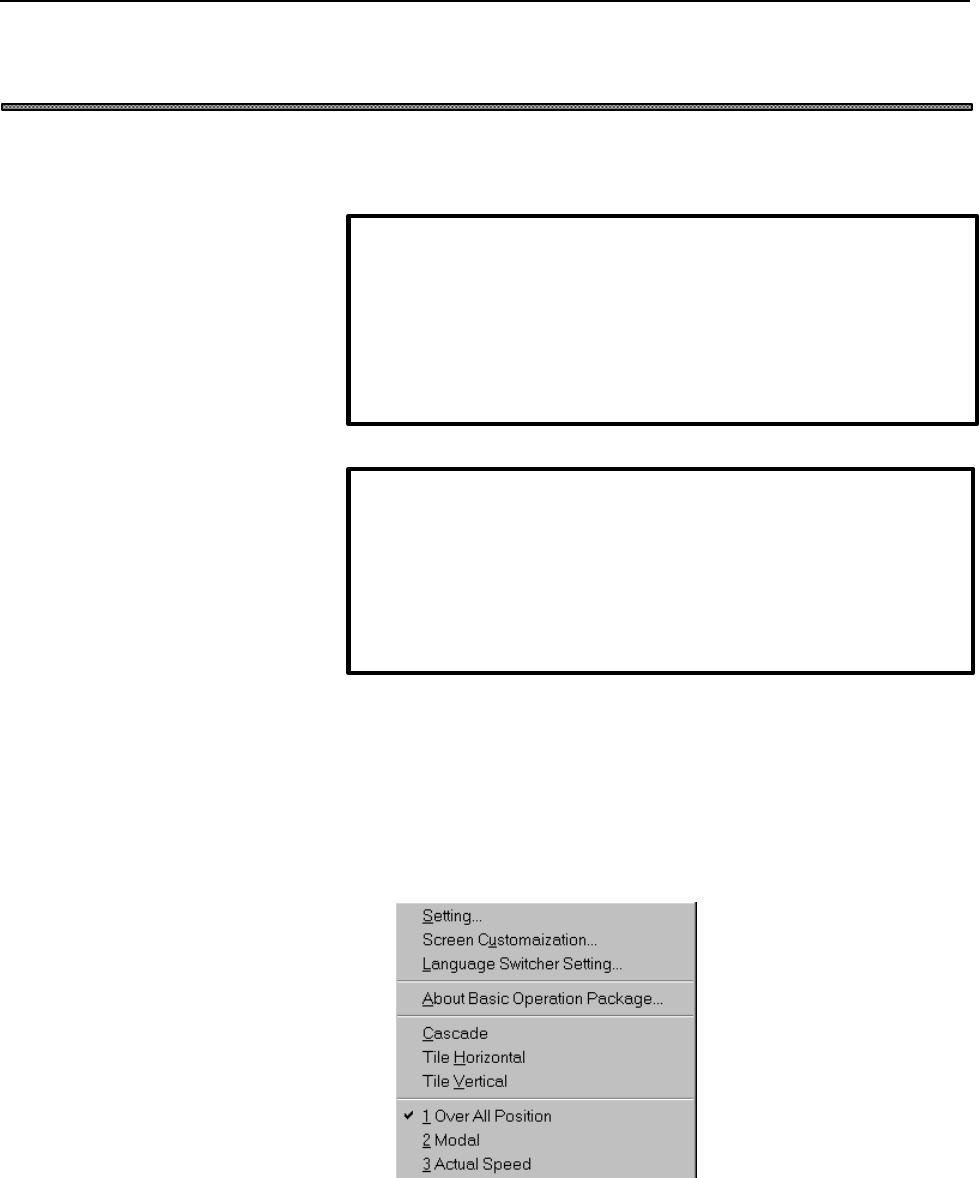
The following pop-up menu appears.
2. Choose [Language Switcher Setting].
The [Language Switcher Setting] screen appears.
NOTE
Before installing a new language environment, message files and
subfolders must be created.
For an explanation of how to create message files and subfolders, see
Appendix 4, "SWITCHING THE MESSAGE LANGUAGE" and
Appendix 5, "MESSAGE FILE GENERATOR."
NOTE
Before installing a language environment, the operator must start and
terminate Basic Operation Package 1 one or more times.
For an explanation of how to start and terminate Basic Operation
Package 1, see Section 2.1, "Starting and Terminating Basic
Operation Package 1."
Contents Summary of OPEN CNC (Basic Operation Package 1 for Windows95/NT) Operators manual
- Page 1GE Fanuc Automation Computer Numerical Control Products Open CNC Basic Operation Package 1 Operator's Manual B- 62994EN/02 Febuary 1999
- Page 2Warnings and notices for GFLE-003 this publication Warning In this manual we have tried as much as possible to describe all the various matters. However, we cannot describe all the matters which must not be done, or which cannot be done, because there are so many possibilities. Therefore, matters wh
- Page 3SAFETY PRECAUTIONS This manual includes safety precautions for protecting the user and preventing damage to the machine. Precautions are classified into Warnings and Cautions according to their bearing on safety. Also, supplementary information is described as Notes. Read the Warnings, Cautions, and
- Page 4SAFETY PRECAUTIONS B-62994EN/02 General Warnings and Cautions WARNING 1. Never attempt to machine a workpiece without first checking the operation of the machine. Before starting a production run, ensure that the machine is operating correctly by performing a trial run using, for example, the single
- Page 5B-62994EN/02 SAFETY PRECAUTIONS CAUTION 1. The operator's manual for Basic Operation Package 1 describes all the basic functions of the CNC unit, including the optional functions. The selected optional functions vary with the machine. Some functions described in the manual may not, therefore, be sup
- Page 6SAFETY PRECAUTIONS B-62994EN/02 Warnings and Cautions Relating to Basic Operation Package 1 Warnings and cautions relating to Basic Operation Package 1 are explained in this manual. Before using the function, read this manual thoroughly to become familiar with the provided Warnings, Cautions, and No
- Page 7B-62994EN/02 SAFETY PRECAUTIONS Important Notice The following summarizes the points to be noted when Basic Operation Package 1 is used. Before attempting to use Basic Operation Package 1, read the following: CAUTION l This manual does not explain in detail those operations and parameters that vary
- Page 8B-62994EN/02 CONTENTS SAFETY PRECAUTIONS ......................................................................................................................... s-1 General Warnings and Cautions Warnings and Cautions Relating to Basic Operation Package 1 Important Notice PREFACE ..................
- Page 9CONTENTS B-62994EN/02 4.2.3 Setting the machine position to the floating reference position...................................................... 38 4.2.4 Presetting the workpiece coordinate system................................................................................... 39 4.3 Displaying t
- Page 10B-62994EN/02 CONTENTS 5.4 Checking the Program Currently Being Executed ......................................................................... 100 5.4.1 Rewinding the tape to the beginning of the NC program ............................................................. 101 5.4.2 Searching for a se
- Page 11CONTENTS B-62994EN/02 6.9.3 Common variable 2 settings......................................................................................................... 176 6.9.4 P-code variable 1 settings .......................................................................................................
- Page 12B-62994EN/02 CONTENTS 7.18.2 Setting I/O signals for the operation history................................................................................. 284 8. MESSAGES ................................................................................................................................
- Page 13CONTENTS B-62994EN/02 11.4.4 Uninstalling message languages................................................................................................... 363 11.5 Customizing Alarm Messages .........................................................................................................
- Page 14B-62994EN/02 PREFACE PREFACE Thank you for purchasing the FANUC Basic Operation Package 1. FANUC Basic Operation Package 1 (called Basic Operation Package 1 hereinafter) allows the user to perform basic CNC and PMC operations in an Open CNC environment. Basic Operation Package 1 is supported by Micr
- Page 15PREFACE B-62994EN/02 l Provides each screen as an ActiveX component, such that it can be embedded into a program developed with Visual Basic 4.0/5.0. The following restrictions are imposed on Basic Operation Package 1: Restrictions l This software is designed to be used with a personal computer conn
- Page 16B-62994EN/02 PREFACE Contents of the Product Package This product package consists of the following: lFloppy disks FANUC Basic Operation Package 1 (A02B-0207-K750#ZZ07) NOTE Read the Release Note (README.TXT), provided on the first floppy disk of the product package. It provides detailed information
- Page 17PREFACE B-62994EN/02 7. SYSTEM Explains how to display and set system-related information, and how to input and output different types of data. 8. MESSAGES Explains how to display alarms and other messages. 9. MILLING ANIMATION FUNCTION (OPTION) Explains how to perform machining-in-progress drawing
- Page 18B-62994EN/02 PREFACE lMouse operations Example Explanation Click Press a mouse button, then release it immediately. Double-click Click a mouse button twice in quick succession. Drag Move the mouse while holding down a mouse button, then release the button at a desired location. lFolders This manual
- Page 19B-62994EN/02 1. SETUP 1 SETUP This chapter explains how to set up the environment for operating Basic Operation Package 1 and how to prepare Basic Operation Package 1 for use. -1-
- Page 201. SETUP B-62994EN/02 1.1 Operating Environment The software operating environment for Basic Operation Package 1 is described below. u Computer A personal computer connected to High Speed Serial Bus Type 2, the FS160i/180i/210i having personal computer functions, a personal computer in which the NC
- Page 21B-62994EN/02 1. SETUP Windows NT 4.0 WIN32 version • Pentium processor with clock frequency of 150 MHz or higher • At least 64MB of memory WIN16 version Not supported Windows 3.1 WIN32 version Not supported WIN16 version • i486DX2 or better CPU with clock frequency of 75 MHz or higher • At least 24M
- Page 221. SETUP B-62994EN/02 1.2 Installing Basic Operation Package 1 This section describes how to install Basic Operation Package 1. NOTE Before Basic Operation Package 1 can be installed, operations such as driver installation and setting must be performed according to the operating environment. For det
- Page 23B-62994EN/02 1. SETUP NOTE Before installing the Japanese message environment, start and terminate Basic Operation Package 1 at least once. For an explanation of how to start and terminate Basic Operation Package 1, see Section 2.1, "Starting and Terminating Basic Operation Package 1." Non-English m
- Page 241. SETUP B-62994EN/02 NOTE Before installing the non-English message environment, start and terminate Basic Operation Package 1 at least once. For an explanation of how to start and terminate Basic Operation Package 1, see Section 2.1, "Starting and Terminating Basic Operation Package 1." • Installi
- Page 25B-62994EN/02 1. SETUP 1.3 Uninstalling Basic Operation Package 1 This section describes how to uninstall Basic Operation Package 1. NOTE Uninstallation is supported only by the WIN32 version of Basic Operation Package 1. Procedure 1. Click the [Start] button. 2. Choose [Settings], then choose the [C
- Page 261. SETUP B-62994EN/02 6. To uninstall Basic Operation Package 1, click the
button. Subsequently, the uninstall function will ask several questions, such as whether to delete shared files. Perform uninstallation by clicking or as required. When Basic Operation Package 1 has been unin - Page 27B-62994EN/02 2. BASIC KNOWLEDGE 2 BASIC KNOWLEDGE This function provides basic information with which the user should be familiar before attempting to use Basic Operation Package 1. -9-
- Page 282. BASIC KNOWLEDGE B-62994EN/02 2.1 Starting and Terminating Basic Operation Package 1 This section describes how to start and terminate Basic Operation Package 1 and provides notes on starting it. 2.1.1 Starting Basic Operation Package 1 This section describes how to start Basic Operation Package 1
- Page 29B-62994EN/02 2. BASIC KNOWLEDGE Windows 3.1 1. Start the program from the Basic Operation Package 1 group in the Program Manager. The Basic Operation Package 1 screen, shown below, appears. 2.1.2 Terminating Basic Operation Package 1 How to terminate Basic Operation Package 1 is described below. Pro
- Page 302. BASIC KNOWLEDGE B-62994EN/02 For details of the language switch function, see Sections 11.1.1, "Setting general options for Basic Operation Package 1," and 11.4.2, "Switching the message language." 3. Select [Exit Basic Operation Package ?]. Click the
button. The Basic Operation Package 1 s - Page 31B-62994EN/02 2. BASIC KNOWLEDGE 2.2 Window Names and Functions This section describes the name and functions of each window displayed by Basic Operation Package 1. Basic Operation Package 1 displays a parent window which consists of one or more child windows. Each child window contains the display i
- Page 322. BASIC KNOWLEDGE B-62994EN/02 FS15 (1) Automatic operation mode selection Status Meaning **** Not selected MDI MDI mode Tape TAPE mode Mem MEMORY mode Edit EDIT mode Thin TEACH in mode (2) Manual operation mode selection Status Meaning **** Not selected Ref REFERENCE mode Inc INCREMENTAL mode Hndl
- Page 33B-62994EN/02 2. BASIC KNOWLEDGE (5) Axial movement and dwell status Status Meaning **** Others Motn Moving along an axis Dwel Dwelling Wait Waiting (only for 2-path lathe systems) (6) M, S, T, and B function status Status Meaning Fin Waiting for processing (7) Emergency stop status Status Meaning Em
- Page 342. BASIC KNOWLEDGE B-62994EN/02 FS160/180/210 or NC Board (1) Automatic/manual mode selection Status Meaning **** Not selected MDI MDI mode Mem MEMORY mode Edit EDIT mode Hndl HANDLE mode Jog JOG mode TJog TEACH in JOG mode THnd TEACH in HANDLE mode Inc INCREMENTAL mode Ref REFERENCE mode Rmot SCHED
- Page 35B-62994EN/02 2. BASIC KNOWLEDGE (3) Program editing status Status Meaning ***** No editing Edit Editing Search Searching Output Outputting data Input Inputting data Compare Comparing LblSkp Label skip enabled Restrt Restarting a program PTRR Tool retract and return mode HPCC RISC operation (only for
- Page 362. BASIC KNOWLEDGE B-62994EN/02 (6) Emergency stop status Status Meaning Emg Emergency stop Rset Reset (7) Alarm status Status Meaning Alam Alarm issued Batt Battery of nonvolatile memory and absolute position detector requires replacement For details of each status, refer to the operator's manual p
- Page 37B-62994EN/02 2. BASIC KNOWLEDGE l Soft key • Key-like field used to display a child window. A soft key can be selected either by clicking the image on the screen or pressing the corresponding key on the keyboard. In the standard state, where no soft key customization has been performed, the soft key
- Page 382. BASIC KNOWLEDGE B-62994EN/02 • Function selection state Soft key Soft key Soft key or or or [F1] key [F1] key [F1] key • Chapter selection state Soft key Soft key Soft key or or or [F12] key [F12] key [F12] key • Operation selection state The displayed soft keys are for the currently active child
- Page 39B-62994EN/02 2. BASIC KNOWLEDGE 2.3 Selecting and Positioning Windows This section describes how to select and position child windows. NOTE Settings may have been made so that the position and size of a window cannot be changed. For details, see Section 11.1.1, "Setting general options for Basic Ope
- Page 402. BASIC KNOWLEDGE B-62994EN/02 2.3.2 Positioning a window The size and position of a child window can be changed as required, using the mouse or automatic positioning function. The changed screen display information is stored even when Basic Operation Package 1 is terminated. (The changed screen di
- Page 41B-62994EN/02 2. BASIC KNOWLEDGE Procedure Vertically aligning the child windows 1. Right-click the soft key area. Alternatively, press the [Application] key on the keyboard (such as the Microsoft Natural keyboard or 109 keyboard). Alternatively, press [Shift]+[F10]. The following pop-up menu appears
- Page 422. BASIC KNOWLEDGE B-62994EN/02 2.4 Selecting a Path If the CNC has multiple paths, select the path to be used as described below. NOTE The selection of a path is supported only by TT and MM CNCs and CNCs having a loader. Procedure 1. If the soft key is currently not displayed, press the function se
- Page 43B-62994EN/02 2. BASIC KNOWLEDGE 2.5 Displaying Version Information This section describes how to display the version information for Basic Operation Package 1, for maintenance and other purposes. Procedure 1. Right-click the soft key area. Alternatively, press the [Application] key on the keyboard (
- Page 443. SETTING THE PARAMETERS REQUIRED TO USE BASIC OPERATION PACKAGE 1 B-62994EN/02 3 SETTING THE PARAMETERS REQUIRED TO USE BASIC OPERATION PACKAGE 1 This chapter describes how to set the parameters required to display the screens of Basic Operation Package 1. -26-
- Page 45B-62994EN/02 3. SETTING THE PARAMETERS REQUIRED TO USE BASIC OPERATION PACKAGE 1 3.1 Setting the CNC Parameters This section describes how to set the CNC parameters required to use Basic Operation Package 1. NOTE If the CNC parameters are not set, screen display and the writing of programs and MDI c
- Page 463. SETTING THE PARAMETERS REQUIRED TO USE BASIC OPERATION PACKAGE 1 B-62994EN/02 Explanation Set the following parameters: l FS15 Description Set value TV check No. 0000 bit 0 → 0 Foreground input device No. 0020 → 16 Background input device No. 0022 → 16 Enable overwriting of program from outside o
- Page 47B-62994EN/02 3. SETTING THE PARAMETERS REQUIRED TO USE BASIC OPERATION PACKAGE 1 3.2 Specifying a Node This section describes how to specify a node number for Basic Operation Package 1. NOTE A node can be specified only when the WIN32 version is used with High Speed Serial Bus multiconnection. Expla
- Page 484. POSITION DISPLAY B-62994EN/02 4 POSITION DISPLAY This chapter describes how to display positions, such as the current position. -30-
- Page 49B-62994EN/02 4. POSITION DISPLAY 4.1 Overall Position Display This section describes how to display the overall position display (including the relative position, absolute position, machine position, and distance to go) for the program that is currently being executed. Procedure 1. If the soft key i
- Page 504. POSITION DISPLAY B-62994EN/02 Explanation l Overall position display The overall position display includes the relative position, absolute position, machine position, and distance to go for the program that is currently being executed. To perform operation such as setting the origin for the relat
- Page 51B-62994EN/02 4. POSITION DISPLAY 4.2 Displaying the Relative Position This section describes how to display the relative position for the program that is currently being executed. Procedure 1. If the soft key is currently not displayed, press the function selection soft key . 2. Press the soft key.
- Page 524. POSITION DISPLAY B-62994EN/02 Explanation l Relative position screen Displays the relative position for the program that is currently being executed. To perform an operation such as setting the origin for the relative coordinates, press the operation selection key . The operation soft keys appear
- Page 53B-62994EN/02 4. POSITION DISPLAY 4.2.1 Resetting relative coordinates The coordinates of the relative position can be reset to 0. Procedure 1. If the [Relative Position] screen (or [Over All Position] screen) is currently not displayed, display the [Relative Position] screen (or [Over All Position]
- Page 544. POSITION DISPLAY B-62994EN/02 3. From the list of the coordinate axes, select one or more axes for which the relative coordinates are to be reset. To select all the axes, click the
button. To deselect all the axes, click the button. 4. Clicking the button resets the sel - Page 55B-62994EN/02 4. POSITION DISPLAY (Example with the [Relative Position] screen) 2. Press the soft key. The [Position - Preset Relative Position] screen appears. 3. Select the axis for which the relative coordinate is to be preset. Enter the value to which the relative coordinate is to be preset. 4. C
- Page 564. POSITION DISPLAY B-62994EN/02 4.2.3 Setting the machine position to the floating reference position The machine position can be set to the floating reference position. NOTE To set the floating reference position, the corresponding CNC option is required. Procedure 1. If the [Relative Position] sc
- Page 57B-62994EN/02 4. POSITION DISPLAY 3. Select one or more axes for which the machine position is to be set to the floating reference position. To select all the axes, click the
button. To deselect all the axes, click the button. Clicking the button sets the machine position t - Page 584. POSITION DISPLAY B-62994EN/02 (Example with the [Over All Position] screen) 2. Press the soft key. The [Position - Preset Work Coordinate] screen appears. 3. Select one or more axes for which the workpiece coordinate system is to be preset. To select all the axes, click the
button. To d - Page 59B-62994EN/02 4. POSITION DISPLAY 4. Clicking the
button presets the workpiece coordinate system. -41- - Page 604. POSITION DISPLAY B-62994EN/02 4.3 Displaying the Absolute Position This section describes how to display the absolute position for the program that is currently being executed. Procedure 1. If the soft key is currently not displayed, press the function selection soft key . 2. Press the soft key.
- Page 61B-62994EN/02 4. POSITION DISPLAY The operation soft keys appear. For details of each function, see the following sections: Set Float Point: Section 4.2.3, "Setting the machine position to the floating reference position" Preset Work Coord.: Section 4.2.4, "Presetting the workpiece coordinate system"
- Page 624. POSITION DISPLAY B-62994EN/02 4.4 Displaying the Machine Position This section describes how to display the machine position for the program that is currently being executed. Procedure 1. If the soft key is currently not displayed, press the function selection soft key . 2. Press the soft key. 3.
- Page 63B-62994EN/02 4. POSITION DISPLAY 4.5 Displaying the Distance to Go This section describes how to display the distance to go in the current block of the program that is currently being executed. Procedure 1. If the soft key is currently not displayed, press the function selection soft key . 2. Press
- Page 644. POSITION DISPLAY B-62994EN/02 4.6 Displaying the Amount of Handle Interruption This section describes how to display the amount of handle interruption. NOTE When the FS15, FS16/18/21, Power Mate-H, or NC Board is used, to display the amount of handle interruption, the corresponding CNC option is
- Page 65B-62994EN/02 4. POSITION DISPLAY Explanation l Handle interruption screen Displays the amount of handle interruption for the program that is currently being executed. To cancel the amount of handle interruption, press the operation selection soft key . The operation soft keys appear. For details, se
- Page 664. POSITION DISPLAY B-62994EN/02 2. Press the soft key. The [Manual Overlap - Cancel Overlap] screen appears. 3. Select one or more axes for which the amount of handle interruption is to be canceled. To select all the axes, click the
button. To deselect all the axes, click the - Page 67B-62994EN/02 4. POSITION DISPLAY 4.7 Displaying the Operating Monitor This section describes how to display the operating monitor. NOTE When the Power Mate is used, the operating monitor screen cannot be displayed. Procedure 1. If the soft key is currently not displayed, press the function selection
- Page 684. POSITION DISPLAY B-62994EN/02 4.8 Displaying the Machining Time and Machined Parts Count This section describes how to display the machining time and machined parts count. NOTE In the standard state, this screen cannot be displayed. Create a screen containing screen object ID "CutTime" according
- Page 69B-62994EN/02 4. POSITION DISPLAY • Clear Parts Count Pressing the soft key clears the parts count to 0. • Clear Run Time Pressing the soft key clears the run time to 0. -51-
- Page 705. NC PROGRAM B-62994EN/02 5 NC PROGRAM This chapter explains how to display, edit, and check NC programs stored in the CNC. -52-
- Page 71B-62994EN/02 5. NC PROGRAM 5.1 Editing a NC Program This section explains how to edit a program. WARNING l A program in CNC program memory cannot be updated simply by editing the NC program on the program edit screen of Basic Operation Package 1. The NC program must be written back to the CNC after
- Page 725. NC PROGRAM B-62994EN/02 NOTE (Continued) u Background editing (A program other than the selected program can be created, edited, and deleted.) FS16/18/21 or NC Board l Operation • Reset in EDIT mode or MDI mode • P/S alarm 000 (PLEASE TURN OFF POWER) and P/S alarm 101 (PLEASE CLEAR MEMORY) alread
- Page 73B-62994EN/02 5. NC PROGRAM Explanation l Program edit screen A program can be edited by positioning the cursor to the character string you want to modify. Once an edit operation has been performed, "Modified" is displayed in the upper right part of the child window. To use a function of, for example
- Page 745. NC PROGRAM B-62994EN/02 5.1.1 Getting a program from the NC A program can be read from CNC program memory to the edit screen of Basic Operation Package 1. The program currently displayed on the program edit screen is replaced by the program read from the CNC. Procedure 1. If the [Program Edit] sc
- Page 75B-62994EN/02 5. NC PROGRAM NOTE When some modifications have been made to the NC program already displayed on the NC program edit screen, a prompt appears asking you whether you want to write the NC program back to the CNC. To write the NC program back to the CNC, click the
button. Perform a wr - Page 765. NC PROGRAM B-62994EN/02 5.1.2 Writing a NC program back to the NC A NC program on the edit screen of Basic Operation Package 1 can be written back to the CNC. NOTE When the FS16/18/21 or NC Board is being used, this function cannot be used in MDI mode. Procedure 1. If the [Program Edit] screen is
- Page 77B-62994EN/02 5. NC PROGRAM 5.1.3 Inserting a NC program from a disk A NC program stored on an external memory unit such as a hard disk can be inserted into the edit screen of Basic Operation Package 1. The NC program read from the external memory unit is inserted into an existing NC program displaye
- Page 785. NC PROGRAM B-62994EN/02 4. Select the NC program to be inserted from the external memory unit. Click the
button. The selected file contents are inserted at the cursor position. 5.1.4 Writing a NC program to a disk A NC program on the edit screen of Basic Operation Package 1 can be written - Page 79B-62994EN/02 5. NC PROGRAM 2. Press the soft key. The [Save As] screen appears. 3. Enter the name of the NC program to be written to the external memory unit. Click the
button. 5.1.5 Finding a character string in a NC program A search can be made for a specified character string in a NC progr - Page 805. NC PROGRAM B-62994EN/02 2. Press the soft key. The [Program Edit - Find] screen appears. 3. Enter the character string for which a search is to be made. Specify the search direction as necessary. Click the
button. To search for another character string, repeat steps 2 and 3, above. 5.1.6 Rep - Page 81B-62994EN/02 5. NC PROGRAM 2. Press the soft key. The [Program Edit - Replace] screen appears. 3. Enter the character string you want to find, and the character string with which you want to replace that character string. Specify the search direction as necessary. Click the
button. To perform a - Page 825. NC PROGRAM B-62994EN/02 2. Position the cursor to the beginning or end of the character strings to be selected. 3. Press the soft key. 4. Select the character strings by using the direction keys. Cut or copy can be performed by selecting the or soft key. Character strings can also be selected by
- Page 83B-62994EN/02 5. NC PROGRAM 2. Press the soft key. The selected character strings are cut. The character strings can also be cut by pressing the [Ctrl]+[X] keys instead of pressing the soft key. The cut character strings can be pasted by pressing the soft key. -65-
- Page 845. NC PROGRAM B-62994EN/02 5.1.9 Copying character strings from a NC program Character strings in a program can be copied for subsequent pasting. Procedure 1. Select the character strings you want to copy from the program. For an explanation of how to select character strings, see Section 5.1.7, "Se
- Page 85B-62994EN/02 5. NC PROGRAM 5.1.10 Pasting character strings into a NC program The cut or copied character strings can be pasted at a specified position. Procedure 1. Select the character strings you want to paste. For an explanation of how to select character strings, see Section 5.1.7, "Selecting c
- Page 865. NC PROGRAM B-62994EN/02 The character strings can also be pasted by pressing the [Ctrl]+[V] keys instead of the soft key. 5.1.11 Inserting sequence numbers into a NC program Sequence numbers can be inserted automatically when a new NC program is created. Procedure 1. If the [Program Edit] screen
- Page 87B-62994EN/02 5. NC PROGRAM 2. Press the soft key. The [Program Edit - Insert Sequence Number] screen appears. 3. Check the [Insert sequence number] check box, and set the initial value and increment. Click the
button. Sequence numbers are automatically inserted as a new NC program is created. A - Page 885. NC PROGRAM B-62994EN/02 l FS15 Meaning Setting Enabling automatic insertion No. 0010 bit 1 → 1 Initial value and increment No. 3216 l FS16/18/21 or NC Board Meaning Setting Enabling automatic insertion No. 0000 bit 5 → 1 Initial value No. 0031 Increment No. 0032 -70-
- Page 89B-62994EN/02 5. NC PROGRAM 5.1.12 Entering a coordinate value into a NC program The current absolute coordinate value can be entered into a program. NOTE A CNC option (playback) is required to enter a coordinate value into a program. Before entering a coordinate value into the program, change from t
- Page 905. NC PROGRAM B-62994EN/02 2. Position the cursor to the point where a coordinate value is to be entered. 3. Press the soft key. The [Program Edit - Teach In] screen appears. 4. Select the axis for which a coordinate value is to be entered. Click the
button. The absolute coordinate value is ins - Page 91B-62994EN/02 5. NC PROGRAM 5.1.13 Displaying the top of a NC program The top of a NC program can be displayed. Procedure 1. If the [Program Edit] screen is currently not displayed, display the [Program Edit] screen by applying the procedure explained in Section 5.1, "Editing a NC Program." 2. Press
- Page 925. NC PROGRAM B-62994EN/02 5.1.14 Displaying the end of a NC program The end of a NC program can be displayed. Procedure 1. If the [Program Edit] screen is currently not displayed, display the [Program Edit] screen by applying the procedure explained in Section 5.1, "Editing a NC Program." 2. Press
- Page 93B-62994EN/02 5. NC PROGRAM 5.1.15 Stamping the machining time The machining time for an executed NC program can be inserted into the NC program as a comment. NOTE When the FS15, FS16/18/21, or NC Board is used, a CNC option is required for stamping the machining time. When the machining time is to b
- Page 945. NC PROGRAM B-62994EN/02 If the NC program has not yet been executed, the following message appears: -76-
- Page 95B-62994EN/02 5. NC PROGRAM 5.2 Editing an MDI Program This section explains how to edit an MDI program. WARNING After editing an MDI program, never attempt to machine a workpiece without first checking the operation of the machine. Before starting the machine, check that the programmed values, compe
- Page 965. NC PROGRAM B-62994EN/02 Explanation lMDI program screen An MDI program can be edited by positioning the cursor to the character string you wish to edit. To use a function such as "Find" or "Replace" for a program, press the operation selection key The operation soft keys appear. Pressing displays
- Page 97B-62994EN/02 5. NC PROGRAM 5.2.1 Finding a character string in an MDI program A search can be made for a specified character string in an MDI program. Procedure 1. If the [MDI Program] screen is currently not displayed, display the [MDI Program] screen by applying the procedure explained in Section
- Page 985. NC PROGRAM B-62994EN/02 5.2.2 Replacing a character string in an MDI program A specified character string in an MDI program can be replaced with another, specified character string. Procedure 1. If the [MDI Program] screen is currently not displayed, display the [MDI Program] screen by applying t
- Page 99B-62994EN/02 5. NC PROGRAM 5.2.3 Selecting character strings in an MDI program Character strings to be "cut" or "copied" can be selected from an MDI program. Procedure 1. If the [MDI Program] screen is currently not displayed, display the [MDI Program] screen by applying the procedure explained in S
- Page 1005. NC PROGRAM B-62994EN/02 The selected character strings can be cut or copied by pressing the or soft key. Character strings can also be selected by pressing a direction key while holding down the [Shift] key. To cancel character string selection mode, press the soft key again. 5.2.4 Cutting charac
- Page 101B-62994EN/02 5. NC PROGRAM 2. Press the soft key. The selected character strings are cut. The character strings can also be cut by pressing the [Ctrl]+[X] keys instead of pressing the soft key. The cut character strings can be pasted by pressing the soft key. -83-
- Page 1025. NC PROGRAM B-62994EN/02 5.2.5 Copying character strings from an MDI program Character strings in an MDI program can be copied for subsequent pasting. Procedure 1. Select the character strings to be copied from the MDI program. For an explanation of how to select character strings, see Section 5.2
- Page 103B-62994EN/02 5. NC PROGRAM 5.2.6 Pasting character strings into an MDI program Cut or copied character strings can be pasted into a specified position. Procedure 1. Select the character strings to be pasted from an MDI program. For an explanation of how to select character strings, see Section 5.2.3
- Page 1045. NC PROGRAM B-62994EN/02 The character strings can also be pasted by pressing the [Ctrl]+[V] keys instead of the soft key. 5.2.7 Inserting sequence numbers into an MDI program Sequence numbers can be automatically inserted into a new MDI program as it is being created. Procedure 1. If the [MDI Pro
- Page 105B-62994EN/02 5. NC PROGRAM 2. Press the soft key. The [MDI Program - Insert Sequence Number] screen appears. 3. Check the [Insert sequence number] check box, and set the initial value and increment. Click the
button. Sequence numbers are automatically inserted into a new MDI program as it is be - Page 1065. NC PROGRAM B-62994EN/02 l FS16/18/21 or Power Mate NC Board Meaning Setting Enabling automatic insertion No. 0000 bit 5 → 1 Increment No. 3216 5.2.8 Displaying the top of an MDI program The top of an MDI program can be displayed. Procedure 1. If the [MDI Program] screen is currently not displayed
- Page 107B-62994EN/02 5. NC PROGRAM 5.2.9 Displaying the end of an MDI program The end of an MDI program can be displayed. Procedure 1. If the [MDI Program] screen is currently not displayed, display the [MDI Program] screen by applying the procedure explained in Section 5.2, "Editing an MDI Program." 2. Pre
- Page 1085. NC PROGRAM B-62994EN/02 5.3 Displaying the NC Program Directory This section explains how to display the NC program directory, and perform editing on a program-by-program basis, such as copying and deleting a NC program. WARNING After NC program editing, never attempt to machine a workpiece witho
- Page 109B-62994EN/02 5. NC PROGRAM NOTE (Continued) u Background editing (A program other than the selected program can be created, edited, and deleted.) FS16/18/21, Power Mate, NC Board l Operation • Reset in EDIT mode or MDI mode • P/S alarm 000 (PLEASE TURN OFF POWER) and P/S alarm 101 (PLEASE CLEAR MEMO
- Page 1105. NC PROGRAM B-62994EN/02 Explanation l Program directory screen A list of the NC programs stored in the CNC is displayed. To use a function such as the "Copy" or "Delete" function for a NC program, press the operation selection key . The operation soft keys appear. For details of each function, se
- Page 111B-62994EN/02 5. NC PROGRAM 2. Select one NC program as the copy source from the directory. 3. Press the soft key. The [Program Directory - Copy] screen appears. 4. Enter the NC program name of the copy destination. The NC program name of the copy source can also be changed. Click the
button. -9 - Page 1125. NC PROGRAM B-62994EN/02 NOTE When an existing program name is specified as the program name of the copy destination, the original program is replaced by the copied program. The original program is lost. 5.3.2 Deleting a NC program A NC program can be deleted. NOTE A NC program that is currently b
- Page 113B-62994EN/02 5. NC PROGRAM 4. Click the
button. Multiple NC programs can be deleted at one time by selecting them from the directory. 5.3.3 Selecting a NC program to be executed A NC program to be executed can be selected. -95- - Page 1145. NC PROGRAM B-62994EN/02 NOTE To select a NC program to be executed, set the following status: FS15 l Operation • EDIT mode FS16/18/21 or NC Board l Operation • Reset in EDIT mode or MEMORY mode • P/S alarm 000 (PLEASE TURN OFF POWER) and P/S alarm 101 (PLEASE CLEAR MEMORY) already released Power
- Page 115B-62994EN/02 5. NC PROGRAM 3. Press the soft key. In the upper right part of the main window, the selected program number is displayed. 5.3.4 Changing a NC program comment The comments of a NC program can be changed. NOTE The comments of a NC program that is currently being executed cannot be change
- Page 1165. NC PROGRAM B-62994EN/02 3 Press the soft key. The [Program Directory - Change Program Name] screen appears. 4. Enter a new NC program comment in "Name:". A comment of up to 49 characters can be specified. The NC program for which the comment is to be changed can also be changed. Click the
bu - Page 117B-62994EN/02 5. NC PROGRAM 2. Press the soft key. The NC program directory is displayed in detail. l When the CNC option for the machining time stamp is not provided l When the CNC option for the machining time stamp is provided NOTE Before the machining time can be displayed in the list, the machin
- Page 1185. NC PROGRAM B-62994EN/02 5.4 Checking the Program Currently Being Executed This section explains how to check the program currently being executed. Procedure 1. If the soft key is currently not displayed, press the function selection key . 2. Press the soft key. 3. If the [Program Check] screen is
- Page 119B-62994EN/02 5. NC PROGRAM The operation soft keys appear. For details of each function, see the following sections. l Relative position screen The relative position appears. For details of operation, see Section 4.2, "Displaying the Relative Position." l Modal screen Modal information such as G cod
- Page 1205. NC PROGRAM B-62994EN/02 2. Press the [Rewind] soft key. 3. The tape is rewound to the beginning of the NC program. -102-
- Page 121B-62994EN/02 5. NC PROGRAM 5.4.2 Searching for a sequence number The currently selected NC program can be searched for the specified sequence number. NOTE To search for a sequence number, sequence numbers must be inserted into the NC program. Set the following status: FS15, FS16/18/21, or NC Board l
- Page 1225. NC PROGRAM B-62994EN/02 2. Press the [Sequence Number Search] soft key. 3. The [Program Check - Sequence Number Search] screen appears. Enter the sequence number to be searched for, then click the
button. 4. The cursor moves to the specified sequence number. -104- - Page 123B-62994EN/02 5. NC PROGRAM 5.5 Displaying the Current and Next Blocks of the NC Program Being Executed This section explains how to display the current and next blocks of the NC program being executed. Procedure 1. If the soft key is currently not displayed, press the function selection key . 2. Pre
- Page 1245. NC PROGRAM B-62994EN/02 5.6 Restarting a NC Program This section explains how to set the axis order of movement at NC program restart and how to search for a block to be restarted. NOTE A CNC option is required to restart a program. To restart a program, set the following status: When the Power M
- Page 125B-62994EN/02 5. NC PROGRAM Explanation l Program restart screen Information including the restart position and the amount of travel at restart is displayed on this screen. To use a function such as that for setting the axis order or searching for a restart block, press the operation selection key .
- Page 1265. NC PROGRAM B-62994EN/02 5.6.1 Setting the axis order of movement to the program restart position The axis order of movement to the program restart position can be set. Procedure 1. If the [Program Restart] screen is currently not displayed, display the [Program Restart] screen by applying the pro
- Page 127B-62994EN/02 5. NC PROGRAM 5.6.2 Searching for a sequence/block number A search can be made for the sequence/block number to restart a program. NOTE Before a search can be made for a sequence/block number, the axis order of movement to the restart position must be set. For an explanation of how to s
- Page 1285. NC PROGRAM B-62994EN/02 3. To search for the sequence/block number, set the following information: l Restart type l Number l Repeat count Click the
button. Once the sequence or block number is found, information including the M code and T code is displayed. If the program restart signal is n - Page 129B-62994EN/02 5. NC PROGRAM Explanation l Restart type Specify whether the power is turned off before program restart. • Before power off (P type) Selected when the program is restarted after the program is stopped as a result of, for example, tool breakage. • After power off (Q type) Selected to res
- Page 1305. NC PROGRAM B-62994EN/02 5.7 Displaying the Machining Times This section explains how to display the machining times for executed NC programs. NOTE A CNC option is required to display the machining times. When the machining time for a program is to be displayed, the program must have been executed
- Page 131B-62994EN/02 5. NC PROGRAM The machining times for the executed NC programs are displayed. -113-
- Page 1325. NC PROGRAM B-62994EN/02 5.8 Displaying the B-Axis Operating Status This section explains how to display the B-axis operating status. NOTE The B-axis operating status can be displayed only when the FS16/18/160/180-TB/TTB/TC/TTC or FS16i/18i/160i/180i-TA is used. A CNC option is required to display
- Page 133B-62994EN/02 5. NC PROGRAM Explanation l Program check (B-axis) screen The operating status of B-axis command data is displayed on this screen. No operation can be performed on this screen. • Current block Command data being executed is displayed. • Next block The next command data is displayed. NOT
- Page 1346. SETTING B-62994EN/02 6 SETTING This chapter describes how to set data. -116-
- Page 135B-62994EN/02 6. SETTING 6.1 Setting Data This section describes how to set TV check, Punch code, and other setting data. NOTE To specify the setting data, first establish the following status: l Operation Set either of the following statuses: • Emergency stop • Stopped or paused in MDI mode l Protec
- Page 1366. SETTING B-62994EN/02 Explanation l Operation soft keys To input an increment as a numeric input, press the operation selection key . The operation soft keys appear. To perform incremental input for numeric data input, press the soft key. l Data to be set • Parameter write Specify whether to enabl
- Page 137B-62994EN/02 6. SETTING • Sequence number Specify whether a sequence number is automatically inserted when the program is edited in EDIT mode. When the box is checked, the sequence number is automatically inserted. • Punch code Specify the data code output by the CNC using the reader/puncher interfa
- Page 1386. SETTING B-62994EN/02 • Sequence No. Sequence stop (for anything other than NC Board) To execute the sequence number comparison and stop, specify a desired sequence number. • Program No. Sequence stop (for anything other than NC Board) To execute the sequence number comparison and stop, specify a
- Page 139B-62994EN/02 6. SETTING 6.2 Operating Time, Parts Count, and Timer Settings This section describes how to set the Operating time, Parts count, and Timer. NOTE To set the operating time, parts count, and timer, first establish the following status: l Operation Set either of the following statuses: •
- Page 1406. SETTING B-62994EN/02 Explanation l Operation soft keys To input an increment as a numeric input, press the operation selection key . The operation soft keys appear. To perform incremental input for numeric data input, press the soft key. l Data to be set • Parts total Indicates the value counted
- Page 141B-62994EN/02 6. SETTING • Parts count Indicates the value counted when M02, M30, or another M code specified in a parameter is executed. The value can also be set by a parameter. For details of the parameters, see the parameter description for the CNC being used. • Power on Indicates the accumulated
- Page 1426. SETTING B-62994EN/02 NOTE No negative values can be set in the Parts and Timer sections. In the M and S fields of the Timer section, a value ranging from 0 to 59 can be specified. 6.3 Tool Offset Settings This section describes how to set tool offset data. WARNING An invalid tool offset setting m
- Page 143B-62994EN/02 6. SETTING 4. Choose the item to be set, and set a desired offset value. Explanation l Tool Offset screen Specify tool offset values. The type of the offset value that can be set depends on the CNC option. For details, refer to the operator's manual provided with the CNC being used. To
- Page 1446. SETTING B-62994EN/02 • Searching for offset data To find the desired offset data, press the soft key and specify the corresponding data number. • Incremental input To perform incremental input, press the soft key. For other functions, see the description below. The tool offset data can also be in
- Page 145B-62994EN/02 6. SETTING 6.3.1 Entering a relative coordinate value as the tool offset data A coordinate value displayed on the [Relative Position] screen can be set as tool offset data. Procedure 1. When the [Tool Offset] screen is currently not displayed, follow the procedure described in Section 6
- Page 1466. SETTING B-62994EN/02 Explanation l Counter input A coordinate value shown on the [Relative Position] screen can be set as tool offset data. In lathe systems, the relative coordinate value is set for the axis selected on the [Tool Offset - C.Input] screen of the offset data selected in step 2 of t
- Page 147B-62994EN/02 6. SETTING 6.3.2 Entering a measured value as the tool offset data A measured value can be set as tool offset data. NOTE The measured value input function is supported only for lathe systems. Procedure 1. When the [Tool Offset] screen is currently not displayed, follow the procedure des
- Page 1486. SETTING B-62994EN/02 Explanation l Measured value input The following value is set as a tool offset value. Tool offset value = (Absolute coordinate value) - (Measured value) When a measured value is input for geometry or wear offset, the following value is set: • Entering a measured value as a ge
- Page 149B-62994EN/02 6. SETTING 2. Press the soft key. The [Tool Offset - Clear] screen appears. 3. Click the
button. -131- - Page 1506. SETTING B-62994EN/02 6.4 Custom Macro Variable Settings This section describes how to set a custom macro variable. WARNING Incorrect use or setting of a custom macro variable may result in unpredictable movement of the machine, resulting in damage to the workpiece, the machine itself, or injury t
- Page 151B-62994EN/02 6. SETTING 3. If the [Custom Macro Variables] screen is currently not displayed, press the chapter selection key . Press the soft key. The [Custom Macro Variables] screen appears. 4. Choose the desired variable and specify an appropriate value. Explanation l Data to be set • Custom macr
- Page 1526. SETTING B-62994EN/02 • Searching for a custom macro variable To find the desired custom macro variable, press the soft key and specify a desired variable number. • Incremental input To perform incremental input, press the soft key. For an explanation of the other functions, see the description be
- Page 153B-62994EN/02 6. SETTING 2. When the local variables are currently not displayed, press the soft key. The local variables are displayed on the [Custom Macro Variables] screen. -135-
- Page 1546. SETTING B-62994EN/02 6.4.2 Common variable 1 settings Custom macro common variables 1 can be set. The variable numbers range as indicated below: FS15 Variable numbers #100 to #199 can be used. The range of variable numbers that can actually be used varies with the CNC option. FS16, FS18, FS21, NC
- Page 155B-62994EN/02 6. SETTING 3. Choose the desired variable and input an appropriate value. 6.4.3 Common variable 2 settings Custom macro common variables 2 can be set. The variable numbers range as indicated below: FS15 Variable numbers #500 to #999 can be used. The range of variable numbers that can ac
- Page 1566. SETTING B-62994EN/02 2. When common variables 2 are currently not displayed, press the soft key. The common variables 2 are displayed on the [Custom Macro Variables] screen. 3. Choose the desired variable and input an appropriate value. -138-
- Page 157B-62994EN/02 6. SETTING 6.4.4 Entering a relative coordinate value as a macro variable A coordinate value shown on the [Relative Position] screen can be set as the value of a custom macro variable. Procedure 1. When the [Custom Macro Variables] screen is currently not displayed, follow the procedure
- Page 1586. SETTING B-62994EN/02 6.4.5 Clearing all custom macro variables All currently specified custom macro variables can be cleared to zero. Common variables 1 and 2 can be separately cleared. Procedure 1. When the [Custom Macro Variables] screen is currently not displayed, follow the procedure describe
- Page 159B-62994EN/02 6. SETTING 2. Press the soft key. The [Custom Macro - Clear] screen appears. 3. Choose the type of the variables to be cleared. Click the
button. -141- - Page 1606. SETTING B-62994EN/02 6.4.6 Setting a blank in a macro variable A specified custom macro variable can be blank. Procedure 1. When the [Custom Macro Variables] screen is currently not displayed, follow the procedure described in Section 6.4, "Custom Macro Variable Settings" to display the [Custom M
- Page 161B-62994EN/02 6. SETTING 6.5 Workpiece Origin Offset Settings This section describes how to set the WARNING Setting incorrect workpiece origin offset data may result in unpredictable movement of the machine, resulting in damage to the workpiece, the machine itself, or injury to the operator or bystan
- Page 1626. SETTING B-62994EN/02 4. Choose the desired data item and specify an appropriate offset value. Explanation l Data to be set • Workpiece origin offset A workpiece origin offset value is set as the position of the workpiece origin as viewed from the machine zero point. l Operation soft keys Press th
- Page 163B-62994EN/02 6. SETTING 6.5.1 Entering a measured value as workpiece origin offset data Workpiece origin offset data can be set based on the current machine coordinate value and a specified measured value. The current machine coordinate value minus the specified measured value is set as the workpiec
- Page 1646. SETTING B-62994EN/02 Explanation l Measured value input The following value is set as the workpiece origin offset value. Workpiece origin offset value = (Machine coordinate value) - (Measured value) -146-
- Page 165B-62994EN/02 6. SETTING 6.6 Tool Life Management Data Settings This section describes how to set tool life management data. NOTE When FS15, FS16/18/21, or an NC Board is used, to set tool life management data, the corresponding CNC option is required. When the Power Mate is used, tool life managemen
- Page 1666. SETTING B-62994EN/02 Explanation l Data to be set • Selected group Indicates the number of the tool group for which the life is currently being counted or was last counted. • Group in use Indicates the number of the tool group for which the life is currently being counted. • Next group Indicates
- Page 167B-62994EN/02 6. SETTING • Viewing the details or list of the tool life management data Each time the or soft key is pressed, the displayed tool life management data and soft keys change. 1) Tool group list In this status, the and functions can be used. 2) Tool group details data (Sample display for
- Page 1686. SETTING B-62994EN/02 NOTE The Add Tool soft key is not displayed for lathe systems. The Delete Tool soft key is not displayed for FS15 lathe systems. • Searching for a tool group To find the desired tool group, press the soft key and specify a desired group number. For an explanation of the other
- Page 169B-62994EN/02 6. SETTING 6.6.1 Adding a tool to a tool group included in the tool life management data A tool can be added to a tool group included in the tool life management data. NOTE The function for adding a tool is provided only for machining center systems. In lathe systems, a program for regi
- Page 1706. SETTING B-62994EN/02 4. If a tool has already been specified, choose the position where the new tool is to be added. The new tool is added immediately after the selected position. 5. Press the soft key. The [Tool Life Management - Add Tool] screen appears. -152-
- Page 171B-62994EN/02 6. SETTING 6. Set the T, H, and D codes. Click the
button. The screen shown above indicates that a first tool has been added to tool group 2. -153- - Page 1726. SETTING B-62994EN/02 6.6.2 Changing the life status of a tool included in the tool life management data (for machining center systems) The life status of a tool included in the tool life management data can be changed. The life statuses of all tools belonging to a single group can be changed at t
- Page 173B-62994EN/02 6. SETTING 4. The details of the tool group appear. 5. Press the soft key. The [Tool Life Management - Change S...] screen appears. -155-
- Page 1746. SETTING B-62994EN/02 6. Choose the desired tool life status. To change the life statuses of all tools belonging to the group, check the All tools box. Click the
button. -156- - Page 175B-62994EN/02 6. SETTING 6.6.3 Changing the life status of a tool included in the tool life management data (for lathe systems) The life status of a tool included in the tool life management data can be changed. NOTE The life status of a tool can be changed after the tool information registration pro
- Page 1766. SETTING B-62994EN/02 The tool currently selected by the CNC is indicated by an arrow =>. 4. Press the soft key. The [Tool Life Management - Change State] screen appears. 5. Click the
button. The life counter is reset. All tools belonging to the selected group are set to the Available status. - Page 177B-62994EN/02 6. SETTING 6.6.4 Setting the life counter data included in the tool life management data (for machining center systems) The life counter data included in the tool life management data can be set. NOTE The life counter data for a tool can be changed after the tool data has been included
- Page 1786. SETTING B-62994EN/02 4. Specify the units for the life counter (Cycle or Minute), life value, and current count. Click the
button. -160- - Page 179B-62994EN/02 6. SETTING 6.6.5 Setting the life counter data included in the tool life management data (for lathe systems) The life counter data included in the tool life management data can be set. NOTE The life status of a tool can be changed after the tool information registration program has been
- Page 1806. SETTING B-62994EN/02 4. Specify the desired life count. Click the
button. -162- - Page 181B-62994EN/02 6. SETTING 6.6.6 Deleting a tool from a tool group included in the tool life management data (for machining center systems) A tool can be deleted from a tool group included in the tool life management data. All the tools constituting a single group can be deleted at the same time. NOTE
- Page 1826. SETTING B-62994EN/02 4. Choose the desired tool. 5. Press the soft key. The [Tool Life Management - Delete ...] screen appears. 6. To delete a selected tool, check the This tool box. To delete all tools of the selected group, check the All tools box. Click the
button. -164- - Page 183B-62994EN/02 6. SETTING 6.6.7 Deleting a tool from a tool group included in the tool life management data (for lathe systems) A tool can be deleted from a tool group included in the tool life management data. All the tools constituting a single group are deleted at the same time. NOTE The tool delet
- Page 1846. SETTING B-62994EN/02 4. Press the soft key. The following message appears. 5. Click the
button. All tools are deleted from the selected group. -166- - Page 185B-62994EN/02 6. SETTING 6.7 Software Operator's Panel Settings This section describes how to set the software operator's panel. NOTE When FS15, FS16/18/21, or an NC Board is used, to set the software operator's panel, the corresponding CNC option is required. Procedure 1. If the soft key is currentl
- Page 1866. SETTING B-62994EN/02 Explanation l Enabled operation Any operation that can be executed from the software operator's panel can be specified. Whether each operation group is executed from the software operator's panel or machine operator's panel is specified in the corresponding parameter. An oper
- Page 187B-62994EN/02 6. SETTING 6.8 Workpiece Coordinate System Shift Settings This section describes how to set a workpiece coordinate system shift value. WARNING Setting an incorrect workpiece coordinate system shift value may result in unpredictable movement of the machine, resulting in damage to the wor
- Page 1886. SETTING B-62994EN/02 3. If the [Work Shift] screen is currently not displayed, press the chapter selection key . Press the soft key. The [Work Shift] screen appears. Explanation • Work Shift screen To specify a shift value directly, enter the desired value in the Shift value section. To specify a
- Page 189B-62994EN/02 6. SETTING Incremental input can be executed after the soft key is pressed. NOTE The soft keys indicated above are displayed only when the Work Shift screen is selected. l Relative Position screen For an explanation of the operations, see Section 4.2, "Displaying the Relative Position."
- Page 1906. SETTING B-62994EN/02 6.9 P-Code Macro Variable Settings This section describes how to set P-code macro variables. WARNING The incorrect use or setting of a P-code macro variable may result in unpredictable movement of the machine, resulting in damage to the workpiece, the machine itself, or injur
- Page 191B-62994EN/02 6. SETTING Procedure 1. If the soft key is currently not displayed, press the function selection key . 2. Press the soft key. 3. If the [P-code macro variables] screen is currently not displayed, press the chapter selection key . Press the soft key. The [P-code macro variables] screen a
- Page 1926. SETTING B-62994EN/02 l Operation soft keys Press the operation selection key . The operation soft keys appear. • Searching for a P-code macro variable To find the desired P-code macro variable, press the soft key and specify a desired variable number. For an explanation of the other functions, se
- Page 193B-62994EN/02 6. SETTING 6.9.2 Common variable 1 settings P-code macro common variables 1 can be set. The variable numbers range as indicated below. FS15 Variable numbers #100 to #199 can be used. FS16/18/21, Power Mate i-D/H, NC Board Variable numbers #100 to #149 can be used. Procedure 1. When the
- Page 1946. SETTING B-62994EN/02 6.9.3 Common variable 2 settings P-code macro common variables 2 can be set. The variable numbers range as indicated below. FS15 Variable numbers #500 to #999 can be used. FS16/18/21, Power Mate i-D/H, NC Board Variable numbers #500 to #531 can be used. Procedure 1. When the
- Page 195B-62994EN/02 6. SETTING 6.9.4 P-code variable 1 settings P-code macro P-code variables 1 can be set. The variable numbers range as indicated below. FS15 Variable numbers #30000 to #39999 can be used. The range of variable numbers that can actually be used varies with the CNC option and model. FS16/1
- Page 1966. SETTING B-62994EN/02 6.9.5 P-code variable 2 settings P-code macro P-code variables 2 can be set. The variable numbers range as indicated below. FS15 Variable numbers #40000 or greater can be used. The range of variable numbers that can actually be used varies with the CNC option and model. FS16/
- Page 197B-62994EN/02 6. SETTING 6.9.6 Setting a blank in a P-code macro variable A specified P-code macro variable can be blank. Procedure 1. When the [P-code macro variables] screen is currently not displayed, follow the procedure described in Section 6.9, "P-Code Macro Variable Settings" to display the [P
- Page 1986. SETTING B-62994EN/02 6.10 Chopping Data Settings This section describes how to set chopping data. NOTE The function for setting chopping data is supported only for machining center systems. To set the chopping data, the corresponding CNC option is required. To set the chopping data, set the follo
- Page 199B-62994EN/02 6. SETTING Explanation l Data to be set A chopping axis, reference point, upper dead point, lower dead point, and feedrate are specified. l Operation soft keys Press the operation selection key . The operation soft keys appear. • Incremental input To perform incremental input for numeri
- Page 2006. SETTING B-62994EN/02 6.11 Chuck and Tailstock Barrier Settings This section describes how to set the chuck and tailstock barriers. NOTE The function for setting the chuck and tailstock barriers is supported only for lathe systems. To set the chuck and tailstock barriers, the corresponding CNC opt
- Page 201B-62994EN/02 6. SETTING Explanation l Operation soft keys Press the operation selection key . The operation soft keys appear. • Viewing chuck or tailstock Each time the soft key is pressed, the display switches between chuck and tailstock. • Viewing chuck holding of inner or outer face Each time the
- Page 2026. SETTING B-62994EN/02 • Absolute coordinate value setting When the soft key is pressed in data input for the chuck position (CX, CY) or tailstock position (TZ), the absolute coordinate value on the current data input axis is specified. l Data to be set • Chuck barrier Inner face holding Outer face
- Page 203B-62994EN/02 6. SETTING (2) The position on the workpiece coordinate system is set as chuck positions CX and CZ. • Tailstock barrier L: Tailstock length D: Tailstock diameter L1: Tailstock length 1 D1: Tailstock diameter 1 L2: Tailstock length 2 D2: Tailstock diameter 2 D3: Tailstock hole diameter T
- Page 2046. SETTING B-62994EN/02 6.12 B-Axis Tool Offset Settings This section describes how to set B-axis tool offset data. WARNING An invalid tool offset setting may result in unpredictable movement of the machine, resulting in damage to the workpiece, the machine itself, or injury to the operator and/or b
- Page 205B-62994EN/02 6. SETTING When the tool geometry and wear compensation options are provided l Displayed settings • Offset number Tool offset auxiliary function number • Wear Tool wear compensation • Geometry Tool geometry compensation l Operation To set tool wear and geometry compensation data, use th
- Page 2066. SETTING B-62994EN/02 When the tool geometry and wear compensation options are not provided l Displayed settings • Offset number Tool offset auxiliary function number • Data Tool compensation l Operation To set tool compensation data, use the arrow keys to position the cursor to a desired item. Th
- Page 207B-62994EN/02 6. SETTING 6.13 Tool Post Interference Check Settings This section describes how to set tool post interference check data. NOTE Tool post interference check data can be set only when FS16/18/160/180-TTB/TTC, FS16i/18i/160i/180i-T (with the 2-path control function), or FS15/150-TTB is us
- Page 2086. SETTING B-62994EN/02 Explanation On this screen, set contact-forbidden area data to perform tool post interference checks. l Displayed settings • Interference check status When all the requirements for tool post interference checks are satisfied, the "Execution of the interference check" button l
- Page 209B-62994EN/02 6. SETTING • Calling contact-forbidden area data Press the soft key to call the contact-forbidden area data. • Incremental input of contact-forbidden area data Press the soft key to perform the incremental input of numeric data. -191-
- Page 2106. SETTING B-62994EN/02 6.14 2-Path Interference Check Settings This section describes how to set 2-path interference check data. NOTE 2-path interference check data can be set only when FS16/160- MMB/MMC or FS16i/160i-M (with the 2-path control function) is used. To set the 2-path interference chec
- Page 211B-62994EN/02 6. SETTING Explanation On this screen, set interference-forbidden area data to perform 2-path interference checks. l Displayed settings • Interference check status When all the requirements for 2-path interference checks are satisfied, the "Execution of the interference check" button li
- Page 2126. SETTING B-62994EN/02 NOTE When an interference-forbidden area is reset, the 2-path interference check start signal TISTR
- Page 213B-62994EN/02 7. SYSTEM 7 SYSTEM This chapter describes how to display and set system-related information, and how to input and output different types of data. -195-
- Page 2147. SYSTEM B-62994EN/02 7.1 Setting Parameters This section describes how to display and set those parameters that determine the specifications and functions of the machine. NOTE To set parameters, establish the following status: l Setting data • Enable Parameter Write. l Operation Set either of the
- Page 215B-62994EN/02 7. SYSTEM Explanation l Operation soft keys For parameter search and incremental input, press the operation selection key . The operation soft keys appear. • Parameter search To find the desired parameter, press the soft key, then specify the parameter number. • Incremental input In num
- Page 2167. SYSTEM B-62994EN/02 7.2 Displaying the Diagnosis Screen This section describes how to display the diagnosis screen. Procedure 1. If the soft key is currently not displayed, press the function selection key . 2. Press the soft key. 3. If the [Diagnosis] screen is currently not displayed, press the
- Page 217B-62994EN/02 7. SYSTEM Explanation l Diagnosis screen The diagnosis items and their statuses are displayed. To find the desired diagnosis data item, press the operation selection key . The operation soft keys appear. To find the desired diagnosis data item, press the soft key, then specify the data
- Page 2187. SYSTEM B-62994EN/02 7.3 Displaying the System Configuration This section describes how to display the system configuration. Procedure 1. If the soft key is currently not displayed, press the function selection key . 2. Press the soft key. 3. If the [System Configuration] screen is currently not d
- Page 219B-62994EN/02 7. SYSTEM Explanation l System configuration • Slot Slot numbers, module IDs, series numbers, and version numbers are displayed. • Software Information about the system control software and added software products is displayed. • Module Information about mounted modules is displayed for
- Page 2207. SYSTEM B-62994EN/02 2. Press the soft key. The [System Configuration - Write to Disk] screen appears. 3. Specify the desired settings for [Save in:] and [File name:], then click the
button. Explanation l The system configuration data displayed on the [System Configuration] screen is saved - Page 221B-62994EN/02 7. SYSTEM 7.4 Data Input/Output This section describes how to input and output different types of data. Procedure 1. If the soft key is currently not displayed, press the function selection key . 2. Press the soft key. 3. If the [Data I/O] screen is currently not displayed, press the ch
- Page 2227. SYSTEM B-62994EN/02 Explanation l Data input/output The currently selected input/output setting item (device), channel, data input status, and remaining amount of free space (in bytes) at the connection destination are displayed. On the right side of the screen, a list of the data files of the co
- Page 223B-62994EN/02 7. SYSTEM 2. Select a device to be set. For the selected device, set the channel to be connected, device type, and so forth. 3. Press the soft key. The [Data I/O - Setting] screen is displayed. 4. Set data. For details of each item, see the description below. Click the
button. -205 - Page 2247. SYSTEM B-62994EN/02 Explanation l Channel Select a channel to be connected. The user can choose from the channels below. • Disk Select this channel to make a connection with a disk (such as a hard disk) on the personal computer. • COM1, COM2 Select COM1 or COM2 to make a connection with the RS-23
- Page 225B-62994EN/02 7. SYSTEM • Flow control Set the control method to be applied once the communication buffer is full. l Folder When the channel is used for connection with a disk, set the data items below. • Path Set the path of the data file used for input/output. To change the path, click the button t
- Page 2267. SYSTEM B-62994EN/02 7.4.2 Displaying lists of various data files This section describes how to display lists of data files. Procedure 1. If the [Data I/O] screen is currently not displayed, display the [Data I/O] screen as explained in Section 7.4 "Data Input/Output." 2. If parameters for data in
- Page 227B-62994EN/02 7. SYSTEM A list of data files is displayed. If the communication device is not connected correctly, for example, an error message is displayed. In such a case, check the settings for communication, cable connection, power supply for the communication device, and so forth. NOTE If the R
- Page 2287. SYSTEM B-62994EN/02 7.4.3 Entering different types of data This section describes how to input different types of data. Here, data input means transferring data from Basic Operation Package 1 to the CNC. WARNING l When a workpiece is to be machined after input of data (programs, tool offset data,
- Page 229B-62994EN/02 7. SYSTEM (1) When the input device is a disk Procedure 1. If the [Data I/O] screen is currently not displayed, display the [Data I/O] screen as explained in Section 7.4 "Data Input/Output." 2. If the parameters for data input/output have not yet been set, set the required parameters. F
- Page 2307. SYSTEM B-62994EN/02 5. Specify a data file to be input. Click the
button. The [Data I/O - Read] screen is displayed. 6. Select an input data type from the following: • Program • Tool offset data • Custom macro variable • Parameter • Pitch error compensation data When a program is selected - Page 231B-62994EN/02 7. SYSTEM WARNING If the user clicks the
button while data is being entered, incomplete data will exist in the CNC. If the machine is operated with such incomplete data, the operation of the machine may be unpredictable, resulting in damage to the workpiece, the machine itself, - Page 2327. SYSTEM B-62994EN/02 (2) When the input device is a Dumb terminal, serial interface tape reader, portable tape reader, or FANUC PPR Procedure 1. If the [Data I/O] screen is currently not displayed, display the [Data I/O] screen as explained in Section 7.4 "Data Input/Output." 2. If the parameters
- Page 233B-62994EN/02 7. SYSTEM 6. Select the input data type from the following: • Program • Tool offset data • Custom macro variable • Parameter • Pitch error compensation data When a program is selected as an input data type, a new program number can also be specified for the program. Click the
butto - Page 2347. SYSTEM B-62994EN/02 8. Click the
button. NOTE l When the parameters output from a CNC are to be entered into another CNC, the number of axes and option selection states of the CNC that receives the parameters must match those of the CNC from which the parameters are output. For an explanatio - Page 235B-62994EN/02 7. SYSTEM (3) When the input device is a FANUC Cassette, FANUC Floppy Cassette, FANUC Handy File, or FANUC Program File Mate Procedure 1. If the [Data I/O] screen is currently not displayed, display the [Data I/O] screen as explained in Section 7.4 "Data Input/Output." 2. If parameters
- Page 2367. SYSTEM B-62994EN/02 6. Select the input data type from the following: • Program • Tool offset data • Custom macro variable • Parameter • Pitch error compensation data When a program is selected as an input data type, a new program number can also be specified for the program. Specify the number o
- Page 237B-62994EN/02 7. SYSTEM WARNING If the user clicks the
button while data is being entered, incomplete data will exist in the CNC. If the machine is operated with such incomplete data, the operation of the machine may be unpredictable, resulting in damage to the workpiece, the machine itself, - Page 2387. SYSTEM B-62994EN/02 7.4.4 Outputting different types of data This section describes how to output different types of data. Here, data output means transferring data from the CNC to Basic Operation Package 1. NOTE The Power Mate-D does not support the output of pitch error compensation data. (1) W
- Page 239B-62994EN/02 7. SYSTEM 5. Enter an output file name. It is recommended that a file name from which the type of data to be output can be easily determined be specified. Click the
button. The [Data I/O - Punch] screen is displayed. 6. Select the output data type from the following: • Program • - Page 2407. SYSTEM B-62994EN/02 (Example of Screen for Custom Macro Variable Data Output) WARNING If the user clicks the
button while data is being output, a data file containing incomplete output data will be created. If the machine is operated with such incomplete data which is again entered by da - Page 241B-62994EN/02 7. SYSTEM (2) When the output device is a Dumb terminal, serial interface tape reader, portable tape reader, or FANUC PPR Procedure 1. If the [Data I/O] screen is currently not displayed, display the [Data I/O] screen as explained in Section 7.4 "Data Input/Output." 2. If the parameters
- Page 2427. SYSTEM B-62994EN/02 5. Select the output data type from the following: • Program • Tool offset data • Custom macro variable • Parameter • Pitch error compensation data When a program is selected as an output data type, also specify an output program start number. Multiple programs can be output b
- Page 243B-62994EN/02 7. SYSTEM WARNING If the user clicks the
button while data is being output, a data file containing incomplete output data will be created. If the machine is operated with such incomplete data which is again entered by data input function, the operation of the machine may be unp - Page 2447. SYSTEM B-62994EN/02 (3) When the output device is a FANUC Cassette, FANUC Floppy Cassette, FANUC Handy File, or FANUC Program File Mate Procedure 1. If the [Data I/O] screen is currently not displayed, display the [Data I/O] screen as explained in Section 7.4 "Data Input/Output." 2. If the parame
- Page 245B-62994EN/02 7. SYSTEM 6. Select the output data type from the following: • Program • Tool offset data • Custom macro variable • Parameter • Pitch error compensation data When a program is selected as an output data type, also specify an output program start number. Multiple programs can be output b
- Page 2467. SYSTEM B-62994EN/02 WARNING If the user clicks the
button while data is being output, a data file containing incomplete output data will be created. If the machine is operated with such incomplete data which is again entered by data input function, the operation of the machine may be unp - Page 247B-62994EN/02 7. SYSTEM 7.4.5 Deleting data files This section describes how to delete different types of data files. Procedure 1. If the [Data I/O] screen is currently not displayed, display the [Data I/O] screen as explained in Section 7.4 "Data Input/Output." 2. If the parameters for data input/ou
- Page 2487. SYSTEM B-62994EN/02 6. Press the soft key. The [Data I/O - Delete] screen is displayed. 7. Click the
button. If the specified file is not deleted as shown above, and an error message is displayed retry as explained in the message. -230- - Page 249B-62994EN/02 7. SYSTEM 7.4.6 Renaming different types of data files This section describes how to rename different types of data files. Procedure 1. If the [Data I/O] screen is currently not displayed, display the [Data I/O] screen as explained in Section 7.4 "Data Input/Output." 2. If the parameter
- Page 2507. SYSTEM B-62994EN/02 6. Press the soft key. The [Data I/O - Rename] screen is displayed. 7. Specify a new name. Click the
button. If the specified file is not renamed as shown above, and an error message is displayed retry as explained in the message. -232- - Page 251B-62994EN/02 7. SYSTEM 7.5 Setting Pitch Error Compensation Data This section describes how to set pitch error compensation data. CAUTION Pitch error compensation data is set to match the characteristics of the machine connected to the CNC. The pitch error compensation data varies with the machine;
- Page 2527. SYSTEM B-62994EN/02 4. If the soft key is currently not displayed, press the soft key until the soft key is displayed. Press the soft key. The [Pitch Error Compensation] screen is displayed. 5. Select the data items to be set, then set compensation values. Explanation l Operation soft keys Press
- Page 253B-62994EN/02 7. SYSTEM Pitch error compensation data can be input and output using an external input/output device. For details, see Section 7.4, "Data Input/Output." 7.6 Setting Servo Setting Data This section describes how to set servo setting data. CAUTION Servo setting data is set to match the c
- Page 2547. SYSTEM B-62994EN/02 5. Set data as required. Explanation l Servo setting data For details of each item, refer to the maintenance manual provided with the CNC. l Operation soft keys Press the operation selection key . The operation soft keys appear. In numeric value input, incremental input is ena
- Page 255B-62994EN/02 7. SYSTEM 7.7 Setting Servo Tuning Data This section describes how to set servo tuning data. CAUTION Servo tuning data is set to match the characteristics of the machine connected to the CNC. The servo tuning data varies with the machine; modifying this data may disable the operation of
- Page 2567. SYSTEM B-62994EN/02 5. Set data as required. Explanation l Servo tuning data For details of each item, refer to the maintenance manual provided with the CNC. l Operation soft keys Press the operation selection key . The operation soft keys appear. In numeric value input, incremental input is enab
- Page 257B-62994EN/02 7. SYSTEM 7.8 Setting Spindle Setting Data This section describes how to set spindle setting data. CAUTION Spindle setting data is set to match the characteristics of the machine connected to the CNC. The spindle setting data varies with the machine; modifying this data may disable the
- Page 2587. SYSTEM B-62994EN/02 5. Set data as required. Explanation l Spindle setting data For details of each item, refer to the maintenance manual provided with the CNC. l Operation soft keys Press the operation selection key . The operation soft keys appear. In numeric value input, incremental input is e
- Page 259B-62994EN/02 7. SYSTEM 7.9 Setting Spindle Tuning Data This section describes how to set spindle tuning data. CAUTION Spindle tuning data is set to match the characteristics of the machine connected to the CNC. The spindle tuning data varies with the machine; modifying this the data may disable the
- Page 2607. SYSTEM B-62994EN/02 5. Set data as required. Explanation l Spindle setting data For details of each item, refer to the maintenance manual provided with the CNC. l Operation soft keys Press the operation selection key . The operation soft keys appear. In numeric value input, incremental input is e
- Page 261B-62994EN/02 7. SYSTEM 7.10 Collecting Waveform Diagnosis Data This section describes how to set data for waveform diagnosis, and how to collect waveform diagnosis sampling data. NOTE The Power Mate does not support this function. Procedure 1. If the soft key is currently not displayed, press the fu
- Page 2627. SYSTEM B-62994EN/02 Explanation l Waveform diagnosis setting Data for waveform diagnosis can be set, and waveform diagnosis sampling data can be collected. For details of each item displayed on the screen, see Section 7.10.1, "Setting data for waveform diagnosis." l Operation soft keys Press the
- Page 263B-62994EN/02 7. SYSTEM 7.10.1 Setting data for waveform diagnosis This section describes how to set data for waveform diagnosis. Procedure 1. If the [Wave Diagnosis Setting] screen is currently not displayed, display the [Wave Diagnosis Setting] screen as explained in Section 7.10 "Collecting Wavefo
- Page 2647. SYSTEM B-62994EN/02 For machine signal sampling data, set enable/disable and a signal address. -246-
- Page 265B-62994EN/02 7. SYSTEM Explanation l Sampling type Specify the type of sampling data. • One-shot type Changes in the types of data listed below can be displayed as waveforms. (1) Error value, number of distributed pulses, torque, feedrate, current, and thermal simulation data for the servo motor alo
- Page 2667. SYSTEM B-62994EN/02 l Start condition/end condition For the one-shot type, specify a sampling start condition. • Start Sampling is started by pressing the soft key. • Start and trigger up Sampling is started by pressing the soft key, then turning on the signal specified with Trigger signal. • Sta
- Page 267B-62994EN/02 7. SYSTEM l Sampling data list • For other than the machine signals Specify a sampling data type and axis name. For details, refer to the maintenance manual provided with the CNC. • Machine signal Specify the PMC address and bit of a signal to be sampled, for example, as follows: G0007.
- Page 2687. SYSTEM B-62994EN/02 7.10.2 Collecting waveform diagnosis sampling data This section explains how to collect waveform diagnosis sampling data. NOTE Before waveform diagnosis sampling data can be collected, the settings required for waveform diagnosis must be made. For information about the setting
- Page 269B-62994EN/02 7. SYSTEM 3. Press the soft key. For the one-shot type, turn on/off the trigger signal according to the start condition. Sampling is started. 4. For the one-shot type, sampling is performed for a specified sampling time. For the servo alarm type, sampling is performed until a servo alar
- Page 2707. SYSTEM B-62994EN/02 7.11 Displaying Waveform Diagnosis Graphs This section describes how to display waveform diagnosis graphs. NOTE Before waveform diagnosis graphs can be displayed, waveform diagnosis sampling data must be collected. For the method of collecting waveform diagnosis sampling data,
- Page 271B-62994EN/02 7. SYSTEM Explanation l Waveform diagnosis graph A waveform diagnosis graph is displayed. l Operation soft keys Press the operation selection key . The operation soft keys appear. • Waveform display switching By pressing the soft key, the user can cyclically switch between waveform 1 an
- Page 2727. SYSTEM B-62994EN/02 • Halving a waveform diagnosis graph By pressing the soft key, a halved waveform can be displayed. Note, however, that this shrinking function cannot be used with one-shot type waveforms. -254-
- Page 273B-62994EN/02 7. SYSTEM • Making the time axis more precise for a waveform diagnosis graph By pressing the soft key, the time axis for waveform display can be made more precise by a factor of 2. -255-
- Page 2747. SYSTEM B-62994EN/02 • Making the time axis less precise for a waveform diagnosis graph By pressing the soft key, the time axis for waveform display can be made less precise by a factor of 2. For other functions, see the description below. -256-
- Page 275B-62994EN/02 7. SYSTEM 7.11.1 Selecting the waveform diagnosis data to be displayed This section describes how to select the waveform diagnosis data to be displayed. Waveform diagnosis data stored in a file can also be selected. Procedure 1. If the [Wave Diagnosis Graph] screen is currently not disp
- Page 2767. SYSTEM B-62994EN/02 4. Select the waveform data to be displayed. Click the
button. -258- - Page 277B-62994EN/02 7. SYSTEM 7.11.2 Saving waveform diagnosis data into a file This section describes how to save waveform diagnosis data into a file. Procedure 1. If the [Wave Diagnosis Graph] screen is currently not displayed, display the [Wave Diagnosis Graph] screen as explained in Section 7.11 "Displ
- Page 2787. SYSTEM B-62994EN/02 4. Specify a save location and file name. Click the
button. 7.12 Displaying the PMC Status Screen This section describes how to display the PMC status screen. Procedure 1. If the soft key is currently not displayed, press the function selection key . 2. Press the soft k - Page 279B-62994EN/02 7. SYSTEM Explanation l PMC status PMC signal addresses and their statuses are displayed. When the circle preceding a number is green, the signal is active. l Operation soft keys Press the operation selection key . The operation soft keys appear. • Address search To find the desired add
- Page 2807. SYSTEM B-62994EN/02 7.13 Displaying the PMC Alarm Screen This section describes how to display the PMC alarm screen. Procedure 1. If the soft key is currently not displayed, press the function selection key . 2. Press the soft key. 3. If the [PMC Alarm] screen is currently not displayed, press th
- Page 281B-62994EN/02 7. SYSTEM Explanation l PMC alarm The number of an alarm detected on the PMC is displayed together with the corresponding message. 7.14 Setting the PMC Counter This section describes how to set the PMC counter. NOTE To set the PMC counter, set the following status: l Operation Set eithe
- Page 2827. SYSTEM B-62994EN/02 4. If the soft key is currently not displayed, press the soft key until the soft key is displayed. Press the soft key. The [PMC Counter] screen is displayed. Explanation l PMC counter An address is displayed together with its preset value and current value. Set a preset value
- Page 283B-62994EN/02 7. SYSTEM 7.15 Setting the PMC Timer This section describes how to set the PMC timer. NOTE To set the PMC timer, set the following status: l Operation Set either of the following statuses: • Emergency stop • Reset in MDI mode l Setting data • Enable Parameter Write. For an explanation o
- Page 2847. SYSTEM B-62994EN/02 Explanation l PMC timer An address is displayed together with its value. Set a value as required. A multiple of 48 can be set for data No. 1 through No. 8. A multiple of 8 can be set for data No. 9 and up. -266-
- Page 285B-62994EN/02 7. SYSTEM 7.16 Setting the PMC Keep Relay This section describes how to set the PMC keep relay. NOTE To set the PMC keep relay, set the following status: l Operation Set either of the following statuses: • Emergency stop • Reset in MDI mode l Setting data • Enable Parameter Write. For a
- Page 2867. SYSTEM B-62994EN/02 Explanation l PMC keep relay Addresses and their on/off states are displayed. If the check box corresponding to the keep relay data is checked, that data is on. Turn each check box on or off as required. If an attempt is made to turn on or off the data used by the PMC, the fol
- Page 287B-62994EN/02 7. SYSTEM 7.17 Setting PMC Data This section describes how to set PMC data. NOTE To set PMC data, establish the following status: l Operation Set either of the following statuses: • Emergency stop • Stopped or paused in MDI mode l Setting data • Enable Parameter Write. or l Protect key
- Page 2887. SYSTEM B-62994EN/02 Press the soft key. The [PMC Data] screen is displayed. Explanation l PMC data A group table number and its address, mode, and so forth are displayed. l Operation soft keys Press the operation selection key . The operation soft keys appear. • Group number search To find the de
- Page 289B-62994EN/02 7. SYSTEM 7.17.1 Setting the data table of PMC data This section describes how to set the data table of PMC data. Procedure 1. If the [PMC Data] screen is currently not displayed, display the [PMC Data] screen as explained in Section 7.17 "Setting PMC Data." 2. Press the soft key. The [
- Page 2907. SYSTEM B-62994EN/02 4. Set the following data for each group: l Start address l Mode l Protect l Type l Data count For details of each data item, see Explanation below. Explanation l Address Set the start address of a PMC data group. The start address of a PMC data group may overlap the PMC data
- Page 291B-62994EN/02 7. SYSTEM l Protect Specify whether to enable or disable data write. Data write operation is enabled or disabled by making the following settings: 0: Enables data write. 1: Disables data write. l Type Set a data type. The settings correspond to the data types as follows: 0: Byte type 1:
- Page 2927. SYSTEM B-62994EN/02 2. If the data table is not set, set the data table as explained in Section 7.17.1, "Setting the data table of PMC data." 3. Press the soft key. The group data setting screen is displayed. -274-
- Page 293B-62994EN/02 7. SYSTEM 4. Select a group number for which group data is to be set, then set data. To find the desired data, press the soft key, then specify the number. The user can return to the data table setting screen by pressing the soft key. Explanation l Mode The mode display field indicates
- Page 2947. SYSTEM B-62994EN/02 l Address, data Data addresses and their data values are displayed. Addresses are displayed according to the type specified by data table setting, as indicated below. • Byte type An address number is followed by an address number obtained by incrementing the previous address n
- Page 295B-62994EN/02 7. SYSTEM The table below indicates the specifiable data range dependent on each mode and type. Mode Type Specifiable data range Decimal Byte -128 to 127 Decimal Word -32768 to 32767 Decimal Long -2147483648 to 2147483647 Hexadecimal Byte 80H to 7FH Hexadecimal Word 8000H to 7FFFH Hexad
- Page 2967. SYSTEM B-62994EN/02 7.17.3 Deleting and initializing all PMC data This section describes how to delete and initialize all PMC data. Procedure 1. If the [PMC Data] screen is currently not displayed, display the [PMC Data] screen as explained in Section 7.17 "Setting PMC Data." 2. Press the soft ke
- Page 297B-62994EN/02 7. SYSTEM -279-
- Page 2987. SYSTEM B-62994EN/02 7.18 Displaying the Operation History This section describes how to display the operation history. Procedure 1. If the soft key is currently not displayed, press the function selection key . 2. Press the soft key. 3. If the [Operation History] screen is currently not displayed
- Page 299B-62994EN/02 7. SYSTEM Explanation l Operation history display The history of keystrokes and signal operations performed by the operator, as well as that of NC alarm occurrences can be displayed. (1) MDI keystroke history The keystroke history of the following keys are displayed • Function keys
- Page 3007. SYSTEM B-62994EN/02 l Operation soft keys Press the operation selection key . The operation soft keys appear. For details of each function, see the description below. Operation l Page • Pressing the [PageUp] key displays the previous page of the history information. • Pressing the [PageDown] key
- Page 301B-62994EN/02 7. SYSTEM 2. Press the soft key. The [Operation History - Clear] screen appears. 3. Click the
button. All the operation history information is cleared. NOTE When FS15 is used, the alarm history is also cleared. -283- - Page 3027. SYSTEM B-62994EN/02 7.18.2 Setting I/O signals for the operation history This section describes how to set the I/O signals to be recorded in the operation history. Procedure 1. If the [Operation History] screen is currently not displayed, display the [Operation History] screen as explained in Sec
- Page 303B-62994EN/02 7. SYSTEM 3. Input signal name and bit data to be recorded in the I/O signal history. Up to 20 data items can be set. Explanation l All clear Pressing the soft key clears all the currently set operation history signal data l Clear Pressing the soft key clears the operation history signa
- Page 3048. MESSAGES B-62994EN/02 8 MESSAGES This chapter explains how to display alarm messages and other messages. -286-
- Page 305B-62994EN/02 8. MESSAGES 8.1 Displaying Alarm Messages This section explains how to display alarm messages. Procedure 1. If the soft key is currently not displayed, press the function selection key . 2. Press the soft key. 3. If the [Alarm Message] screen is currently not displayed, press the chapte
- Page 3068. MESSAGES B-62994EN/02 8.2 Displaying Operator Messages This section explains how to display operator messages. Procedure 1. If the soft key is currently not displayed, press the function selection key . 2. Press the soft key. 3. If the [Operator Message] screen is currently not displayed, press t
- Page 307B-62994EN/02 8. MESSAGES 8.3 Displaying the Alarm Message History This section explains how to display the alarm message history. Procedure 1. If the soft key is currently not displayed, press the function selection key . 2. Press the soft key. 3. If the [Alarm History] screen is currently not displ
- Page 3088. MESSAGES B-62994EN/02 l Operation soft key To delete the alarm message history, press the operation selection key . The operation soft key appears. NOTE When the FS15 is being used, the Clear soft key is not displayed. For details of the function, see the description below. 8.3.1 Deleting the ent
- Page 309B-62994EN/02 8. MESSAGES 2. Press the soft key. 3. The [Alarm History - Clear] screen appears. 4. Click the
button. The entire alarm message history is deleted. -291- - Page 3109. MILLING ANIMATION FUNCTION (OPTION) B-62994EN/02 9 MILLING ANIMATION FUNCTION (OPTION) This chapter explains how to perform machining-in-progress drawing when a milling machine tool is used. -292-
- Page 311B-62994EN/02 9. MILLING ANIMATION FUNCTION (OPTION) 9.1 Setting Tools for Machining-in-Progress Drawing This section explains how to set (register, modify, and delete) tools for machining-in-progress drawing for a program that is currently running. NOTE Machining-in-progress drawing is enabled only
- Page 3129. MILLING ANIMATION FUNCTION (OPTION) B-62994EN/02 Explanation l Editing tool data Tool data for machining-in-progress drawing can be registered, modified, and deleted. The tools having the T codes used in the program for which machining-in-progress drawing is to be performed must be registered. l
- Page 313B-62994EN/02 9. MILLING ANIMATION FUNCTION (OPTION) 3. Press the soft key. The tool is registered. -295-
- Page 3149. MILLING ANIMATION FUNCTION (OPTION) B-62994EN/02 9.1.2 Modifying tool data for machining-in-progress drawing This section explains how to modify the dimensions and other information for tools registered for machining-in-progress drawing. Procedure 1. If the [Tool Data Edit] screen is currently no
- Page 315B-62994EN/02 9. MILLING ANIMATION FUNCTION (OPTION) 3. Modify tool data. When the T code is changed, the tool is registered as a new tool having a specified T code. 4. Press the soft key. The tool data is modified. 9.1.3 Deleting tools for machining-in-progress drawing This section explains how to d
- Page 3169. MILLING ANIMATION FUNCTION (OPTION) B-62994EN/02 2. Specify the tool you want to delete by selecting the T code of the tool. Multiple tools can also be specified. 3. Press the soft key. The following message appears: 4. If the tool with the displayed tool code is to be deleted, click the
bu - Page 317B-62994EN/02 9. MILLING ANIMATION FUNCTION (OPTION) 9.1.4 Saving tool data for machining-in-progress drawing into a file This section explains how to save the tool data registered for machining-in- progress drawing into a file. Procedure 1. If the [Tool Data Edit] screen is currently not displayed,
- Page 3189. MILLING ANIMATION FUNCTION (OPTION) B-62994EN/02 3. Specify the location (folder) where you want to save the tool data, and the file name. Click the
button. The tool data is then saved into the file. 9.1.5 Reading tool data for machining-in-progress drawing from a file This section explain - Page 319B-62994EN/02 9. MILLING ANIMATION FUNCTION (OPTION) 3. Specify the name of a file to be read. Click the
button. The tool data is read from the file. -301- - Page 3209. MILLING ANIMATION FUNCTION (OPTION) B-62994EN/02 9.2 Performing Machining-in-Progress Drawing This section explains how to make necessary settings including material data setting and drawing scale setting for machining-in-progress drawing for a running program. The section also explains how to st
- Page 321B-62994EN/02 9. MILLING ANIMATION FUNCTION (OPTION) Explanation l Machining-in-progress drawing Machining-in-progress drawing can be performed for a program that is currently running. l Operation soft keys Press the operation selection key . The operation soft keys appear. For details of each functi
- Page 3229. MILLING ANIMATION FUNCTION (OPTION) B-62994EN/02 2. Press the soft key. The [Open] screen appears. 3. Specify the location (folder) where you want to create the setting data, and the file name. If the existing file that has setting data is specified, that setting file is read. If a new file name
- Page 323B-62994EN/02 9. MILLING ANIMATION FUNCTION (OPTION) 4. Set the required data. For details of each setting item, see "Explanation." Click the
button. The settings are determined, and saved into the setting file. -305- - Page 3249. MILLING ANIMATION FUNCTION (OPTION) B-62994EN/02 Explanation The following data can be set: l File The file for the setting data can be renamed. l Material • Block-shaped material Size Specify the width, depth, and height of the block-shaped material. Install position Specify the position of the
- Page 325B-62994EN/02 9. MILLING ANIMATION FUNCTION (OPTION) • Cylindrical material Size Specify the radius and height of the cylindrical material. Install position Specify the position of the origin of the workpiece coordinate system, as viewed from the cylinder center on the bottom plane. l Scale • Manual
- Page 3269. MILLING ANIMATION FUNCTION (OPTION) B-62994EN/02 Screen center Specify the position of the center of the drawing screen in the workpiece coordinate system. • Automatic scale Minimum value of the drawing range Specify the minimum value of the drawing range. Maximum value of the drawing range Speci
- Page 327B-62994EN/02 9. MILLING ANIMATION FUNCTION (OPTION) • View direction Specify the view direction of the material. • Rotation angle, angle of inclination When the view direction is isometric, specify the rotation angle and inclination angle of the material. l Drawing method • Draw object If "Tool path
- Page 3289. MILLING ANIMATION FUNCTION (OPTION) B-62994EN/02 9.2.2 Starting machining-in-progress drawing This section explains how to start machining-in-progress drawing for a program that is being executed. NOTE l Machining-in-progress drawing is supported only by the FS16i/18i/160i/180i-MA. In addition, a
- Page 329B-62994EN/02 9. MILLING ANIMATION FUNCTION (OPTION) 3. Press the soft key. 4. Execute the program registered in the CNC. For an explanation of how to execute a program, refer to the manual supplied by the machine tool builder. Machining-in-progress drawing then starts. 5. To stop machining-in-progre
- Page 3309. MILLING ANIMATION FUNCTION (OPTION) B-62994EN/02 -312-
- Page 331B-62994EN/02 10. CUSTOM 10 CUSTOM This chapter explains how to insert an OLE object. -313-
- Page 33210. CUSTOM B-62994EN/02 10.1 Displaying the OLE Object Screen This section explains how to display the OLE object screen. Procedure 1. If the soft key is currently not displayed, press the function selection key . 2. Press the soft key. The [OLE Object] screen appears. Explanation l Menu A desired o
- Page 333B-62994EN/02 10. CUSTOM • [File] menu The following functions are provided. For details, see the example given in the next section. • [Window] menu The following window layout functions are provided: -315-
- Page 33410. CUSTOM B-62994EN/02 10.1.1 Example for inserting an OLE object This section explains how to insert an OLE object. Microsoft Word is used as an example. Procedure 1. If the soft key is currently not displayed, press the function selection key . 2. Press the soft key. The [OLE Object] screen appea
- Page 335B-62994EN/02 10. CUSTOM 4. Select "Microsoft Word 6.0 Document." Click the
button. Microsoft Word is then inserted. Microsoft Word is now usable. -317- - Page 33610. CUSTOM B-62994EN/02 Next, let us save the inserted OLE object into a file. 5. Select [File] then [Save As]. The [Save As] screen appears. 6. Specify the file name. Click the
button. -318- - Page 337B-62994EN/02 10. CUSTOM Next, let us read back the OLE object that was saved into the file. 1. Select [File] then [Open]. The [Open] screen appears. -319-
- Page 33810. CUSTOM B-62994EN/02 2. Select the file. Click the
button. Now, let us terminate OLE object editing and display the object image only. 3. Select [File] then [Close OLE Object]. -320- - Page 339B-62994EN/02 10. CUSTOM -321-
- Page 34011. CUSTOMIZATION B-62994EN/02 11 CUSTOMIZATION This chapter describes how to customize Basic Operation Package 1. -322-
- Page 341B-62994EN/02 11. CUSTOMIZATION 11.1 Customizing General Settings for Basic Operation Package 1 This section explains the basic customization of Basic Operation Package 1. NOTE Customization results are stored in the setting file. It is recommended that a backup of the setting file be made to guard a
- Page 34211. CUSTOMIZATION B-62994EN/02 Explanation Select the "General", "Soft key", or "Color" tab to make the desired settings. l General Sets general options for Basic Operation Package 1. l Soft key Sets soft keys. l Color Sets the background color of each area within a parent window. l Path Sets the pa
- Page 343B-62994EN/02 11. CUSTOMIZATION 11.1.1 Setting general options for Basic Operation Package 1 This section describes how to set the general options for Basic Operation Package 1. Procedure 1. If the [Setting] screen is currently not displayed, follow the procedure shown in Section 11.1, "Customizing G
- Page 34411. CUSTOMIZATION B-62994EN/02 l Display the spindle load meter. Selecting this item causes the spindle load meter to be displayed in the middle of a parent window. l To be foreground at alarm. Selecting this item causes the alarm message screen to appear in the foreground when an alarm condition oc
- Page 345B-62994EN/02 11. CUSTOMIZATION 11.1.2 Setting soft keys This section describes how to set the soft keys. Procedure 1. If the [Setting] screen is currently not displayed, follow the procedure shown in Section 11.1, "Customizing General Settings for Basic Operation Package 1" to display the [Setting]
- Page 34611. CUSTOMIZATION B-62994EN/02 l The return soft key is always left side. Clearing this item enables the soft keys to be switched as follows: • Function soft keys Pressing the soft key or [F1] key switches to the chapter soft keys. Pressing the soft key or [F12] key switches to the operation soft ke
- Page 347B-62994EN/02 11. CUSTOMIZATION l The soft key count is 10. Selecting this item sets the soft key count to 10. Use the keyboard function keys to switch between the function, chapter, and operation soft keys. Standard switching mode is as follows: • Function soft keys Pressing the [F12] key switches t
- Page 34811. CUSTOMIZATION B-62994EN/02 11.1.3 Setting screen colors This section describes how to set the background color of each area within a parent window. Procedure 1. If the [Setting] screen is currently not displayed, follow the procedure shown in Section 11.1, "Customizing General Settings for Basic
- Page 349B-62994EN/02 11. CUSTOMIZATION Explanation The background colors of the following areas within a parent window can be set: l Title line l Status line l Parent window base screen l Soft key area -331-
- Page 35011. CUSTOMIZATION B-62994EN/02 11.1.4 Setting the path number output option This section describes how to set the path number output option. Procedure 1. If the [Setting] screen is currently not displayed, follow the procedure described in Section 11.1, "Customizing General Settings for Basic Operat
- Page 351B-62994EN/02 11. CUSTOMIZATION 11.2 Customizing Screens This section explains screen customization, including the creation of custom chapters. NOTE Customization results are stored in the setting file. It is recommended that a backup of the setting file be made to guard against data loss. For detail
- Page 35211. CUSTOMIZATION B-62994EN/02 Explanation The following types of screen customization can be performed: l Creating custom screens l Changing the order in which screens appear l Deleting screens l Showing or hiding chapters l Setting soft keys as empty For details, see the description below. 11.2.1
- Page 353B-62994EN/02 11. CUSTOMIZATION 2. In the screen layout tree, select the icon for an unused function. 3. In "Function name for title:", enter the text to be displayed on the title bar of a parent window. In "Function name for soft key:", enter the text to be displayed on a function soft key. 4. Click
- Page 35411. CUSTOMIZATION B-62994EN/02 5. In "Chapter name for title:", enter the text to be displayed on the title bar of a child window. In "Chapter name for soft key:", enter the text to be displayed on a chapter soft key. 6. Click the + sign in the screen layout tree to view the screen to be added. Then
- Page 355B-62994EN/02 11. CUSTOMIZATION In this example, the custom macro screen is selected. 8. To add another child window, click the button. 9. From the "Screen object ID:" list, select a screen object to be displayed in the child window in the same way as in step 7. -337-
- Page 35611. CUSTOMIZATION B-62994EN/02 10. Add a screen object to be displayed in the child window, as described above. 11. From the "Main screen object ID:" list, select the main screen for the chapter. NOTE If the feature specified for the main screen is unavailable on the CNC side, the chapter is not dis
- Page 357B-62994EN/02 11. CUSTOMIZATION 13. Select an item or items to be set. The following items can be set: l Change the chapter at alarm. Selecting this item causes automatic switching to this chapter when a CNC alarm condition occurs. l Change the chapter at operator message. Selecting this item causes
- Page 35811. CUSTOMIZATION B-62994EN/02 Pressing the soft key shows the added screens. -340-
- Page 359B-62994EN/02 11. CUSTOMIZATION 11.2.2 Changing the order in which screens appear This section describes how to change the order in which the function, chapter, or child window screens appear. Procedure 1. If the [Screen Customization] screen is currently not displayed, follow the procedure shown in
- Page 36011. CUSTOMIZATION B-62994EN/02 4. Click the
button on the [Screen Customization] screen. NOTE If a chapter is selected, it cannot be moved to another function. If an object displayed in a child window is selected, it cannot be moved across chapters. 11.2.3 Deleting screens This section describe - Page 361B-62994EN/02 11. CUSTOMIZATION 3. Click the button. The selected function, chapter, or child window object is deleted. 11.2.4 Showing or hiding chapters This section describes how to show or hide chapters. Procedure 1. If the [Screen Customization] screen is currently not displayed, follow the proce
- Page 36211. CUSTOMIZATION B-62994EN/02 The check box for showing or hiding a chapter is enabled. Explanation Whether a chapter is shown can be determined using the following item: l The chapter is visible. Clearing this item hides a specified chapter. Those screens that are not normally used, such as the ma
- Page 363B-62994EN/02 11. CUSTOMIZATION 11.2.5 Setting soft keys as empty This section describes how to set function or chapter soft keys as empty. In the description below, a chapter is added to a function, then the chapter is set as empty. Procedure 1. If the [Screen Customization] screen is currently not
- Page 36411. CUSTOMIZATION B-62994EN/02 4. Click the button. The selected chapter is set as empty. -346-
- Page 365B-62994EN/02 11. CUSTOMIZATION 11.3 Customizing Screen Objects This section describes how to customize screen objects. NOTE Customization results are stored in the setting file. It is recommended that a backup of the setting file be made to guard against data loss. For details of the setting file, s
- Page 36611. CUSTOMIZATION B-62994EN/02 3. Click the button. The [Edit Screen Object] screen appears. Explanation The following types of screen object customization can be performed: l Creating custom screen objects l Changing settings for screen objects l Deleting screen objects For details, see the descrip
- Page 367B-62994EN/02 11. CUSTOMIZATION 11.3.1 Creating custom screen objects This section describes how to create custom screen objects. Procedure 1. If the [Edit Screen Object] screen is currently not displayed, follow the procedure shown in Section 11.3, "Customizing Screen Objects" to display the [Edit S
- Page 36811. CUSTOMIZATION B-62994EN/02 4. Specify an object type. One of the following object types can be specified: • CNC Screen A CNC screen is an OLE object described in Appendix 2, "CREATING AN ActiveX CONTROL." Normally, FANUC provides objects of this type. CNC screens are classified as follows: Foreg
- Page 369B-62994EN/02 11. CUSTOMIZATION • EXE file An EXE file is a general Windows application such as Notepad. This type of application is not displayed in a child window, and runs independently of Basic Operation Package 1. 5. Enter a value in "OLE ProgID or EXE file name:". When "CNC Screen" or "OLE cont
- Page 37011. CUSTOMIZATION B-62994EN/02 7. Select the "Icon" tab. 8. Specify an icon to be displayed on the title bar of the child window. The resource number of a built-in icon or the name of a file containing an icon can be specified. NOTE A file that can be used for an icon is referred to as an icon file
- Page 371B-62994EN/02 11. CUSTOMIZATION 10. Select a CNC path to be processed on the screen. One of the following items can be selected: • Default path Sets the screen for the path displayed on the status line. • Path 1 Sets the screen for CNC path 1. • Path 2 Sets the screen for CNC path 2. • Path 3 Sets th
- Page 37211. CUSTOMIZATION B-62994EN/02 12. Specify the background color of a screen. Enter a hexadecimal RGB value in "Background color:". Alternatively, press , then select a color from the [Color] screen, as shown below. NOTE l When "EXE file" is selected for the object type, this item need not be set. l
- Page 373B-62994EN/02 11. CUSTOMIZATION 11.3.2 Changing settings of screen objects This section describes how to change the settings of screen objects. Procedure 1. If the [Edit Screen Object] screen is currently not displayed, follow the procedure shown in Section 11.3, "Customizing Screen Objects" to displ
- Page 37411. CUSTOMIZATION B-62994EN/02 3. Change the desired setting items. For details of the setting items, see Section 11.3.1, "Creating custom screen objects." 4. Click the
button on the [Edit Screen Object] screen. This completes the editing of the screen object. 11.3.3 Deleting screen objects Thi - Page 375B-62994EN/02 11. CUSTOMIZATION NOTE If a selected screen object is currently selected in a chapter, the
button is disabled, and therefore the object cannot be deleted. 3. Click the button. 4. Click the button on the [Edit Screen Object] screen. This completes the editing of the scre - Page 37611. CUSTOMIZATION B-62994EN/02 11.4 Customizing Message Languages This section describes message language customization, including the installation of two or more message languages in Basic Operation Package 1. NOTE Before installing a new language environment, message files and subfolders must be c
- Page 377B-62994EN/02 11. CUSTOMIZATION Explanation The following types of message language customization can be performed: l Installing new message languages l Changing the order in which message languages are listed l Uninstalling message languages For details, see the description below. 11.4.1 Installing
- Page 37811. CUSTOMIZATION B-62994EN/02 2. Click the button. The [New Language Name] screen appears. 3. Enter the name of a language to be installed. Click the
button. 4. Specify a subfolder in which message files are to be installed, and a subfolder in which INI files are to be installed. Click the - Page 379B-62994EN/02 11. CUSTOMIZATION 2. Select the "Enable the language switch function." check box. Click the
button. 3. If the soft key is currently not displayed, press the function selection key . 4. Press the soft key. The [Exit Basic Operation Package] screen appears. 5. Select "Switch language - Page 38011. CUSTOMIZATION B-62994EN/02 11.4.3 Changing the order in which message languages are listed This section describes how to change the order in which message languages are listed. For switching between message languages, these languages are usually listed in the order in which they were installed.
- Page 381B-62994EN/02 11. CUSTOMIZATION 11.4.4 Uninstalling message languages This section describes how to uninstall message languages from Basic Operation Package 1. NOTE When a message language is uninstalled, the language is deleted from the message language list, but its message files and INI files are
- Page 38211. CUSTOMIZATION B-62994EN/02 11.5 Customizing Alarm Messages This section describes how to customize the alarm messages to be displayed on a screen. An alarm message can be customized by describing the alarm number and corresponding message in the alarm message setting file. When an alarm conditio
- Page 383B-62994EN/02 11. CUSTOMIZATION • Specify [ALARM] as the section name at the beginning. • Describe each message on a single line, using up to 78 bytes. The format in the file and the corresponding display image on the screen are as follows: Description : alarm-number="message-text" Display : alarm-nu
- Page 38411. CUSTOMIZATION B-62994EN/02 If more than one %s is specified, each is replaced with the axis name. Example where the axis name is X: Description : 500="%s:Over travel %s axis." Display : 500 X:Over travel X axis. If no %s is specified, the axis name is added at the beginning of the displayed mess
- Page 385B-62994EN/02 11. CUSTOMIZATION 11.6 Integrating DNC Operation Management Package This section describes how to integrate the DNC Operation Management Package. When the DNC Operation Management Package is integrated with Basic Operation Package 1, the DNC Operation Management Package functions can be
- Page 38611. CUSTOMIZATION B-62994EN/02 NOTE When DNC Operation Management Package is integrated with Basic Operation Package 1, starting the DNC Operation Management Package also starts Basic Operation Package 1. Explanation The DNC Operation Management Package screen can be displayed by means of the follow
- Page 387APPENDI
- Page 388B-62994EN/02 APPENDIX 1 REQUIRED NC SETTING FOR EACH BASIC OPERATION PACKAGE 1 SCREEN APPENDIX 1 REQUIRED NC SETTING FOR EACH BASIC OPERATION PACKAGE 1 SCREEN -371-
- Page 389APPENDIX 1 REQUIRED NC SETTING FOR EACH BASIC OPERATION PACKAGE 1 SCREEN B-62994EN/02 1 Over All Position Screen FS16/18/21/NC Board Supported NC FS16/160-MB/TB/MMB/TTB, FS16/160-MC/TC/MMC/TTC, FS16i/160i-MA/TA FS18/180-MB/TB/TTB, FS18/180-MC/TC/TTC, FS18i/180i-MA/TA FS21/210-MB/TB, FS21i/210i-MA/TA
- Page 390B-62994EN/02 APPENDIX 1 REQUIRED NC SETTING FOR EACH BASIC OPERATION PACKAGE 1 SCREEN FS15 : Supported NC FS15/150-MB/TB/TTB Option None (Basic) NC parameter setting or Necessary setting to this screen NC mode relating to this Parameter 2204#1 = 1 Use machine position and absolute position screen 76
- Page 391APPENDIX 1 REQUIRED NC SETTING FOR EACH BASIC OPERATION PACKAGE 1 SCREEN B-62994EN/02 Power Mate : Supported NC Power Mate-D/H Power Mate i-D/H Option None (Basic) NC parameter setting or Setting for enabling screen display NC mode relating to this None screen Axis name Parameter 1020 = 88 X = 89 Y
- Page 392B-62994EN/02 APPENDIX 1 REQUIRED NC SETTING FOR EACH BASIC OPERATION PACKAGE 1 SCREEN 2 Relative Position Screen FS16/18/21/NC Board : Supported NC FS16/160-MB/TB/MMB/TTB, FS16/160-MC/TC/MMC/TTC, FS16i/160i-MA/TA FS18/180-MB/TB/TTB, FS18/180-MC/TC/TTC, FS18i/180i-MA/TA FS21/210-MB/TB, FS21i/210i-MA/
- Page 393APPENDIX 1 REQUIRED NC SETTING FOR EACH BASIC OPERATION PACKAGE 1 SCREEN B-62994EN/02 Power Mate: Supported NC Power Mate-D/H Power Mate i-D/H Option None (Basic) NC parameter setting or Axis name NC mode relating to this Refer to "Over All Position". screen Displayed/Not displayed of axis Refer to
- Page 394B-62994EN/02 APPENDIX 1 REQUIRED NC SETTING FOR EACH BASIC OPERATION PACKAGE 1 SCREEN FS15: Supported NC FS15/150-MB/TB/TTB Option None (Basic) NC parameter setting or Necessary setting to this screen NC mode relating to this Refer to “Over All Position”. screen Axis name Refer to “Over All Position
- Page 395APPENDIX 1 REQUIRED NC SETTING FOR EACH BASIC OPERATION PACKAGE 1 SCREEN B-62994EN/02 4 Machine Position Screen FS16/18/21/NC Board : Supported NC FS16/160-MB/TB/MMB/TTB, FS16/160-MC/TC/MMC/TTC, FS16i/160i-MA/TA FS18/180-MB/TB/TTB, FS18/180-MC/TC/TTC, FS18i/180i-MA/TA FS21/210-MB/TB, FS21i/210i-MA/T
- Page 396B-62994EN/02 APPENDIX 1 REQUIRED NC SETTING FOR EACH BASIC OPERATION PACKAGE 1 SCREEN 5 Distance to Go Screen FS16/18/21/NC Board : Supported NC FS16/160-MB/TB/MMB/TTB, FS16/160-MC/TC/MMC/TTC, FS16i/160i-MA/TA FS18/180-MB/TB/TTB, FS18/180-MC/TC/TTC, FS18i/180i-MA/TA FS21/210-MB/TB, FS21i/210i-MA/TA
- Page 397APPENDIX 1 REQUIRED NC SETTING FOR EACH BASIC OPERATION PACKAGE 1 SCREEN B-62994EN/02 Power Mate: Supported NC Power Mate-D/H Power Mate i-D/H Option None (Basic) NC parameter setting or Axis name NC mode relating to this Refer to "Over All Position". screen Displayed/Not displayed of axis Refer to
- Page 398B-62994EN/02 APPENDIX 1 REQUIRED NC SETTING FOR EACH BASIC OPERATION PACKAGE 1 SCREEN FS15: Supported NC FS15/150-MB/TB Option Manual handle interruption NC parameter setting or Necessary setting to this screen NC mode relating to this Refer to “Over All Position”. screen Axis name Refer to “Over Al
- Page 399APPENDIX 1 REQUIRED NC SETTING FOR EACH BASIC OPERATION PACKAGE 1 SCREEN B-62994EN/02 7 Operating Monitor Screen FS16/18/21/NC Board : Supported NC FS16/160-MB/TB/MMB/TTB, FS16/160-MC/TC/MMC/TTC, FS16i/160i-MA/TA FS18/180-MB/TB/TTB, FS18/180-MC/TC/TTC, FS18i/180i-MA/TA FS21/210-MB/TB, FS21i/210i-MA/
- Page 400B-62994EN/02 APPENDIX 1 REQUIRED NC SETTING FOR EACH BASIC OPERATION PACKAGE 1 SCREEN 8 Modal Screen FS16/18/21/NC Board : Supported NC FS16/160-MB/TB/MMB/TTB, FS16/160-MC/TC/MMC/TTC, FS16i/160i-MA/TA FS18/180-MB/TB/TTB, FS18/180-MC/TC/TTC, FS18i/180i-MA/TA FS21/210-MB/TB, FS21i/210i-MA/TA NC Board-
- Page 401APPENDIX 1 REQUIRED NC SETTING FOR EACH BASIC OPERATION PACKAGE 1 SCREEN B-62994EN/02 Power Mate: Supported NC Power Mate-D/H Power Mate i-D/H Option None (Basic) NC parameter setting or Switch between inch/metric NC mode relating to this Parameter 0000#2 = 0 metric screen = 1 inch Display of spindl
- Page 402B-62994EN/02 APPENDIX 1 REQUIRED NC SETTING FOR EACH BASIC OPERATION PACKAGE 1 SCREEN FS15: Supported NC FS15/150-MB/TB/TTB Option None (Basic) NC parameter setting or Display of soft key to “Teach in” NC mode relating to this When “Playback” option is provided and NC is in Teach in Handle or Teach
- Page 403APPENDIX 1 REQUIRED NC SETTING FOR EACH BASIC OPERATION PACKAGE 1 SCREEN B-62994EN/02 13 Program Directory Screen FS16/18/21/NC Board : Supported NC FS16/160-MB/TB/MMB/TTB, FS16/160-MC/TC/MMC/TTC, FS16i/160i-MA/TA FS18/180-MB/TB/TTB, FS18/180-MC/TC/TTC, FS18i/180i-MA/TA FS21/210-MB/TB, FS21i/210i-MA
- Page 404B-62994EN/02 APPENDIX 1 REQUIRED NC SETTING FOR EACH BASIC OPERATION PACKAGE 1 SCREEN Power Mate: Supported NC Power Mate-D/H Power Mate i-D/H Option None (Basic) NC parameter setting or Setting for enabling screen display NC mode relating to this None screen 15 Current and Next Block Screen FS16/18
- Page 405APPENDIX 1 REQUIRED NC SETTING FOR EACH BASIC OPERATION PACKAGE 1 SCREEN B-62994EN/02 16 Program Restart Screen FS16/18/21/NC Board : Supported NC FS16/160-MB/TB/MMB/TTB, FS16/160-MC/TC/MMC/TTC, FS16i/160i-MA/TA FS18/180-MB/TB/TTB, FS18/180-MC/TC/TTC, FS18i/180i-MA/TA FS21/210-MB, FS21i/210i-MA NC B
- Page 406B-62994EN/02 APPENDIX 1 REQUIRED NC SETTING FOR EACH BASIC OPERATION PACKAGE 1 SCREEN 17 Stamping the Machining Time Screen FS16/18/21/NC Board : Supported NC FS16/160-MB/TB/MMB/TTB, FS16/160-MC/TC/MMC/TTC, FS16i/160i-MA/TA FS18/180-MB/TB/TTB, FS18/180-MC/TC/TTC, FS18i/180i-MA/TA Option Machining ti
- Page 407APPENDIX 1 REQUIRED NC SETTING FOR EACH BASIC OPERATION PACKAGE 1 SCREEN B-62994EN/02 18.2 [Program Check (B axis)] Screen Supported NC FS16/160-TB/TTB, FS16/160-TC/TTC, FS16i/160i-TA FS18/180-TB/TTB, FS18/180-TC/TTC, FS18i/180i-TA Option B-axis control function NC parameter setting or Switch betwee
- Page 408B-62994EN/02 APPENDIX 1 REQUIRED NC SETTING FOR EACH BASIC OPERATION PACKAGE 1 SCREEN 19 Setting(Handy) Screen FS16/18/21/NC Board : Supported NC FS16/160-MB/TB/MMB/TTB, FS16/160-MC/TC/MMC/TTC, FS16i/160i-MA/TA FS18/180-MB/TB/TTB, FS18/180-MC/TC/TTC, FS18i/180i-MA/TA FS21/210-MB/TB, FS21i/210i-MA/TA
- Page 409APPENDIX 1 REQUIRED NC SETTING FOR EACH BASIC OPERATION PACKAGE 1 SCREEN B-62994EN/02 20 Setting(Timer) Screen FS16/18/21/NC Board : Supported NC FS16/160-MB/TB/MMB/TTB, FS16/160-MC/TC/MMC/TTC, FS16i/160i-MA/TA FS18/180-MB/TB/TTB, FS18/180-MC/TC/TTC, FS18i/180i-MA/TA FS21/210-MB/TB, FS21i/210i-MA/TA
- Page 410B-62994EN/02 APPENDIX 1 REQUIRED NC SETTING FOR EACH BASIC OPERATION PACKAGE 1 SCREEN Display of tool offset memory A (for M series) Basic function Display of tool offset memory B (for M series) When “Tool offset memory B” option is provided. Display of tool offset memory C (for M series) When “Tool
- Page 411APPENDIX 1 REQUIRED NC SETTING FOR EACH BASIC OPERATION PACKAGE 1 SCREEN B-62994EN/02 FS15: Supported NC FS15/150-MB/TB/TTB Option None (Basic) NC parameter setting or Axis name NC mode relating to this Refer to “Over All Position”. screen Switch between inch/metric When “Inch/metric conversion” opt
- Page 412B-62994EN/02 APPENDIX 1 REQUIRED NC SETTING FOR EACH BASIC OPERATION PACKAGE 1 SCREEN Power Mate: Supported NC Power Mate-D/H Power Mate i-D/H Option None (Basic) NC parameter setting or Axis name NC mode relating to this Refer to "Over All Position". screen Switch between inch/metric Parameter 0000
- Page 413APPENDIX 1 REQUIRED NC SETTING FOR EACH BASIC OPERATION PACKAGE 1 SCREEN B-62994EN/02 23 Work Origin Offset Screen FS16/18/21/NC Board : Supported NC FS16/160-MB/TB/MMB/TTB, FS16/160-MC/TC/MMC/TTC, FS16i/160i-MA/TA FS18/180-MB/TB/TTB, FS18/180-MC/TC/TTC, FS18i/180i-MA/TA FS21/210-MB, FS21i/210i-MA N
- Page 414B-62994EN/02 APPENDIX 1 REQUIRED NC SETTING FOR EACH BASIC OPERATION PACKAGE 1 SCREEN 24 Tool Life Management Screen FS16/18/21/NC Board : Supported NC FS16/160-MB/TB/MMB/TTB, FS16/160-MC/TC/MMC/TTC, FS16i/160i-MA/TA FS18/180-MB/TB/TTB, FS18/180-MC/TC/TTC, FS18i/180i-MA/TA FS21/210-MB, FS21i/210i-MA
- Page 415APPENDIX 1 REQUIRED NC SETTING FOR EACH BASIC OPERATION PACKAGE 1 SCREEN B-62994EN/02 25 Workpiece Shift Screen FS16/18/21/NC Board : Supported NC FS16/160-TB/TTB, FS16/160-TC/TTC, FS16i/160i-TA FS18/180-TB/TTB, FS18/180-TC/TTC, FS18i/180i-TA FS21/210-TB, FS21i/210i-TA Option None (Basic) NC paramet
- Page 416B-62994EN/02 APPENDIX 1 REQUIRED NC SETTING FOR EACH BASIC OPERATION PACKAGE 1 SCREEN 26 Operator’s Panel Screen FS16/18/21/NC Board : Supported NC FS16/160-MB/TB/MMB/TTB, FS16/160-MC/TC/MMC/TTC, FS16i/160i-MA/TA FS18/180-MB/TB/TTB, FS18/180-MC/TC/TTC, FS18i/180i-MA/TA FS21/210-MB/TB, FS21i/210i-MA/
- Page 417APPENDIX 1 REQUIRED NC SETTING FOR EACH BASIC OPERATION PACKAGE 1 SCREEN B-62994EN/02 27 P code Macro Variable Screen FS16/18/21/NC Board : Supported NC FS16/160-MB/TB/MMB/TTB, FS16/160-MC/TC/MMC/TTC, FS16i/160i-MA/TA FS18/180-MB/TB/TTB, FS18/180-MC/TC/TTC, FS18i/180i-MA/TA FS21/210-MB/TB, FS21i/210
- Page 418B-62994EN/02 APPENDIX 1 REQUIRED NC SETTING FOR EACH BASIC OPERATION PACKAGE 1 SCREEN FS15: Supported NC FS15/150-MB/TB Option Custom macro Macro Executer & compiler The following conditions must also be satisfied: The object of P-CODE macro is loaded Executer parameter 8502#4 = 1 NC parameter setti
- Page 419APPENDIX 1 REQUIRED NC SETTING FOR EACH BASIC OPERATION PACKAGE 1 SCREEN B-62994EN/02 28 Chopping Screen FS16/18/21/NC Board : Supported NC FS16/160-MB/MMB, FS16/160-MC/MMC, FS16i/160i-MA FS18/180-MB, FS18/180-MC, FS18i/180i-MA Option Chopping function NC parameter setting or Parameter 8360#7=1 Chop
- Page 420B-62994EN/02 APPENDIX 1 REQUIRED NC SETTING FOR EACH BASIC OPERATION PACKAGE 1 SCREEN 29 Chuck and Tailstock Barriers Screen FS16/18/21/NC Board : Supported NC FS16/160-TB/TTB, FS16/160-TC/TTC, FS16i/160i-TA FS18/180-TB/TTB, FS18/180-TC/TTC, FS18i/180i-TA FS21/210-TB, FS21i/210i-TA Option Chuck and
- Page 421APPENDIX 1 REQUIRED NC SETTING FOR EACH BASIC OPERATION PACKAGE 1 SCREEN B-62994EN/02 30 Tool Post Interference Check Screen FS16/18/21/NC Board Supported NC FS16/160-TTB, FS16/160-TTC, FS16i/160i-TA (w/ two-path control function) FS18/180-TTB, FS18/180-TTC, FS18i/180i-TA (w/ two-path control functi
- Page 422B-62994EN/02 APPENDIX 1 REQUIRED NC SETTING FOR EACH BASIC OPERATION PACKAGE 1 SCREEN 31 Two Paths Interference Check Screen FS16/18/21/NC Board Supported NC FS16/160-MMB, FS16/160-MMC, FS16i/160i-MA (w/ two-path control function) Option Two paths interference check function NC parameter setting or
- Page 423APPENDIX 1 REQUIRED NC SETTING FOR EACH BASIC OPERATION PACKAGE 1 SCREEN B-62994EN/02 33 Diagnosis Screen FS16/18/21/NC Board : Supported NC FS16/160-MB/TB/MMB/TTB, FS16/160-MC/TC/MMC/TTC, FS16i/160i-MA/TA FS18/180-MB/TB/TTB, FS18/180-MC/TC/TTC, FS18i/180i-MA/TA FS21/210-MB/TB, FS21i/210i-MA/TA NC B
- Page 424B-62994EN/02 APPENDIX 1 REQUIRED NC SETTING FOR EACH BASIC OPERATION PACKAGE 1 SCREEN Power Mate: Supported NC Power Mate-D/H Power Mate i-D/H Option None (Basic) NC parameter setting or None NC mode relating to this screen 35 Data Input/Output Screen FS16/18/21/NC Board : Supported NC FS16/160-MB/T
- Page 425APPENDIX 1 REQUIRED NC SETTING FOR EACH BASIC OPERATION PACKAGE 1 SCREEN B-62994EN/02 FS15: Supported NC FS15/150-MB/TB/TTB Option Stored pitch error compensation NC parameter setting or None NC mode relating to this screen Power Mate: Supported NC Power Mate i-D Option None (Basic) NC parameter set
- Page 426B-62994EN/02 APPENDIX 1 REQUIRED NC SETTING FOR EACH BASIC OPERATION PACKAGE 1 SCREEN 38 Spindle Setting/Tuning Screen FS16/18/21/NC Board : Supported NC FS16/160-MB/TB/MMB/TTB, FS16/160-MC/TC/MMC/TTC, FS16i/160i-MA/TA FS18/180-MB/TB/TTB, FS18/180-MC/TC/TTC, FS18i/180i-MA/TA FS21/210-MB/TB, FS21i/21
- Page 427APPENDIX 1 REQUIRED NC SETTING FOR EACH BASIC OPERATION PACKAGE 1 SCREEN B-62994EN/02 Spindle Tuning Parameter Changed by the “Operation”. Contents Condition Proportional gain Basic Integral gain Basic Loop gain Except “Speed Control” mode Motor voltage Basic ORAR gain “Orientation” mode Regenerativ
- Page 428B-62994EN/02 APPENDIX 1 REQUIRED NC SETTING FOR EACH BASIC OPERATION PACKAGE 1 SCREEN FS15: Supported NC FS15/150-MB/TB/TTB Option Spindle serial output NC parameter setting or Additional option settings : NC mode relating to this Orientation screen Rigid tap Cs contouring control Spindle Name First
- Page 429APPENDIX 1 REQUIRED NC SETTING FOR EACH BASIC OPERATION PACKAGE 1 SCREEN B-62994EN/02 Spindle Tuning Parameter Changed by the “Operation”. Contents Condition Proportional gain Basic Integral gain Basic Loop gain Except “Speed Control” mode Motor voltage Basic ORAR gain “Orientation” mode Regenerativ
- Page 430B-62994EN/02 APPENDIX 1 REQUIRED NC SETTING FOR EACH BASIC OPERATION PACKAGE 1 SCREEN Power Mate: Supported NC Power Mate i-D Option Spindle serial output NC parameter setting or Spindle orientation NC mode relating to this Rigid tapping screen Spindle Name First spindle F64#1 = 0 Displayed as "S11"
- Page 431APPENDIX 1 REQUIRED NC SETTING FOR EACH BASIC OPERATION PACKAGE 1 SCREEN B-62994EN/02 Position error 1 Changed by the "Operation Mode". Contents Condition Not displayed "Speed Control" mode Position error S1 "Sync. Control" mode Position error S Except the above-mentioned types of "Operation Mode" P
- Page 432B-62994EN/02 APPENDIX 1 REQUIRED NC SETTING FOR EACH BASIC OPERATION PACKAGE 1 SCREEN 40 Operation History Screen FS16/18/21/NC Board : Supported NC FS16/160-MB/TB/MMB/TTB, FS16/160-MC/TC/MMC/TTC, FS16i/160i-MA/TA FS18/180-MB/TB/TTB, FS18/180-MC/TC/TTC, FS18i/180i-MA/TA FS21/210-MB/TB, FS21i/210i-MA
- Page 433APPENDIX 1 REQUIRED NC SETTING FOR EACH BASIC OPERATION PACKAGE 1 SCREEN B-62994EN/02 42 Alarm Screen FS16/18/21/NC Board : Supported NC FS16/160-MB/TB/MMB/TTB, FS16/160-MC/TC/MMC/TTC, FS16i/160i-MA/TA FS18/180-MB/TB/TTB, FS18/180-MC/TC/TTC, FS18i/180i-MA/TA FS21/210-MB/TB, FS21i/210i-MA/TA NC Board
- Page 434B-62994EN/02 APPENDIX 1 REQUIRED NC SETTING FOR EACH BASIC OPERATION PACKAGE 1 SCREEN Power Mate: Supported NC Power Mate-D/H Power Mate i-D/H Option None (Basic) NC parameter setting or None NC mode relating to this screen 44 Alarm History Screen FS16/18/21/NC Board : Supported NC FS16/160-MB/TB/MM
- Page 435APPENDIX 1 REQUIRED NC SETTING FOR EACH BASIC OPERATION PACKAGE 1 SCREEN B-62994EN/02 45 Milling Animation Screen FS16/18/21/NC Board : Supported NC FS16i/160i-MA FS18i/180i-MA Option Milling animation function NC parameter setting or Switch between inch/metric NC mode relating to this When “Inch/me
- Page 436B-62994EN/02 APPENDIX 2 BACKING UP THE SETTING FILE APPENDIX 2 BACKING UP THE SETTING FILE This section describes the setting file. The settings for Basic Operation Package 1 are stored at the location indicated below. A backup copy of the original information should be kept to guard against errors.
- Page 437APPENDIX 3 CREATING AN ActiveX CONTROL B-62994EN/02 APPENDIX 3 CREATING AN ActiveX CONTROL This section describes the creation of an ActiveX control. The CNC screen of Basic O/peration Package 1 are COM objects that support visual editing. This CNC screen also has automation functions (property, met
- Page 438B-62994EN/02 APPENDIX 3 CREATING AN ActiveX CONTROL • Node As Integer Obtains and sets a node number for the High Speed Serial Bus multiple connection. This property can be set only in the design mode. • Path As Integer Obtains and sets the current path of the CNC screen. When 1 is set for the Path
- Page 439APPENDIX 3 CREATING AN ActiveX CONTROL B-62994EN/02 l DoFunction method function lists • Position display Function Function number 1 Originate relative position 2 Preset relative position 3 Set floating reference point 4 Preset workpiece coordinate system • Handle interruption Function Function numb
- Page 440B-62994EN/02 APPENDIX 3 CREATING AN ActiveX CONTROL • Program editing Function Function number 1 Get program from NC 2 Write program back to NC 3 Include program from disk 4 Write program onto disk 6 Search for character string 7 Replace character string 10 Switch status of area 11 Cut 12 Copy 13 Pa
- Page 441APPENDIX 3 CREATING AN ActiveX CONTROL B-62994EN/02 • Program check Function Function number 1 Find specific item 2 Search for sequence number • Current block/Next block No functions • Program restart Function Function number 1 Search for restart block 2 Set axis movement sequence for restart positi
- Page 442B-62994EN/02 APPENDIX 3 CREATING AN ActiveX CONTROL • Custom macro variable Function Function number 1 Select local variable screen 2 Select common variable 1 screen 3 Select common variable 2 screen 6 Number search 7 + Input 8 Clear variable 9 Counter input 10 Input empty • Workpiece origin offset
- Page 443APPENDIX 3 CREATING AN ActiveX CONTROL B-62994EN/02 • P-code variable Function Function number 1 Select local variable screen 2 Select common variable 1 screen 3 Select common variable 2 screen 4 Select P-code variable 1 screen 5 Select P-code variable 2 screen 6 Number search 10 Input empty • Chopp
- Page 444B-62994EN/02 APPENDIX 3 CREATING AN ActiveX CONTROL • Diagnosis Function Function number 6 Number search • System configuration No functions • Data input/output Function Function number 1 Setting 2 Read 3 Punch 6 Directory 7 Delete 8 Change file name • Pitch error compensation Function Function numb
- Page 445APPENDIX 3 CREATING AN ActiveX CONTROL B-62994EN/02 • Wave diagnosis setting Function Function number 1 Set sampling data 2 Start sampling 3 Stop sampling • Wave diagnosis graph Function Function number 1 View wave display 1 or 2 2 Select wave data 3 Store wave data 4 Zoom in wave 5 Zoom out wave 6
- Page 446B-62994EN/02 APPENDIX 3 CREATING AN ActiveX CONTROL • PMC keep relay No functions • PMC data Function Function number 1 View data (when viewing groups) 2 Set group count (when viewing groups) 5 Initialize (when viewing groups) 6 Group number search (when viewing groups) 1 View groups (when viewing d
- Page 447APPENDIX 4 SWITCHING THE MESSAGE LANGUAGE B-62994EN/02 APPENDIX 4 SWITCHING THE MESSAGE LANGUAGE This section describes the switching of the language in which messages are displayed. lSwitching the language Basic Operation Package 1 can be installed with multiple language environments, allowing scre
- Page 448B-62994EN/02 APPENDIX 4 SWITCHING THE MESSAGE LANGUAGE NOTE l The message files and INI files can be placed in a single folder l The folders containing the English message files and English INI files can neither be deleted nor renamed. • Message file This binary file stores the messages that can be
- Page 449APPENDIX 4 SWITCHING THE MESSAGE LANGUAGE B-62994EN/02 5. Click the
button, then enter the language name. 6. Specify the names of the subfolders created in step 2, above, for "Message files sub dir." and "INI files sub dir." To place the message files in the C:\BOP\MESSAGE folder, which is - Page 450B-62994EN/02 APPENDIX 4 SWITCHING THE MESSAGE LANGUAGE Filex=filename Each file specification line must begin with the keyword File. As the argument x, specify a number. From the beginning of this section, specify the numbers in ascending order, starting from 1. Numbers cannot be skipped. (Example)
- Page 451APPENDIX 5 MESSAGE FILE GENERATOR B-62994EN/02 APPENDIX 5 MESSAGE FILE GENERATOR This section describes how to create a message file. Basic Operation Package 1 manages the messages to be displayed in a binary file. The messages are stored in message files. These message files are usually stored in t
- Page 452B-62994EN/02 APPENDIX 5 MESSAGE FILE GENERATOR lFile format The message generator parameter file and message text file have the following formats: Message generator parameter file (MSGPRM.DAT) In this text file, the correspondence between languages, paths, group IDs, and file names is specified. The
- Page 453APPENDIX 5 MESSAGE FILE GENERATOR B-62994EN/02 ƒ Message ID header file path The path of the message ID header files is specified. The full path name must be specified. „ Group ID and message text file name A group ID and the corresponding message text file name (without the path and extension) are
- Page 454B-62994EN/02 APPENDIX 5 MESSAGE FILE GENERATOR ID: MSG_SAMPLE ENG: "111" , “222” “333\”” ,”SECOND LINE ” ƒ “THIRD LINE\”” ,” END” ... JPN: ... • Message ID Unique name assigned to each message. The message ID must be specified using up to 16 characters. ‚ Language ID and messages in different langua
- Page 455APPENDIX 5 MESSAGE FILE GENERATOR B-62994EN/02 Message ID header file (The extension is always .h.) This file is automatically created by the message generator. The file name is the same as that of the message text file, but with the extension changed to .h. This file contains group IDs and message
- Page 456B-62994EN/02 APPENDIX 5 MESSAGE FILE GENERATOR The message files of all languages and message ID header files are created for the group specified as group_ID. group_ID must be specified in the parameter file. When all is specified, the files for all specified groups are created. Example with the WIN
- Page 457APPENDIX 5 MESSAGE FILE GENERATOR B-62994EN/02 Error No.12: Lack of language in file_name line #### A message of a language is missing. (The messages of all languages specified in the parameter file must be included.) Error No.13: Double message definition in file_name line #### Two or more messages
- Page 458B-62994EN/02 INDEX Number Copying character strings from an MDI program 84 2-Path Interference Check Settings 192 CREATING AN ActiveX CONTROL 420 Creating custom screen objects 349 A Creating custom screens 334 Adding a tool to a tool group included in the tool Custom Macro Variable Settings 132 lif
- Page 459INDEX B-62994EN/02 Displaying the Amount of Handle Interruption 46 Finding a character string in an MDI program 79 Displaying the B-Axis Operating Status 114 Displaying the Current and Next Blocks of G the NC Program Being Executed 105 Getting a program from the NC 56 Displaying the Diagnosis Screen
- Page 460B-62994EN/02 INDEX Presetting relative coordinates 36 Setting Pitch Error Compensation Data 233 Presetting the workpiece coordinate system 39 Setting PMC Data 269 Setting screen colors 330 R Setting Servo Setting Data 235 Reading tool data for machining-in-progress Setting Servo Tuning Data 237 draw
- Page 461INDEX B-62994EN/02 SYSTEM 195 Uninstalling Basic Operation Package 1 7 Uninstalling message languages 363 T Terminating Basic Operation Package 1 11 W Tool Life Management Data Settings 147 Window Names and Functions 13 Tool Offset Settings 124 Workpiece Coordinate System Shift Settings 169 Tool Pos
- Page 462Revision Record FANUC OPEN CNC Basic Operation Package 1 (For Windows 95/AT) (B-62994EN) • Addition of Power Mate 02 Feb., '99 • Addition of Requied NC setting for each screen 01 Dec., '97 Edition Date Contents Edition Date Contents