FAPT Ladder for PC Operators manual Page 60
Operators manual
5. OPERATION
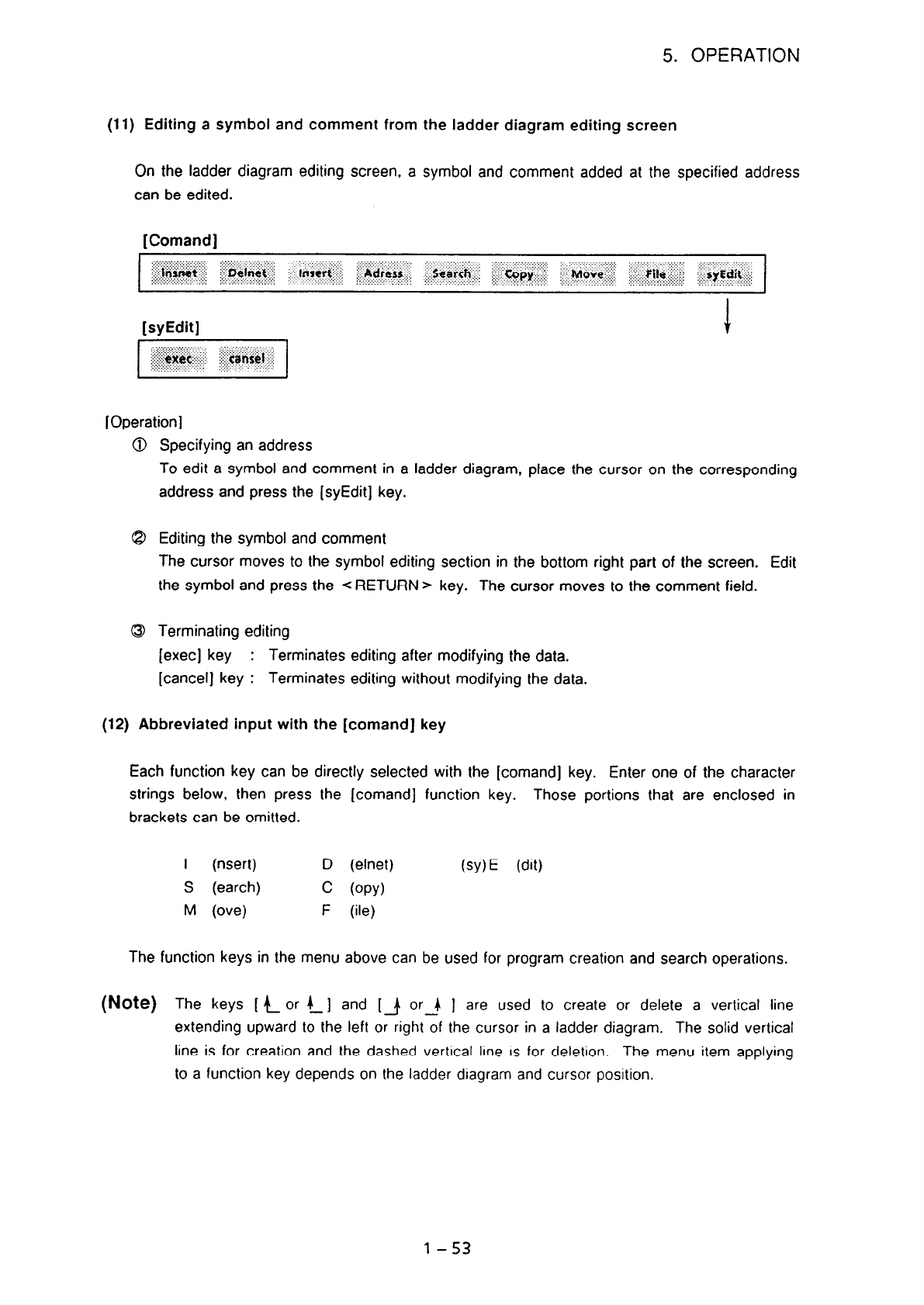
(11) Editing a symbol and comment from the ladder diagram editing screen
On the ladder diagram editing screen, a symbol and comment added at the specified address
can be edited.
[Comand]
[syEdit]
1
I
::,Y;~y~r”::~:~ .:
~~:;~::;:‘::: i:.,:,:j ::
:ig:::iexee+::
..I. .?. .A. . .
. .
,.,., .,.,. ,:
aiijans~l, j 3
: . . . .
I
[Operation]
Specifying an address
To edit a symbol and comment in a ladder diagram, place the cursor on the corresponding
address and press the (syEdit] key.
Editing the symbol and comment
The cursor moves to the symbol editing section in the bottom right part of the screen. Edit
the symbol and press the <RETURN > key. The cursor moves to the comment field.
Terminating editing
(exec] key
: Terminates editing after modifying the data.
[cancel] key :
Terminates editing without modifying the data.
(12) Abbreviated input with the [cornand] key
Each function key can be directly selected with the [comand] key. Enter one of the character
strings below, then press the [comand] function key.
Those portions that are enclosed in
brackets can be omitted.
I (nsert) D (elnet)
(SY) E NW
S (earth)
c (OPY)
M (ove)
F (ile)
The function keys in the menu above can be used for program creation and search operations.
(Note) The keys [ k or L ] and [J orJ ] are used to create or delete a vertical line
extending upward to the left or right of the cursor in a ladder diagram. The solid vertical
line is for creation and the dashed vertical line IS for deletion. The menu item applying
to a function key depends on the ladder diagram and cursor position.
l-53
Contents Summary of FAPT Ladder for PC Operators manual
- Page 1GE Fanuc Automation Computer Numerical Control Products FAPT Ladder for PC Operators Manual B-66131EN/05 Japan 1995
- Page 2Warnings and notices for GFLE-003 this publication Warning In this manual we have tried as much as possible to describe all the various matters. However, we cannot describe all the matters which must not be done, or which cannot be done, because there are so many possibilities. Therefore, matters wh
- Page 3CONTENTS I. BASICS (NORMAL OPERATIONS) 1. OVERVIEW ...................................................... l-1 2. INSTALLATION ................................................... 1-5 2.1 Operating Environment .......................................... 1- 6 2.1.1 PC9801 operating environment .........
- Page 45.6 InputiOutput. . . . . . . . . . . . . . . . . . . . . . . . . . . . . . . . . . . . . . . . . . . . . . . . l-119 5.6.1 ROM writers (PMC writer, FA writer) . . . . . . . . . . . . . . . . . . . . . . . . . 1-122 5.6.2 Transfer to and from PMC-L/M (FANUC Series 0) . . . . . . . . . . . . . . . 1-
- Page 51.4.7 Setting the title of printout ................................. 2-19 1.4.8 Setting the cross-reference list output format guidance information .... 2 - 19 1.4.9 Setting the cross-reference list output information ................ 2 - 20 1.4.10 Specifying the cross-reference list output format
- Page 6APPENDIX APPENDIX 1 DATA TRANSFER CABLES .................................. Al - 1 APPENDIX 2 FUNCTION FOR OPERATING THE PMC-L/M WITH RAM ............ A2 - 1 APPENDIX 3 ERROR MESSAGES ...................................... A3 - 1 APPENDIX 4 MODULAR PROGRAMMING (PMC-RA3/RB3/RC3 ONLY) ............ A4
- Page 7I. BASICS (NORMAL OPERATIONS)
- Page 81. OVERVIEW 1. OVERVIEW This manual describes the software products listed below which are included in the FAPT LADDER offline programming system for FANUC PMC sequence program generation. These software products are designed to run on standard personal computers. Personal Name Specification Remarks
- Page 91. OVERVIEW The following abbreviations are used in this manual for PMC models. Abbreviations PMC Models PMC-UM!P * PMC-L FANUC PMC-MODEL L * PMC-M FANUC PMC-MODEL M * PMC-P FANUC PMC-MODEL P Pfk-N FANUC PMC-MODEL N PMC-R Series * PMC-RAl _ * FANUC PMC-MODEL RAl * PMC-RA2 .- FANUC PMC-MODEL RA2 * PM
- Page 101. OVERVIEW The major functions of the software are listed below. (1) Sequence program input. display, and editing (2) Transmission to and from PMC (RAM), and PMC verification (3) ROM (EPROM, ROM cassette, and ROM modules) write, read, and verification (4) Sequence program print-out . . . . . . . .
- Page 111. OVERVIEW Operation flow for FAPT LADDER activation Reference chapter/section Prepare personal computer. MS-DOS, and FAPT LADDER + Install MS-DOS 4 Create directory for FAPT LADDER 1 Section 2.2 Install FAPT LADDER + Install device drivers - Section 2.1 @et CONFIG.SYS and AUTOEXECBAT) J. Reset per
- Page 122. INSTALLATION 2. INSTALLATION FAPT LADDER software is stored on the floppy disks listed below. Before the system can be used, the contents of these system floppy disks must be written to a hard disk; the software cannot be run directly from the floppy disks. To install the system on a hard disk, t
- Page 132. INSTALLATION PMC model Combination PMC model Combination PMC-L 0.8 PMC-RAl 0, QJ PMC-M @, @ PMC-RA2 @, @ PMC-M (with MMC) 0. @I PMC-RA3 @. QJ PMC-P 0 PMC-RB @, @ PMC-N @ PMC-RB2 @, @ PMC-PA1 @, @ PMC-RB3 @, @ PMC-PA3 0, ZJ PMC-RC 0, @ PMC-QA @ PMC-RC3 0, @ PMC-QC 43, @ PMC-RC4 8, @ ?MC-NA 6J ‘MC-
- Page 142. INSTALLATION (Note 3) In addition, an area for storing sequence program data is required. (Note 4) To use the Epson VP1000 with an NEC PC9801, a program modification is required. For details, see Section 1.2 in Part II. 2.1.1 PC9801 operating environment (1) CONFIG.SYS, AUTOEXEC.BAT When starting
- Page 152. INSTALLATION Expanded memory (EMS) EMS and/or XMS of 4 Mbytes or more Extended memory (XMS) (recommended) (Kate 1) * Better to include EMS of 256 kbyte or more (Note 2) Note 1) The quantity of the EMS and XMS memory effects on the performance to handle Symbol data and Net comment. Please prepare
- Page 162. INSTALLATION The following Japanese language input FEPs can be used: Supplier Driver name Memory size required Remarks NEC NECAlKl. DRV About 130K bytes Al step-by-step conversion NECAIK2. DRV Al multiple-block conversion Step-by-step conversion Multiple-block conversion NECDIC. DRV About 40K byt
- Page 172. INSTALLATION First. change the contents of FLMNE.BAT under the directory where FAPT LADDER is insta”ed, as follows: FLMNE. BAT r !COMMAND Inaddition, create a file with the name FEP.DEF with the definitions below. The example below assumes use of ATOK7. For detailed information, see the manual of
- Page 182. INSTALLATION (2) Using EMS The expanded memory specification (EMS) memory can be used with the system as a work area for a sequence program. The EMS memory allows a larger sequence program to be used. (An EMS memory size of 256K bytes or more allows 24000 steps to be edited.) If EMS memory is not
- Page 192. INSTALLATION Note 2) The compressed file is a self-extracting file produced using an archive program utility named LHA. LHA is freeware created by Mr. Haruyasu Yoshizaki. (1) Installation procedure for ordinary files on system floppy disks The following procedure uses an example in which ordinary
- Page 202. INSTALLATION 9 The following message appears. (2) Installation procedure for compressed files on system floppy disks The following procedure uses an example in which ordinary files are read from each PMC- RB.‘RC system floppy disk in drive B:, and installed in the directory Y FLADDER created on t
- Page 212. INSTALLATION When the following message appears. insert the system floppy disk VOL3 in a drive, and press any key. SET [SYSTEM FD Vo1.3) on DRIVE B:\ When stop "CTRL+C" Press any key to continue @I VOL3 is installed on the hard disk. @I The following message appears. (End/ (3) Installation batch
- Page 223. ACTIVATION 3. ACTIVATION (1) Activation method [Operation] Activate FAPT LADDER with the following commands: B:\>A: A:\xD \FLADDER A: \FLADDER> FLADDER (Note 1) The initial screen displaying the version of the system and copyright is displayed and the message below appears. When a key is pressed
- Page 233. ACTIVATION Reference: When an FL.BAT has been created in the directory for which path control is set, FAPT LADDER can be activated by just typing FL and pressing the [RETURN] key. An example of a batch file is provided below. FL.BAT ECHO OFF A: (Moves to the drive where the system files are insta
- Page 244. BASIC OPERATION 4. BASIC OPERATION 4.1 Menu Configuration The configuration of the menu screens displayed by the system are shown below. MS-DOS $- 4 initial screen f 4 Fl “’ Main menu- Edit Title data Ladder diagram Symbol and comment Message I/O module System parameter Print Execution l-Setting
- Page 25Diagram of relationships among the functions of the system P-G - - PC9801 - IBM-PC/AT FAPT - FAPT LADDER v :: Communication by FEZ-2324 LADDER (Refer to Appendix 1 for cables) Edit Setup - . . . . .. . . . . . . i Source i ; format : program i :s qzq+J4 : .. . . .. . . .. . . . U-inch ASC format ffO
- Page 264. BASIC OPERATION 4.2 Common System Operations The operations described below are basic operations applicable to all screens. (1) Function keys When the menu items shown below are displayed in reverse video, the user can select the desired menu item by pressing the corresponding function key. , .:,
- Page 274. BASIC OPERATION (7) Status line A status line is displayed at the top of the screen. Main menu PMC-RB2
[A::FLADDER 1 t- Item name t Model currently selected L Current currently selected directory name Edit mode (overwritefinsert) (Note) The indications on the key tops may slightly vary from th - Page 284. BASIC OPERATION 4.3 Model Setting In this case, the user needs to select the PMC model by selecting [SETUP] before selectrng another menu item. This setting, once executed, is preserved (i.e. setup need not be repeated). [Operation] Select [SETUP]. The setup menu is displayed. (The screen is of P
- Page 295. OPERATION 5. OPERATION 5.1 Editing The source file of a sequence program is edited. (1) Start [Operation] 0 Select [EDIT] from the main menu indicated below. Mm. WC> ~~~~~~~~~~~~~~\~~~~~~~~~~ .:’ j ; >&:j Fl KEY: EDIT F2 KEY : PRINT F3 KEY : COMPILE F4 KEY : OECO?kPlLE Fj KEY : LINK F6 KEY : I/O
- Page 305. OPERATION 6! Enter the name of a source program to be edited. No more than 36 characters can be entered to specify a program name. An MS-DOS file name must be entered (extension (.xXx) must be excluded). (i) When a new file is created + 6 output program (ii) When an existing Specify the OUTPUT fi
- Page 315. OPERATION @ The following editing menu screen appears: EDiT ix-x QiNA:wADI;iR\ I FI kEY : TITLE I?? RY : LWDEK DI%R+l F3 m : SMKIL 6 CONEIIT F4 KFI : ,WSAGE F5 KEY : I,;0 KIDLLE! FE hEY : SYSTM P.!J&WTER FlO kEY : E!lu ($3 Select data to be edited with the corresponding function key. $3 The editi
- Page 325. OPERATION (3 Press the desired function key. (i) When UPDATE is selected, the editing operation is terminated after the results of editing are written to a file. (ii) When QUIT is selected, the editing operation is terminated without writing the results of editing to a file. (iii) When RESUME is
- Page 335. OPERATION e Enter data. The maximum number of characters usable for each title data item is listed below. MACHINE TOOL BUILDER NAME : 32 characters MACHINE TOOL NAME : 32 characters CNC b NC NAME : 32 characters PMC PROGRAM NO : 4 characters EDITION NO : 2 characters PROGRAM DRAWING NO : 32 chara
- Page 345. OPERATION The following ladder diagram editing screen appears: u StBil PO001 :sp l-AD=xooo. 0 SY=S.:rFE 0002/6552 - Q-TEST DAT,A NO I 011030/6553S - HI- z+F- 3-a 4+3l %kztn + c--,-.. 6 t 9 _t 1ocuBmI (a) When the [View] command is used, a different line is shown. (For the [View] command, see (5)
- Page 355. OPERATION (2) Function key indications and selection The ladder diagram editing functions correspond to the function keys as indicated below. “-@ [coman_d] Q Under condition CD),holding down [SHIFT] lets you select the following items. r ::.>,:.: ......:.:,:. :.,:.:c.::~:~;:i:.:jl :.:,:.: ...\:.:
- Page 365. OPERATION (Note) While the function keys of @ are displayed in ladder diagram editing, a command of Q can be executed. For example, entering and [COMAND] on the @ screen has the same effect as selecting F4 [Adress] on the .a screen. To select a command of 8 in this way, enter the upper-case
- Page 375. OPERATION Enter address Y52.7. then press the
key. The cursor automatically moves to the input start position on the next line. Next, enter an OR condition. Press [ + ] and enter address X2.4, then press the key. The address is set at contact 6 and the cursor moves right. Pres - Page 385. OPERATION [Operation] @ Enter a control condition. Press [ -i t- 1. Next, enter an address and bit data, then press the
key. The cursor moves right. Q Enter a function instruction. Press the [functn] key. Next, enter SUB number 8, then press the key. The function instruction di - Page 395. OPERATION total for that screen. In addition, a space line between nets is counted as a valid line. The number of lines in each net to be displayed is determined as follows: (b-l) Basic instructions One line is comprised of one basic instruction. b-1- 1 line L-I *lines (b-2) Function instructions
- Page 405. OPERATION (b-3) Data table section of function instructions The data table section of the COD, CODB, or DISP instruction is calculated as follows: When the data table is one or two bytes Number of lines = number of data tables16 ( + 1 if there is a remainder) 1 0000 0000 0000 Number of lines in t
- Page 415. OPERATION (b-4) Example of calculating the number of lines per screen For the ladder shown below, the number of fines in the screen display section is obtained as follows: - The valid nets on the display screen are nets A and B. - Number of lines in net A Function instruction section + data table
- Page 425. OPERATION Example of symptom (a-2) - If an attempt is made to enter the net of a function instruction on the same screen as that of a basic instruction, the following message is displayed, and the attempt is rejected. “The NET being created is too large.” For example, if the basic instruction net
- Page 435. OPERATION attempt is rejected. “The NET being created is too large.” This symptom also occurs in a combination of two DISP instructions and a combination of CODB and COD instructions. For example, if the number of tables for the CODB instruction is 200, the total number of steps for the DISP inst
- Page 445. OPERATION [Notes] CD An attempt to scroll a program on the screen with a scroll key or other keys fails if the ladder program is incomplete (for example, without addresses) or invalid. A correct ladder program must be created before the screen can be scrolled. Q Up to eight contacts and one coil
- Page 455. OPERATION l When a vertical line affects addition [Operation] Move the cursor to the position shown above. Press [ 4_ ] to delete the vertical line to the left extending upward. This disappears. Press [ A ] to create a vertical line extending upward to the right of the cursor, then press [ - ). A
- Page 465. OPERATION When the [insnet] key is pressed without entering a numeric value, one line is inserted. When the [insnet] key is pressed after entering a numeric value, the number of lines specified is inserted. Move the cursor to the desired position and press [ -_( l-j. Then set address data and pre
- Page 475. OPERATION If the (inselm] key is pressed when the cursor is placed as shown in the left-hand figure, an element is inserted as shown in the right-hand figure. The element is inserted before the cursor. If the character is entered and the [inselm] key is pressed when the cursor is placed as Sh
- Page 485. OPERATION @ When the nets to be deleted are known beforehand, move the cursor to the first net to delete, enter the number of nets to delete. then press the [Delnet] key. With this operation, steps G and 8 can be omitted. (7) Searching in a sequence program A sequence program can be searched usin
- Page 495. OPERATION Gll.6 -- When the same address as this address is to be searched for. move the cursor to Y49.1 this position, then press the (srch] key. D32.0 II F54.1 ,.“’ GE.1 x0.4 - II . When the same address is found, II the cursor moves to this location. x0.5 021.2 Address soecification bv address
- Page 505. OPERATION When a relay coil with the specified address is found, the section of the program containing it is displayed on the screen and the cursor is positioned at the relay coil. If the search operation fails to find a relay coil with the specified address, an error indication appears. (e) [n-s
- Page 515. OPERATION G-SRCH mode continues unless pushing the < ESC > key or the [cancel] key. A __1. 1st net of LEVEL1 8 I@ @ @ t displaying on m t cursor one of Whole the screen subprograms program @ 1 0 @ Final net of the maximum numbered subprogram Th v (Searching in the order of @ -@I) a Searching resu
- Page 525. OPERATION 3) Operation The global search is operated with the following function key. 0 (comand] J 8 [comand] @ Select the [G-srch] with pushing the [SHIFT] (the following will be displayed) in state of 8 [G-SRCH] 1 (Shortcut command is ”
+ [COMMAND]“) a) Beginning of “G-SRCH” mode It switch - Page 535. OPERATiON File which is beinq edited Specified file [COPY1 Range to be copied [until] Fig. 51.2 (6) [COPY] .,:/..:...\:::..: ..:...;. . .:,:,y . . . . . :.>;.x ,:.y I I ‘...,’ :, .‘.Z’_’ ,” . . ...‘).’ .:.:.::,:.:.‘.:.‘:.:.:,:.;,, ..:.:.:...:.:.:.::.‘...:.:.:.:.L:.,. :.:.:i’i .‘.....‘.:.:Q:.:.:~:
- Page 545. OPERATION selected net or nets are copied immediatelv above the CODY destination specified by the cursor. To copy the selected net or nets two or more times, enter the number of times they are to be copied before pressing the [to] key. c3 Specifying the copy destination using the [to-fill key (Co
- Page 555. OPERATION [Operation] Substituting [Move] for [Copy], follow steps 0 to $3 for copying. (Note) incorrect nets cannot be moved. (10) Combining a sequence program A source program can be combined to another source program that is being edited. The source program to be combined can be displayed and
- Page 565. OPERATION 1) Function keys [Comand ] ..‘.,.:,. :!.. .. .. .. ~ BPiiiei:’ ” ::. I_lnreti. ” : :“Adiers :. Se&&. j r &,fjjf ;:;:: ;,.:&qove.. & syEdii inmet ORIGINAL = display when the file is opened for the first time View = display when the file is opened using the [File] command PMC Model on whi
- Page 575. OPERATION 2) Operation flowchart for combining a sequence program Specify an insertion point (The data is inserted immediately above the cursor.) I [ Press thl:LE] key 1 ) Specify ; view file 1 c POP-UP menu > 4 (View) + (To) Shows the ladder Combines the file with diagram of the file to be the L
- Page 585. OPERATION 3) Examples Example 1. Combining a sequence program file [Operation] Place the cursor on the insertion point on the original screen. Select [File]. Enter the name of the file to be combined and press the
key. From the following menu, select Fl (To). The file is inserted immedi - Page 595. OPERATION @I From the following menu, select Fl (Save). Temp (Outputs the data to the LATMPm file.) 8 Return to the screen of step-@‘and check -the name of the file output in step @. Then, select Fl (To). Y .- @I -The-file is inserted immediately above the net specified in step 0. (Original scree
- Page 605. OPERATION (11) Editing a symbol and comment from the ladder diagram editing screen On the ladder diagram editing screen, a symbol and comment added at the specified address can be edited. [Comand] [syEdit] 1 I I ::,Y;~y~r”::~:~ .: ~~:;~::;:‘::: i:.,:,:j :: :ig:::iexee+:: aiijans~l, j3 ..I. .?. .A
- Page 615. OPERATION (13) ZOOM When the source program type is “FORMAT-B”, it is realized with easy operation to refer and edit another subprogram, which is called by the CALU CALLU instruction from the program now on the opening. For the source program type, refer to “APPENDIX 6 Management a source program
- Page 625. OPERATION c) F3:Rename, save & quit It returns to the program screen where ZOOM was started, after the content of current program screen is preserved into specified subprogram name. (14) List of subprograms in use The list of subprograms called from currently displayed program is displayed. For t
- Page 635. OPERATION b) Lines at the cursor and after are shifted down, and the area for comment enclosed by ‘(” and “)’ is inserted. Then the cursor changes into character-size cursor, and type comment sentence onto the area. The area for Net comment expands and shrinks by two lines (four lines at four lin
- Page 645. OPERATION [inslin] will shift lines at the cursor and after down by one line, and make a blank line at the cursor position. (’ Net comment .. is written in here. l ) (’ y: :. . ‘) (’ All characters you can enter are available. ‘) (’ l ; c) At Net comment editing mode, to delete by line, press [de
- Page 655. OPERATION normalized by editing operation. Lost Net comment can be edited as a normal Net comment, such as deletion, copying and so on. (16) To edit New page It is able to specify the position to feed page at printing ladder diagram. This specification of the position is called “New page”, and ea
- Page 665. OPERATION The following editing end menu(pop-up menu) appears. 1Fl Save(update) & quit F2 Quit F3 Renamesave & quit F4 Edit F5 Main a) 1:Save(update) 81quit After current content of the editing is preserved, the editing screen will be ended. W F2:Quit After current content of the editing is cance
- Page 675. OPERATION 5.1.3 Symbol and comment editing The definition of terms Terms definition and uses display Symbol Name assigned uniquely to each relay/ x0.0 INPUT (Extended) coil, to be used in place of PMC address ++++I-- Relay comment Text assigned to relays/coils to explain (New) them. ;w COMMEiT CO
- Page 685. OPERATION 2) Ver. 8.4 or later Data kind Symbol Relay comment Comment Available ASCII characters ASCII characters ASCII characters Japanese characters (lower- case Japanese kanal kana/ alphabetic kanji characters kanji characters characters not (Note 2) (Note 1) allowed) Maximum 16 bytes 16 bytes
- Page 695. OPERATION Before using extended symbol comment Note the followings in case of using extended symbofcomment. 1) These functions are available to the undermentioned PMC setting. - PMC-RB4!RB4( STEP) - PMCRC4/RC4(STEP) - PMC-RBSiRB6 - PMC-NB2 2) Source programs for above-mentioned PMC, created with
- Page 705. OPERATION (1) Start [Operation] @ Select [SYMBOL] (symbol and comment) from the editing menu. 8 The following symbol and comment editing screen appears: 3l _.~ ~UDKESS SFWL COWEST 0001 XUOOO. 0 SIY-:. CUWEST I?Z’PUT SLWLE So. 1 lm2 x0000. 1 W-B CLMEXT INPUT WC’LE ho. 1 IJUO3 )ilJOUlJ. 2 WI-C COWX
- Page 715. OPERATION @.- The entered address, symbol, and comment are cleared from the window and entered into the file. When no symbols and comments are entered, the system is automatically set to receive new data. (3) Editing a symbol and comment A symbol and comment assigned to an address can be edited.
- Page 725. OPERATION 1Comment data copied to paste buffer 1 @ Place the cursor at the place the comment is to be copied. 8 Select [PASTE]. (6) Searching for a symbol or address [Operation] @ Select [SEARCH] on the symbol and comment editing screen. 8 The following input window appears on the screen. SEARCH
- Page 735. OPERATION Q Move the cursor to the end of the range to be deleted. @ Select [DELETE]. All the data displayed in reverse video is deleted. (8) Terminating the symbol and comment editing [Operation] 0 On the edit screen, select [END] or press the
key. 8 The following message appears on the sc - Page 745. OPERATION 1) Press [SEARCH] and the pop-up menu apears to specify strings for search. Furthermore, the display of function-key changes as the undermentioned. , .:;: &.<]:; .-.; :,,: .:., :;. _.... ..2:. 2 ,:,.ADRs ..; 3 .SYMB$4 -. . . .. .. ... ;: f$@f.j. . . .. ..;.... .,. . :\\y .:. : 5 ;: .:C,
- Page 755. OPERATION 5.1.4 Message editing An arbitrary message can be displayed on the CRT!MDI screen of the CNC, using the DISPB instruction (SUB 41), which is one of the function instructions. Such a message is created as described below. 5.1.4.1 Types and quantity of characters that can be used The type
- Page 765. OPERATION @ The following message data edit screen appears. (Fig. 51.4) 1 002 ,401:.! ! 003 .AOO.2 ; 004 ,400. ,’ Fig. 51.4 Message Data Edit Screen (2) input [Operation] 0 Place the cursor on the message address where message data is to be entered. C~J Key in the desired message data. (3) Modifi
- Page 775. OPERATION (5) END (Operation] @ On the edit screen, press [END] or < ESC > . 8 The following message appears. 8 Select one of the above items, and return to the edit menu. 5.1.5 I/O module editing The address of each module in the I/O unit is set and deleted as described below. (1) Startup [Opera
- Page 785. OPERATION x0000 0 'WOOi 0 i 00 :: \oooo YOOQl \ooc2 \0003 ; ! :: If 1: \ 0002 1 0003 \000: YOOO4 yoo~ 0 0 01 :I F0005 FOO06 YOOCi %’ sooo~ YOOOS 10009 coo10 YOOlO ~0011 10011 \OO!? YOOl? xooi3 YOO13 \OOl? YOOi4 .\OOlI YOOl5 1WKH ?IXPoT 3’BELP 4PKCB 5!4XLUlGDELETE iDEL%L8DK’C-i 9. IO’mB, Fig. 51.5
- Page 795. OPERATION (4) Deletion [DELETE] [DELALL) [DEL.CH] (i) To delete one module: ‘[Operation J @ Place the cursor at the address where the module is to be deleted. 0 Select [DELETE]. (ii) To delete all modules: [Operation] ” + 0 Select [ DELALL]. (iii) To delete the modules of one channel (for models
- Page 805. OPERATION (7) Termination [END] [Operation] 0 Select [END] or press the < ESC > key on the editing screen. @ The following message appears. Fl Update F2 Quit F-3 Edit @ Press the desired function key. The system returns to the editing screen. 5.1.6 System parameter editing (1) Start [Operation] 0
- Page 815. OPERATION (3) Termination [Operation] 0 Select [END] or press < ESC > on the editing screen. @ The following message appears: II @ Select a function key from the above. The screen display returns to the editing menu. (4) System parameter editing screen and input items for each PMC model (a) PMC-L
- Page 82
- Page 835. OPERATION 3 TIMER USED AREA (area used for timers1 When timers are set with the TMR function instruction on the CRT/MDI, setting and display in BCD is possible. This parameter specifies the size (in bytes) of an area that can be set and displayed in decimal format. This area is allocated from the
- Page 845. OPERATION LADDER EXEC (ladder execution time) This parameter sets an incremental processing time for the first and second ladder levels. This setting reduces ladder scan time, thus achieving high-speed ladder execution. Note, however, that increased ladder execution time on the first and second l
- Page 855. OPERATION [input item] @I PMC PARAM. SIZE (0 address size] This parameter specifies the size (in bytes) of nonvolatile memory in the common nonvolatile memory (0 address) and internal relay (R address) area. Initial value 2048 Setting range 0 to 2048 In the initial state, no internal relay (R add
- Page 865. OPERATION [Input item] COUNTER DATA TYPE This parameter specifies whether the format of a counter value used with the CTR function instruction is to be binary or BCD. initial value 0 : BINARY Setting 0 : BINARY / 1 : BCD LADDER EXEC (ladder execution time) This parameter specifies an incremental
- Page 875. OPERATION r Initial value 50 1Setting range 0 to 99 I When 0% is specified, C/PASCAL is executed after PMC screen display. Note that if a much greater value is specified in this parameter, the time allocated to PMC screen display is too short, resulting in a delayed display. 8 PASCAL ORIGIN This
- Page 88
- Page 89
- Page 905. OPERATION The table below indicates ladder execution time status during an execution period of 8 ms. Setting First and second level processing time 100% 5ms 150% 7.5ms Note, however, that increased ladder execution time on the first and second levels reduces the following processing times: l PMC
- Page 915. OPERATION @ OPERATOR PANEL (connectinq an FO machine operator’s oanel) This parameter specifies whether a machine operator’s panel is used with the FSO. When YES is specified in this parameter, specify the Dt’DO addresses where the operator’s panel is actually connected, an address for key images
- Page 925. OPERATION 5.2 Printout A sequence program can be printed out. When PC9801 is used, PRINT.SYS must be installed beforehand. Install PRINT.SYS according to Section 2.1 .l. For printout, FAPT LADDER allows the user to set the top margin, left margin, line spacing and cross reference. For details on
- Page 93
- Page 945. OPERATION The step sequence diagram printing can be selected at PMC-RB4(STEP) 1 RC4(STEP). :iliiiiliiiiiiiiiiii~~~pR~N~~~~~~~~~~~~~~~~~~~~~~ ’ 4 C:FRC4-STEP TITLE : @#I/YES1 SYSTEM PARAMETER : [!WYESl SYMBOL & COMENT : WYESI f mT;l;; LADDER DIAGRAM : [OPTION] Added -> ~~...-I ,um : [OPTIONI I/O U
- Page 955. OPERATION (4) Output item setting Items to be output to a drawing are specified as described below. More than one item can be specified at a time. Some set items may not be displayed, depending on the model of the PMC. @ Specifying whether to output each data item Whether to output each data item
- Page 965. OPERATION . Print format specification Either Japanese-language (Japanese-language input mode screen) or code format (code input mode screen) is selected. 7) Cross-reference list printing A cross-reference list is printed. (Fig. 5.2 (d)) i) Option (cross-reference list printing) * When a cross-re
- Page 975. OPERATION Example of printout of step sequence diagram (1) Printout example by “F2[SETUP]” (print menu) c graphical mode printout >
. Initial step ;* Sl t Initial step : Pl .. Transition + PlOO 4 Transition Label c-L1 4 Label q s210 l s210 PlOl : PlOl e Divergence of select - Page 98
- Page 995. OPERATION (5) Specification of output forms Specify the paper size and the type of printer forms. [Operation ] 0 Select [SETUP] on the output item selection screen. @ The forms selection screen appears (Fig. 5.2(h)). : I P!P\PER SIZE / LADDERPRIST 10 INCH/ ASCII * 10 PiCH/ GRAPHIC 15 INCH/ ASCII
- Page 1005. OPERATION $ Select [END] on the input program specification screen or the output item selection screen. 8 The screen display returns to the main menu screen. (8) [LIST] command (F2 KEY) It is the same function as “53.1 The List of source program”. refer to above paragraph. Note) If the step seque
- Page 1015. OPERATION 5.3 Compilation During compilation, an edited source program is translated into a ROM format file (object file) executable by the PMC. Uncompiled programs cannot be transferred to the ROM writers (PMC writer or FA writer) or RAM for the PMC. With PMC-R series, PMC-QC, PMC-NB. compilatio
- Page 1025. OPERATION On the other hand, condensed mode has the restrictions described below. 0 Memory map changes (area expansion) are likely to occur when instructions, symbols, comments, and so forth are added when a ROM format file generated by compilation in condensed mode is transferred to the PMC and
- Page 1035. OPERATION l General Flow of Operation for compiling I Main menu I !$yg Make#LS fi’e’ Main menu Fig. 5.3 (b) Compiling General Operation and Screens (2) Compiling .- (a) Normal mode When PMCPAljPA3 is used, selecting [EXEC] causes programs to compiled in the condense mode. [Operation] @ Specify a
- Page 1045. OPERATION 9 When the compiler terminates normally, memory map information is output. When the compiler terminates abnormally, an error message is output. (3) Output of compiling result The results of compilation are output to the screen displayed by [ERROR](F3 key) and to the following text files
- Page 1055. OPERATION (5) Specification of the input program name (a) Specification of the input program name It is possible to specify the extension of its input program name as following 3 types. (Please refer to “1.1.2 compilation function” about #LS.) * #LS * #CN * No extension l Specify the file WITH it
- Page 1065. OPERATION Note) If the step sequence function is selected when setting a model, the link compile function specified by the control statement,“file with extension .#LS”, is not used. The [LIST] command, used to create a control statement, is not included in the function key menu and cannot be exec
- Page 1075. OPERATION (b) How to specify use of a password To use a password, set as follows: 0 Open the initial set file (%%%FLSET.CNF), using a commercially available editor. : FAPT LADDER Initial Setting File : ; Text Editor : lS: editor =; rpl_dha =$; ladkey ‘1; password=O; 0:No password : 1:Password (R/
- Page 1085. OPERATION @ The password (R) set screen appears. Enter password (R) @ Enter a password. . A password that can be used is a combination of 8 or less letters and.;or numerals. * Uppercase and lowercase letters are not distinguished from each other. (If a lowercase letter is entered, it is assumed t
- Page 1095. OPERATION . An entered password is not displayed on the screen. 1 If the
key is pressed before any valid password is specified, use of a password is not specified. + Go to@. - When c ESC > is pressed, the attempt to specify a password is rejected. + Go too. @ The password confirmation sc - Page 1105. OPERATION 5.3.3 Changing the Order of Subprograms When a program is compiled. the source program, subdivided intosubprograms, is converted to a single ROM file. Within the ROM file, subprograms are arranged in ascending order of subprogram numbers. The order in which subprograms are displayed on
- Page 1115. OPERATION (i) F6 [SYMBOL] Select whether output or not output the symbol 8 comment data to ROM format file. HoweverJhe symbols which can not be displayed on CRTiMDl (7bytes or more symbols) and the coil comments assigned to them never output to ROM format file. 1) “YES”: (Default setting) The sym
- Page 1125. OPERATION 5.3.5 The list of source program (a) The list of source program indications The file (selected directory) appears. (4 Making the #LS-file Please select the source program, and then the #LS-file is registered. (Note) It is impossible to resister by source program of different PMC type. B
- Page 1135. OPERATION l Selected file indications : Selected target file is indicated by absolute-pass. F‘ig. 5.35 (1) The List of Source Program Screen (2) Function key indications and selection The list of source program functions correspond to the function keys as indicated below. (a) [LIST1 1 EXEC CHANGE
- Page 1145. OPERATION (3) Making of #LS-file [EXEC] The sequence for registration source program file to #LS-file is shown below. 1. Source file indications (The target file indications) 2. The cursor moves to the selection file 3. Push the
key (Registration) 4. Changing of selected file (changing - Page 1155. OPERATION The following message appears after pushing the [EXTEND]. ’ INPUT EXCHANGE EXTEND(MAX 3 CHA.) ' Result from specification File indications (Without extension) File name with specified extension Searching for a ‘fle in the source file list [SEARCH] Following functions to &arch in the sou
- Page 1165. OPERATION (6) Changing the selected file list [CHANGE] Following functions to change the list of selected files are available. 1. Deleting a file [DELETE] 2. Inserting a file [INSERT] This operation is also used to move the cursor between the source file list area and selected file list area. (a)
- Page 1175. OPERATION 5.4 Decompilation During decompilation, a ROM format file is translated into a source program that can be edited or printed out. Data that is uploaded from the PMC or is read from ROM is ROM format file data. Data in the ROM format file cannot be edited or printed out. Such data must be
- Page 1185. OPERATION 0 Decompilation is performed and memory map information is output. @ When the decompiler terminates normally, the message “DECOMPILE TERMINATED NORMALLY” is output. When the decompiler terminates abnormally, an error message is output. (3) Termination [Operation] 0 Select [END]. 8 The s
- Page 1195. OPERATION 5.4.2 Outputting to split files When the results of decompilation are output to a source program, they are split into units of subprograms and output to different files. For details, see Section 9.1. ROM program Source program 1 LEVEL1 #LA Ladder 1st level 1 LEVEL2.#LA Ladder 2nd level
- Page 1205. OPERATION 54.3 Converting a step sequence program according to the model Usually, mnemonics are used to convert a ladder program according to the model. However, a ROM file is used only when a step sequence program for the PMCRB4(STEP SEQ) is converted for the PMCRC4(STEP SEQ. [Procedure] 1) Comp
- Page 1215. OPERATION (1) F4 [MERGE] This specification decides whether to merge the symbol/comment by “NO” or “YES”. 1) “NO” : (Default setting) The existent source program is deleted and new source program is created with the contents of ROM data. There is no display of “F5[SYNBOL)” in this condition. 2) “
- Page 1225. OPERATION (3) The combination of F4[MERGE] and F5[DUPADR], and its result. ROM format file +-I- - Symbol/Comment data ADDRESS SYMBOL(6byte) COIL-COMMENT(30byte) x0.0 xxxxxx xxxxxxxxxxxxxxx R1.4 YYYYYY YYYYYYYYYYYYYYYYYYY Source program - Symbol/Comment data ADDRESS SYMBOL(16byte) RELAY-COMMENT(16
- Page 1235. OPERATION 5.5 Link During linking, load modules created in the C language, PASCAL, or other language are linked with a ROM format file. The C language can be used only with PMCNIRCIRC3iRC4/QCINB. and PASCAL can be used only with PMC-N. Linking is not required when the C language, PASCAL, or simil
- Page 1245. OPERATION l C oroqram development environment for PMC-RC (RC3!RCWQC!NB) -Personal computer Link control statement FAPT LADDER creation tool J C language source Link control source ROM format J-Y file iC286 (compiler) FANUC distribution 1 -library BND386 (binder) + BLD386 (binder) $_ 0J386 (conver
- Page 1255. OPERATION @ Check that specified file names have been created using the DIR command. @ Specify an output file name (for example. SAMPLE.%) as the load module file name for linking. (Note) When the extension of an input file name is omitted, the extension “.HEX” is assumed. Output is directed to a
- Page 1265. OPERATION a Linking is executed. (3) Termination [Operation] 0 Select [END]. 8 The screen display returns to the main menu screen. 5.6 Input/Output There are three types of input/output operations, as described below. 1) ROM read/write operation by the ROM writer (PMC or FA writer). 2) Transfer w
- Page 1275. OPERATION Table 5.6 Baud Rate Setting Input/output destination Baud rate setting (bps) ROM writers 4800 (PMC WRITER, FA WRITER) FANUC Series 0 (PMC-L/M!M (MMC)) 4800 (9600) (Note 1) FANUC Power Mate-MODEL A/B/C/E (PMC-P) 4800 (9600) (Note 2) FANUC Series 15 (PMC-N) 480019600 (Note 3) FANUC Series
- Page 1285. OPERATION 1) Contents of the FLl0_98DAT 2) Contents of the FLIO_AT.DAT (effective data section only) (effective data section only) DATA-BLOCK = IO-PORT-SET DATA-BLOCK = IO-PORT-SET FA-WRITER = RO. 4800. B8, PN. S2, NONE PM&WRITER =COMl : 48, N. 8.2 PMC-WRITER = RO. 4800, B8, PN. S2, NONE FA-WRITE
- Page 1295. OPERATION 5.6.1 ROM writers (PMC writer, FA writer) ROM format data is written to ROM installed in the PMC. For information on the setting of a personal computer for I/O operation, see Section 5.6. ROMs which can be used depend on the PMC model, as indicated in Table 56.1. When using the FA write
- Page 1305. OPERATION (3) Verification [Operation] 0 Select [WRT] (writer) on the I/O menu screen. 8 Select [VERIFY]. @ Enter the name of a ROM format file to be verified. @ Verification is executed. During operation, the indication “EXECUTING” blinks. 8 When verification terminates normally, the indication
- Page 1315. OPERATION 1st PAIR 2nd PAIR 3rd PAIR 4th PAIR 0 1 2 3 4 5 6 7 High side Low side 0 q 10clOClcl , PMC-L PMC-M 0E2 OF2 OEl OF1 Socket allocation for concurrent processing of pairs of ROMs with the FA writer l Writinq During concurrent writing, data can be written to a maximum of four pairs of ROMs.
- Page 1325. OPERATION SYSTEM P-MODEL G PHC LOADING READ OR WRITE OR VERIFY ADDRESS : OOOOH EXECUTING DATA : OOH i 1 [CANCEL] [ 11 II 1 Fig. 5.6.2 (a) PMC Load Screen Fig. 5.6.2 (b) l/O (P-G) Screen (1) FSO baud rate setting This setting functions only for download operation using the PMC load screen. [Operat
- Page 1335. OPERATION (b) Download (operation using the l/O (P-G) screen) [Operation] @Select [PMC] on the I/O menu screen. 8 Select [DNLOADJ (download) on the PMC menu screen. 8 Enter a ROM format file name. *@ Press < 5 > on the PMC load select screen of the CNC. (Select (5) EDIT LADDER.) *@ Press the CNC
- Page 1345. OPERATION (4) Comparison [Operation ] @ Select [PMC] on the I/O menu screen. 0 Select [COMPAR] (comparison) on the PMC menu screen. 43 Press <5> on the PMC load select screen of the CNC. (Select (5) EDIT LADDER.) *@I Press the CNC soft keys [I/O] and [P-G] in this order. (The screen shown in Fig.
- Page 1355. OPERATION 5.6.3 Transfer to and from PMC-P (FANUC Power Mate-MODEL A/B/C/E) Data can be transferred to and from PMC-P. See Section 5.6 for the setting of the personal computer for 1’0 operation. To transfer data to and from PMC-P, some parameters need to be set on the Power Mate. Set the paramete
- Page 1365. OPERATION l When the I/O parameter settino = 1 bit 7 bit 6 bit 5 bit 4 bit 3 bit 2 bit 1 bit 0 II0006 a0010 &0014 8~0227 BRATEl I BRATEl 1 0: 4800 bps 1 1 : 9600 bps (Note) The mark ‘-’ represents a parameter not associated with this function. *@ After a parameter change, turn the power off and t
- Page 1375. OPERATION @I The indication “PLEASE SET UP PMC” is output. *8 Turn on power to the CNC, then press < DGNOSIPARAM > twice to display the diagnostic screen. *@3 Press
on the CNC, then press while holding down < * >. (?I Uploading is executed. During operation, the indication “EXECUTI - Page 1385. OPERATION 5.6.4 Transfer to and from PMC-N/NA (FANUC Series 15MODEL A, -MODEL B) Data can be transferred to and from PMC-N. See Section 5.6 for the setting of the personal computer for I/O operation. To transfer data to and from PMC-N, FS15 baud rate setting is required. See Item (1) below. - FAP
- Page 1395. OPERATION (2) Download [Operation] @ Select [PMC] on the l/O menu screen. 8 Select [DNLOAD] (download) on the PMC menu screen. *$! Press the
key of the CNC. *@I Press the CNC soft keys [EDIT] and [TITLE] in this order. 61 Enter a ROM format file name. @ Downloading is executed. During o - Page 1405. OPERATION 0 Enter a ROM format file name. @ Initialization is started and the indication “INITIALIZE EXECUTE” is output. 0 The indication “INITIALIZE EXECUTE” disappears. After a few seconds, the indication “PLEASE SET UP PMC” is output. *!I3 Press the < CNC’PMC > key of the CNC. *@ Press the CNC
- Page 1415. OPERATION 5.6.5 Input/Output for PMC-QA (FANUC SYSTEM F-MODEL D Mate) Before PMC-CA and the ladder program are transmitted, the following (1) or (2) must be performed. Whether (1) or (2) is depended on the model of FD Mate. (1) Setting of FD Mate PMC communicative utility FLEX OS version (a) File
- Page 1425. OPERATION Starting the utility The utility must be started whenever data is input or output between the PMC and the external equipment. In the following example, the floppy disk containing external equipment input/output software is assumed to be inserted in drive B. Procedure for Starting the Ut
- Page 1435. OPERATION (2) Setting the UNIX version of the F-D Mate PMC communication utilities (a) File configuration The configuration of utility files on the distribution floppy disk is as shown below. UTILS FDUTILS (utility startup file) FDSV PGFD F PGSV (b) Driver installation and utility startup Operati
- Page 1445. OPERATION (3) Preparing transmission in the main unit Operation in the main unit 1 Enter 2 to display the === Utility main = = = main screen. -----------------------------------------.------ 1 : PMC -----HO/F0 2 : PMC-----Device 3 : HDIFD---Device 4 : spare 0 : Quit ------------------------------
- Page 1455. OPERATION (4) Down load Operation in the F-D Mate main Operation in the personal compu unit:PMC To start the utility 3 Start the utility. (See Subset. in the main unit of 3.4.1.) F-D Mate 3 Select PMC - Device. Select 7 : 2 To put the @I Select [ PMCJ from the personal input/output menu screen. c
- Page 1465. OPERATION (5) Upload Operation in the F-D Mate main Operation in the P-G Mate unit/PMC To start the utility 3 Start the utility. (See (3)) in the main unit of 3 Select PMC - Device. F-D Mate Select ? : 2 To put PMC in 3 Press the MODE key or the reception wait CTRL + ALT + HOME key to status disp
- Page 1475. OPERATION 5.6.6 Transfer to and from PMC-R series/PAl/PA3/NB/QC Data can be transferred serially via RS-232-C. In this case, personal computer port must be set. See Section 5.6 for the setting of the personal computer for I/O operation. FS16/18/15B - FAPT LADDER 1 -Power Mate-D, - F-D Mate mini 9
- Page 1485. OPERATION Specify either data type in step 8 of the operation described below: [Operation] 0 Select [PMC] on the I/O menu screen. 8 Select [UPLOAD] on the PMC menu screen. *a Press the
key of the CNC. *@ Press the CNC soft keys [PMC], (IO], [HOST], and [EXEC] in this order. @ Enter a ROM - Page 1495. OPERATION (5) CRT/MD1 and DPUMDI of the Power Mate-D The NC of the Power Mate-D has the CRT/MD1 screen and the DPUMDI screen. When the CRTlMDl screen is used, the procedures for data input/output are the same as those with the PMC-R Series ((1) to (4) above). When the DPUMDI screen is used, the p
- Page 1505. OPERATION @ Select [WRITE] (write (programmer -> memory card)). Fig. 5.6.7.1 (b) Memory Card Input/Output Screen @ Convert the file from ROM format to memory card format. Specify the following items for execution. l Name of the ROM format file Specify the ROM format file to be converted. l Name o
- Page 1515. OPERATION 0 The following two methods can be used to insert the memory card output in step @ into the memory card interface in the CNC and read programs on the memory card. 0 Using the I/O function of the PMC Specify M-CARD, READ, and the desired filename or file number at DEVICE, FUNCTION, and F
- Page 1525. OPERATION PMC I/O screen 'PMC I/O PROGRAM MONIT STOP- CHANNEL = 1 DEVICE = M-CARD ;;i~iJJ#~;I;$&&= WRITE DATA KIND = LADDER FILE NO. = ( #NAME ) [.EXEC 1 [CANCEL1 [WRITE 1 E READ 1 [COMPARI The following operationsare performed on the personal computer side. Install a memory card interface in the
- Page 1535. OPERATION 0 Discompile the ROM format file after conversion, and the resultant file will become able to be edited on the personal computer. 5.6.7.3 Memory card input/output function (PMC-RAl) for the PMC of the CNC (L/R) with loader control This function writes a loader control sequence program t
- Page 1545. OPERATION 56.8 Handy File + 3.5” floppy disk (MS-DOS format) If a ROM format file compiled on a personal computer is converted to Handy File format and output to a 3.6” floppy disk (MS-DOS format), the PMC program can be read into the RAM of the CNC via a Handy File interface connected to the CNC
- Page 1555. OPERATION 'ARITE(PROCRAMER--> HandyFile: FiM(FORMT FILE t&ME : A:YDATACSAAlNE.PEX HandyFile FILE !iAME : C:YSAllF'LE.:SF :Specif!the floppydisk drive! The following operations are performed on the CNC side. @ Connect the CNC and Handy File, and insert the 3.5” floppy disk generated in step @ into
- Page 1565. OPERATION I.!0 ; FROM FDC.AS i :::wc-Rc3 _\\ 1: ~ .,@ux%wm .: ‘~_ \\\\,\...._ 1 READ (PROCRAWR <- Handy File ! Handy File FILE W.AME : C:YSAW’LE. :SF (Specify the floppy disk drive, ROM FORUAT FILE NAUE : A:YDATAYSAW’LE. PEX Fig. 5.6.8.2 (a) Input/Output (from FDCAS) Screen Discompile the ROM for
- Page 1575. OPERATION 5.7 Mnemonic Editing 57.1 Conversion of a source program to a mnemonic file A source program is converted to a mnemonic file that can be edited with any standard text editor. [Operation] Select [MNEEDT] (mnemonic editing) from the main menu. The mnemonic menu screen appears (Fig. 5.7.1(
- Page 1585. OPERATION @ Specify the following items: l Source program name Specify the name of the source program to be converted. Up to eight characters can be specified. Never specify an extension for the name. l Mnemonic file name Specify the name of the mnemonic file to which a source program is converte
- Page 1595. OPERATION @I An error message is displayed if
is pressed after conversion. The mnemonic conversion screen appears when -z SPACE > is pressed after conversion. 5.7.2 Conversion of a mnemonic file to a source program A mnemonic text file edited in a certain format using a atandard text ed - Page 1605. OPERATION @ Select [EXEC] upon completion of item specification. (?J Mnemonic file is converted to a source program. @ An error message is displayed if c RETURN > is pressed after conversion. The source program conversion screen appears when < SPACE > is pressed after conversion. 5.7.3 Mnemonic f
- Page 1615. OPERATION 0 r:j This special character is reserved for use in ladder and I/O module data. l A coton is used in the ladder data section to separate a net number from ladder data. Data that precedes a colon is treated as a net number. l A colon is also used in the I/O module data section to separat
- Page 1625. OPERATION 1) ID code The ID code for symbol and comment data has been changed to “%@2-C”. Another ID codes are not changed. RB4’RB4 (STEP)‘RC4;RC4 (STEP) Data kind Ver. 08.4 or later Ver. 08.1 or earlier System parameter % @O % @O Title %@l %@l Symbol/comment %@2-c % @2 Ladder % @a %@3 Message %
- Page 1635. OPERATION When relay comment is not used, a part of relay comment must be described by double single quotation marks. I $1 ” ‘INITIALIZE OF SEQUENCE’ Note) Every single quotation mark in the relay comment and coil comment string must be described as “$” + ‘*“I in the mnemonic file. 4) Ladder data
- Page 1645. OPERATION 5.7.4 Sample mnemonic files (single-format) (a) Parameter 0 PMC-L ce 0 1 1 4001 1. D address size (0 to 400 bytes) 2 01 2. Whether an operator’s panel is used (1: YES, 0: NO) 3 501 3. Size of the area used for timers (0 to 400 bytes) 4 301 4. Size of the area used for counters (0 to 400
- Page 1655. OPERATION m @ PMC-N/N (VO LINKRB4) %@ 0 1 1 4040~ PMC Series (4040: N, 4045: N (I!‘0 LINK)) 2 BINARY1 Counter data type (Binary or BCD) 3 SOS- PASCAL execution time (0 to 100%) 4 PC-N1 Setting not required (PC-N (fixed)) 5 8000001 PASCAL TCB start address (0 to FFFFFF (hexadecimal)) 6 581 PASCAL
- Page 1665. OPERATION @ PMCRB,‘RB2RA3’RB3 se 0 1 2 BINARY1 2. Counter data type (Binary or BCD) 3 NO1 3. Whether an operator’s panel is used (YES: Used, NO: Not used) 4 PMC-RB1 4. PMC model (PMC-RB, PMCRB2 or PMC-RB) 7 1001 7. Ladder execution time (100% (fixed)) 9 YES1 9. Division/non-division method (NO: D
- Page 1675. OPERATION @I PMC-QC/NB:NB2 %@ 0 1 2 BCDJ 2. Counter data type (Binary or BCD) 3. Whether an operator’s panel is used (YES: Used, NO: Not used) 3 NOS- 4 PHC-QCl 4. PMC model (PMC-QCPMC-NB!PMC-NB2) 5 000000 5. Start address of language program link control statement data (0 or 200000 to PFFFFF 6 50
- Page 1685. OPERATION @ Symbols and comments (at using the expanded symbol function) %@2-c 7 Symbol R0200.0 UNIT-3-POWER $1 'KEEP POWER ON' 'KEEP UNIT-3 POWER ON' - Coil Comment Relay comment R0200.1 UNIT-2-ACT $1 *$*P~wER$$' *KEEP UNIT-~ $$PowER$' 0~' R0300.0 IControl code $1 'KEEP POWER ON' 'KEEP INIT- POW
- Page 1695. OPERATION 8 FULL- OPTION %@3 1 NOOOOl: SUB 71 ; SP Pl ;(SUBPRl ) [SUB PROGRAM DATA NO.011 1 N00002: RD x0.0 ;(XADRSl ) [JUMPB LABEL LOOOOl] 1 SUB 68 ; JMPBl LlOO ;(LABELl ) [LABEL Looooi] 1 N00003: RD x0.1 ;(XADRS2 ) [JUMPB LABEL Looooi] J SUB 73 ; JMPCl LlOO ;(LABELl ) [LABEL Looooi] 1 N00004: R
- Page 1705. OPERATION 0 FULL-OPTION (at using the expanded symbol function) %@3 1 Symbol NOOOOl: SUB 71 ; SP [_, Relay comment Pl ;(SUBPRl ) "SUB PROG. N0.01" 1 ; [SUB PROGRAM DATA NO.011 1 L-- Coil comment N00002: RD x0.0 ;(XADRSl ) "JUMPB LABEL Lool" l-_-1 SUB 68 ; JMPBJ no Comment LlOO ;(LABELl )l no Rela
- Page 1715. OPERATION @ LABEL/SUB-PROGRAM H3 1 ;UBPRl SP 71 ;
[SUB PROGRAM DATA NO.011 1 RD XADRSl : [JIJMPBLABEL LOOOO1]1 JMPB LABEL1 : [LABEL Looool] 1 RD XADRSZ ; [JUMPB LABEL ~ooool] 1 JMPC LABEL1 ; [LABEL L00001] 1 RD XADRSZ ; [JUMPB LABEL Looool] 1 CALL SPlOOO :< - Page 1725. OPERATION (e) Message (other than PMC-L, PMC-M/M (I/O LINK)/M (MMC), PMC-P) re 4 1 A0 0. 0 2100020 ATC DOOR NOT CLOSE1 AOO.l 2101022 SPINDLE SPEED ARRIVA L SIGNAL NOT ON1 AO0.2 2100020 EDTOK KEY SWITCR ONi %l [EOBI (f1 I/O module (other than PMC-UP) %@ 5 1 x000 1 0 1 ID64Al YO08 1 0 4 OD64Bl 81 L
- Page 1735. OPERATION 5.7.5 Sample mnemonic files (all-format) (a) PMC-M %@ A 1 %@0 1 1 3901 2 11 8 11 9 11 el ee 11 01 MACH INE TOOL BUILDER NAMES 02 MACH INE TOOL NAME1 09 ROM WRITTEN BYA 10 REMA RKSl sl %@ 2 1 x000.0 2PX.M START BELT CONVEYER 1 x000.1 2PY.M LIMIT SWITCH ONS. %l %@ 3 1 SUB 11 RD. NOT x3.01
- Page 1745. OPERATION PMC-N 1 %@ A 1 %@0 1 1 sosol 2 BINARY1 9 NO1 10 041 %l %@ 11 01 MACHINE TOOL BUILDER NAME1 02 MACHINE TOOL NAME1 09 ROM WRITTEN BY1 10 REMARKS1 sl %@ 21 x000.0 2PX.M START BELT CONVEYER 1 x000.1 2PY.M LIMIT SWITCH ON1 sl %@ 3 1 SUB 11 RD. NOT K3.01 SUB 401 21 81911 DO001 SUB 21 SUB 481
- Page 1755. OPERATION (cl PMC-FIB %@ A 1 se 0 1 2 BCDJ. 3 NO1 7 1001 9 YES1 %l %@11 01 MACHINE TOOL BUILDER NAME1 02 MACHINE TOOL NAME1 09 ROM WRITTEN BY' J 10 REMARKS1 %l %@2 1 x000.0 ZPX.M START BELT CONVEYER 1 x000.1 ZPY.M LIMIT SWITCH 0 N 1 sl oe 3 1 SUB 11 RD. NOT K3.01 SUB 401 21 81911 D3001 SUB 21 SUB
- Page 1765. OPERATION (d) PMC-RB4 %@A 1 %@O1 2 BINARY& 3 NO1 4 PMC-RB4 1 % 1 %@l1 01 MACHINE TOOL BUILDER NAME1 10 REMARKS1 % 1 ae2-c 1 RO200.0 UNIT-3-POWER1 $1 'KEEP POWER ON' 'KEEP UNIT-3 POWER ON'1 R0200.1 UNIT-2-ACT1 $1 '$'P~wER$$' 'KEEP UNIT-4 $$POWER$' ON'J. RO300.0 1 $1 'KEEP POWER ON' 'KEEP UNIT-4 PO
- Page 1775. OPERATION 5.7.6 The note if the step sequence function is selected when setting a model When using the step sequence method, mnemonic instructions cannot be coded. The mnemonic conversion functions need following notes: 1) Programming by Mnemonic instructions A step sequence program cannot be cre
- Page 1785. OPERATION 5.7.7 User batch file execution The batch file FLMNE.BAT can be executed by suspending the execution of FAPT LADDER. A user’s own batch file generated by editing the contents of the FLMNE.BAT file with a standard text editor can also be executed. l Examole 1 The execution of FAPT LADDER
- Page 179II. APPLICATIONS (NOTES ON THE PC ENVIRONMENT)
- Page 1801. COMMON OPERATIONS FOR THE PC9801 AND IBM PG’AT 1. COMMON OPERATIONS FOR THE PC9801 AND IBM PC/AT 1.1 Function for Transferring Data between the P-G and PC This function is used to transfer data in ASCII (mnemonic) format between a P-G (including the Mate and Mark II) and a PC via an RS232 cable.
- Page 1811. COMMON OPERATIONS FOR THE PC9801 AND IBM PC/AT 1 .1.2 Communications settings PC side NEC PC9801 Series baud rate: 4800 or 9600 (MS-DOS SPEED command) character length: 7 bits parity: even parity stop bits: 2 bits X parameter: none IBM PC/AT Series MODE COMI: 4800,E,7,2 (PC DOS MODE command) MODE
- Page 1821. COMMON OPERATIONS FOR THE PC9801 AND IBM PC/AT Operation examde During uploading Operation procedure Example of input and screen contents c PC > < PG > Turn on power. < PG > Enter IO command settings. ; IONC,CNl ,Fl ,FG(,BRlO) c PC > PC9801 Series: Enter SPEED command ; (See Section 2 of Communic
- Page 1831. COMMON OPERATIONS FOR THE PC9801 AND IBM PG’AT 1 .1.3 Protocol Durinq uploadinq When the FLOAD98 or FLOADAT command is executed on the PC side, a communications request is issued for the P-G and reception begins. After all data has been received, DC 3 is sent and transmission is completed. 0 DC 1
- Page 1841. COMMON OPERATIONS FOR THE PC9801 AND IBM PC/AT 1.1.5 Data start and end codes The system will automatically determine which of the following seven pairs of start and end codes is used. When none of these codes are used, an error message is displayed and operation terminates. (Note) The end codes
- Page 1851. COMMON OPERATIONS FOR THE PC9801 AND IBM PC/AT 1 .1.8 Error detection and messages This software detects the following four types of errors. (1) When there is an error in the command line Error in the file name, -u. or -d. Parameter Error FLOAD98 FILENAME -u/-d set parameter. (FILNAME, upload or
- Page 1861. COMMON OPERATIONS FOR THE PC9801 AND IBM PC/AT 1.1.9 Error detection and handling 1. Incorrect entry found in the command line. 2. Specified file cannot be opened. 3. Data not in the FAPT LADDER format was sent or received. The following causes can be considered for the above errors: 0 The end co
- Page 1871. COMMON OPERATIONS FOR THE PC9801 AND IBM PCiAT 1.2 Convert the PMC Type of Sequence Program By changing the mnemonic file, it is possible to convert some PMC type sequence program to another type of it. 1.2.1 Converting by system parameter editing On the following PMC type, it is possible to edit
- Page 1881. COMMON OPERATIONS FOR THE PC9801 AND IBM PC/AT 1.2.2 Convert with signal address converter CONVERTER APPLICABLE PMCCNC TYPE REFERENCE MATERIALS FILE NAME FS()T CNV.SYM PMC-uM/M(MMC) -+ PMC-RAl iRA2IRA3IRB FANUC PMC - (FSO-T) /RB2’RB3’RB4’RB5’ PROGRAMMING MANUAL RBG/RC/RC3/RC4 (LADDER LANGUAGE) (F
- Page 1891. COMMON OPERATIONS FOR THE PC9801 AND IBM PC/AT Convert file PM-C - CNV.SYM %@2 A. Original file 60004.3 G68.3 (PMC-P) 60005.0 695.0 %@A 60005.2 695.2 %@O 60005.3 G95.3 B. Converted file 1 2048 60005.6 G83.7 (PMC-PAl) % G0006.2 675.2 be1 60006.4 674.4 %@A B 60007.2 G68.2 %@O b@2 G0007.5 684.5 2 BI
- Page 1901. COMMON OPERATIONS FOR THE PC9801 AND IBM PC/AT 1.2.3 Using data in a sequence program for another program Data (such as title, symbol & comment, ladder, message, and I/O module data) in a sequence program can be used for another sequence program, by the following method. The range of addresses us
- Page 1911. COMMON OPERATIONS FOR THE PC9801 AND IBM PC/AT 1.4 Changing Printer Output Format Each parameter file of this software can be rewritten using a commercially available text editor so that the output format shown in each of the following frames can be changed. -AMROFTRP. DAT -PR201-10 . INF - 1 Dia
- Page 1921. COMMON OPERATIONS FOR THE PC9801 AND IBM PC/AT #PAPER=lO-G : flO-A=lO-inch/ASCII i LENGTHL=ll i LENGTH=11 : WIDTHL=lO : WIDTH=10 ; PTCHL=lS/lZO : LI : z - Print format :.......) .: LEFTMGL=O b-1 ‘i LEFTWG=O lo-inch/ASCII ................................ ....: TOPMGL=O *lo-inch/graphic TOPMG=O 15-
- Page 1931. COMMON OPERATIONS FOR THE PC9801 AND IBM PC/AT 1.4.1 Changing the paper selection name This item makes it possible to change the name of each choice during diagram output format Name of file to be Point of change Settings edited 9MROFTRP.DAT #l O-A = lo-inch!ASCII Arbitrary character string consi
- Page 1941. COMMON OPERATIONS FOR THE PC9801 AND IBM PCiAT File edited Modifications Settings AMROFTRP.DAT LCNTL = 4 Specify either 4 or 5 (Set for each sheet) I 1.4.4 Setting the printer model and print paper This item can change the printer model and print paper that are specified during paper selection. P
- Page 1951. COMMON OPERATIONS FOR THE PC9801 AND IBM PC/AT 1.4.5 Setting the line spacing This item can specify the line spacing of a diagram when it is output. The file to be edited is the one specified according to the descriptions in Section 1.4.4. Name of file to be Point of change Settings edited l.INF
- Page 1961. COMMON OPERATIONS FOR THE PC9801 AND IBM PC,‘AT Environment settings for diagram printout - example 1 (settings in file AMROFTRP.DAT) Changing the types of #PAPER = 10-G printout paper #PAPER = I O-G L #10-A= 10 inch/ASCII * #lo-A=NEC 10 The name is changed from LENGTHL = 11 LENGTHL = 11 LENGTH =
- Page 1971. COMMON OPERATIONS FOR THE PC9801 AND IBM PC/AT Environment settings for diagram printout - example 2 (settings in fife PR201_1O.INF) .. .. .. .. .. .. PRZOlH3 CNTINF { CRLF FORMF CPI CANCEL LDRCP I * LPI (H) W)(C) (T2D); * LDRLP I (H) w (C) (Tl5) ; * LMARGIN (H)WW)(LDDD); RMARGIN (H) W (C) t/D781
- Page 1981. COMMON OPERATIONS FOR THE PC9801 AND IBM PC/AT 1.4.7 Setting the title of printout This item can change the title of a diagram when it is output. The file to be edited is the one specified according to the descriptions in Section 1.4.4. Vame of file to be :INF edited SYS-TITLE Point of change ~~
- Page 1991. COMMON OPERATIONS FOR THE PC9801 AND IBM PC/AT 1.4.9 Setting the cross-reference list output information This item can specify step and/or net numbers to be output as cross-reference information. If both step and net numbers are specified, which is to be printed first can also be specified. In th
- Page 2001. COMMON OPERATIONS FOR THE PC9801 AND IBM PC/AT 1.4.11 Setting the cross-reference list read/write coil guidance information This item can set a comment about coil attributes. In the CROSSINF.DAT file, lines with no semicolon at the beginning are valid. Vame of file to be Point of change Settings
- Page 2011. COMMON OPERATIONS FOR THE PC9801 AND IBM PC/AT 1.4.14 Setting the output format guidance A desired character string can be output as guidance when the cross reference list is printed. In the CROSSINF.DAT file, data of a line beginning with a character other than a semi-colon (;) is valid. File ed
- Page 2021. COMMON OPERATIONS FOR THE PC9801 AND IBM PC/AT 1.4.17 Setting the read/write coil guidance A comment about each coil attribute can be specified. In the CROSSINF.DAT file, data of a line beginning with a character other than a semi-colon (;) is valid. File edited Modifications Settings CROSSINF.DA
- Page 2031. COMMON OPERATIONS FOR THE PC9801 AND IBM PC/AT Environment settings for diagram output - example 3 (sample setting 1 of the CROSSINF.DAT file) l Sample setting of the CROSSINF.DAT file : GUIDEsSTEP No./NET No. NET-INF=2 STEP-INF-1 FROM=S%s/N%s READ--I I- -I/I- : WRITE=-()- -(/)- : NL=l FF=O ; 0 S
- Page 2041. COMMON OPERATIONS FOR THE PC9801 AND IBM PC/AT Environment settings for diagram output - example 4 (sample setting 2 of the CROSSINF.DAT file) l Sample setting of the CROSSINF.DAT file GUIDE-Step number NET-INF=O STEP-INF=l FROM=S$s READ=read WRITE=Write NL-0 FF=O : 0 Sample cross reference outpu
- Page 205III. THE STEP SEQUENCE FUNCTION
- Page 2063. THE STEP SEQUENCE FUNCTIONS 1. OVERVIEW 1.1 What is a Step Sequence ? The step sequence is one method for programming the sequence control governed by a programmable controller. This method features the direct representation of the control flow on a flow chart. Each block of processing is describ
- Page 2073. THE STEP SEQUENCE FUNCTIONS 1.4 The Configration of a Sequence Program A sequence program consists of the following 5 kinds of program unit; - The 1st level of ladder - The 2nd level of ladder - The 3rd level of ladder - Subprograms of ladder sequence - Subprograms of step sequence LEVEL 1 (LADDE
- Page 2083. THE STEP SEQUENCE FUNCTIONS 1.5 Data Flow -PC9801*IBWPC/AT Source program Mnemonic program Ladder 1st level Mnemonic conversion A mnemonic program without Ladder 2nd level - step sequence Ladder 3rd level - Subprogram Pl 7 Subprogram P2 Compilation/Decompilation Object code I L ROM format program
- Page 2093. THE STEP SEQUENCE FUNCTIONS 2. SETTING A MODEL 2.1 Operation (1) Starting FAPT LADDER At the MS-DOS prompt, key in FLADDER. (2) Displaying the initial screen Once the system edition, copyright. and other information have been displayed, press any key. FAPT LADDER AOEB-92014502#EN Ver 08.0 1994.07
- Page 2103. THE STEP SEQUENCE FUNCTIONS (4) Setting the PMC model To use the step sequence function, select PMC-XXX(STEP SEQ or PMC-RB6 or PMC-NB2) (model which supports the step sequence function) from the listed models. SETUP RCQ(STEP SEQ) PMC-RAl PMC-RA2 . . PMC-RB4 (STEP SEQ) . . * PMC-RC4 (STEP SEQ) . .
- Page 2113. THE STEP SEQUENCE FUNCTIONS 3. EDITING This section describes how to create a step sequence program. 3.1 Basic Operation (1) Displaying the main menu Press the < Fl > (EDIT) key. MAIN MENU [A:YFLYDATAYSFC% 1 Fl KEY : EDIT F2 KEY : PRINT F3 KEY : COMPILE F4 KEY : DISCOMPILE F5 KEY : LINK F6 KEY :
- Page 2123. THE STEP SEQUENCE FUNCTIONS To return to the main menu, press the < FlO> or < ESC> key. As the program name, enter up to eight alphanumeric characters, without an extension. (3) Displaying the editing menu Press the < F2 > (LADDER/STEP SEQUNCE) key. EDIT RCI(STEP SEQ) [A: YFL~DATAYsFcY 1 Fl KEY :
- Page 2133. THE STEP SEQUENCE FUNCTIONS Note 1) The 3rd ladder level can be omitted. Note 2) If the [ZOOM] key was used to nest a program to a certain depth, and if the subprogram configuration screen is displayed upon a single press of the [MAIN] key, the editing of the subprograms for which the [ZOOM] key
- Page 2143. THE STEP SEQUENCE FUNCTIONS 3.2 Creating a Step Sequence 3.2.1 Creating a subprogram of the step sequence EDIT(LADDER/STEP SEQUENCE) RCI(STEP SEQ) [A:~FL~DATAfSFCOl] PROGRAM:(STEP SEQUENCE DEMO PROGRAM) 0 LEVEL1 0 LEVEL2 0 LEVEL3 ;/$;;-'i:&jflQ~!n .: i,,. ,.. ...i............ ]POOO2 0 PO004 0 PO0
- Page 2153. THE STEP SEQUENCE FUNCTIONS (1) Creating a new subprogram - Press the [NEW] key. New program name ? m - Enter the number of the subprogram to be created (P200, for example). - Press the [F2 ] key. (2) Modifying a subprogram - Key in the number of the subprogram to be modified (P200, for example),
- Page 2163. THE STEP SEQUENCE FUNCTIONS 1 0 I: Step subprogram [ tLBL ] : Label for jump 1 UJI 1: Initial step subprogram I A- I: The end of block step [ 01 I: Block step subprogram ( FUNC ] : Various functions 1 I I : Line for link [ CHK ] : Grammatical checking [ +JMP ] : Jump to label ( ZOOM ] : Zooming i
- Page 2173. THE STEP SEQUENCE FUNCTIONS STEP : 81 ACTION : PlO l-l To change the step number, press the
key to position the character cursor ” .?’ on STEP and use the [BS] key to change the number. .:$:f:B~~:.:~ ~~~~: T;f;y .. ..... :.:.::.: ,,i;;,;i;y::::::::: :>:.. ,...,.:.::::::::: )::::::, ::::“::. - Page 2183. THE STEP SEQUENCE FUNCTIONS (3) Divergence of selective sequence Position the cursor to the desired input position and press the [ 1 --_I key. FUNC CHR ZOOM Position the cursor to the desired input position and press the [ 1 -_I key. I I (4) Convergence of selective sequence Position the cursor t
- Page 219- - -x - g u u z - - u -z Y z - -II - II II II c t - - i j_ - - - - - II II II II + -_, - - I I + + - - + t - -
- Page 2203. THE STEP SEQUENCE FUNCTIONS Specifying a label for jump destination Position the cursor to the desired input position (step line), then press the [- LBL] key. Then, enter a label name. Press the [+ LBL] key. LABEL : Ll@; l-l I + JMP +LBL 1 FUNC CHR ZOOM Enter a label name. STEP : Sl ACTION : PlO
- Page 2213. THE STEP SEQUENCE FUNCTIONS (8) Specifying a label jump Position the cursor to the desired input position (step line), then press the [+ JMP] key. Then, enter a label name. Press the [+ JMP) key. A... LEBEL : $$ 2-3 I + JMP + LBL FUNC CHK 200?4 Enter a label name. +- L10 101 s1 f-r I PlOO PlOO I:
- Page 2223. THE STEP SEQUENCE FUNCTIONS (9) Deleting an element Position the cursor to the element to be deleted, then press the [DEL] key. Select the element by the
key and press thekey I In the example shown above, two figures (elements) of a selective branch and transition are selected. Sp - Page 2233. THE STEP SEQUENCE FUNCTIONS To specify another figure, press the [DEL] key again. I I01 Sl ..I :::.. .k ... ,..,....... : .. .. .. ... ‘:~l;;;i;~g~. .:.. . >:..A . ., Inserting an element Position the cursor to the desired insertion position, then press the [INS] key. To create an mpty row, press
- Page 2243. THE STEP SEQUENCE FUNCTIONS Press the (INS] key. l-3 Press the [SHIFT] and [INS] key. IO1 Sl c Pl Cl Sll cl s21 I I STEP : S2 ACTION : PlO2 l-3 3-19
- Page 2253. THE STEP SEQUENCE FUNCTIONS (11) Search q;;..“;. ,, ======i = ....::::. ...:j:::ji(ij:j. ..;:.I‘I:;:‘:‘: :.:.::: jj ::..:. 1 g$j::$i:.;.‘:“‘l:li: I-J SlO Cl s20 ;;. (, .,. ..,::,,... _..t : .. $5:": t ..~, z:...:)>>::..,: ".."."..."~>;.> .: .... .?.... ,., :>: ,.i.. ::.::.: ....:.,.::.:.> .......
- Page 2263. THE STEP SEQUENCE FUNCTIONS Then, press the (Fl] (Step) key. Another pop-up menu is displayed, as shown below: Enter the step number to be searched for (S20, for example), then press the < RET > key. The system starts searching through the part subsequent to the cursor. Copying or moving an eleme
- Page 2273. THE STEP SEQUENCE FUNCTIONS When the [F8) (FUNC) key is pressed, a pop-up menu is displayed as shown below: Fl Search F2 Copy F3 Move F4 mAin FS List Press the [F2) (Copy) key. The system prompts the operator to enter a start point. ACTION : Specify Start position l-2 Position the cursor to the d
- Page 2283. THE STEP SEQUENCE FUNCTIONS Position the cursor to the desired end point (position 3-4 in the example shown below), then press the < RET > key. The system prompts the operator to specify a copy destination. :z’:’ J::” ;;; ~~~ :~~~~~~:~~~~ qlS2 I:::iliii:ll:i:li#i:~,::,:~:~:~:~~: :::‘.zy ::.. j..:
- Page 2293. THE STEP SEQUENCE FUNCTIONS (13) Returning from the ZOOM destination to the program configuration screen (MAIN). To return to the program configuration screen, displayed when editing was started, follow the procedure below. The system assumes that the editing of the step sequence subprogram, from
- Page 2303. THE STEP SEQUENCE FUNCTIONS If the subprogram whose previous editing session was suspended (marked with A]) is selected again for editing, the following message is displayed: Editing this subprogram is not completed. Continue to select it ? (Yes/No 1 [Yl To continue the previous editing session,
- Page 2313. THE STEP SEQUENCE FUNCTIONS Following keys are useful in this screen. Function key Other keys [ MAIN ] :Displaying the subprogram [ROLL UP] : Displaying previous screen configuration screen [ROLL DOWN] : Displaying next screen [ CHANGE ] :Creating a new subprogram [ ZOOM ] :Modifying a subprogram
- Page 2323. THE STEP SEQUENCE FUNCTIONS If the step sequence is satisfactory, the following message is displayed: $."f:" ... .................... ~~~~~~~~ I .;.“..::..:.::;: .: ... . ... . ..... ..... .:.:.:: : : : >: : .................. ..?..): ..: ..:.:.:::: .. 0 slo .:.::.:..:. .. .: “:.:‘:‘:j:::::::: :>
- Page 2333. THE STEP SEQUENCE FUNCTIONS When the [ZOOM] key is pressed, the figure pointed by cursor decides the type of subprogram which is to be edited. L Figure Meaning of the figure Subprogram to be edited 0 Step sequence subprogram Ladder subprogram 101 Initial step sequence subprogram Ladder subprogram
- Page 234Z LJJ CL n a
- Page 235APPENDIX 1 DATA TRANSFER CABLES APPENDIX 1 DATA TRANSFER CABLES Use the cables below to transfer data from a PC to a CNC, ROM writer (FA writer or PMC writer), or P-G (P-G Mark II or P-G Mate). 1. For PC9801 PC980 1 On-line cable 25pin male 25pin male connector connector CNC, ROM writer, or P-G 2. F
- Page 236APPENDIX 1 DATA TRANSFER CABLES 0 On-line cable (AOSB-0031-K8Ol/K802) 2 2 SD SD RD RD 4 4 RS RS I 5 5 25-pin male 25dn male cs I cs connector connector ER ER DR DR CD ZI E CD 7 7 SG SG 1 1 FG FG l IBM PC/AT cable 1 8 CD CD 2 3 RD RD 3 2 SD SD 4 20 g-Din female 25-pin female ER ER connector connector
- Page 237A! P b I
- Page 238APPENDIX 2 FUNCTION FOR OPERATING THE PMC-UM WITH RAM APPENDIX 2 FUNCTION FOR OPERATING THE PMC-L/M WITH RAM 1. GENERAL This appendix describes the procedure for operating the PMC-L using built-in RAM or the PMC-M using the optional RAM board. It also describes related notes. 2. HARDWARE CONFIGURATI
- Page 239APPENDIX 2 FUNCTION FOR OPERATING THE PMC-L/M WITH RAM 3. RAM OPERATION Follow the flowchart shown below to perform the RAM operation. (1) PMC-L Yes Contents of the No Is the EPROM backup RAM Parameter for Yes displaying the PMC load select screen (Note) Ladder programs stored in the EPROM are copie
- Page 240APPENDIX 2 FUNCTION FOR OPERATING THE PMC-L/M WITH RAM (2) PMC-M Contents of the backup RAM I Yes Is the EPROM ROM operation No (Note) Ladder programs stored in the EPROM on the Parameter for Yes ROM board are displaying the copied to the RAM. PMC load select screen PMC LOADING ADDRESS:OOOOH DATA: O
- Page 241APPENDIX 2 FUNCTION FOR OPERATING THE PMC-L/M WITH RAM (3) Notes on RAM operation in the PMC-M Follow the description below. @ When a ladder oroaram sent from the FAPT LADDER is executed on RAM ooeration Mount the ROMs for the PMC-M into the sockets usually used for the PMC-L on the memory board. Wr
- Page 242APPENDIX 2 FUNCTION FOR OPERATING THE PMC-UM WITH RAM 4. PMC LOAD SELECT SCREEN The PMC load select screen shown below varies depending on hardware configuration. When the Edit Cassette is not mounted Item (5) in Fig. 4 is not displayed. When the PMC-L is not provided with ROMs on the sockets; When
- Page 243APPENDIX 3 ERROR MESSAGES APPENDIX 3 ERROR MESSAGES 1. MAIN MENU/SETTINGS Message Description and action to be taken xxx executable file not found. - Executable file xxx does not exist in the system Hit any key! directory. - System directory is not specified in the declaration made by environment va
- Page 244APPENDIX 3 ERROR MESSAGES 2. ERRORS AT [LIST] COMMAND Message (compilation & printer) Meaning and Dealing MAKING DATA TABLE - Data table for target program list is making. WRITING SELECTED FILE DATA - When source program list screen exit, writing selected files into P INTERF.DAT. OPEN ERROR P_INTERF
- Page 245APPENDIX 3 ERROR MESSAGES 3. EDITING (SOURCE PROGRAM SELECTION) Message Description and action to be taken Insufficient memory. - There is not sufficient main memory for loading an executable file. An area of 500 KB or more is required. nsufficient disk space. - Disk space was used up during file l/
- Page 246APPENDIX 3 ERROR MESSAGES 3.1 Ladder Diagram Editing Message Description and action to be taken ILLEGAL OPERATION - Only the RETURN key was pressed. - Address data input is incorrect. - Editing is not being performed within the limits when creating function instructions. - Function instructions cann
- Page 247APPENDIX 3 ERROR MESSAGES Message Description and action to be taken STACK REGISTER OVER (8bit) ERR - There are 9 or more continuous stacks in the LADDER program which was read in. NOT EXIST APPOINT DATA SIZE - There is not enough data area for the specified file. FILE NOT READ - Disk space insuffic
- Page 248APPENDIX 3 ERROR MESSAGES 4. PRINTER Message Description and action to be taken DATA INPUT ERROR - There is an error in the data input in the setup screens such as the type selection screen for diagram output. NOT FIND FILE - Nonexistent file name was entered in the source program selection screen.
- Page 249APPENDIX 3 ERROR MESSAGES 5. COMPILATION, DECOMPILATION, AND LINKING Message Description and action to be taken Error title 80 - Character code not permitted by PMC was found during title compilation. Illegal OP. PANEL (PARAMETER). - System parameter that specifies use of the Proceed to discompile u
- Page 250APPENDIX 3 ERROR MESSAGES Message Description and action to be taken Error end 17 - END2 was found before END1 or END1 was not found before the LADDER program ended. Error end 18 - END3 was found before END2 or END2 was not found before the LADDER program ended. Error end 19 - END3 was not found bef
- Page 251APPENDIX 3 ERROR MESSAGES Message Description and action to be taken Error link 90 - During linking, SO record was not found before the end of the load module. - Different S record exists before the SO record. Error link 92 - During linking, the value for the record length area in the S2 record was
- Page 252APPENDIX 3 ERROR MESSAGES Message Description and action to be taken (System parameter) Read error - Some sort of disk I/O error occurred. (Note) When no #PA file exists for the specified source program, the following message is displayed. “Cannot read source program j-l-j-\.” (Title) Read error - S
- Page 253APPENDIX 3 ERROR MESSAGES 6. COMPILE ERRORS Compile errors can be divided into the following two basic groups: - Error:Processing is stopped because of a fatal error. The processing can not be continued unless the cause of the error has been removed. - Warning: Processing of a subprogram for which a
- Page 254APPENDIX 3 ERROR MESSAGES 010 - Not enough disk space. (Cause) There is insufficient free space on the disk. 011 - Out of memory. (Cause) There is insufficient free space in memory. 012 * xxx Source-Program name illegal. (Cause) The source program name is invalid. 013 - xxx file not found. (Cause) A
- Page 255APPENDIX 3 ERROR MESSAGES 004 * ‘SP’ instruction was detected in the subprogram. (Cause) Data was already present before SP instruction. 005 * There is no ‘SPE’ instruction at the bottom of the subprogram. (Cause) Data remained after SPE instruction. 006 - There is an undefined instruction. (Cause)
- Page 256APPENDIX 3 ERROR MESSAGES 016 * There is no LADDER program. (Cause) The level 3/subprogram is empty. (Action) Add an END3 or SPSPE instruction. 017 - The symbol data which could not be displayed on the CNC was replaced with space code. (Cause) The symbol contains a code other than 20H to 7EH or OAH.
- Page 257APPENDIX 3 ERROR MESSAGES 028 - The label of Lxxxx is used twice or more. (Cause) The definition of the label is duplicated. 029 * There is no END1 instruction. (Cause) A program of level 1 does not end with an END1 instruction. 030 * There is no END2 instruction. (Cause) A program of level 2 does n
- Page 258APPENDIX 3 ERROR MESSAGES 043 - The size of LADDER program is too large. (Cause) The object size of the ladder program exceeds the predetermined limit. (Action) Reduce the size of the ladder program. 044 * The range controled by COM instruction is beyond END1 instruction. (Cause) An END1 instruction
- Page 259APPENDIX 3 ERROR MESSAGES 056 * There is no coil in the functional instruction which needs the coil. (Cause) No output instruction is specified after a functional instruction which requires output. 057 * SP instruction can not be used in the main program. (Cause) The use of the SP instruction was at
- Page 260APPENDIX 3 ERROR MESSAGES 070 * The destination of JMP instruction is beyond SPE instruction. (Cause) An SPE instruction was encountered before a JMPE instruction. 071 * CALL instruction cannot be used excluding the 2nd level. (Cause) The use of the CALL instruction was attempted within level 1 or 3
- Page 261APPENDIX 3 ERROR MESSAGES 6.6Path 2/warning 001 * Unreferenced subprogram Pxxxx. (Cause) A subprogram which is not called by a CALL or CALLU instruction is encountered. 6.7 Path 2/error 002 * Data too large. ( message + symbol + comment ) (Cause) The total size of the message, symbol, and comment da
- Page 262APPENDIX 3 ERROR MESSAGES 7. INPUT AND OUTPUT Message Description and action to be taken INVALID RECEIVE DATA - Data other than IS0 codes was sent. TIME OUT ERROR - During reception processing, a command was sent from the PC, but there was no response within a certain period of time. Confirm for the
- Page 263APPENDIX 3 ERROR MESSAGES Message Description and action to be taken IFILE READ ERROR I- Cannot read from specified ROM format file. I- ROM FILE > ROM ERROR - During writing, the specified ROM format file could not be fully written to ROM (cassette or module). IROM I- r FILE FORMAT ERROR ROM file fo
- Page 264APPENDIX 3 ERROR MESSAGES 8. MNEMONIC EDITING 8.1 Mnemonic Editing (System Parameters > Message Description and action to be taken Invalid qualifier. - System parameter is followed by invalid character(s). Unknown data number. - Data number was specified that does not exist in the system parameters.
- Page 265APPENDIX 3 ERROR MESSAGES 8.2 Mnemonic Editing
<li class="odd"> <a href="/fanuc/720/fapt-ladder-for-pc-operators-manual/page/266">Page 266</a>APPENDIX 3 ERROR MESSAGES 8.4 Mnemonic Editing (LADDER Data > Message Description and action to be taken Expected address. - Basic command has no address. invalid qualifier. - LADDER data is followed by invalid character(s). Expected parameter(s). - Function instruction has no parameters. Not enough </li> <li> <a href="/fanuc/720/fapt-ladder-for-pc-operators-manual/page/267">Page 267</a>APPENDIX 3 ERROR MESSAGES Message Description and action to be taken Not enough control condition(s). - Function instruction control conditions are insufficient. Too many control conditions. - Too many function instruction control conditions. Expected control condition(s). - There are no function in </li> <li class="odd"> <a href="/fanuc/720/fapt-ladder-for-pc-operators-manual/page/268">Page 268</a>APPENDIX 3 ERROR MESSAGES 8.5 Mnemonic Editing <Message Data> Message Description and action to be taken Too long strings. - Length of message data exceeds the maximum allowed length. Illegal address. - Invalid address was specified for the message setting address. Include KANA or KANJI character(s) </li> <li> <a href="/fanuc/720/fapt-ladder-for-pc-operators-manual/page/269">Page 269</a>APPENDIX 3 ERROR MESSAGES 8.6 Mnemonic Editing <I/O Module Data> Message Description and action to be taken Invalid qualifier. - I/O module data is followed by invalid character(s). Illegal address. - Invalid address specified for l/O module data address. Out of address limits. - Out-of-bound addres </li> <li class="odd"> <a href="/fanuc/720/fapt-ladder-for-pc-operators-manual/page/270">Page 270</a>APPENDIX 3 ERROR MESSAGES 9. STEP SEQUENCE EDITING ERRORS Error message Description Illegal source code The input file data is illegal. Symbol file read error The symbol data cannot be read. Comment file read error The comment data cannot be read. Title file read error The title data cannot be read. </li> <li> <a href="/fanuc/720/fapt-ladder-for-pc-operators-manual/page/271">Page 271</a>APPENDIX 3 ERROR MESSAGES Error message Description Cannot copy diagrams The program is too large. Cannot move diagrams The program is too large. Illegal specified position The corresponding coordinates cannot be found. Strings not Found The specified character string cannot be found. Step Number Du </li> <li class="odd"> <a href="/fanuc/720/fapt-ladder-for-pc-operators-manual/page/272">Page 272</a>APPENDIX 4 MODULAR PROGRAMMING (PMC-RA3/RB3/RC3 ONLY) APPENDIX 4 MODULAR PROGRAMMING (PMC=RA3/RB3/RC3 ONLY) The PMCRA3/RB3’RC3 has special sub-program functions that allow modular programming. When the sub-program function is used, a Ladder program, which must have been coded as an unbroken sequence </li> <li> <a href="/fanuc/720/fapt-ladder-for-pc-operators-manual/page/273">Page 273</a>APPENDIX 4 MODULAR PROGRAMMING (PMC-RA3/RB3/RC3 ONLY) (2) Combining source programs l The function combines all or part of a source program to another source program that is being edited. l The function combines a module (program) to another program. Source program Module Source program Source progr </li> <li class="odd"> <a href="/fanuc/720/fapt-ladder-for-pc-operators-manual/page/274">Page 274</a>APPENDIX 4 MODULAR PROGRAMMING (PMC-RA3/RB3/RC3 ONLY) (2) Control statement (.#LS file) The .#LS file is a MS-DOS text file in which the source programs to be combined are coded in the order in which they are combined. See the following example. Sample control statement (File name = MAIN.#LS) ~ Para </li> <li> <a href="/fanuc/720/fapt-ladder-for-pc-operators-manual/page/275">Page 275</a>APPENDIX 5 BOOT SYSTEM OPERATING PROCEDURE (FOR THE FSZO) APPENDIX 5 BOOT SYSTEM OPERATING PROCEDURE (FOR THE FS20) This appendix describes how to use the BOOT SYSTEM for the FS20. The operating procedure varies from one CNC model to another. For other models such as the FSlSB (PMC-NA), refer to the </li> <li class="odd"> <a href="/fanuc/720/fapt-ladder-for-pc-operators-manual/page/276">Page 276</a>APPENDIX 5 BOOT SYSTEM OPERATING PROCEDURE (FOR THE FSZO) Hold down the [NEXT] key and a soft key at its immediate left simultaneously, and switch on the NC. The IPL screen will appear (00). r (NEXT] The entry procedure is described below (0 to 0). @ Hold dowrf both simultaneously. @ Switch on the p </li> <li> <a href="/fanuc/720/fapt-ladder-for-pc-operators-manual/page/277">Page 277</a>APPENDIX 6 MEMORY CARD COMPATIBILITY (FOR THE PMC-RAl/RA3, NB, AND QC) APPENDIX 6 MEMORY CARD COMPATIBILITY (FOR THE PMGRAlIRA3, NB, AND QC) If a CNC or off-line programmer operating on an upgraded edition is used to output a sequence program to a memory card, the sequence program may not be able to </li> <li class="odd"> <a href="/fanuc/720/fapt-ladder-for-pc-operators-manual/page/278">Page 278</a>APPENDIX 6 MEMORY CARD COMPATIBILITY (FOR THE PMGRAVRA3, NB, AND QC) l Cases 0 and @ output : No special operation is required. Input : Use the BOOT SYSTEM to enter a sequence program. l Case 0 Output : To output a sequence program, specify the output format as 1 (S-format) on the PMC l/O SETUP scre </li> <li> <a href="/fanuc/720/fapt-ladder-for-pc-operators-manual/page/279">Page 279</a>APPENDIX 7 CAUTIONS FOR USING THE 0:s APPENDIX 7 CAUTIONS FOR USING THE O/S (1) MS-DOS version 05.0 @ DOSKEY.COM When DOSKEY.COM is used in insertion mode, pay attention to the following: Insert mode specification DOSKEY.COM/INSERT Be careful especially when the AUTOEXEC.BAT contains a command line </li> <li class="odd"> <a href="/fanuc/720/fapt-ladder-for-pc-operators-manual/page/280">Page 280</a> </li> <li> <a href="/fanuc/720/fapt-ladder-for-pc-operators-manual/page/281">Page 281</a>APPENDIX 8 TOOL FOR CHANGING MESSAGE DATA (CHGMES) APPENDIX 8 TOOL FOR CHANGING MESSAGE DATA (CHGMES) This function is a tool(CHGMES) for easy changing the message data incorporating sequence program of FANUC PMCs . This tool extracts only message data from Handy file format file. The message data i </li> <li class="odd"> <a href="/fanuc/720/fapt-ladder-for-pc-operators-manual/page/282">Page 282</a>APPENDIX 8 TOOL FOR CHANGING MESSAGE DATA (CHGMES) (3) Hard disk It is necessary to use following disk space. l For installation 68KBytes l To generate temporary files 65KBytes (In case of environmental variable “TMP” of PC-DOS set on hard disk) TOTAL 133KBytes 3. INSTALLATION Please copy EXE-FILE ( </li> <li> <a href="/fanuc/720/fapt-ladder-for-pc-operators-manual/page/283">Page 283</a>APPENDIX 8 TOOL FOR CHANGING MESSAGE DATA (CHGMES) <Outline of Operation 7 Basic message ladder Message for changing + Dummy ladder + Generation, Editing + t + Check the SYMBOL top COMPILATION address by memory map I display. +, +, J t INPUT/OUTPUT (F4:FLOPPY CASSETTE Handy File) Handy file format H </li> <li class="odd"> <a href="/fanuc/720/fapt-ladder-for-pc-operators-manual/page/284">Page 284</a>APPENDIX 8 TOOL FOR CHANGING MESSAGE DATA (CHGMES) 5. USING EXAMPLE Check the installation of this function by using the following example. There are some sample files in FAPT LADDER system floppy disk for checking this function. RB3DUMMY.SFM : : Message data and dummy ladder file (Handy file format </li> <li> <a href="/fanuc/720/fapt-ladder-for-pc-operators-manual/page/285">Page 285</a>APPENDIX 8 TOOL FOR CHANGING MESSAGE DATA (CHGMES) Message Meaning and countermeasure chgmes : Cannot start IMG2ASC IMG2ASC.EXE does not exist in the same directory of CHGMESEXE. chgmes : Cannot make temporary file It is impossible to make temporary file. $tmpd.t” * Disk is insufficient. chgmes : Ca </li> <li class="odd"> <a href="/fanuc/720/fapt-ladder-for-pc-operators-manual/page/286">Page 286</a>APPENDIX 9 SOFTWARE VERSION TABLE APPENDIX 9 SOFTWARE VERSION TABLE To use the software described in this manual, each CNC unit requires a different system disk. As described in Section 2.1 in Part I, each system must prepare an area of 3 Mbytes in its hard disk. If software products of specific ver </li> <li> <a href="/fanuc/720/fapt-ladder-for-pc-operators-manual/page/287">Page 287</a>APPENDIX 9 SOFTWARE VERSION TABLE 2) System floppy disks and module floppy disks for the FS16/18/15B,Powe Mate-D, F-D Mate Mini that can be used together software Combinations of versions (-Jxxx) ‘MC-RB/RC 01.0 02.0 03.0-03.6 04.0- 05.0- 06.1 06.2- 08.0- 08.3- (-J502) 04.2 06.0 07.1 08.1 08.4 ?Al/RA </li> <li class="odd"> <a href="/fanuc/720/fapt-ladder-for-pc-operators-manual/page/288">Page 288</a>APPENDIX 9 SOFTWARE VERSION TABLE Software products listed in the same column can be stored in the same directory. When software products to be stored in the same directory have the different version numbers, however, a software product with a smaller number must be installed first. The following ar </li> <li> <a href="/fanuc/720/fapt-ladder-for-pc-operators-manual/page/289">Page 289</a>APPENDIX IO MANAGING A SOURCE PROGRAM APPENDIX IO MANAGING A SOURCE PROGRAM 1. TYPE OF SOURCE PROGRAM There are two types of the source program of the following. The file name and the control method are different though both are preserved as some files. Especially, the function of ZOOM and G-SRCH ca </li> <li class="odd"> <a href="/fanuc/720/fapt-ladder-for-pc-operators-manual/page/290">Page 290</a> </li> <li> <a href="/fanuc/720/fapt-ladder-for-pc-operators-manual/page/291">Page 291</a>APPENDIX 10 MANAGING A SOURCE PROGRAM 3. SAMPLE MANAGEMENT OF FORMAT-C The following functions have been added to PMCRB4RB4 (STEP SEQRCWRC4 (STEP SEQ. The FORMAT-C source program is organized by below files. <A case of specifying “C: y DATA y PRG - C” as source program > C:Y data Y PRG CY t -CONTROL </li> <li class="odd"> <a href="/fanuc/720/fapt-ladder-for-pc-operators-manual/page/292">Page 292</a>APPENDIX 10 MANAGING A SOURCE PROGRAM 4. SOURCE PROGRAM TYPE AND PMC MODEL The source program type is decided by setting the PMC model. 1) FORMAT-A. - PMCRC/RC3’RBiRB2/RB3.:RAl/RA2/RA3 - PMC-NBQC * PMCPAl!PA3 * PMC-N’N (10 LINK)/QA - PMC-L’MIM (MMC) - PMC-RB4/RC4(A08B-9200/9201 -Jr502 ver.8.0 or ear </li> <li> <a href="/fanuc/720/fapt-ladder-for-pc-operators-manual/page/293">Page 293</a>APPENDIX 10 MANAGING A SOURCE PROGRAM 5. CONVERSION FROM FORMAT-A TO FORMAT-B When FAPT LADDER for PMC-RB4iRC4(A08B-9200!9201-J502) is updated from ver.8.0 or earlier to ver.8.1 or later, it needs source program conversion. The operation is the following. 1) Convert the source program “FORMAT-A” int </li> <li class="odd"> <a href="/fanuc/720/fapt-ladder-for-pc-operators-manual/page/294">Page 294</a>APPENDIX 11 SYSTEM CONFIGURATION FILE “%%%FLSET.CNF”. APPENDIX 11 SYSTEM CONFIGURATION FILE “%%% FLSET. CNF”. “%%%FLSET.CNF” is a file of the text form and some setting parameters, by which the behavior of FAPT LADDER is decided, are described there. The file exits in the directory in which the syst </li> <li> <a href="/fanuc/720/fapt-ladder-for-pc-operators-manual/page/295">Page 295</a>APPENDIX 11 SYSTEM CONFIGURATION FILE “%%% FLSET.CNF”. All parameters in the “%%%FLSET.CNF” are described following the form of “key word = “. Hereafter, content of setting parameters is explained by each item. 1) Specification of source program type a) Function FAPT LADDER will newly create the sou </li> <li class="odd"> <a href="/fanuc/720/fapt-ladder-for-pc-operators-manual/page/296">Page 296</a>APPENDIX 12 INQUIRY FORM APPENDIX 12 INQUIRY FORM Comoanv name Section Person in charqe Phone No. ( 1 Address Fax No. t ) FANUC sales person No. Product name Ordering code 2 3 4 5 [Usage environment] Machine tvpe used (PC) (Manufacturer: DOS MS-DOS Version (Manufacturer: EMS board: Yes I No (Manufac </li> <li> <a href="/fanuc/720/fapt-ladder-for-pc-operators-manual/page/297">Page 297</a>INDEX (PMC-RA~/RA~/RB~/RB~/RB~!RB~!RC~/RC~/NB!NB~) . . . . . . . . . . . . . . . . . . . . . . 1 - 99 A Program Configuration Screen . . . . . . . . . . . . . . . . . . . . . . . . . . . . . . . . . . . . . . . 3- 1 ACTIVATION . . . . . . . . . . . . . . . . . . . . . . . . . . . . . . . . . . . . . </li> <li class="odd"> <a href="/fanuc/720/fapt-ladder-for-pc-operators-manual/page/298">Page 298</a>Error detection and handling .......................................... 2- 7 Error detection and messages ......................................... 2- 6 ERROR MESSAGES .............................................. A3 - 1 <F> FLOPPY CASSETTE ADAPTER + 3.5” floppy disk (P-G format) ............... 1 </li> <li> <a href="/fanuc/720/fapt-ladder-for-pc-operators-manual/page/299">Page 299</a><P> Password set function PC9801 operating environment . . . . . . . . . . . . . . . . . . . . . . . . . . . . . . . . . . . . . . . 1- 7 Printout . . . . . . . . . . . . . . . . . . . . . . . . . . . . . . . . . . . . . . . . . . . . . . . . . . . . . . . . l-85 Programming with the Step Sequence M </li> <li class="odd"> <a href="/fanuc/720/fapt-ladder-for-pc-operators-manual/page/300">Page 300</a> </li> <li> <a href="/fanuc/720/fapt-ladder-for-pc-operators-manual/page/301">Page 301</a>Revision Record FAPT LADDER (For Personal Computer) OPERATOR’S MANUAL (B-66131 E) 05 Dec., ‘95 - Corresponding descriptions for PMC-RBSIRBGiNB2 * Addition of PMC-MODEL RA3/RB3/FKX/PAl/PA3/QC/NB . Addition of symbol and comment edit function on Ladder Edit screen 04 Jun., ‘93 * Addition of external R </li> <li class="odd"> <a href="/fanuc/720/fapt-ladder-for-pc-operators-manual/page/302">Page 302</a>EUROPEAN HEADQUARTERS - GRAND-DUCHt DE LUXEMBOURG GE Fanuc Automation Europe S.A. Zone Industrielle L6469 Echternach 4 (+352) 727979- 1 I (+352) 727979-214 BELGIUM / NETHERLANDS CZECH REPUBLIC GE Fanuc Automation Europe S.A. GE Fanuc Automation Europe S.A. - Netherlands Branch - c/o GETSCO Inc. Post </li> <li> <a href="/fanuc/720/fapt-ladder-for-pc-operators-manual/page/303">Page 303</a>TECHNICAL REPORT (MANUAL) NO.TMN 98/ Date 1998 General Manager of Software Laboratory FAPT LADDER OPERATOR’S SUPPLEMENTARY MANUAL (For personal computer) 1. Communicate this report to: ○ Your information only ○ GE Fanuc-N, GE Fanuc-E FANUC Robotics CINCINNATI MILACRON ○ Machine tool builder Sales ag </li> <li class="odd"> <a href="/fanuc/720/fapt-ladder-for-pc-operators-manual/page/304">Page 304</a>FAPT LADDER OPERATOR’S SUPPLEMENTARY MANUAL (For personal computer) TYPE OF APPLIED TECHNICAL DOCUMENTS FAPT LADDER OPERATOR’S MANUAL Name (For personal computer) Spec.No./Ed. B-66131E/05 SUMMARY OF CHANGE New, Add, Applicable Group Name/Outline Correct, Date Delete ・The system of 3.5-inch FD versio </li> <li> <a href="/fanuc/720/fapt-ladder-for-pc-operators-manual/page/305">Page 305</a>FAPT LADDER OPERATOR’S SUPPLEMENTARY MANUAL (For personal computer) Contents 1. OUTLINE ................................................................ ................................................................................................ .................................................. </li> <li class="odd"> <a href="/fanuc/720/fapt-ladder-for-pc-operators-manual/page/306">Page 306</a>1. Outline The following specification and function have been added to the PMC programming software “FAPT LADDER” for personal computer. ・The system of 3.5-inch FD version . ・Working under a Command Prompt of a full screen of Windows NT 4.0. This manual is a supplementary manual for these additional </li> <li> <a href="/fanuc/720/fapt-ladder-for-pc-operators-manual/page/307">Page 307</a>LADDER” for personal computer. Refer to the “2. Applied Software” about kinds of software of 3.5-inch FD version. 4. Working under a Command Prompt of a full screen of Windows NT4.0 (Replace “2.1 Operating Environment“) 2.1 Operating Envaironment To use the software, the requirements indicated in th </li> <li class="odd"> <a href="/fanuc/720/fapt-ladder-for-pc-operators-manual/page/308">Page 308</a>(Correct) (1) CONFIG.SYS, AUTOEXEC.BAT ・・・・・・・・・・ (Note) Windows NT4.0 uses CONFIG.NT instead of CONFIG.SYS. (2)Using EMS ・・・・・・・・・・ (Note) Above setting is not necessay for Windows NT4.0. (Add after “2.2 Installation Procedure“) Note 3) When you install the program of the system or module under Win </li> <li> <a href="/fanuc/720/fapt-ladder-for-pc-operators-manual/page/309">Page 309</a>Windows NT 4.0. The Command Prompt Window appears when you select the [Start] menu and choose the [Command Prompt] from the [Programs]. If the Command Prompt Window is not in full screen display mode, press ALT+ENTER keys to switch to full screen display. (Note 2) Before starting up FAPT LADDER, cha </li> <li class="odd"> <a href="/fanuc/720/fapt-ladder-for-pc-operators-manual/page/310">Page 310</a>・Combination of diverse system floppy disks (2) Software -JXXX Combinations of versions PMC-SA/SB/SC/NB 502 06.1 06.2 06.3 06.4 07.0 /PA/QC -09.0 (Note1) PMC-N/NA 501 05.0 06.1 06.2 06.3 - -07.0 (Note2) PMC-L/M/P 500 05.0 06.1 06.2 06.3 - -08.0 (Note3) (Note1) 09.0 is for IBM PC/AT. If NEC PC98 seri </li> <li> <a href="/fanuc/720/fapt-ladder-for-pc-operators-manual/page/311">Page 311</a>・Combinations of system floppy disks and module floppy disks (2) Software -JXXX Combination of versions PMC-SA/SB/SC/NB 502 06.1 06.2 08.0 08.3 08.5 08.8 /PA/QC -07.1 -08.2 -08.4 -08.7 -09.0 (Note1) SA/PA MODULE 603 04.1 04.2 05.0 05.1 05.2 05.3 (PMC-SA1/SA2/SA3 -04.4 /PA1/PA3) SB/SC MODULE 604 04.7 </li> </ul> </div> </div> </div> </div> </section> </div> <footer> <div class="container-fluid"> <div class="row"> <div class="col-sm-2"> <div class="center-block"> <div class="copy">2012-2020 CNCmanuals</div> </div> </div> <div class="col-sm-10 col-xs-offset-1 col-sm-offset-0 footer-content"> <div class="row"> <div class="col-sm-3 col-xs-6"> <div> <a href="https://blog.cncmanuals.com/" class="flinkh"> Blog </a> </div> </div> <div class="col-sm-3 col-xs-6"> <div> <a rel="nofollow" href="/page/about" class="flinkh"> About Us </a> </div> </div> <div class="col-sm-3 col-xs-6"> <div> <a rel="nofollow" href="/page/contact-us" class="flinkh"> Contacts </a> </div> </div> <div class="clearfix visible-xs-block" style="margin-bottom: 15px;"></div> <div class="col-sm-3 col-xs-6"> <div> <a rel="nofollow" href="/page/privacy-policy" class="flinkh"> Privacy Policy </a> </div> </div> </div> </div> </div> </div> </footer> </div> <script src="http://www.cncmanuals.com/js/vendor.js" defer=""></script> <script src="http://www.cncmanuals.com/js/size.js" id="appJs" defer=""></script> <div> <link rel="stylesheet" href="http://www.cncmanuals.com/css/app.min.css"> </div> <!-- Default Statcounter code for cnc http://cncmanuals.com/ --> <script type="text/javascript"> var sc_project=12541035; var sc_invisible=1; var sc_security="486267c6"; </script> <script type="text/javascript" src="https://www.statcounter.com/counter/counter.js" async></script> <noscript><div class="statcounter"><a title="Web Analytics" href="https://statcounter.com/" target="_blank"><img class="statcounter" src="https://c.statcounter.com/12541035/0/486267c6/1/" alt="Web Analytics"></a></div></noscript> <!-- End of Statcounter Code --> </body> </html>