Open CNC (Ladder Editing Package, Windows) Operators manual Page 139
Operators manual
B-63484EN/05 3.CREATING AND EDITING SEQUENCE PROGRAMS
- 111 -
Shortcut keys
Table 3.4
Shortcut key Function
[F3] Search (downward)
[Shift] + [F3] Search (upward)
[F5]
Enter step program (step line)
Enter transition (transition line)
[Shift] + [F5] Enter label jump (step line)
[F6]
Enter initial step program (step line)
Enter beginning of selective branch (transition line)
[Shift] + [F6]
Enter jump-to label (step line)
Enter end of selective branch (transition line)
[F7]
Enter block step program (step line)
Enter beginning of parallel branches (transition line)
[Shift] + [F7]
Enter end of block step (step line)
Enter end of parallel branch (transition line)
[F8] Enter continuation line
[F9] Check syntax
[Shift] + [F9] Zoom
[Del] Clear element
[Ctrl] + [C] Edit - Copy
[Ctrl] + [F] Edit - Search
[Ctrl] + [G] Edit - Jump to specified position
[Ctrl] + [V] Edit - Paste
[Ctrl] + [X] Edit - Cut
[Home] Display left end
[End] Display right end
[Ctrl] + [Home] Jump to beginning
[Ctrl] + [End] Jump to end
3.4.1 Step Sequence Configuration
A step sequence program consists of the following elements:
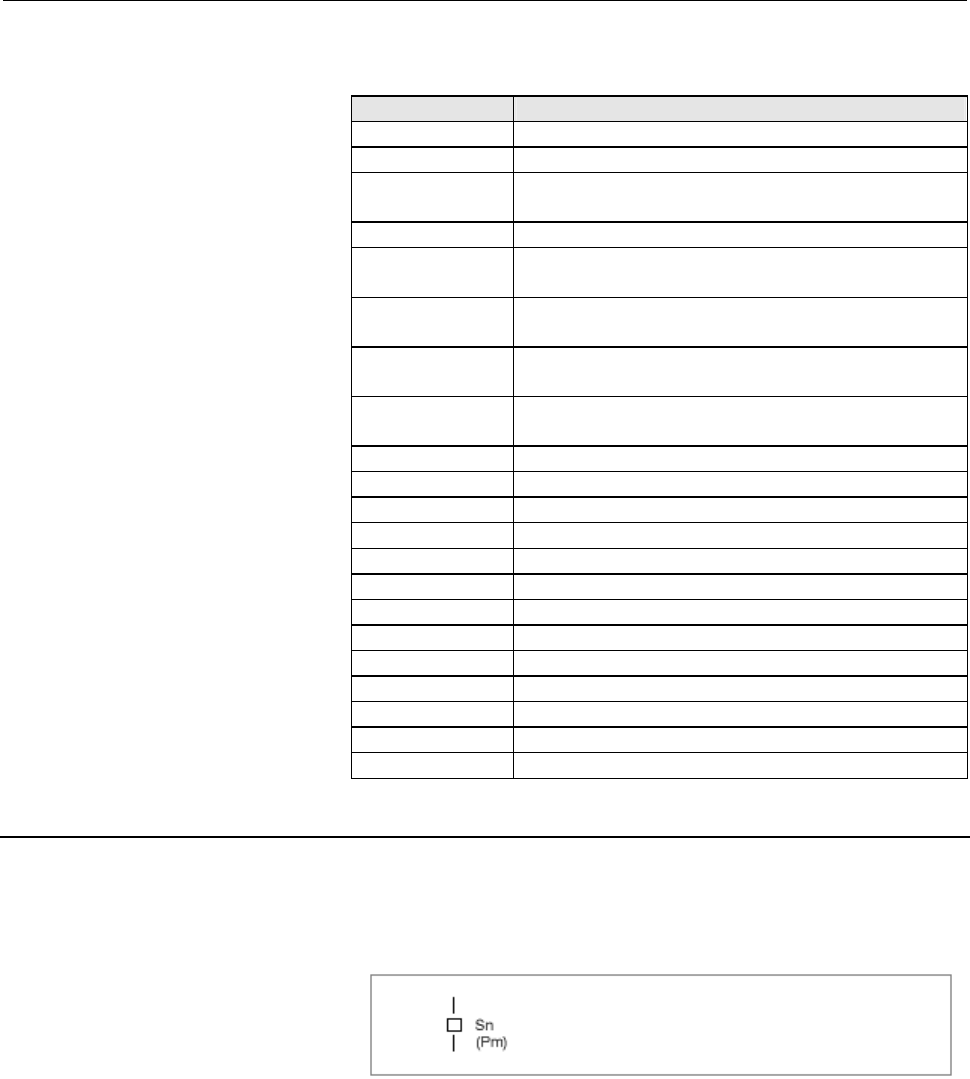
Step
A step is a unit of processing in a program.
• A step number [Sn] necessary to control execution and a
subprogram [Pm] that describes actual processing are defined for
a step.
• Each step is always assigned with a step number. A duplicate
step number cannot be used in a program.
• A step can be in any one of three logical states: running, stopping,
and stopped. The running state is also called an active state. The
stopping and stopped states are collectively referred to as
inactive states.
Contents Summary of Open CNC (Ladder Editing Package, Windows) Operators manual
- Page 1FANUC OPEN CNC Ladder Editing Package (Windows) OPERATOR’S MANUAL B-63484EN/05
- Page 2• No part of this manual may be reproduced in any form. • All specifications and designs are subject to change without notice. The export of this product is subject to the authorization of the government of the country from where the product is exported. In this manual we have tried as much as possi
- Page 3B-63484EN/05 SAFETY PRECAUTIONS SAFETY PRECAUTIONS This manual includes safety precautions for protecting the user and preventing damage to the machine. Precautions are classified into Warnings and Cautions according to their bearing on safety. Also, supplementary information is described as Notes.
- Page 4SAFETY PRECAUTIONS B-63484EN/05 1.1 GENERAL WARNINGS AND CAUTIONS The following warnings and note describe precautions on handling CNCs, which must be observed to ensure safety when using machines equipped with a CNC. WARNING 1 Before operating the machine, thoroughly check the entered data. Operati
- Page 5B-63484EN/05 SAFETY PRECAUTIONS 1.2 WARNINGS AND NOTES RELATING TO LADDER EDITING PACKAGE (Windows) Warnings and notes relating to Ladder Editing Package (Windows) appear in this manual. Before using the software, read this manual thoroughly and take time to read the Warnings, Cautions, and Notes in
- Page 6
- Page 7B-63484EN/05 PREFACE PREFACE Thank you for purchasing Ladder Editing Package (Windows) (Specification : A08B-9210-J511). Ladder Editing Package (Windows) is a programming system for developing sequence programs for FANUC PMCs. This software runs on a FANUC OPEN CNC. Use the sequence program developm
- Page 8PREFACE B-63484EN/05 1.1 FEATURES OF LADDER EDITING PACKAGE (Windows) This software has the following features: Features Using the FANUC PMC sequence program development environment on an OPEN CNC offers a more comfortable manipulation environment. OPEN CNC CNC/PMC Machine HSSB, Ethernet DI/DO I/O o
- Page 9B-63484EN/05 PREFACE • Main functions ⋅ Inputting, displaying, editing, and outputting sequence programs ⋅ Monitoring and debugging sequence programs (Displaying the signal status, alarms, and PMC status, and ladder diagram online monitoring) ⋅ Setting and displaying PMC parameters ⋅ Executing and s
- Page 10PREFACE B-63484EN/05 NOTE *1 • Available when the PMC software series and edition are 4066/12, 4068/11, or later and the CNC software series and edition are B0A1/23, B1A1/20, BDA1/12, BEA1/12, or later. *2 • Available when the PMC software series and edition are 4074/01 or later. Not available with
- Page 11B-63484EN/05 PREFACE 1.2 SYSTEM CONFIGURATIONS WITH OPEN CNC The configurations of systems with an OPEN CNC are summarized below. 1. System in which the CNC incorporates a personal computer board (MMC-IV) With MMC-IV CNC incorporated Machine • Manipulating the CRT/MDI If the system is used with a CR
- Page 12PREFACE B-63484EN/05 3. System in which more than one CNC is connected to a commercial personal computer via a high-speed serial bus CNC High-speed serial bus Machine Machine Personal computer Machine The configuration of the connection shown above is called an HSSB multiconnection. Inserting more t
- Page 13B-63484EN/05 PREFACE 1.3 CHECKING THE PACKAGE CONTENTS The package contains the following: • CD-ROM disks FANUC Ladder Editing Package (Windows) (A08B-9210-J511) NOTE You must read the release note (READMEJ.TXT) on the “\Disk1 folder” of the product package. The release note provides detailed inform
- Page 14PREFACE B-63484EN/05 1.4 ORGANIZATION OF THIS MANUAL This manual is organized as follows: SAFETY PRECAUTIONS Describes general precautions that must be observed to ensure the safe use of this software. PREFACE Briefly describes the main features of this software. Also describes how to use this manua
- Page 15B-63484EN/05 PREFACE 1.5 NOTATION CONVENTIONS IN THIS MANUAL This manual uses the following notation and conventions: • Menus, commands, and screens Notation example Explanation [File] menu Menu names appear in brackets ([ ]). [Setting…] Command names appear in brackets ([ ]). [Program List] screen
- Page 16PREFACE B-63484EN/05 • PMC models In this manual, the PMC models are abbreviated as follows: PMC Model Abbreviations Abbreviation PMC model 30i-A PMC PMC for Series 30i-A (1st-path PMC) 30i-A PMC(2nd) PMC for Series 30i-A PMC(2nd-path PMC) 30i-A PMC(3rd) PMC for Series 30i-A PMC(3rd-path PMC) 30i-A
- Page 17B-63484EN/05 TABLE OF CONTENTS TABLE OF CONTENTS SAFETY PRECAUTIONS............................................................................s-1 PREFACE ....................................................................................................p-1 1 SETUP..................................
- Page 18TABLE OF CONTENTS B-63484EN/05 3.3.3 Method of Displaying the Ladder Diagram Editing Screen ...................................33 3.3.4 Changing Ladder Programs....................................................................................39 3.3.5 Inserting Ladders from the Edit Window into a L
- Page 19B-63484EN/05 TABLE OF CONTENTS 3.3.27.1 Procedure ......................................................................................................... 100 3.3.27.2 The example of an output file .......................................................................... 103 3.3.27.3 Ladder diagra
- Page 20TABLE OF CONTENTS B-63484EN/05 3.8.1 Procedure..............................................................................................................144 3.9 SAVING PROGRAMS WITH NAMES ....................................................... 149 3.9.1 Procedure..................................
- Page 21B-63484EN/05 TABLE OF CONTENTS 4.12.2 Setting up Pages ...................................................................................................196 4.12.3 Setting Property....................................................................................................201 5 COMPILATION A
- Page 22TABLE OF CONTENTS B-63484EN/05 7.3 LOADING SEQUENCE PROGRAMS FROM THE PMC (DURING CONNECTION WITH THE PMC) .............................................. 259 7.3.1 Procedure..............................................................................................................259 7.4 STORING S
- Page 23B-63484EN/05 TABLE OF CONTENTS 9.2.5 Shortcut Keys .......................................................................................................289 9.3 PMC PARAMETERS ................................................................................. 290 9.3.1 Procedure......................
- Page 24TABLE OF CONTENTS B-63484EN/05 9.6.5 Shortcut Keys .......................................................................................................310 9.6.6 [Signal Trace Parameter] Screen ..........................................................................310 9.6.7 Automatic Trace Func
- Page 25B-63484EN/05 TABLE OF CONTENTS 10.2.5 Cut, Copy and Paste of Symbol or Comment Data ..............................................338 10.2.6 Deleting Symbol and Comment Data...................................................................338 10.2.7 Search ..........................................
- Page 26TABLE OF CONTENTS B-63484EN/05 10.13.1 Toolbar .................................................................................................................369 10.14 K ADDRESS (KEEP RELAY) .................................................................... 370 10.14.1 Toolbar ..................
- Page 27B-63484EN/05 TABLE OF CONTENTS 12.2.11 Input/Output .........................................................................................................408 12.2.12 Online ...................................................................................................................408 APPEN
- Page 28
- Page 29B-63484EN/05 1.SETUP 1 SETUP This chapter describes the operating environment of Ladder Editing Package (Windows). This chapter also describes how to set up Ladder Editing Package (Windows) to make software ready for use. -1-
- Page 301.SETUP B-63484EN/05 1.1 OPERATING ENVIRONMENT The operating environment required for this software is as follows: • Computer PC/AT-compatible computer running Windows 98 SE, Me, NT4.0, 2000 or XP. • For Windows 98 SE ⋅ Pentium 133MHz or better CPU ⋅ 16MB or more memory (32MB or more recommended) •
- Page 31B-63484EN/05 1.SETUP • CNC functions Options for FANUC open-ended CNCs
⋅ Expansion driver library function (A02B-0207-J801) ⋅ Ladder editing package function (A02B-0207-J821) ⋅ Expansion driver library - Page 321.SETUP B-63484EN/05 1.2 INSTALLATION AND UNINSTALLATION This section describes how to install or uninstall this software. 1.2.1 Installation Procedure 1 Preparation prior to installation 1-1 Before installation, see Section 1.1, "OPERATING ENVIRONMENT" to check the environment of the computer being
- Page 33B-63484EN/05 1.SETUP 3-2 The [Welcome to the InstallShield Wizard for Ladder Editing Package[Windows]] screen appears. Fig. 1.2.1 (b) 3-3 Click the
button. Then, the [License Agreement] screen appears. Fig. 1.2.1 (c) 3-4 When you agree to the terms of the license agreement, and wish to contin - Page 341.SETUP B-63484EN/05 4 Entering user information 4-1 The [Customer Information] screen appears. Fig. 1.2.1 (d) 4-2 Enter [User Name], [Company Name], and [Serial Number] and then click the
button. Then, the [Registration Confirmation] screen appears. Fig. 1.2.1 (e) 4-3 Check that the registra - Page 35B-63484EN/05 1.SETUP 5 Selecting the installation destination and program folder 5-1 The [Choose Destination Location] screen appears. Fig. 1.2.1 (f) 5-2 By default, the program is installed in C:\Program Files\FANUC PMC Programmer\Ladder Editing Package. To change the installation destination, clic
- Page 361.SETUP B-63484EN/05 6 Starting file copy operation and ending the installation 6-1 The [Start Copying Files] screen appears. Fig. 1.2.1 (h) 6-2 Information for starting the program file copy operation is displayed. To change the information, click the
button. Check that the displayed informa - Page 37B-63484EN/05 1.SETUP 1.2.2 Uninstallation Procedure 1 Terminating Ladder Editing Package (Windows) 1-1 Ladder Editing Package (Windows) cannot be uninstalled while it is running. Terminate Ladder Editing Package (Windows), and then uninstall it. 2 Starting the uninstaller 2-1 Click [Start Menu] - [S
- Page 381.SETUP B-63484EN/05 3 Confirming uninstallation 3-1 A dialog box appears, asking whether you really want to uninstall the program. Select
. Fig. 1.2.2 (b) 4 Executing uninstallation The installed files, folders, and start menu items are deleted, and the original system settings are restored. Un - Page 39B-63484EN/05 2.BASICS 2 BASICS This chapter describes the basic items the user should understand before using Ladder Editing Package (Windows). - 11 -
- Page 402.BASICS B-63484EN/05 2.1 SYSTEM FILES The system consists of the files described below. • *.DLL Install dynamic link library (DLL) files used for node selection in the Windows system directory. For details, refer to the document file saved on the following expansion driver/library disks. ⋅ Expansio
- Page 41B-63484EN/05 2.BASICS 2.2 START AND END This section describes how to start and end Ladder Editing Package (Windows). 2.2.1 Starting Ladder Editing Package (Windows) To start this software, use the following procedure: Procedure 1 Click the [Start] button. 2 From the [Start] menu, select [Program].
- Page 422.BASICS B-63484EN/05 2.3 WINDOW NAMES AND FUNCTIONS This section describes the names and functions of the windows displayed by this software. As shown in the figure below, child windows are displayed within the parent window. These are required for operations such as the creation of sequence progra
- Page 43B-63484EN/05 2.BASICS 2.3.1 Main Menu Each main menu has submenus, as listed below. Table 2.3 Main menu Submenu Reference chapter, section, or subsection File Save As 3.9 SAVING PROGRAMS WITH NAMES Import 3.10 IMPORTING PROGRAMS Export 3.11 EXPORTING PROGRAMS Print 4 PRINTING SEQUENCE PROGRAMS Previ
- Page 442.BASICS B-63484EN/05 Table 2.3 Main menu Submenu Reference chapter, section, or subsection Tool Mnemonic Convert 6.1 CONVERTING SOURCE PROGRAMS TO MNEMONIC FILES Source Program Convert 6.2 CONVERTING MNEMONIC FILES TO SOURCE PROGRAMS Data Conversion 11 CONVERTING SEQUENCE PROGRAMS Data File→LAD Fil
- Page 45B-63484EN/05 2.BASICS 2.3.3 Edit Toolbar The edit tool bar contains a set of buttons used for editing ladder diagrams. You can input contacts and coils by using the edit tool bar. 2.3.4 Soft Keys To perform operations with the currently selected child window, you can select the displayed soft keys e
- Page 462.BASICS B-63484EN/05 2.4 DISPLAYING VERSION INFORMATION This section describes how to display the version information of this software for purposes of, for example, maintenance. Procedure 1 Select [Help] - [About version information…]. Fig. 2.4 - 18 -
- Page 47B-63484EN/05 3.CREATING AND EDITING SEQUENCE PROGRAMS 3 CREATING AND EDITING SEQUENCE PROGRAMS This chapter describes how to create and edit sequence programs. A sequence program consists of a title, system parameters, symbols, comments, I/O modules, messages, and ladder/step sequences. - 19 -
- Page 483.CREATING AND EDITING SEQUENCE PROGRAMS B-63484EN/05 3.1 SEQUENCE PROGRAMS This section describes sequence programs. 3.1.1 Procedure for Creating Sequence Programs The following flowchart illustrates the procedure for creating a sequence program. Start control system development Determine targets o
- Page 49B-63484EN/05 3.CREATING AND EDITING SEQUENCE PROGRAMS • Sequence programs A sequence program consists of the data listed below. • Title data • System parameters • Symbols/comments • Message data • I/O module data • I/O module comments • Ladder level 1 • Ladder level 2 • Ladder level 3 • Ladder subpr
- Page 503.CREATING AND EDITING SEQUENCE PROGRAMS B-63484EN/05 In Ladder Editing Package (Windows), a file with extension .LAD (hereafter called a LAD file) holds all sequence program data. Sequence program (LAD file) Source program System parameters Title data Symbols/comments Message data I/O module data I
- Page 51B-63484EN/05 3.CREATING AND EDITING SEQUENCE PROGRAMS • Data flow Ladder Editing Package (Windows) Source program Mnemonic program Mnemonic conversion System parameters Conventional mnemonic not using step sequences Title data Source conversion Symbols/comments Message data I/O module data I/O modul
- Page 523.CREATING AND EDITING SEQUENCE PROGRAMS B-63484EN/05 3.1.2 PMC Programming Method The ladder method is one of the most extensively used methods for programming PMC-based sequence control. Because this method was originally based on control circuits in relay panels, it was initially easy for sequenc
- Page 53B-63484EN/05 3.CREATING AND EDITING SEQUENCE PROGRAMS 3.1.3 Work Folders and Online Program Files • Work folder A program work folder is created automatically on a path set up in the TMP environment variable. The work folder is called WFLAD* where * represents any number. • User file folder A user f
- Page 543.CREATING AND EDITING SEQUENCE PROGRAMS B-63484EN/05 3.1.4 PMC Type (Step Sequence and I/O Link Expansion) Setting When the PMC type cannot be identified during start of communication (because the PCM sequence program does not exist or is corrupted), the PMC type of a new sequence program can be se
- Page 55B-63484EN/05 3.CREATING AND EDITING SEQUENCE PROGRAMS 3.1.5 Device Selection Selection of CNC Main and LOADER When the Loader control board is attached and both the Main side and the Loader side PMC can communicate, the following dialog is displayed. Please specify the connected controller. When cur
- Page 563.CREATING AND EDITING SEQUENCE PROGRAMS B-63484EN/05 Selection of Multi-path PMC [Selection of device] dialog box appeares by the following operation. • Starting the communication to PMC when no program is opened. • Starting the communication to PMC when PMC type of the opened program does not supp
- Page 57B-63484EN/05 3.CREATING AND EDITING SEQUENCE PROGRAMS 3.2 EDITING TITLES This section describes how to enter a title for a program created by the machine tool builder. NOTE Titles can be displayed and edited only when the current programmer mode (offline/online) is offline. To change the programmer
- Page 583.CREATING AND EDITING SEQUENCE PROGRAMS B-63484EN/05 1-1 Set the necessary data. The maximum number of characters that can be entered is as listed below: Table 3.2.1 Maximum number of Data characters that can be entered Machine Tool Builder Name 32 Machine Tool Name 32 PMC & CNC Name 32 PMC Program
- Page 59B-63484EN/05 3.CREATING AND EDITING SEQUENCE PROGRAMS 3.3 EDITING LADDER DIAGRAMS This section describes how to edit ladder diagrams. Two different methods can be used to edit ladder diagrams. The first method is offline editing, in which a personal computer for editing ladder diagrams is used stand
- Page 603.CREATING AND EDITING SEQUENCE PROGRAMS B-63484EN/05 NOTE 1 If a ladder program to be edited online does not match one in the PMC, it is impossible to change the ladder mode to edit. Before trying to match the ladder to be edited to that in the PMC, store or load the ladder program to be edited. 2
- Page 61B-63484EN/05 3.CREATING AND EDITING SEQUENCE PROGRAMS 3.3.3 Method of Displaying the Ladder Diagram Editing Screen Procedure 1 Select [View] - [Program List]. The [Program List] screen appears. (Usually, this screen appears automatically when a LAD file is created or opened.) Ladder program Step seq
- Page 623.CREATING AND EDITING SEQUENCE PROGRAMS B-63484EN/05 Summary of the ladder diagram editing screen Resize button Address display format Update button Ladder program name Undo button Search button Zoom-out button Zoom-in button Display always button Display window Insert button Delete all button Repl
- Page 63B-63484EN/05 3.CREATING AND EDITING SEQUENCE PROGRAMS Replace button Replaces ladders in the ladder program (display window) with those in the edit window. Erase all button Erases all ladders from the edit window. Update button (for online editing only) Updates the ladders in the PMC with the those
- Page 643.CREATING AND EDITING SEQUENCE PROGRAMS B-63484EN/05 Display always Ctrl+T Keeps the ladder diagram editing window displayed. When the ON, multiple Ladder windows can be displayed at the same time. When the OFF, if another ladder diagram editing window is opened, the displayed window is automatical
- Page 65B-63484EN/05 3.CREATING AND EDITING SEQUENCE PROGRAMS NOTE 1 To display the edit tool bar, select [View] - [Edit ToolBar]. 2 The edit tool bar can be detached from the window to which it belongs and moved to any position on the screen by clicking between its buttons and dragging. Shortcut keys Table
- Page 663.CREATING AND EDITING SEQUENCE PROGRAMS B-63484EN/05 Table 3.3.3 Shortcut key Function [Home] Display left end [End] Display right end [Ctrl] + [Home] Jump to beginning [Ctrl] + [End] Jump to end [Ctrl] + [↑] Jump to previous net [Ctrl] + [↓] Jump to next net [Ctrl] + [PageUp] Jump to next page [Ct
- Page 67B-63484EN/05 3.CREATING AND EDITING SEQUENCE PROGRAMS 3.3.4 Changing Ladder Programs This subsection describes how to modify ladder programs. NOTE 1 To modify a ladder program, copy ladders from the display window to the edit window. Then, change them on the display window and substitute the ladders
- Page 683.CREATING AND EDITING SEQUENCE PROGRAMS B-63484EN/05 2 Press the [Enter] key. (Alternatively, double-click the ladder you want to modify.) Fig. 3.3.4 (b) 3 Modify the ladder on the edit window. For an explanation of how to operate ladders on the edit window, see the subsections listed below: Table
- Page 69B-63484EN/05 3.CREATING AND EDITING SEQUENCE PROGRAMS 4 After you finished modifying ladders, click the
button. Fig. 3.3.4 (c) 5 Select the replacement position, using the [↓] key or [↑] key, and then click the button Fig. 3.3.4 (d) - 41 - - Page 703.CREATING AND EDITING SEQUENCE PROGRAMS B-63484EN/05 3.3.5 Inserting Ladders from the Edit Window into a Ladder Program This subsection describes how to insert ladders from the edit window into a ladder program (on the display window). NOTE 1 If there is a ladder error in a ladder in the edit windo
- Page 71B-63484EN/05 3.CREATING AND EDITING SEQUENCE PROGRAMS 2 Click the
button. Fig. 3.3.5 (b) 3 Select the insertion position, using the [↓] key or [↑] key, and then click the button. Fig. 3.3.5 (c) - 43 - - Page 723.CREATING AND EDITING SEQUENCE PROGRAMS B-63484EN/05 3.3.6 Entering Basic Instructions This subsection describes how to enter basic instructions (relays and coils) in the edit window. Procedure 1 Position the cursor to the point where you want to enter a basic instruction, using the cursor control
- Page 73B-63484EN/05 3.CREATING AND EDITING SEQUENCE PROGRAMS 3 Position the cursor to the basic instruction you entered, using the cursor control keys, and then press the [Enter] key. (Alternatively, double-click the basic instruction.) Fig. 3.3.6 (b) 4 Enter an address or symbol, and then press the [Enter
- Page 743.CREATING AND EDITING SEQUENCE PROGRAMS B-63484EN/05 After entering an address or symbol, you can enter basic instructions using function keys. Procedure 1 Position the cursor to the point where you want to enter a basic instruction, using the cursor control keys. (Alternatively, click the point.)
- Page 75B-63484EN/05 3.CREATING AND EDITING SEQUENCE PROGRAMS 3 Press the key that corresponds to the basic instruction you want to enter. (See Table 3.3.6.) Fig. 3.3.6 (f) - 47 -
- Page 763.CREATING AND EDITING SEQUENCE PROGRAMS B-63484EN/05 3.3.7 Entering Function Instructions This subsection describes how to enter function instructions in the edit window. Procedure 1 Position the cursor to the point where you want to enter a function instruction, using the cursor control keys. (Alt
- Page 77B-63484EN/05 3.CREATING AND EDITING SEQUENCE PROGRAMS 3 Select the function instruction you want to enter, and then press the
button. Fig. 3.3.7 (c) 4 Enter the parameters for the instruction you entered. Fig. 3.3.7 (d) - 49 - - Page 783.CREATING AND EDITING SEQUENCE PROGRAMS B-63484EN/05 After entering a function instruction number or name, you can enter a function instruction using the [F9] key. Procedure 1 Position the cursor to the point where you want to enter a function instruction, using the cursor control keys. (Alternativ
- Page 79B-63484EN/05 3.CREATING AND EDITING SEQUENCE PROGRAMS 3 Press the [F9] key. Fig. 3.3.7 (g) - 51 -
- Page 803.CREATING AND EDITING SEQUENCE PROGRAMS B-63484EN/05 3.3.8 Entering Horizontal Lines This subsection describes how to enter horizontal lines in the edit window. Procedure 1 Position the cursor to the point where you want to enter a horizontal line. (Alternatively, click the point.) Fig. 3.3.8 (a) 2
- Page 81B-63484EN/05 3.CREATING AND EDITING SEQUENCE PROGRAMS 3.3.9 Entering and Deleting Vertical Lines This subsection describes how to enter and delete vertical lines in the edit window. Procedure 1 Position the cursor to the point where you want to enter a vertical line, using the cursor control keys. (
- Page 823.CREATING AND EDITING SEQUENCE PROGRAMS B-63484EN/05 3.3.10 Adding Ladder Subprograms This subsection describes how to add ladder subprograms. Procedure 1 Right-click on the program list screen, and then click [Add sub-program F9]. Fig. 3.3.10 (a) 2 The [Add sub-program] dialog box appears. Fig. 3.
- Page 83B-63484EN/05 3.CREATING AND EDITING SEQUENCE PROGRAMS 3.3.11 Deleting Ladder Subprograms This subsection describes how to delete subprograms. Procedure 1 On the program list screen, position the pointer to the subprogram you want to delete and right-click. Then, click [Delete sub-program F6]. Fig. 3
- Page 843.CREATING AND EDITING SEQUENCE PROGRAMS B-63484EN/05 3.3.12 Editing Net Comments This subsection describes how to edit net comments. Procedure for adding net comments Procedure 1 In the display window, position the mouse pointer to the point where you want to add a net comment, and then right-click
- Page 85B-63484EN/05 3.CREATING AND EDITING SEQUENCE PROGRAMS To check the number of characters in the entered net comment, press the
button. The preview screen appears. Fig. 3.3.12 (c) 3 After you finish entering the net comment, press the button. Fig. 3.3.12 (d) - 57 - - Page 863.CREATING AND EDITING SEQUENCE PROGRAMS B-63484EN/05 Procedure for editing net comments Procedure 1 In the display window, double-click the net comment you want to modify. The [Net comment] screen appears. Fig. 3.3.12 (e) 2 Edit the character strings for the net comment. After you finish editing, p
- Page 87B-63484EN/05 3.CREATING AND EDITING SEQUENCE PROGRAMS 3.3.13 Deleting Net Comments This subsection describes how to delete net comments. Procedure 1 In the display window, position the mouse pointer to the net comment you want to delete, and then right-click. Fig. 3.3.13 (a) 2 Select [Delete] - [Net
- Page 883.CREATING AND EDITING SEQUENCE PROGRAMS B-63484EN/05 3.3.14 Adding Page Breaks This subsection describes how to add page breaks. Procedure 1 In the display window, position the mouse pointer to the point where you want to add a page break, and then right-click. Fig. 3.3.14 2 Select [Insert] - [New
- Page 89B-63484EN/05 3.CREATING AND EDITING SEQUENCE PROGRAMS 3.3.15 Deleting Page Breaks This subsection describes how to delete page breaks. Procedure 1 In the display window, position the mouse pointer to the page break you want to delete, and then right-click. Fig. 3.3.15 (a) 2 Select [Delete] - [New pa
- Page 903.CREATING AND EDITING SEQUENCE PROGRAMS B-63484EN/05 3.3.16 Deleting Nets This subsection describes how to delete nets. Procedure 1 In the display window, select the range of nets you want to delete, using the mouse or cursor control keys. 2 Position the mouse pointer to the selected range, and the
- Page 91B-63484EN/05 3.CREATING AND EDITING SEQUENCE PROGRAMS 3.3.17 Search This subsection describes the ladder program search function. Procedure 1 Choose [Search] from the [Edit] menu. The [Search] screen appears. Fig. 3.3.17 (a) 1-1 Search kind Select Address/Symbol or Functional instruction. 1-2 Progra
- Page 923.CREATING AND EDITING SEQUENCE PROGRAMS B-63484EN/05 2 When Address/Symbol is selected Fig. 3.3.17 (c) 2-1 Instruction for search Check search target instructions. All Searches for all types of instructions. Select Select a desired instruction you want to search for. Write coils Searches for only w
- Page 93B-63484EN/05 3.CREATING AND EDITING SEQUENCE PROGRAMS 4 Specify a character string you want to search for. 4-1 Search string Enter a character string to be searched for. In a character string to be found, two types of wildcards can be used: a question mark (?) and an asterisk (*). A wildcard substit
- Page 943.CREATING AND EDITING SEQUENCE PROGRAMS B-63484EN/05 5 Execute search operation. If Search result list display is checked, click the
button. In other cases, click the button. 6 Clear search condition settings. Click the [Clear] button. The setting of each item is initialized. 3 - Page 95B-63484EN/05 3.CREATING AND EDITING SEQUENCE PROGRAMS 3.3.17.2 Soft key The address, the symbol and the functional instruction in ladder diagram can be searched by the soft key. Two modes of operation can be chosen by the following check of the option screen: From the [Tool] menu, choose [Options],
- Page 963.CREATING AND EDITING SEQUENCE PROGRAMS B-63484EN/05 3.3.18 Collective Display Collective display is a function with which nets extracted under multiple search conditions can be monitored (in the online mode) and displayed in one window. 3.3.18.1 Setting collective display extraction conditions Pro
- Page 97B-63484EN/05 3.CREATING AND EDITING SEQUENCE PROGRAMS 2 Click the
button. The [Search] screen appears. Fig. 3.3.18.1 (c) 2-1 After setting search conditions, click the button. For each setting item, see Subsection 3.3.17, "Search." 3 The [Setting of search condition-name] screen - Page 983.CREATING AND EDITING SEQUENCE PROGRAMS B-63484EN/05 4 The [Collective Display] screen updated appears. Fig. 3.3.18.1 (e) 5 Repeat steps 2 to 4 to add search conditions. Fig. 3.3.18.1 (f) 5-1
button This button is used to edit the search condition where the cursor is placed. 5-2 - Page 99B-63484EN/05 3.CREATING AND EDITING SEQUENCE PROGRAMS 6 Check the check boxes of search conditions to be enabled, then set a desired collective display condition name in Condition Name. Fig. 3.3.18.1 (g) 6-1 Click the
button. Extracted nets are collectively displayed on the screen. The same inf - Page 1003.CREATING AND EDITING SEQUENCE PROGRAMS B-63484EN/05 3.3.18.2 Executing collective display Procedure 1 On the [Program List] screen, move the mouse pointer to the extraction condition used for collective display execution, then click the right mouse button. Fig. 3.3.18.2 (a) 2 Choose [Open]. Then,
- Page 101B-63484EN/05 3.CREATING AND EDITING SEQUENCE PROGRAMS 3.3.18.3 Modifying collective display extraction conditions Procedure 1 On the [Program List] screen, move the mouse pointer to an extraction condition to be modified, then click the right mouse button. Fig. 3.3.18.3 2 Choose [propeRty]. Then, th
- Page 1023.CREATING AND EDITING SEQUENCE PROGRAMS B-63484EN/05 3.3.18.4 Deleting collective display extraction conditions Procedure 1 On the [Program List] screen, move the mouse pointer to an extraction condition to be deleted, then click the right mouse button. Fig. 3.3.18.4 (a) 2 Choose [Delete]. Then, a
- Page 103B-63484EN/05 3.CREATING AND EDITING SEQUENCE PROGRAMS 3.3.19 Setting Ladder Display You can do the setting relevant to display and operation of the ladder diagram. • The number of contacts and coil per row can be specified. • The address, symbol, and comment of the basic instruction pointed with the
- Page 1043.CREATING AND EDITING SEQUENCE PROGRAMS B-63484EN/05 Fig. 3.3.19 (b) The comment is 2 sets. Fig. 3.3.19 (c) The comment is 4 sets. 1-1 Number of contacts + coil a line Set the desired number of contacts and coils per row. A value from 8 to 20 (columns) can be set. NOTE 1 If the number of contacts a
- Page 105B-63484EN/05 3.CREATING AND EDITING SEQUENCE PROGRAMS 1-2 ToolTips When the pointer is positioned to a basic instruction in a ladder diagram, the information such as the address, the symbol and the comment is displayed. Tool tip is displayed when checked. 1-3 Grid Specifies that grid lines are displ
- Page 1063.CREATING AND EDITING SEQUENCE PROGRAMS B-63484EN/05 2 Click the
button. A dialog box appears. In this dialog box, specify the character font, colors, and connection line thickness displayed in a ladder diagram. Fig. 3.3.19 (d) 2-1 Font Click the button. A dialog box appea - Page 107B-63484EN/05 3.CREATING AND EDITING SEQUENCE PROGRAMS 2-2 Colors Click the
button. A dialog appears. In this dialog box, specify the colors of items displayed in a ladder diagram. Fig. 3.3.19 (f) 2-3 Signal Off/Step Sequence Specifies the thickness of connection lines in the signal off - Page 1083.CREATING AND EDITING SEQUENCE PROGRAMS B-63484EN/05 3.3.20 Changing Signal Addresses and Function Instruction Parameters in the Display Window This subsection describes how to change signals addresses and function instruction parameters in the display window. Procedure 1 Position the cursor to the
- Page 109B-63484EN/05 3.CREATING AND EDITING SEQUENCE PROGRAMS 3.3.21 Changing Contacts and Coils in the Display Window This subsection describes how to change contacts and coils in the display window. Procedure 1 Position the cursor to the contact or coil you want to change. Fig. 3.3.21 (a) 2 Click the soft
- Page 1103.CREATING AND EDITING SEQUENCE PROGRAMS B-63484EN/05 3.3.22 Checking the Number of Program Steps This subsection describes how to check the total number of steps in a ladder program and the number of steps in each subprogram. Procedure 1 On the [Program List] screen, position the pointer to a progr
- Page 111B-63484EN/05 3.CREATING AND EDITING SEQUENCE PROGRAMS 2-3 Sub-program Displays the number of steps in each subprogram. Fig. 3.3.22 (d) NOTE 1 If a step sequence program is contained, the total number of program steps is not displayed. 2 The number of steps in a step sequence program is not displayed
- Page 1123.CREATING AND EDITING SEQUENCE PROGRAMS B-63484EN/05 1-1 Program Click the
- Page 113B-63484EN/05 3.CREATING AND EDITING SEQUENCE PROGRAMS 2 Execute replace operation. 2-1
button Searches for the target character string. 2-2 button Replaces [Search string] with [Replace string]. 2-3 button Replaces all occurrences of [Search string] with [Replac - Page 1143.CREATING AND EDITING SEQUENCE PROGRAMS B-63484EN/05 NOTE 1 Address P can be replaced with another character string only in the CALL and CALLU instructions. 2 No wildcards can be used for replacing an address using a symbol. 3 No wildcards can be used in a signal name. 3.3.24 Changing Ladder Progra
- Page 115B-63484EN/05 3.CREATING AND EDITING SEQUENCE PROGRAMS 3.3.24.2 Inserting an edit line Procedure Move the cursor to a position where you want to enter an edit line, using direction keys. Click the right mouse button and select the [Insert] menu. Fig. 3.3.24.2 - 87 -
- Page 1163.CREATING AND EDITING SEQUENCE PROGRAMS B-63484EN/05 3.3.24.3 Entering basic instructions 1 This subsection describes how to enter basic instructions (relays and coils). Procedure 1-1 Position the cursor to the point where you want to enter a basic instruction, using the cursor control keys. (Alter
- Page 117B-63484EN/05 3.CREATING AND EDITING SEQUENCE PROGRAMS 1-3 Position the cursor to the basic instruction you entered, using the cursor control keys, and then press the [Enter] key. (Alternatively, double-click the basic instruction.) Fig. 3.3.24.3 (b) 1-4 Enter an address or symbol, and then press the
- Page 1183.CREATING AND EDITING SEQUENCE PROGRAMS B-63484EN/05 2 After entering an address or symbol, you can enter basic instructions using function keys. Procedure 2-1 Position the cursor to the point where you want to enter a basic instruction, using the cursor control keys. (Alternatively, click the poin
- Page 119B-63484EN/05 3.CREATING AND EDITING SEQUENCE PROGRAMS 2-3 Press the key that corresponds to the basic instruction you want to enter. (See Table 3.3.24.3.) Fig. 3.3.24.3 (f) 3.3.24.4 Entering function instructions 1 This subsection describes how to enter function. Procedure 1-1 Position the cursor to
- Page 1203.CREATING AND EDITING SEQUENCE PROGRAMS B-63484EN/05 1-2 Press the [F9] key to display the [Select function] dialog box. Fig. 3.3.24.4 (b) 1-3 Select the function instruction you want to enter, and then press the
button. Fig. 3.3.24.4 (c) - 92 - - Page 121B-63484EN/05 3.CREATING AND EDITING SEQUENCE PROGRAMS 1-4 Enter the parameters for the instruction you entered. Fig. 3.3.24.4 (d) 2 After entering a function instruction number or name, you can enter a function instruction using the [F9] key. Procedure 2-1 Position the cursor to the point where you
- Page 1223.CREATING AND EDITING SEQUENCE PROGRAMS B-63484EN/05 2-2 Enter a function instruction number or name. Fig. 3.3.24.4 (f) 2-3 Press the [F9] key. Fig. 3.3.24.4 (g) - 94 -
- Page 123B-63484EN/05 3.CREATING AND EDITING SEQUENCE PROGRAMS 3.3.24.5 Entering horizontal lines This subsection describes how to enter horizontal lines. Procedure 1 Position the cursor to the point where you want to enter a horizontal line. (Alternatively, click the point.) Fig. 3.3.24.5 (a) 2 Press the [F
- Page 1243.CREATING AND EDITING SEQUENCE PROGRAMS B-63484EN/05 3.3.24.6 Entering and deleting vertical lines This subsection describes how to enter and delete vertical lines. Procedure 1 Position the cursor to the point where you want to enter a vertical line, using the cursor control keys. (Alternatively, c
- Page 125B-63484EN/05 3.CREATING AND EDITING SEQUENCE PROGRAMS 3.3.25 Deleting Symbol or Comment Data This subsection describes how to delete symbol or comment data in ladder diagram editing. Procedure 1 Move the cursor to the position of a basic instruction for which you want to delete symbol or comment dat
- Page 1263.CREATING AND EDITING SEQUENCE PROGRAMS B-63484EN/05 3.3.26 Undo / Redo This subsection describes the operation of Undo / Redo function on the ladder edit screen. Procedure 1 Select [Edit]-[Undo] from the menu-bar, or click the toolbar button, or push the shortcut key of [Ctrl]+[Z]. Then the previo
- Page 127B-63484EN/05 3.CREATING AND EDITING SEQUENCE PROGRAMS 3.3.26.1 Setting the maximum number of undo operations Procedure 1 Select [Tool]-[Option]. Then click the [Ladder] tab. 2 Move the cursor to [Undo max number], and set the maximum number of Undo operations.(Range of setting : 0 - 50) 3 Click the
- Page 1283.CREATING AND EDITING SEQUENCE PROGRAMS B-63484EN/05 3.3.27 Ladder Diagram is Outputted to the Text File The ladder diagram is outputted to the text file in the form currently displayed on the Ladder edit display. The outputted text file can be opened by text editors, such as "notepad", or it can b
- Page 129B-63484EN/05 3.CREATING AND EDITING SEQUENCE PROGRAMS 2 [Output a text format file...] is selected from the [Tool] menu. Fig. 3.5.27.1 (b) 3 Input the output file name. Push the
button and the file is outputted. Fig. 3.5.27.1 (c) - 101 - - Page 1303.CREATING AND EDITING SEQUENCE PROGRAMS B-63484EN/05 NOTE 1 The menu item can not be selected if there is an error net. 2 It is necessary to display and select the window of the ladder. 3 As to the storing folder of the text file, You can choose the default of the storing folder by the Specify the
- Page 131B-63484EN/05 3.CREATING AND EDITING SEQUENCE PROGRAMS 3.3.27.2 The example of an output file Header information Ladder program Fig. 3.5.27.2 Header information Header information changes according to the kind of outputted program. Program Title All Ladder Diagram(ALL) LEVEL1 Ladder Diagram(LEVEL1) S
- Page 1323.CREATING AND EDITING SEQUENCE PROGRAMS B-63484EN/05 3.3.27.3 Ladder diagram without the net number is output to the text file The setting to output the ladder diagram without the net number in the text file has been added. Since the net numbers are not output, you can compare the ladder diagrams b
- Page 133B-63484EN/05 3.CREATING AND EDITING SEQUENCE PROGRAMS 3.3.28 Automatic Input of Timer, Counter, Rising/Falling-edge Numbers This function automatically inputs the unused numbers for the parameters of functional instructions during ladder editing of offline mode and online mode. With this function, y
- Page 1343.CREATING AND EDITING SEQUENCE PROGRAMS B-63484EN/05 NOTE 1 Details are different between SUB3 (TMR) and SUB5 (CTR).For details, see "Automatic input of the TMR parameter of a functional instruction" and "Automatic input of the CTR parameter of a functional instruction", described later. 2 If you p
- Page 135B-63484EN/05 3.CREATING AND EDITING SEQUENCE PROGRAMS Fig. 3.3.28.1 NOTE All models are supporting the display of the TMR number, the preset value and accuracy value on the status line. If the automatic input of the TMR parameter is supported, "Auto" will be displayed on the [F6] key. 3.3.28.2 Autom
- Page 1363.CREATING AND EDITING SEQUENCE PROGRAMS B-63484EN/05 3.4 EDITING STEP SEQUENCES This section describes how to edit step sequence programs. NOTE Step sequence programs can be displayed and edited only when the current programmer mode (offline/online) is offline. To change the programmer mode to offl
- Page 137B-63484EN/05 3.CREATING AND EDITING SEQUENCE PROGRAMS Summary of step sequence program edit screen Address display method selection button Step sequence program name Search button Check button Zoom-in button Zoom-out button Cursor Information about element in cursor position Cursor position Fig. 3.4
- Page 1383.CREATING AND EDITING SEQUENCE PROGRAMS B-63484EN/05 NOTE The step sequence program edit screen consists of 32 horizontal elements by 64 vertical lines. Soft keys • When the Shift key is not pressed (the cursor is on the “processing step line”) Fig. 3.4 (c) • When the Shift key is pressed (the curs
- Page 139B-63484EN/05 3.CREATING AND EDITING SEQUENCE PROGRAMS Shortcut keys Table 3.4 Shortcut key Function [F3] Search (downward) [Shift] + [F3] Search (upward) Enter step program (step line) [F5] Enter transition (transition line) [Shift] + [F5] Enter label jump (step line) Enter initial step program (ste
- Page 1403.CREATING AND EDITING SEQUENCE PROGRAMS B-63484EN/05 Table 3.4.1 State Processing Sn.0 The step is active. Active Running The corresponding action program 1 (subprogram) is running. The step is shifting from running to stopped. The corresponding action program Stopping 0 (subprogram) is executed on
- Page 141B-63484EN/05 3.CREATING AND EDITING SEQUENCE PROGRAMS Transition A transition represents a condition under which transition occurs from one step to another. • There must be only one transition between steps. • The transition of processing from one step to another is carried out as described below: W
- Page 1423.CREATING AND EDITING SEQUENCE PROGRAMS B-63484EN/05 Beginning of selective branch A branch occurs from one step to two or more steps, passing control to a step below a transition where the condition is satisfied. • A transition is placed below a branch. • A step leading to the first transition whe
- Page 143B-63484EN/05 3.CREATING AND EDITING SEQUENCE PROGRAMS End of parallel branch Two or more flows that branched out gather into one flow. • How parallel flows gather again is explained below. If transition P120 is satisfied, the processing of steps S10 and S20 is terminated, and step S21 becomes active
- Page 1443.CREATING AND EDITING SEQUENCE PROGRAMS B-63484EN/05 Jump A jump is processed in conjunction with a transition to control the execution of steps. • A jump-to label [Ln] is specified. • The step at a jump destination becomes active. • The jump destination must be within the same program. • It is imp
- Page 145B-63484EN/05 3.CREATING AND EDITING SEQUENCE PROGRAMS Initial block step The initial block step is an initial step in a block. • A step number [Sn] necessary to control execution and a subprogram [Pm] that describes actual processing are defined for an initial block step. • The function and represen
- Page 1463.CREATING AND EDITING SEQUENCE PROGRAMS B-63484EN/05 3.4.2 Entering Steps Procedure 1 Position the cursor to the point where you want to enter a step. 2 Press the [F5] key. 3 The [Action] dialog box appears. Enter the necessary items. (An idle step number is used automatically.) Fig. 3.4.2 4 After
- Page 147B-63484EN/05 3.CREATING AND EDITING SEQUENCE PROGRAMS 3.4.3 Entering Transitions Procedure 1 Position the cursor to the point where you want to enter a transition. 2 Press the [F5] key. 3 The [Action] dialog box appears. Enter the desired action. Fig. 3.4.3 4 After you finish entering the action (su
- Page 1483.CREATING AND EDITING SEQUENCE PROGRAMS B-63484EN/05 3.4.4 Beginning of Selective Branch Procedure 1 Position the cursor to the point where you want to enter the beginning of a selective branch. 2 Press the [F6] key. 3.4.5 End of Selective Branch Procedure 1 Position the cursor to the point where y
- Page 149B-63484EN/05 3.CREATING AND EDITING SEQUENCE PROGRAMS 3.4.6 Beginning of Parallel Branch Procedure 1 Position the cursor to the point (transition line) where you want to enter the beginning of parallel branch. 2 Press the [F7] key. P100 3.4.7 End of Parallel Branch Procedure 1 Position the cursor to
- Page 1503.CREATING AND EDITING SEQUENCE PROGRAMS B-63484EN/05 3.4.8 Specifying Jump-to Label Procedure 1 Position the cursor to the point (step line) where you want to enter a jump-to label (a label to which a jump is to be made). 2. Hold down the [Shift] key, and then press the [F6] key. ← S1 3 The [Action
- Page 151B-63484EN/05 3.CREATING AND EDITING SEQUENCE PROGRAMS 3.4.9 Specifying Label Jump Procedure 1 Position the cursor to the point (step line) where you want to enter a label jump. 2 Hold down the [Shift] key, and then press the [F5] key. ←L10 S1 P10 P10 → S2 P10 3 The [Action] dialog box appears. Enter
- Page 1523.CREATING AND EDITING SEQUENCE PROGRAMS B-63484EN/05 3.4.10 Checking Syntax Procedure 1 Press the [F9] key. • If no error is found, the following dialog box appears. Fig. 3.4.10 (a) • If an error is found, the following dialog box appears. Fig. 3.4.10 (b) - 124 -
- Page 153B-63484EN/05 3.CREATING AND EDITING SEQUENCE PROGRAMS 3.4.11 Adding Step Sequence Subprograms This subsection describes how to add step sequence subprograms. Procedure 1 Right-click the program list screen, and then click [Add sub-program F9]. Fig. 3.4.11 (a) 2 The [Add sub-program] dialog box appea
- Page 1543.CREATING AND EDITING SEQUENCE PROGRAMS B-63484EN/05 3.4.12 Deleting Step Sequence Subprograms This subsection describes how to delete step sequence subprograms. Procedure 1 Position the pointer to the step sequence subprogram that you want to delete from the program list screen, and then right-cli
- Page 155B-63484EN/05 3.CREATING AND EDITING SEQUENCE PROGRAMS 3.4.13 Search This subsection describes the step sequence program search function. Procedure 1 Choose [Find] from the [Edit] menu. The [Find] screen appears. Fig. 3.4.13 1-1 Search type Select Step number, Label number, or Symbol/address. 1-2 Sea
- Page 1563.CREATING AND EDITING SEQUENCE PROGRAMS B-63484EN/05 3.5 EDITING SYMBOLS AND COMMENTS This section describes how to edit symbols and comments. NOTE Symbols and comments can be displayed and edited only when the current programmer mode (offline/online) is offline. To change the programmer mode to of
- Page 157B-63484EN/05 3.CREATING AND EDITING SEQUENCE PROGRAMS Table 3.5.1 (c) Net comment Usable characters ASCII characters, kana, kanji, half-size kana Number of usable steps 2 steps/net comment Maximum number of 64 bytes/line or 4095 bytes/net comment characters Maximum number of lines 100 lines/net comm
- Page 1583.CREATING AND EDITING SEQUENCE PROGRAMS B-63484EN/05 NOTE 1 The maximum number of characters or lines, whichever is reached first, functions as a limit. 2 Relay comments are used only on the Ladder Edit screen of LADDER EDITING PACKAGE (Windows). They are not included in a memory-card-type file gen
- Page 159B-63484EN/05 3.CREATING AND EDITING SEQUENCE PROGRAMS • In case of the PMC model supported to multiple comments. (30i/31i/32i-A) Fig. 3.5.2 (c) • In case of the PMC model supported to multiple comments. (30i/31i/32i-A Extened function) Fig. 3.5.2(d) NOTE When you check [Ignore too long strings of th
- Page 1603.CREATING AND EDITING SEQUENCE PROGRAMS B-63484EN/05 • PMC model which supports the multiple comments Fig. 3.5.2 (f) 2-1 Set the necessary data. Address Symbol Relay Comment or First Comment Coil Comment or Second Comment 2-2 To register the entered data, click the
button. To quit without regi - Page 161B-63484EN/05 3.CREATING AND EDITING SEQUENCE PROGRAMS 3.5.3 Toolbar <1><2> <3><4> Fig. 3.5.3 <1>
button The [New Data] screen appears. <2> button The [Search] screen appears. <3> button The [Import] screen appears. <4> button The [Export] screen appears. 3.5 - Page 1623.CREATING AND EDITING SEQUENCE PROGRAMS B-63484EN/05 3.6 EDITING MESSAGES Using the DISPB (SUB 41) function instruction enables the display of any message on the CRT/MDI screen of the CNC. This section describes how to create messages. NOTE Messages can be displayed and edited only when the current
- Page 163B-63484EN/05 3.CREATING AND EDITING SEQUENCE PROGRAMS NOTE In Japanese-language input mode, Numeric data can be input according to the setting in “%%%flset.cnf” file of the install folder. (See subsection 3.8.4, “New line character, Numeric data” for detailes.) 3 Code input mode 3-1 Clicking the
- Page 1643.CREATING AND EDITING SEQUENCE PROGRAMS B-63484EN/05 3.6.2 Models and Quantity of Usable Characters The types of characters usable in message text vary depending on the CNC/PMC model. See the following table for details. Table 3.6.2 Characters that can be entered Half-size Alphanumeric JIS level-1/
- Page 165B-63484EN/05 3.CREATING AND EDITING SEQUENCE PROGRAMS 3.6.4 New Line Character, Numeric Data The input method of New line character and Numeric data is decided according to the input mode and the content of MSG_EDIT_VAL (the setting in “%%%flset.cnf” file). • The setting of MSG_EDIT_VAL in “%%%flset
- Page 1663.CREATING AND EDITING SEQUENCE PROGRAMS B-63484EN/05 NOTE 1 Sum of integer part digits and fractional part digits must be within 8. 2 Do not use any space between the brackets, [ ]. 3 With the view function, as many number signs (#) as the number of specified digits are displayed in bold. (Example:
- Page 167B-63484EN/05 3.CREATING AND EDITING SEQUENCE PROGRAMS 3.6.5 Tool Bar <1> <2> <3> <4> <5> <6> <7> <8> <9> <10> <11> <12> Fig. 3.6.5 <1> Search button Searches for a character string. <2> Search direction button Specifies the direction (upward or downward) in which a search is to be made. <3> Find wha
- Page 1683.CREATING AND EDITING SEQUENCE PROGRAMS B-63484EN/05 3.6.6 Status Bar <1> Fig. 3.6.6 <1> The status bar displays the number of bytes in a message on the current line (that line with a caret). 3.6.7 Shortcut Keys Table 3.6.7 Shortcut key Corresponding function [F3] Search [Shift]+[F3] Search directi
- Page 169B-63484EN/05 3.CREATING AND EDITING SEQUENCE PROGRAMS 3.7 EDITING I/O MODULE ASSIGNMENT This section describes how to set and delete an address for each module in an I/O unit. NOTE I/O module assignment can be displayed and edited only when the current programmer mode (offline/online) is offline. To
- Page 1703.CREATING AND EDITING SEQUENCE PROGRAMS B-63484EN/05 1-1 Double-click the line that you want to edit. The [Module] screen appears. Fig. 3.7.1 (c) 1-2 Select a module name from those that can be specified. Set the following data. Group Base Slot Comment NOTE I/O Unit MODEL-B assignment is carried ou
- Page 171B-63484EN/05 3.CREATING AND EDITING SEQUENCE PROGRAMS 3.7.2 Tool Bar <1> <2> <3> <4> <5> <6> Fig. 3.7.2 <1> Next channel <2> Previous channel <3> Search <4> Delete <5> Delete channel <6> Delete all 3.7.3 Shortcut Keys Table 3.7.3 Shortcut key Corresponding function [Ctrl]+[F] Search - 143 -
- Page 1723.CREATING AND EDITING SEQUENCE PROGRAMS B-63484EN/05 3.8 EDITING SYSTEM PARAMETERS This section describes how to edit system parameters. NOTE System parameters can be displayed and edited only when the current programmer mode (offline/online) is offline. To change the programmer mode to offline, se
- Page 173B-63484EN/05 3.CREATING AND EDITING SEQUENCE PROGRAMS 1-1 Set the necessary data. Counter Data Type Initial value: BINARY Set the format of the counter value to be used in the CTR function instruction as binary or BCD. Ladder Exec (Valid only with the PMC-SC3/SC4, PMC-QC, PMC-NB/NB2, and PMC-SB7) In
- Page 1743.CREATING AND EDITING SEQUENCE PROGRAMS B-63484EN/05 FS0 Operator Panel Initial value: No FS0 machine operator's panel (check off) Specify whether the FS0 machine operator's panel is available. If you select this item, specify the actual DI/DO address connected to the machine operator's panel, the
- Page 175B-63484EN/05 3.CREATING AND EDITING SEQUENCE PROGRAMS 1-2 Set the comment set number for displayed language of CNC (For PMC model which supports the multiple comments) In [Language for Comment] dialog-box (
button on [Edit System Parameter] screen), please set the comment set n - Page 1763.CREATING AND EDITING SEQUENCE PROGRAMS B-63484EN/05 2 To close the [Edit System Parameter] screen, click the
button. button This operation has nothing to do with whether to save the data entered on the [Edit System Parameter] screen. See Section 3.11 "Saving Programs," for an expla - Page 177B-63484EN/05 3.CREATING AND EDITING SEQUENCE PROGRAMS 3.9 SAVING PROGRAMS WITH NAMES This section describes how to name and save a sequence program (LAD file). 3.9.1 Procedure 1 Select [File] - [Save As]. The [Save As] screen appears. Fig. 3.9.1 1-1 Enter the file name you want to use. 1-2 To save t
- Page 1783.CREATING AND EDITING SEQUENCE PROGRAMS B-63484EN/05 3.10 IMPORTING PROGRAMS This section describes how to import (copy in overwrite mode) data files, ladder diagrams, and subprograms from a LAD program to another sequence program that is currently open. It also explains how to import (convert and
- Page 179B-63484EN/05 3.CREATING AND EDITING SEQUENCE PROGRAMS Handy-file Format File A Handy file format file is imported. It is written over a memory card file (MCARD) for the currently open sequence program. User File An arbitrary user file is imported to the user file folder (MyFladder) for the currently
- Page 1803.CREATING AND EDITING SEQUENCE PROGRAMS B-63484EN/05 2 Click the
button. The [Import/Export -- Specify import file name] screen appears. Fig. 3.10.1 (b) 2-1 Specify the file you want to import. - 152 - - Page 181B-63484EN/05 3.CREATING AND EDITING SEQUENCE PROGRAMS ♦ If the FANUC LADDER-III file (*.LAD) is selected as an import-from file in step 2, above 3 Click the
button. The [Import/Export --Select Data File, Ladder Diagram, Subprogram, and/or User File] screen appears. Fig. 3.10.1 (c) 3-1 Select - Page 1823.CREATING AND EDITING SEQUENCE PROGRAMS B-63484EN/05 ♦ If the memory format file, ROM format file, and/or Handy file format files are selected as the types of files you want to import in step 2, above 3 Click the
button. The message “Import completed” appears. Fig. 3.10.1 (e) Click the - Page 183B-63484EN/05 3.CREATING AND EDITING SEQUENCE PROGRAMS ♦ If the memory card format file is selected as the type of file you want to import in step 2 above and the PMC type of the specified memory card format file is not compatible with the import destination program, a message appears, which indicate
- Page 1843.CREATING AND EDITING SEQUENCE PROGRAMS B-63484EN/05 NOTE When you can select from among multiple compatible PMC types, decompilation may not terminate normally, depending on the PMC type you specify. In this case, specify another compatible PMC type. 3.10.2 Import of the External Symbol File This
- Page 185B-63484EN/05 3.CREATING AND EDITING SEQUENCE PROGRAMS 3 Enter the file name to import. Fig. 3.10.2 (b) 4 Check the following item if necessary. Initialize symbol/comment Checked(Default) : After clearing all symbol comment data, the data before import symbol comment of the external symbol file is re
- Page 1863.CREATING AND EDITING SEQUENCE PROGRAMS B-63484EN/05 NOTE 1 The log file will be opened if the import is finished. 2 When the symbol has already existed, the symbol does not read. 3 When the character in a symbol is replaced to the white-space character, please check the following setting. a) Selec
- Page 187B-63484EN/05 3.CREATING AND EDITING SEQUENCE PROGRAMS 3.11 EXPORTING PROGRAMS This section describes how to export (copy in overwrite mode) data files, ladder diagrams, and subprograms from the currently open sequence program to another LAD program. It also explains how to export (convert and copy i
- Page 1883.CREATING AND EDITING SEQUENCE PROGRAMS B-63484EN/05 Handy-file Format File A memory card file (MCARD) is exported from the currently open sequence program to a file in Handy file format. User File A user file is exported from the user file folder (MyFladder) for the currently open sequence program
- Page 189B-63484EN/05 3.CREATING AND EDITING SEQUENCE PROGRAMS NOTE As to the export folder, You can choose the default of the export folder by the Specify the same folder as a LAD file for working directory in the [General] tab of the option.(select the [Tool] - [Option...]) Checked .............. The same
- Page 1903.CREATING AND EDITING SEQUENCE PROGRAMS B-63484EN/05 3-3 Check the export file in the following dialog. Fig. 3.11.1 (c) NOTE In the export of User File, only user files can be selected. 4 Click the
button. • Memory-card Format / ROM Format / Handy-file Format Fig. 3.11.1 (d) NOTE If a file - Page 191B-63484EN/05 3.CREATING AND EDITING SEQUENCE PROGRAMS To export, click the
button. To return to the [Import/Export -- Select Data File, Ladder Diagram, Subprogram, and/or User File] screen without continuing, click the button. • User File Fig. 3.11.1 (f) To export, click the button. - Page 1923.CREATING AND EDITING SEQUENCE PROGRAMS B-63484EN/05 2 Select External Symbol File from the list, push the
button. 3 Enter the file name to export. Fig. 3.11.2 (b) 4 Check Performing automatic address assignment if needed. This item appears when the PMC model is the extended function. Check - Page 193B-63484EN/05 3.CREATING AND EDITING SEQUENCE PROGRAMS Execution result Example of Log file. ##### SYMBOL & COMMENT ##### Conversion completed Error count = 00000 Warning count = 00000 ##### Conversion of External Symbol File ##### Conversion completed Error count = 00000 Warning count = 00000 Fig. 3
- Page 1943.CREATING AND EDITING SEQUENCE PROGRAMS B-63484EN/05 3.12 CHECKING DUPLICATE COIL This section describes how to check duplicate coil. NOTE 1 When the programmer mode is only off-line, duplicate coil check is done for the source program of the ladder. 2 Duplicate coil check is not done for the step
- Page 195B-63484EN/05 3.CREATING AND EDITING SEQUENCE PROGRAMS 2 Select the check address on [Duplicate Coil - Address Setting] dialog. Fig. 3.12.1 (a) All All the output addresses are checked. Address An arbitrary output address is checked. Specification by the bit address and specification in the range to
- Page 1963.CREATING AND EDITING SEQUENCE PROGRAMS B-63484EN/05 3 To start Duplicate Coil Check, click
button on [Duplicate Coil – Address Setting] dialog box. The following dialog is displayed while checking duplicate coil. (Please click button to abort duplicate coil check.) Fig. 3.17.1 (c) 4 - Page 197B-63484EN/05 3.CREATING AND EDITING SEQUENCE PROGRAMS Soft Keys Fig. 3.12.1 (e) F4 Setting… [Duplicate Coil – Address Setting] dialog box (Fig. 3.12.1 (e)) is displayed. F5 Properties… Address property dialog box of cursor line is displayed. Fig. 3.12.1 (f) F9 Update When the source program of the l
- Page 1984.PRINTING SEQUENCE PROGRAMS B-63484EN/05 4 PRINTING SEQUENCE PROGRAMS This chapter describes how to print a sequence program, which consists of a title, system parameters, symbols, comments, I/O modules, messages, ladders and step sequences. - 170 -
- Page 199B-63484EN/05 4.PRINTING SEQUENCE PROGRAMS 4.1 PRINTING TITLES This section describes how to print title data. 4.1.1 Procedure 1 Select [File] - [Print]. The [Print] screen appears. Fig. 4.1.1 (a) 1-1 Select Title Data from Print Data. 1-2 Click the
- Page 2004.PRINTING SEQUENCE PROGRAMS B-63484EN/05 2 Set the following print options on the Title tab. Page No. Specify a start page number for title printing (the Initially value is 1). Title Specify a title to be printed (the Initially value is "Title Data"). Sub Title Specify a subtitle to be printed (the
- Page 201B-63484EN/05 4.PRINTING SEQUENCE PROGRAMS 4.2 PRINTING LADDER DIAGRAMS This section describes how to print ladder diagrams. 4.2.1 Procedure 1 Select [File] - [Print]. The [Print] screen appears. Fig. 4.2.1 (a) 1-1 Select Ladder Diagram from Print Data. 1-2 Click the
- Page 2024.PRINTING SEQUENCE PROGRAMS B-63484EN/05 2 Set up the following print options on the Ladder Diagram tab. Page No. Specify a start page number for ladder diagram printing (the Initially value is 1). Title Specify a title for ladder diagram printing (the Initially value is "Ladder Diagram"). Sub Titl
- Page 203B-63484EN/05 4.PRINTING SEQUENCE PROGRAMS 4 To specify ladder diagram printing in detail, click the
button. Fig. 4.2.1 (c) Step No. (Initially selected.) Net No. (Initially selected.) Hide Line No. (Initially not selected.) Line Spacing Specify line spacing for nets (the Initially value is- Page 2044.PRINTING SEQUENCE PROGRAMS B-63484EN/05 4.3 PRINTING STEP SEQUENCES This section describes how to print step sequences. 4.3.1 Procedure 1 Select [File] - [Print]. The [Print] screen appears. Fig. 4.3.1 (a) 1-1 Select Step Sequence Diagram from Print Data. If the PMC model does not support step seq
- Page 205B-63484EN/05 4.PRINTING SEQUENCE PROGRAMS 2 Set up the following print options on the Step Sequence Diagram tab. Page No. Specify a start page number for step sequence printing (the Initially value is 1). Title Specify a title for step sequence printing (the Initially value is "Step Sequence Diagram
- Page 2064.PRINTING SEQUENCE PROGRAMS B-63484EN/05 4.4 PRINTING SYMBOLS AND COMMENTS This section describes how to print symbols and comments. 4.4.1 Procedure 1 Select [File] - [Print]. The [Print] screen appears. Fig. 4.4.1 (a) 1-1 Select Symbol & Comment from Print Data. 1-2 Click the
- Page 207B-63484EN/05 4.PRINTING SEQUENCE PROGRAMS 2 Set up the following print options on the Symbol tab. Page No. Specify a start page number for symbol printing (the Initially value is 1). Title Specify a title for symbol printing (the Initially value is "Symbol & Comment"). Sub Title Specify a subtitle f
- Page 2084.PRINTING SEQUENCE PROGRAMS B-63484EN/05 4.5 PRINTING MESSAGES This section describes how to print messages. 4.5.1 Procedure 1 Select [File] - [Print]. The [Print] screen appears. Fig. 4.5.1 (a) 1-1 Select Message Data from Print Data. 1-2 Click the
- Page 209B-63484EN/05 4.PRINTING SEQUENCE PROGRAMS 2 Set up the following print options on the Message tab. Page No. Specify a start page number for message printing (the Initially value is 1). Title Specify a title for message printing (the Initially value is "Message"). Sub Title Specify a subtitle for mes
- Page 2104.PRINTING SEQUENCE PROGRAMS B-63484EN/05 4.6 PRINTING I/O MODULE ASSIGNMENT This section describes how to print I/O module assignments. 4.6.1 Procedure 1 Select [File] - [Print]. The [Print] screen appears. Fig. 4.6.1 (a) 1-1 Select I/O Module Data from Print Data. 1-2 Click the
- Page 211B-63484EN/05 4.PRINTING SEQUENCE PROGRAMS 2 Set up the following print options on the I/O Module tab. Page No. Specify a start page number for I/O module printing (the Initially value is 1). Title Specify a title for I/O module printing (the Initially value is "I/O Module"). Sub Title Specify a subt
- Page 2124.PRINTING SEQUENCE PROGRAMS B-63484EN/05 4.7 PRINTING SYSTEM PARAMETERS This section describes how to print system parameters. 4.7.1 Procedure 1 Select [File] - [Print]. The [Print] screen appears. Fig. 4.7.1 (a) 1-1 Select System Parameter from Print Data. 1-2 Click the
- Page 213B-63484EN/05 4.PRINTING SEQUENCE PROGRAMS 2 Set up the following print options on the System Parameter tab. Page No. Specify a start page number for system parameter printing (the Initially value is 1). Title Specify a title for system parameter printing (the Initially value is "System Parameter").
- Page 2144.PRINTING SEQUENCE PROGRAMS B-63484EN/05 4.8 PRINTING CROSS-REFERENCES This section describes how to print cross-references. 4.8.1 Procedure 1 Select [File] - [Print]. The [Print] screen appears. Fig. 4.8.1 (a) 1-1 Select Cross Reference from Print Data. 1-2 Click the
- Page 215B-63484EN/05 4.PRINTING SEQUENCE PROGRAMS 2 Set up the following print options on the Cross Reference tab. Page No. Specify a start page number for cross-reference printing (the Initially value is 1). Title Specify a title for cross-reference printing (the Initially value is "Cross Reference"). Sub
- Page 2164.PRINTING SEQUENCE PROGRAMS B-63484EN/05 Line Feed Count Specify the number (0 to 9) of blank lines to be placed between addresses (the Initially value is 1). 3 To preview cross-reference printing, click the
button. 4 To specify cross-reference printing in detail, click the butt- Page 217B-63484EN/05 4.PRINTING SEQUENCE PROGRAMS Ladder Diagram Graphics The same graphics as those for ladder diagram printing will be used. User Define String User-defined character strings will be used for printing. User-defined character strings can be set up for the following four items (up to 13 char
- Page 2184.PRINTING SEQUENCE PROGRAMS B-63484EN/05 4.9 PRINTING BIT ADDRESS MAPS This section describes how to print bit address maps. 4.9.1 Procedure 1 Select [File] - [Print]. The [Print] screen appears. Fig. 4.9.1 (a) 1-1 Select Bit Address Map from Print Data. 1-2 Click the
- Page 219B-63484EN/05 4.PRINTING SEQUENCE PROGRAMS 2 Set up the following print options on the Bit Address Map tab. Page No. Specify a start page number for bit address map printing (the Initially value is 1). Title Specify a title for bit address map printing (the Initially value is "Bit Address Map"). Sub
- Page 2204.PRINTING SEQUENCE PROGRAMS B-63484EN/05 4.10 SETTING UP COMMON OPTIONS This section describes how to set up options common to all print items. 4.10.1 Procedure Fig. 4.10.1 (a) 1 Set up the following common options. Guidance Message Language Specify the language for guidance messages used when titl
- Page 221B-63484EN/05 4.PRINTING SEQUENCE PROGRAMS 4.11 SAVING AND READING OPTION FILE This section describes how to save the print options you set up to a file and how to read them from the file when printing. 4.11.1 Procedure 1 Select [File] - [Print]. The [Print] screen appears. Fig. 4.11.1 (a) 2 To save
- Page 2224.PRINTING SEQUENCE PROGRAMS B-63484EN/05 3 To read options from a file, click the
button. 3-1 The [Open] screen appears. Fig. 4.11.1 (c) 3-2 Specify a File name. 3-3 Click the button. NOTE As to the saving/restoring folder of the option file, You can choose the default - Page 223B-63484EN/05 4.PRINTING SEQUENCE PROGRAMS 4.12 SETTING UP PRINTER This section describes how to set up a printer. 4.12.1 Procedure 1 Select [File] - [Print]. The [Print] screen appears. Fig. 4.12.1 (a) 2 Click the
button. 2-1 The [Printer] screen appears. Fig. 4.12.1 (b) 2-2 Specify a prin - Page 2244.PRINTING SEQUENCE PROGRAMS B-63484EN/05 4.12.2 Setting up Pages 1 On the [Printer] screen, click the Page button. 2 Set the items on each tab. 2-1 [Line Count] tab Fig. 4.12.2 (a) Line Count Specify the maximum number of lines that can be printed on one page. A value can be entered directly. It ca
- Page 225B-63484EN/05 4.PRINTING SEQUENCE PROGRAMS Font Size Specify the font size you want to use. The number of lines, character spacing, and line spacing may be adjusted automatically according to the specified font size. (The Initially value is 9.)
button This button clears the settings of all th - Page 2264.PRINTING SEQUENCE PROGRAMS B-63484EN/05 Ladder Data Specify the ladder data for which you want to specify a font. Font Face Specify the name of the font you want to use for an item specified in Ladder Data. (The Initially value is
.) Font Size Specify the font size you want to use for - Page 227B-63484EN/05 4.PRINTING SEQUENCE PROGRAMS Right Specify the right margin for each page. A value can be entered directly. It can also be selected by clicking the up/down arrows. The entered value is assumed to be in mm. (The Initially value is 10.) Left Specify the left margin for each page. A value
- Page 2284.PRINTING SEQUENCE PROGRAMS B-63484EN/05 Frame Print Specify whether to print a frame. The following items can be set up only when this item is selected. File Specify the meta file you want to use for frame printing. The
button lets you select a file name. Data Specify the data for which you - Page 229B-63484EN/05 4.PRINTING SEQUENCE PROGRAMS Font Face Specify the name of the font you want to use to print the data set up in Data. (The Initially value is
.) Font Size Specify the font size you want to use to print the data set up in Data. (The Initially value is 12.) 2-6 To use the ent - Page 2305.COMPILATION AND DECOMPILATION B-63484EN/05 5 COMPILATION AND DECOMPILATION This chapter describes how to compile and decompile source programs, as well as automatic compilation and automatic decompilation. The chapter also describes how to protect a ladder program using a password. • Compilation C
- Page 231B-63484EN/05 5.COMPILATION AND DECOMPILATION 5.1 COMPILATION This section describes how to compile source programs. Procedure 1 Select [Tool] - [Compile]. The [Compile] dialog appears. Fig. 5.1 (a) 2 Click the [Option] tab to set the compile options. • For PMC models that do not support multiple com
- Page 2325.COMPILATION AND DECOMPILATION B-63484EN/05 The details of the options are listed below. Table 5.1 (a) Option Explanation When a ladder that has the same number of Condense steps is compiled, the object code is decreased. A symbol that can be displayed on display Output Symbol/Coil-comment unit of
- Page 233B-63484EN/05 5.COMPILATION AND DECOMPILATION The details of the options are listed below. Table 5.1(b) Option Explanation A symbol (16 bytes or less) that can be displayed Output Symbol/Comment on display unit of CNC, and a comment are output to an object code. Output First Comment First comment is
- Page 2345.COMPILATION AND DECOMPILATION B-63484EN/05 4 While data is being compiled, the progress of the processing appears on the screen. When completed, the number of errors and warnings appears. Fig. 5.1 (f) NOTE 1 Condense mode Condense mode has the following advantages. • Reduced compilation time. • Re
- Page 235B-63484EN/05 5.COMPILATION AND DECOMPILATION 5
- Page 2365.COMPILATION AND DECOMPILATION B-63484EN/05 5.2 DECOMPILATION This section describes how to decompile object code. Procedure 1 Select [Tool] - [Decompile]. The [Decompile] dialog appears. Fig. 5.2 (a) 2 Click the [Option] tab to set the decompile options. • PMC model which supports the multiple com
- Page 237B-63484EN/05 5.COMPILATION AND DECOMPILATION Details of the options are listed below. Table 5.2 (a) Option Explanation Symbol/Comment is If not checked, no symbol/comment data is decompiled. decompiled The definition of the source is directly used. The definition of the source program is newly made
- Page 2385.COMPILATION AND DECOMPILATION B-63484EN/05 Details of the options are listed below. Table 5.2 (b) Option Explanation If not checked, no symbol/comment data is Symbol/Comment is decompiled. The definition of the source is directly decompiled used. The symbols of the source program and object Mergin
- Page 239B-63484EN/05 5.COMPILATION AND DECOMPILATION 4 Once decompilation is complete, the number of errors and warnings appears. Fig. 5.2 (h) NOTE Password The password to be entered differs depending on the type of the password added to an object code. • Only Password(Read) → Enter Password(Read) to permi
- Page 2405.COMPILATION AND DECOMPILATION B-63484EN/05 Header information Item Contents File name LAD file name PMC Type The model of PMC Date Date the file was created. * Date is dependent on "Regional options". Size information Item Contents Message Data size of a message. Symbol Data size of a symbol and a
- Page 241B-63484EN/05 5.COMPILATION AND DECOMPILATION 5.3 AUTOMATIC COMPILATION AND DECOMPILATION This section describes automatic compilation and decompilation. The automatic compilation or decompilation processing is performed when the mode is switched between offline and online so that a source program in
- Page 2425.COMPILATION AND DECOMPILATION B-63484EN/05 5.4 PROTECTING LADDER PROGRAMS BY PASSWORDS This section describes the protection of a ladder program. Adding a password to an object code prevents a ladder program from being displayed or edited on a CNC. • How to create object code with a password 1 Sel
- Page 243B-63484EN/05 5.COMPILATION AND DECOMPILATION NOTE Entering a password 1 A password must consist of no more than eight or sixteen alphanumeric characters. (The maximum length of characters is different in dependence on the PMC model.) 2 Passwords are not case-sensitive. (A lower-case letter is regard
- Page 2445.COMPILATION AND DECOMPILATION B-63484EN/05 • Protection area and non-protection area A subprogram number identifies the protection area and non-protection area. LEVEL1 Protection area Main program LEVEL2 Protection area LEVEL3 Protection area P1 to P1499 Protection area Subprogram P1500 or later N
- Page 245B-63484EN/05 5.COMPILATION AND DECOMPILATION 5.5 AUTOMATIC NUMBERING OF TMRB/TMRBF/DIFU/DIFD If you use this function, the 1st parameter for the TMRB/ TMRBF/ DIFU/ DIFD instructions will be automatically numbered at the compiling process and you no longer have to take care of entering the specific n
- Page 2465.COMPILATION AND DECOMPILATION B-63484EN/05 Operation 1 Select [Tool]-[Compile...]. Then, the [Compile] dialog appears. 2 Click the
button. 3 If compile processing is completed, the error and warning are displayed. NOTE 1 The result of automatic assignment is output to the map log. Push the - Page 247B-63484EN/05 6.MNEMONIC EDITING 6 MNEMONIC EDITING This chapter describes how to convert a source program to a mnemonic file, and vice versa, as well as the mnemonic file format. - 219 -
- Page 2486.MNEMONIC EDITING B-63484EN/05 6.1 CONVERTING SOURCE PROGRAMS TO MNEMONIC FILES This section describes the procedure for converting a source program to a mnemonic file that can be edited with a text editor. Procedure 1 Select [Tool] - [Mnemonic Convet]. Then, the [Mnemonic – Mnemonic Conversion] di
- Page 249B-63484EN/05 6.MNEMONIC EDITING 4 Select [Selection Item]. The following items can be selected: Table 6.1 (b) • Converts data to data in the format output by P-G. P-G Compatible • Converts Japanese messages to code-formatted data. • Converts comments in which kanji characters are included in the com
- Page 2506.MNEMONIC EDITING B-63484EN/05 Operation 1 Select [Tool]-[Mnemonic Convert...]. Then, the [Mnemonic] screen appears. Fig 6.1.1(a) 2 Input the file name to output in the Mnemonic File. 3 Select the Convert Data. Select the "Symbol&Comment". 4 Check the External Symbol. 5 Check the Performing automat
- Page 251B-63484EN/05 6.MNEMONIC EDITING 6.2 CONVERTING MNEMONIC FILES TO SOURCE PROGRAMS This section describes the procedure for converting a mnemonic file edited by a text editor to a source program in accordance with a certain format. Procedure 1 Select [Tool] - [Source Program Convert]. Then, the [Mnemo
- Page 2526.MNEMONIC EDITING B-63484EN/05 NOTE 1 For conversion to a source program, the source program of the currently open sequence program is changed but is not stored, however. 2 For a coil comment, created in A or B format, that contains single-byte lowercase alphabetic characters, the lowercase charact
- Page 253B-63484EN/05 6.MNEMONIC EDITING 6.2.1 Addition of Symbol/Comment and Net comment This subsection describes how to add Symbol/Comment and Net comment when converting a mnemonic file divided into multiple files to a source program. Follow the procedure below to add Symbol/Comment and Net comment durin
- Page 2546.MNEMONIC EDITING B-63484EN/05 Example of a mnemonic file division ; System parameter ; Title ; Message %@0 %@1 %@4 2 BINARY 01 MTB NAME A000.0 MESSAGE1 3 NO 02 MACHINE TOOL NAME A000.1 MESSAGE2 4 PMC-SB7 03 CNC/PMC NAME % 7 150 04 9999 11 UNUSE 05 88 12 0 06 A08B-9210-J505 ; I/O module 13 UNUSE 07
- Page 255B-63484EN/05 6.MNEMONIC EDITING 6.3 MNEMONIC FILE FORMAT This section describes the mnemonic file format. Identification code For a mnemonic file, data is defined using one of four types of identification code, beginning with %. Table 6.3 (a) Identification Meaning code %@A Start of ALL-format data
- Page 2566.MNEMONIC EDITING B-63484EN/05 Control character In a mnemonic file, a dollar sign "$" is used as the control character. When a dollar sign is used in a string, describe "$$." (1) Symbol and comment data • Specifying address and symbol Describe an address and symbol on the same line. At the beginni
- Page 257B-63484EN/05 6.MNEMONIC EDITING NOTE When you use a single quotation mark " ' " in a string of a relay comment or coil comment, describe a dollar sign plus a single quotation mark as "$" + " ' ". (2) Ladder data • Starting and ending a net comment Describe a net comment with "(*," "*)" in a ladder m
- Page 2586.MNEMONIC EDITING B-63484EN/05 NOTE 1 If you don’t need the control character in a mnemonic file, please set “NETCMT_CTRL_CHAR=NULL” in a file %%%FLSET. 2 When the control character is used in a string, please describe two consecutive control characters. Ex.) When the control character is “#”, plea
- Page 259B-63484EN/05 6.MNEMONIC EDITING 6.4 MNEMONIC FILE SAMPLE This section provides examples of mnemonic files for the single format and All format. 6.4.1 Single Format This section shows a sample file for each single-format data. 6.4.1.1 Parameter %@0 2 BCD → Counter data type 3 NO → Presence or absence
- Page 2606.MNEMONIC EDITING B-63484EN/05 PMC model Setting data (half-size string) 32i-A PMC 32i-A PMC 32i-A PMC(2nd) 32i-A PMC(2nd) 32i-A PMC(3rd) 32i-A PMC(3rd) 32i-A PMC(DCS) 32i-A PMC(DCS) 32i-A PMC(EXT) 32i-A PMC(EXT) 32i-A PMC(2nd,EXT) 32i-A PMC(2nd,EXT) 32i-A PMC(3rd,EXT) 32i-A PMC(3rd,EXT) 32i-A PMC(
- Page 261B-63484EN/05 6.MNEMONIC EDITING The parameters for each model are described below. (1) For PMC-PA3/SA3/SA5/SB4/SB5/SB6 %@0 2 BINARY 2. Counter data type (BINARY or BCD) 3 NO 3. Presence or absence of operator panel (Presence: YES, Absence: NO) 4 PMC-RB5 4. PMC type (PMC-PA3/PMC-RA3/PMC-RA5/PMC % -RB
- Page 2626.MNEMONIC EDITING B-63484EN/05 (6) For 30i-A PMC (1st PMC) %@0 2 BINARY 2: Counter data type (BINARY or BCD) 3 NO 3: Presence or absence of operator panel (Presence: YES, Absence: NO) 4 30i-A PMC 4: PMC type (30i-A PMC) 31 1 31: Number of display language (comment) (1-16) 32 -1 32: CNC display lang
- Page 263B-63484EN/05 6.MNEMONIC EDITING (10) For 31i-A PMC (1st-path PMC) %@0 2 BINARY 2: Counter data type (BINARY or BCD) 3 NO 3: Presence or absence of operator panel (Presence: YES, Absence: NO) 4 31i-A PMC 4: PMC type (31i-A PMC) 31 1 31: Number of display language (comment) (1-16) 32 -1 32: CNC displa
- Page 2646.MNEMONIC EDITING B-63484EN/05 (15) For 31i-A PMC (2nd-path PMC, Extended function) %@0 2 BINARY 2: Counter data type (BINARY or BCD) 3 NO 3: Presence or absence of operator panel (Presence: YES, Absence: NO) 4 31i-A PMC(2nd,EXT) 4: PMC type (31i-A PMC(2nd, EXT)) 31 1 31: Number of display language
- Page 265B-63484EN/05 6.MNEMONIC EDITING (20) For 32i-A PMC (3rd-path PMC) %@0 2 BINARY 2: Counter data type (BINARY or BCD) 3 NO 3: Presence or absence of operator panel (Presence: YES, Absence: NO) 4 32i-A PMC(3rd) 4: PMC type (32i-A PMC(3rd)) 31 1 31: Number of display language (comment) (1-16) 32 -1 32:
- Page 2666.MNEMONIC EDITING B-63484EN/05 (25) For 32i-A PMC (Dual check safety, Extended function) %@0 2 BINARY 2: Counter data type (BINARY or BCD) 3 NO 3: Presence or absence of operator panel (Presence: YES, Absence: NO) 4 32i-A PMC(DCS,EXT) 4: PMC type (32i-A PMC(DCS, EXT)) 31 1 31: Number of display lan
- Page 267B-63484EN/05 6.MNEMONIC EDITING 6.4.2 Title %@1 01 MACHINE TOOL BUILDER NAME 02 MACHINE TOOL NAME 03 CNC & PMC NAME 04 PMC PROGRAM NO. 05 EDITION NO. 06 PROGRAM DRAWING NO. 07 DATE OF PROGRAMMING 08 PROGRAM DESIGNED BY 09 ROM WRITTEN BY 10 REMARKS % 6.4.2.1 Symbol and comment %2-C Address %@2-C Symb
- Page 2686.MNEMONIC EDITING B-63484EN/05 6.4.2.2 Ladder P-G compatible and Japanese comment %@3 RD X0.4 OR Y80.6 WRT D300.1 SUB 1 RD.NOT X3.0 SUB 40 2 8191 D300 SUB 2 % Full option %@3 N00001: SUB 71 ; SP P1 ; (SUBPR1 ) “SUB PROG. NO.01” ; [SUB PROGRAM DATA NO.01] N00002: RD X0.0 ; (XADRS1 ) “JUMPB LABEL L00
- Page 269B-63484EN/05 6.MNEMONIC EDITING Label and subprogram %@3 SUBPR1 SP SUBPR1 ;
“SUB PROG. NO.01” ; [SUB PROGRAM DATA NO.01] RD XADRS1 ; “JUMPB LABEL L001” JMPB LABEL1 ; ; [LABEL L00001] RD XADRS2 ; “JUMPB LABEL L002” JMPB LABEL1 ; [LABEL L00001] LABEL1 LBL ; - Page 2706.MNEMONIC EDITING B-63484EN/05 6.4.3 ALL format %@A %@0 2 BINARY 3 NO 4 PMC-RB4 % %@1 01 MACHINE TOOL BUILDER NAME : : 10 REMARKS % %@2-C R0200.0 UNIT-3-POWER $1 ‘KEEP POWER ON’ ‘KEEP UNIT-3 POWER ON’ R0200.1 UNIT-2-ACT $1 ‘$’POWER$$’ ‘KEEP UNIT-4 $$POWER$’ ON’ R0300.0 $1 ‘KEEP POWER ON’ ‘KEEP UNIT
- Page 271B-63484EN/05 6.MNEMONIC EDITING 6.5 CONVERTING STEP SEQUENCE PROGRAMS TO MNEMONIC FILES This section describes the procedure for converting a step sequence program to a mnemonic file. Use this function only when you change a conventional model to a new model. Procedure 1 Modify a mnemonic option def
- Page 2726.MNEMONIC EDITING B-63484EN/05 6.6 MNEMONIC OPTIONS A specified character is separate in “Conversion into a mnemonic file” and “Conversion into the source program”. And the replacement of the white-space character is selectable on the mnemonic option daialog-box ([Tool] – [Option - Mnemonic/Source]
- Page 273B-63484EN/05 6.MNEMONIC EDITING 6.7 FORMAT OF EXTERNAL SYMBOL FILE Mnemonic file format is enhanced to read a normal CSV file. Identification code For a mnemonic file, data is defined using one of four types of identification code, being with %. Please use identification code "%@2-E" when you descri
- Page 2746.MNEMONIC EDITING B-63484EN/05 Table 6.7.1 Option Description Remarks + Plus is used to connect strings of two or To combine the character strings in the fifth column more comment columns and the tenth column into comment 1, specify CM1=5+10. /JOI= Specify a character to connect strings of When /JO
- Page 275B-63484EN/05 6.MNEMONIC EDITING 6.7.3 Operation to Import from CSV-file It is possible to import symbol/comment data by the same procedure as a source program conversion. Procedure 1 Boot Ladder Editing Package. And then select [Ladder] - [Programer Mode] - [Offline]. Then, display mode is changed t
- Page 2767.INPUT/OUTPUT B-63484EN/05 7 INPUT/OUTPUT This chapter describes how to load and store programs. NOTE 1 When input or output (loading data from the PMC or storing data to the PMC) is performed during NC operation, the speed at which data (such as positions) is displayed on an NC screen may fall. Th
- Page 277B-63484EN/05 7.INPUT/OUTPUT 7.1 SETTING UP COMMUNICATION Program editing and input/output operations in online mode can be performed via an Ethernet port. The following explains how to set up connection via an Ethernet port. 7.1.1 Procedure 1 Select [Tool] - [Communication...]. Fig. 7.1.1 (a) 2 Sele
- Page 2787.INPUT/OUTPUT B-63484EN/05 Port No. Specify the port number of the Ethernet function of the CNC to be connected. Time Out Specify the time out applied to the transmission/reception of PMC data, in seconds. 3 Select [Setting] and add a network address to "Use device". Fig. 7.1.1 (c) 4 Click the
- Page 279B-63484EN/05 7.INPUT/OUTPUT 7.1.2 Setting Options The [Option] dialog box can also be used to make communication settings. 1 Select [Option] on the [Tool] menu. 2 Select the [Setting] tab. Fig.7.1.2 3 Click the
button to make network settings. Use FBUS When using the expansion driv - Page 2807.INPUT/OUTPUT B-63484EN/05 7.2 LOADING SEQUENCE PROGRAMS FROM THE PMC (DURING DISCONNECTION WITH THE PMC) 7.2.1 Procedure 1 Select [Tool] - [Load from PMC]. The [Program transfer wizard Selection of transferred method] screen appears. Fig. 7.2.1 (a) 1-1 Select a transfer method. •
- Page 281B-63484EN/05 7.INPUT/OUTPUT ♦ 2 Select , and then click the
button. The following message appears. Fig. 7.2.1 (b) 3 To display the [Communication] screen to start access to the PMC, click the button. Fig. 7.2.1 (c) 4 When ther - Page 2827.INPUT/OUTPUT B-63484EN/05 5 The [Program transfer wizard Selection of loading/store] screen appears. Click the
button. Fig. 7.2.1 (e) 6 The [Program transfer wizard Selection of program] screen appears. Fig. 7.2.1 (f) 7 For the remainder of the procedure, see Section 7.3, "Loading Sequence - Page 283B-63484EN/05 7.INPUT/OUTPUT The PMC model of LAD file can be changed, when on-line connection to the same type is completed. Table 7.2.1 Model Compatible PMC Ladder Type 30i-A 31i-A 32i-A 1st 30i-A PMC 31i-A PMC 32i-A PMC 2nd 30i-A PMC(2nd) 31i-A PMC(2nd) 32i-A PMC(2nd) 3rd 30i-A PMC(3rd) 31i-A PMC(
- Page 2847.INPUT/OUTPUT B-63484EN/05 ♦ 2 Select , and then click the
button. The [Program transfer wizard Selection of loading/store] screen appears. Fig. 7.2.1 (h) 3 Click the button. The [Program transfer wizard Selection of program] sc - Page 285B-63484EN/05 7.INPUT/OUTPUT 5 The [Program transfer wizard Setting of communication] screen appears. Set a communication protocol, and then click the
button. Fig. 7.2.1 (j) 6 The [Program transfer wizard Confirmation of processing] screen appears. Fig. 7.2.1 (k) - 257 - - Page 2867.INPUT/OUTPUT B-63484EN/05 7 Click the
button. Then, the [Execution of I/O transfer] screen appears. Fig. 7.2.1 (l) NOTE Set CHANNEL, DEVICE, FUNCTION, and DATA KIND on the PMC I/O PROGRAM screen of the PMC in advance. Set HOST for DEVICE. For details of the settings, refer to the FANUC PM - Page 287B-63484EN/05 7.INPUT/OUTPUT 7.3 LOADING SEQUENCE PROGRAMS FROM THE PMC (DURING CONNECTION WITH THE PMC) 7.3.1 Procedure 1 Select [Tool] - [Load from PMC]. The [Program transfer wizard Selection of transferred method] screen appears. Fig. 7.3.1 (a) NOTE When connection is not established, the [Commun
- Page 2887.INPUT/OUTPUT B-63484EN/05 NOTE Only PMC-SC3/SC4 allow loading and storing of language programs. Those types of PMCs to which a C language board is attached do not allow loading and storing of language programs. 1-2 Click the
button. The [Program transfer wizard Confirmation of processing] s - Page 289B-63484EN/05 7.INPUT/OUTPUT 7.4 STORING SEQUENCE PROGRAMS IN THE PMC (DURING CONNECTION WITH THE PMC) 7.4.1 Procedure 1 Select [Tool] - [Store to PMC]. The [Program transfer wizard Selection of transferred method] screen appears. Fig. 7.4.1 (a) 1-1 Selection of transferred method. •
- Page 2907.INPUT/OUTPUT B-63484EN/05 ♦ 2 Select , and then click the
button. The following message appears. Fig. 7.4.1 (b) 3 Click the button. The [Communication] screen appears, after which access to the PMC is started. Fig. 7.4.1 (c) - Page 291B-63484EN/05 7.INPUT/OUTPUT 5 The [Program transfer wizard Selection of loading/store] screen appears. Click the
button. Fig. 7.4.1 (e) 6 The [Program transfer wizard Selection of program] screen appears. Fig. 7.4.1 (f) 7 For the remainder of the procedure, see Section 7.5, "Storing Sequence - Page 2927.INPUT/OUTPUT B-63484EN/05 ♦ 2 Select , and then click the
button. The [Program transfer wizard Selection of loading/store] screen appears. Fig. 7.4.1 (g) 3 Click the button. The [Program transfer wizard Selection of program] sc - Page 293B-63484EN/05 7.INPUT/OUTPUT 4 Select LADDER or ALL, then click the
button. 5 The [Program transfer wizard Setting of communication] screen appears. Set a communication protocol, and then click the button. Fig. 7.4.1 (i) 6 The [Program transfer wizard Confirmation of processing] screen - Page 2947.INPUT/OUTPUT B-63484EN/05 7 Click the
button. The [Execution of I/O transfer] screen appears. Fig. 7.4.1 (k) NOTE Set CHANNEL, DEVICE, FUNCTION, and DATA KIND on the PMC I/O PROGRAM screen of the PMC in advance. Set HOST for DEVICE. For details of these settings, refer to the FANUC PMC La - Page 295B-63484EN/05 7.INPUT/OUTPUT 7.5 STORING SEQUENCE PROGRAMS IN THE PMC (DURING CONNECTION WITH THE PMC) 7.5.1 Procedure 1 Select [Tool] - [Store to PMC] The [Program transfer wizard Selection of program] screen appears. Fig. 7.5.1 (a) NOTE When connection is not established, the [Communication] screen
- Page 2967.INPUT/OUTPUT B-63484EN/05 1-2 Click the
button. The [Program transfer wizard Confirmation of processing] screen appears. Fig. 7.5.1 (b) 1-3 Check the setting items. Click the button. Then, the [Transfer monitor] screen appears, and then the program is transferred. Fig. 7.5.1 (c) NO - Page 297B-63484EN/05 7.INPUT/OUTPUT 7.6 WRITING SEQUENCE PROGRAMS INTO F-ROM This section describes how to back up a program edited in online mode or a program stored in the PMC to F-ROM of the CNC. 7.6.1 Procedure 1 Select [Tool] - [Backup]. The [Backup of program] screen appears. Fig. 7.6.1 2 Choose the c
- Page 2987.INPUT/OUTPUT B-63484EN/05 7.7 COMPARING WITH PMC You can compare programs with the I/O function, HOST operation. 7.7.1 Menu Bar Select [Tool] - [Load from PMC...] or [Store to PMC...], and the transfer direction selection dialog box of the "Program transfer wizard" will appear. Fig. 7.7.1 NOTE You
- Page 299B-63484EN/05 7.INPUT/OUTPUT 7.7.2 Program Transfer Wizard This wizard displays a group of dialog boxes for performing a series of setup operations necessary for program comparison operations. At the prompts on the dialog pages, set the necessary items. 7.7.2.1 Selecting a transfer method To perform
- Page 3008.EXECUTING AND STOPPING SEQUENCE PROGRAMS B-63484EN/05 8 EXECUTING AND STOPPING SEQUENCE PROGRAMS This chapter describes how to execute and stop sequence programs. WARNING Special care is needed when you execute or stop a program. If a program is used inappropriately, the machine may operate in an
- Page 301B-63484EN/05 8.EXECUTING AND STOPPING SEQUENCE PROGRAMS 8.1 EXECUTING SEQUENCE PROGRAMS This section describes the procedure for executing a sequence program. Procedure 1 Select [Tool] - [Program Run/Stop]. For no language program: Fig. 8.1 (a) For a language program: Fig. 8.1 (b) Yes A sequence pro
- Page 3028.EXECUTING AND STOPPING SEQUENCE PROGRAMS B-63484EN/05 8.2 STOPPING SEQUENCE PROGRAMS This section describes the procedure for stopping sequence programs. Procedure 1 Select [Tool] - [Program Run/Stop]. Fig. 8.2 Yes A sequence program is to be stopped. No The dialog box is to be closed without stop
- Page 303B-63484EN/05 9.DIAGNOSIS 9 DIAGNOSIS This chapter describes the online diagnosis functions including ladder monitoring, display and modification of the PMC status and PMC parameters, signal tracing, and signal analysis. - 275 -
- Page 3049.DIAGNOSIS B-63484EN/05 9.1 LADDER MONITORING CAUTION 1 The online monitor function for step sequence programs is not supported. 2 If the system being used is not supported by the connected PMC, the online functions sometimes cannot be used. Use a system with a supported edition. 9.1.1 Procedure 1
- Page 305B-63484EN/05 9.DIAGNOSIS 9.1.3 [Edit] Screen Fig. 9.1.3 (a) The
button on the toolbar writes the edited ladder program to the PMC. The button restores the ladder program to its original state that existed before editing. Fig. 9.1.3 (b) CAUTION 1 Executing the update function alter - Page 3069.DIAGNOSIS B-63484EN/05 9.1.3.1 Multiple used check of the functional instruction parameter number When the
button on the online editing screen is pushed, multiple use of the following functional instruction parameter number is checked. Supported instructions Multiple use of the following - Page 307B-63484EN/05 9.DIAGNOSIS 9.1.4 Signal Trigger Stop Function 9.1.4.1 Procedure 1 If the offline mode is set, choose [Online/Offline] from the [Ladder] menu to set the online mode. The offline mode is set when the
button is up. The online mode is set when the button is down. << - Page 3089.DIAGNOSIS B-63484EN/05 9.1.4.2 Executing the signal trigger stop function 1 Choose [Signal Trigger - Start] from the [Ladder] menu. The [Signal Trigger Stop Function] execution screen appears. During execution, the status bar of the main frame displays an icon indicating that the signal trigger st
- Page 309B-63484EN/05 9.DIAGNOSIS 9.1.4.3 Terminating the signal trigger stop function 1 When the signal trigger stop condition is satisfied, the [Signal Trigger] screen appears, and sample data is collected. Fig. 9.1.4.3 (a) 2 The [Signal Trigger Stop Function] termination screen appears. Trigger stop time
- Page 3109.DIAGNOSIS B-63484EN/05 9.1.4.4 [Trigger Parameter] screen Fig. 9.1.4.4 Address Set a trigger address. (Symbol input is possible.) Check Point Select a trigger check point. Make a selection from Level1 (start of LEVEL1), END1 (after END1 instruction execution), END2 (after END2 instruction executio
- Page 311B-63484EN/05 9.DIAGNOSIS 9.1.4.5 Context menu Fig. 9.1.4.5 9.1.4.6 Shortcut key list Table 9.1.4.6 Shortcut key Corresponding function [F3] Search [F4] Parameter setting [F5] Execution - 283 -
- Page 3129.DIAGNOSIS B-63484EN/05 9.1.5 Mnemonic Monitor A language selection of monitor screen This section describes the procedure for selecting the language of monitor screen. To display the PMC program made by mnemonic files with a mnemonic language monitor screen, please select the monitor language by t
- Page 313B-63484EN/05 9.DIAGNOSIS Mnemonic monitor screen This section describes the procedure for displaying a mnemonic monitor screen. Procedure 1 Select [View] - [Program List]. The [Program List] screen appears. (Usually, this screen appears automatically when a LAD file is created or opened.) 2 Check th
- Page 3149.DIAGNOSIS B-63484EN/05 Mnemonic data in a mnemonic monitor screen When the mnemonic data used at a mnemonic file conversion is corresponding to the PMC side, it is displayed in a mnemonic monitor screen. When there is no mnemonic data for monitoring or the mnemonic data is not corresponding to the
- Page 315B-63484EN/05 9.DIAGNOSIS 9.2 SIGNAL STATUS The PMC signal status can be displayed and changed in real-time. WARNING Special care must be taken when the signal status or PMC parameters are changed. If the change function is not used appropriately, the machine operation may be unpredictable. When ther
- Page 3169.DIAGNOSIS B-63484EN/05 9.2.2 Toolbar <1> <2> <3> <4> <5> <6> <7> <8> <9> <10> <11> <12> Fig. 9.2.2 <1> Switches between the status screen and forced I/O screen. <2> Search button <3> Combo box for inputting the character string for which a search is to be made <4> Symbol indication (off ↔ on) <5>
- Page 317B-63484EN/05 9.DIAGNOSIS 9.2.4 Context Menu Fig. 9.2.4 9.2.5 Shortcut Keys Table 9.2.5 Shortcut key Corresponding function [F2] Turns on a signal. (Forced I/O) [F3] Turns off a signal. (Forced I/O) [F4] Symbol indication (off ↔ on) [F5] Switches between the status screen and forced I/O screen. [Ctrl
- Page 3189.DIAGNOSIS B-63484EN/05 9.3 PMC PARAMETERS PMC parameters (timers, counters, keep relays, and data table) are displayed. WARNING Special care must be taken when the signal status or PMC parameters are changed. If the change function is not used appropriately, the machine operation may be unpredicta
- Page 319B-63484EN/05 9.DIAGNOSIS When you can set the timer accuracy of each timer number Fig. 9.3.2 (b) 9.3.2.1 Toolbar <1> <2> <3> <4> Fig. 9.3.2.1 <1> Symbol indication (off↔on) <2> Search <3> Combo box for inputting the character string for which a search is to be made <4> Units of the displayed timer v
- Page 3209.DIAGNOSIS B-63484EN/05 9.3.2.4 Shortcut keys Table 9.3.2.4 Shortcut key Corresponding function [F4] Symbol indication (off↔on) [Ctrl]+[F] Search 9.3.3 Counter The contents of the counter address locations (C) used with the CTR instruction can be displayed and modified. Fig. 9.3.3 NOTE 1 The conten
- Page 321B-63484EN/05 9.DIAGNOSIS 9.3.3.2 Context menu Fig. 9.3.3.2 9.3.3.3 Shortcut keys Table 9.3.3.3 Shortcut key Corresponding function [F4] Symbol indication (off ↔ on) [Ctrl]+[F] Search 9.3.4 Keep Relay The contents of the keep relays (K) can be displayed and modified. Fig. 9.3.4 9.3.4.1 Toolbar <1> <2
- Page 3229.DIAGNOSIS B-63484EN/05 9.3.4.2 Context menu Fig. 9.3.4.2 9.3.4.3 Shortcut keys Table 9.3.4.3 Shortcut key Corresponding function [F4] Symbol indication (off ↔ on) [Ctrl]+[F] Search 9.3.4.4 Data for PMC control software Because some keep relays are used by the PMC control software, sequence program
- Page 323B-63484EN/05 9.DIAGNOSIS 9.3.5 Data Table In Data Table, there are two screens of the data table control data and the data table. (1) Data table control data screen The data table control data to manage the data table is displayed. When “DATA TABLE” in tree view is selected, either of following two
- Page 3249.DIAGNOSIS B-63484EN/05 (2) Data table screen The contents of the data table (D) can be displayed and modified. By selecting the group number which you want to display, the content of the data table is displayed. • Bit display Fig. 9.3.5 (c) • Excluding the bit display (byte/word/double word) Fig.
- Page 325B-63484EN/05 9.DIAGNOSIS <6> Display format: Double word <8> Display type: Bit <8> Display type: Decimal <9> Display type: Hexadecimal <10>Display type: BCD <11>Sign indication (off ↔ on) <12>Write protection 9.3.5.2 Status bar <1> <2> <3> <4> <5> Fig. 9.3.5.2 <1> Group name <2> Range of data area <
- Page 3269.DIAGNOSIS B-63484EN/05 9.3.6 Setting PMC Setting Parameters PMC setting parameters can be made valid or invalid. 9.3.6.1 Programmer protect function CAUTION The subsequent subsections contain information important to the developer of the application systems to be controlled by the PMC. If the desi
- Page 327B-63484EN/05 9.DIAGNOSIS 9.3.6.2 Procedure 1 Check the setting parameters you want to make valid. Fig. 9.3.6.2 2 To save the changes, click the
buttons. To cancel the changes, click the button. 9.3.6.3 Setting items • HIDE PMC PROGRAM (PMC-SB7: K900.0, PMC-SA1: K17.0) Not checked : Dis - Page 3289.DIAGNOSIS B-63484EN/05 • SIGNAL TRACE START (PMC-SB6: K900.5) Not checked : The signal trace function starts tracing with the trace execution button. Checked : The signal trace function automatically starts tracing after the power is turned on. • SIGNAL ANALYSIS START (PMC-SB6: K900.6) Not checked
- Page 329B-63484EN/05 9.DIAGNOSIS • PROTECT PMC PARAM (PMC-SB7: K902.7, PMC-SA1: K19.7) Not checked : Enables the modification and reading of PMC parameters. Checked : Disables the modification and reading of PMC parameters. • IO GROUP SELECTION (PMC-SB7: K906.1) Not checked : Hides the I/O link group select
- Page 3309.DIAGNOSIS B-63484EN/05 WARNING If you modify these parameters inadvertently, the I/O device configuration may not match the I/O assignment data, possibly causing the machine to perform an unexpected operation after the power is turned on. These parameters are assumed to be modified only by those o
- Page 331B-63484EN/05 9.DIAGNOSIS Channel 2 Select the group to which the I/O link assignment data for channel 2 is to be made valid. Checked : The assignment data is valid. Not checked : The assignment data is invalid. NOTE 1 The basic groups that have been specified for each "Basic Group Count" on the syst
- Page 3329.DIAGNOSIS B-63484EN/05 9.4 PMC ALARM STATUS PMC alarm messages are displayed. 9.4.1 Procedure 1 Select [Diagnose] - [PMC Alarm Status]. The [PMC Alarm Status] screen appears. Fig. 9.4 (a) • Multi-path PMC The background color of current path is light blue. PMC Alarm messages are not displayed beca
- Page 333B-63484EN/05 9.DIAGNOSIS 9.4.2 Switching the Language in Which PMC Alarm Messages Are Displayed You can switch the language in which PMC alarm messages are displayed. 1 Select [Tool] - [Options]. 2 Select a language from "PMC alarm language". Fig. 9.4.2 - 305 -
- Page 3349.DIAGNOSIS B-63484EN/05 9.5 PMC STATUS The PMC program status is displayed. 9.5.1 Procedure 1 Select [Diagnose] - [PMC Status]. The [PMC Status] screen appears. Model of the connected PMC Series and edition of the PMC Series and edition of the ladder edit card or option card Current scan time Maxim
- Page 335B-63484EN/05 9.DIAGNOSIS 9.5.2 Display Items • PMC type Model of the connected PMC • Series and edition: Control software Series and edition of the PMC • Series and edition: Ladder edit software (option board) Series and edition of the ladder edit card or option card • Scan time: Current Current sca
- Page 3369.DIAGNOSIS B-63484EN/05 9.6 SIGNAL TRACING Changes in arbitrary signals are displayed on the screen. Signals are traced one or two bytes at a time. For one-byte tracing, two addresses can be traced at the same time. Up to 512 items can be displayed for one-byte tracing. For two-byte tracing, up to
- Page 337B-63484EN/05 9.DIAGNOSIS 4 Set data on the [Signal Trace Parameter] screen. See Subsection 9.6.6, "[Signal Trace Parameter] Screen." 5 Click the
button. The button enters the down state, and signal tracing starts. 6 To terminate tracing, click the button again. - Page 3389.DIAGNOSIS B-63484EN/05 9.6.4 Context Menu Fig. 9.6.4 9.6.5 Shortcut Keys Table 9.6.5 Shortcut key Corresponding function [F3] Number search [F4] Displays the [Parameter] screen. [F5] Starts and stops tracing. [Ctrl]+[F] Number search [Ctrl]+[Home] Displays data from the beginning. [Ctrl]+[End] Dis
- Page 339B-63484EN/05 9.DIAGNOSIS Mask Bit Specify the bits of the signals that need not be traced. (The buttons of the signals to be traced are in the down state.) The parameter settings become valid when the execution of signal tracing is selected. NOTE 1 While the signal analysis function is being used, t
- Page 3409.DIAGNOSIS B-63484EN/05 9.7 SIGNAL ANALYSIS The ladder signal status is sampled and displayed along with the time axis. Trigger conditions can also be set. 9.7.1 Procedure 1 Select [Diagnose] - [Trace]. The [Select Function] screen of the trace function appears. Fig. 9.7.1 (a) 2 Select the [Signal
- Page 341B-63484EN/05 9.DIAGNOSIS 5 Click the
button. The button then enters the down state, and sampling starts. 6 To terminate sampling, click the button again. The button enters the up state, and sampling terminates. • Maximum number of signals sampled si - Page 3429.DIAGNOSIS B-63484EN/05 <6> Symbol on/off Sets the display format of the trigger and sampling addresses. When the symbol format is selected, the button is in the down state; when the address format is selected, the button is in the up state. <7> Search Moves through the signal analysis area with a
- Page 343B-63484EN/05 9.DIAGNOSIS 9.7.5 Shortcut Keys Table 9.7.5 Shortcut key Corresponding function [F3] Sampling time search [F4] Displays the [Parameters] screen. [F5] Starts and stops sampling. [Ctrl]+[Shift]+[O] Opens an existing signal analysis file. [Ctrl]+[Shift]+[A] Saves data with a name. [Ctrl]+[
- Page 3449.DIAGNOSIS B-63484EN/05 Sampling Time Set the maximum sampling time. When the sampling interval is 8 msec, set 1 to 10 sec (in 0.1-sec increments). When the sampling interval is 4 msec, set 1 to 5 sec (in 0.1-sec increments). Trigger Address Set the trigger bit address at which sampling starts, wit
- Page 345B-63484EN/05 9.DIAGNOSIS To reset the settings to the default values, click the
button. Table 9.7.6 Default Sampling Time 10 sec Trigger Address Not set Condition Start Trigger Mode After Signal Address Not set Once the settings are complete (the button is pressed), the trigger address - Page 3469.DIAGNOSIS B-63484EN/05 9.7.8 [Gridline Format] Screen When [Gridline Format] is selected from the context menu, the [Gridline Format] screen appears. Fig. 9.7.8 Line Color Choose from the following 16 colors: Black, blue, light blue, light green, pink, red, yellow, white, dark blue, peacock blue,
- Page 347B-63484EN/05 9.DIAGNOSIS 9.8 CLEARING PMC AREAS Addresses G, Y, N, A, R, and S can be cleared. 9.8.1 Procedure 1 Select [Tool] - [Clear PMC Memory]. The [Clear PMC memory] screen appears. Fig. 9.8.1 2 To clear the PMC area, click the
button. To cancel the clear operation, click the but - Page 3489.DIAGNOSIS B-63484EN/05 9.9 ACTIVATING THE I/O LINK 9.9.1 Procedure 1 Select the [Tool] - [I/O Link Restart]. The [I/O Link Restart] screen appears. Fig. 9.9.1 2 To activate the I/O Link, click the
button. To cancel the activation of the I/O Link, click the button. WARNING When the I/ - Page 349B-63484EN/05 9.DIAGNOSIS 9.10 SIGNAL TRACE FUNCTION For the PMC-SB7 and 30i/31i/32i-A PMC, the screen specifications of the signal trace function and signal analysis function of the PMC-SA5/SB5/SB6 are integrated to improve operability and functionality. 9.10.1 Procedure 1 Select [Diagnose] - [Trace
- Page 3509.DIAGNOSIS B-63484EN/05 <2> Trace start button Starts or stops tracing. When this button is in the up state, tracing is stopped. When the button is in the down state, tracing is executed. * When the trace function is being executed, the
button is in the down state. <3> Symbol on/off b - Page 351B-63484EN/05 9.DIAGNOSIS <3> Frame The current setting of the number of sampling frames is indicated. <4> Trigger address The current setting of the sampling stop trigger address is indicated. <5> Sampling trigger address The current setting of the sampling trigger address is indicated. 9.10.4 Setti
- Page 3529.DIAGNOSIS B-63484EN/05 Trigger Mode This item can be set when the tracing stop condition is [TRIGGER]. Set the trigger mode for stopping tracing. RISING EDGE : Automatically stops at the rising edge of the trigger signal. FALLING EDGE : Automatically stops at the falling edge of the trigger signal
- Page 353B-63484EN/05 9.DIAGNOSIS 9.10.5 Setting Details of Trace Mode Clicking the
button displays the [Trace Mode Details Parameter] dialog box. Fig. 9.10.5 (a) Resolution Sets the sampling resolution. The default value is 8 msec. Setting range : 8msec to 1000msec The input value is rounded down- Page 3549.DIAGNOSIS B-63484EN/05 Stop Trigger Position This item is displayed when the tracing stop condition is [TRIGGER]. Specify where the time at which the stop trigger condition is satisfied is placed during the entire sampling time (or count) with the ratio of the time to the sampling time (or count).
- Page 355B-63484EN/05 9.DIAGNOSIS Edit Box of Address Setting Enter the address or symbol of a signal to be sampled in the edit box and click the
button. The address or symbol is added to the list box. Set a signal address with a bit address. If a byte address is entered, the address indicat - Page 3569.DIAGNOSIS B-63484EN/05 9.10.7 Context Menu Fig. 9.10.7 9.10.8 Shortcut Keys Table 9.10.8 Shortcut key Function [F1] Help [F3] Searches for the time or frame. [F4] Displays the [Parameter] screen. [F5] Starts or stops tracing. [F7] Displays symbols. [F8] Marking [Shift]+[F4] Zoom-in [Shift]+[F5] Zo
- Page 357B-63484EN/05 10.EXTENDED SYMBOL/COMMENT FUNCTION 10 EXTENDED SYMBOL/COMMENT FUNCTION The extended symbol/comment function allows you to use the following features. • Increase in the symbol/comment character count • Ladder edit by using symbol. • Symbol effective in each sub-program • Symbol type set
- Page 35810.EXTENDED SYMBOL/COMMENT FUNCTION B-63484EN/05 10.1 ABOUT SYMBOL/COMMENT DATA Names and comments can be assigned to the I/O signals, internal relays and subprogram used in ladder programs. Symbol Fig. 10.1 (a) Extended type Former Kind (30i/31i/32i-A Extended function) (30i/31i/32i-A) A to Z, a to
- Page 359B-63484EN/05 10.EXTENDED SYMBOL/COMMENT FUNCTION 10.1.1 Relation between the Global Symbol and the Local Symbol The relation between the global symbol and the local symbol is described below. Fig. 10.1.1 (a) Comparison Prog. Effective range Non-Extended Extended Attribute function function Available
- Page 36010.EXTENDED SYMBOL/COMMENT FUNCTION B-63484EN/05 (c) The symbol is the same and the address is the same. Fig. 10.1.1 (d) Case Conditions Example Result Global symbol is the same and the address is ABC R2 ; Global symbol c.1 (X) the same ABC R2 ; Global symbol Global symbol is the same as local symbo
- Page 361B-63484EN/05 10.EXTENDED SYMBOL/COMMENT FUNCTION Case Conditions Example Result e.5 Global symbol is different and address is the ABC L1 ; Global symbol (O) same. ABCD L1 ; Global symbol e.6 Global symbol is different to local symbol and ABC L1 ; Global symbol (O) address is the same. ABCD L1 ; Loca
- Page 36210.EXTENDED SYMBOL/COMMENT FUNCTION B-63484EN/05 10.2 EDITING SYMBOL AND COMMENT • It is possible to display and edit Symbol and comment. • It is possible to display the list of the registered symbol. • It is possible to add, delete, change and search symbol. • It is possible to create NULL symbol (
- Page 363B-63484EN/05 10.EXTENDED SYMBOL/COMMENT FUNCTION 10.2.2 Context Menu Right-click the [Display selection window] screen. The following context menu appears. Fig. 10.2.2 (a) Add Data... Display [Add Data] screen Symbol Display the symbol which is set in P address of sub program Delete Delete all symbo
- Page 36410.EXTENDED SYMBOL/COMMENT FUNCTION B-63484EN/05 10.2.3 Add New Symbol and Comment Procedure 1 Click
button on toolbar. Fig. 10.2.3 2 Set the data - PROG. Global symbol and local symbol are specified Global symbol : Nothing is input Local symbol : LEVEL1, LEVEL2, %P1 etc is input - SY - Page 365B-63484EN/05 10.EXTENDED SYMBOL/COMMENT FUNCTION CAUTION 1 Same symbol data can not be registered. As error message is displayed when adding new data, register another symbol, please. 2 More than one symbol can be set for one address. In this case, the original symbol data may not be restored by dec
- Page 36610.EXTENDED SYMBOL/COMMENT FUNCTION B-63484EN/05 10.2.5 Cut, Copy and Paste of Symbol or Comment Data Plural symbol and comment data can be selected and cut, copy and paste operation is available to them. Procedure 1 Select the symbol to modify or copy. To select plural symbol and comment data, clic
- Page 367B-63484EN/05 10.EXTENDED SYMBOL/COMMENT FUNCTION 10.2.7 Search Search the symbol and comment data by No., symbol, address and comment. It is ignored whether the strings are specified in upper case or lower case. symbol Search same symbol address Search same address comment Search the comment which i
- Page 36810.EXTENDED SYMBOL/COMMENT FUNCTION B-63484EN/05 10.3 EDITING LADDER DIAGRAMS NOTE 1 For editing the extended ladder program, ladder editor does not support the interface of two pains; “Display Window” and “Edit Window”. 2 Extended ladder program does not support Step Sequence. 10.3.1 How to View wh
- Page 369B-63484EN/05 10.EXTENDED SYMBOL/COMMENT FUNCTION Table 10.3.2 Address display format Information to be displayed Address Upper: Address is displayed. In cases below, its symbol appears instead: • Symbol is defined, but its address is not assigned yet. • Corresponding symbol is not defined (undefined
- Page 37010.EXTENDED SYMBOL/COMMENT FUNCTION B-63484EN/05 Fig. 10.3.3 NOTE 1 When the symbol is used in multiple parts of ladder, please do not change the symbol name by pushing
button. In this case, please add the symbol by pushing button. Otherwise, you may see unexpected side effect of the - Page 371B-63484EN/05 10.EXTENDED SYMBOL/COMMENT FUNCTION 10.3.5 Comment of Contact and Coil You can select the comments to be displayed with associated contacts and coils. Comment for contact Comment for coil Fig. 10.3.5 Procedure 1 Click [Option] in [Tool] menu. 2 Click [Ladder] tab in [Option] window. 3 C
- Page 37210.EXTENDED SYMBOL/COMMENT FUNCTION B-63484EN/05 Fig. 10.3.6.1 4 Enter the address or symbol that you want to find. 5 Click Next search button to search it. Table 10.3.6.1 Search kind Select one of Address/Symbol and Functional Instruction. Program Choose the programs to be searched Search string En
- Page 373B-63484EN/05 10.EXTENDED SYMBOL/COMMENT FUNCTION Search by function key Procedure 1 Move cursor onto the address or symbol that you want to search for. 2 Press
key to search for it at contacts, coils, and parameters of functional instructions. Press key to search for it at coils only. Sear - Page 37410.EXTENDED SYMBOL/COMMENT FUNCTION B-63484EN/05 2 Click [Add Condition] button to reach Search screen. Fig. 10.3.6.2 (b) Set the condition of search, and then click [OK] button. 3 [Setting of search condition-name] screen appears. Fig. 10.3.6.2 (c) This string will be the name of the search conditi
- Page 375B-63484EN/05 10.EXTENDED SYMBOL/COMMENT FUNCTION (2) Perform Collective Display function Procedure 1 Right-click the search condition to be modified in [Program List] screen. Search condition Fig. 10.3.6.2 (e) 2 Select [Property] to see [Collective Display] screen. Confirm the condition, and close t
- Page 37610.EXTENDED SYMBOL/COMMENT FUNCTION B-63484EN/05 Table 10.3.6.3 Program Specify the program in which the address will be replaced. Search string Enter the string to search for; address or symbol. You can use wildcard characters ‘*’ and ‘?’ in the search string only at searching an address. Replace s
- Page 377B-63484EN/05 10.EXTENDED SYMBOL/COMMENT FUNCTION - Wildcard (1) Asterisk “*” The wildcard asterisk can be used as below: Replace with Y200 Y* Y200.1 Y*.1 Y200.* Symbol X100 OK NG NG NG NG OK X* OK NG NG NG NG NG Search X100.0 NG NG OK NG NG OK for X*.0 NG NG OK OK† OK NG X100.* NG NG OK OK OK NG Sym
- Page 37810.EXTENDED SYMBOL/COMMENT FUNCTION B-63484EN/05 10.3.7 How to Add Sub-program Add the sub-program. Procedure 1 Right-click the mouse in [Program List] screen, and then click [Add sub-program F9]. Fig. 10.3.7 (a) 2 The [Add sub-program] screen appears. Fig. 10.3.7 (b) 3 Set the data - sub-program. I
- Page 379B-63484EN/05 10.EXTENDED SYMBOL/COMMENT FUNCTION 10.3.8 Notes at Editing Ladder Program (1) Do not create a symbol that can be read as an address. If you make a symbol such as “X003”, the search/replace function may not be unable to work properly with “X003”. (2) If two or more symbols are assigned
- Page 38010.EXTENDED SYMBOL/COMMENT FUNCTION B-63484EN/05 10.3.9 Input of Jump Label by Symbolic Name This function enables the following programming. • You can input directly a symbol as the label of JMPB/ JMPC/ LBL instructions without assignment of specific label number. • If you input the undefined symbo
- Page 381B-63484EN/05 10.EXTENDED SYMBOL/COMMENT FUNCTION The following items are input automatically. Table 10.3.9 (a) Item Contents PROG. The contents of PROG are decided as follows by the functional instruction and the subprogram name. - JMPB: Since each program name is input, it is defined as the local s
- Page 38210.EXTENDED SYMBOL/COMMENT FUNCTION B-63484EN/05 NOTE 1 You can define the new label on the offline editing screen. 2 You cannot define the new label on the online editing screen. But, you can use the already defined symbol. 3 You can input the symbol of only LABEL type as the label of the JMPB/JMPC
- Page 383B-63484EN/05 10.EXTENDED SYMBOL/COMMENT FUNCTION Print Not to print the label type symbol, the setting of "LABEL types are not printed." was added to the "Symbol Comment" tab of the printing option screen. Fig. 10.3.9 (d) If you check "LABEL types are not printed.", the LABEL type symbols will not p
- Page 38410.EXTENDED SYMBOL/COMMENT FUNCTION B-63484EN/05 10.4 AUTOMATIC ADDRESS ASSIGNMENT FUNCTION When a fixed address need not be assigned for relay contact used temporarily in program etc., the address can be assigned automatically at compiling by inputting only data type and address type when symbol is
- Page 385B-63484EN/05 10.EXTENDED SYMBOL/COMMENT FUNCTION 3 Enter the range in an assigned address. Fig. 10.4 (a) Table 10.4 Type Rang of Assignment R address BOOL R100.0 - R109.7 BYTE R110 - R139 WORD R140 - R199 DWORD R200 - R251 WARNING Set the address ranges not to overlap. Otherwise, an error occurs whe
- Page 38610.EXTENDED SYMBOL/COMMENT FUNCTION B-63484EN/05 4 When compiling, the address is assigned. Fig. 10.4.2 (b) The * mark adheres to a head of address. 10.4.3 Address Decision The address with * mark which assigned automatically is assigned at each compilation. If an address is not changed, the address
- Page 387B-63484EN/05 10.EXTENDED SYMBOL/COMMENT FUNCTION 10.5 CONVERTING TO SOURCE PROGRAMS 1 When the mnemonic file of non-extended functions is converted into the source of extended functions, the unusable character in the symbol is replaced as follows. • Replacement of the symbol character. (Identificati
- Page 38810.EXTENDED SYMBOL/COMMENT FUNCTION B-63484EN/05 10.6 CONVERTING TO MNEMONIC Converting a source data into a mnemonic file. Fig. 10.6 Select the format of a mnemonic file by the Selection Item. Select the Extended function when using an extended function. The output by conventional model is possible
- Page 389B-63484EN/05 10.EXTENDED SYMBOL/COMMENT FUNCTION 10.7 SYSTEM PARAMETER 10.7.1 Set of Display Language for Comment You can describe up to four sets of comments for each symbol data. These sets of comments can have their attributes of language, so that they can be switched dynamically to be displayed
- Page 39010.EXTENDED SYMBOL/COMMENT FUNCTION B-63484EN/05 10.8 COMPILATION Fig. 10.8 A specification whether to output the 3rd comment and 4th comment is added. You can describe up to four sets of comments for each symbol data. These sets of comments can have their attributes of language, so that they can be
- Page 391B-63484EN/05 10.EXTENDED SYMBOL/COMMENT FUNCTION 10.9 DECOMPILATION A specification of the 3rd and 4th comment about method to merge at de-compiling is added to the Detail. Fig. 10.9 - 363 -
- Page 39210.EXTENDED SYMBOL/COMMENT FUNCTION B-63484EN/05 10.10 PRINTING 10.10.1 Printing the System Parameters The contents of the automatic assignment of address are always printed. Fig. 10.10.1 - 364 -
- Page 393B-63484EN/05 10.EXTENDED SYMBOL/COMMENT FUNCTION 10.10.2 Printing the Symbol Comment Prints the symbol comment There are two kind of printing formats. Table 10.10.2 Print format Description All All the symbols and the comment data are printed. Printed as a single line. The symbol is printed up to 24
- Page 39410.EXTENDED SYMBOL/COMMENT FUNCTION B-63484EN/05 10.10.3 Printing the Ladder Diagram Prints the Ladder Diagram. The symbol is printed up to 16 characters and the comment is up to 30 characters. The Relay/Coil, the Coil Comment, and the Subprogram Comment can be specified. Subprogram Comment Coil Com
- Page 395B-63484EN/05 10.EXTENDED SYMBOL/COMMENT FUNCTION 10.10.4 Printing Cross Reference Prints the Cross Reference of the Address. The symbol is printed up to 16 characters and the comment is up to 30 characters. When both the global symbol and the local symbol are defined as the same signal, only the glo
- Page 39610.EXTENDED SYMBOL/COMMENT FUNCTION B-63484EN/05 10.11 SIGNAL STATUS Procedure 1 Select [Diagnose] – [Signal Status]. The [Signal Status] screen appears. Fig. 10.11 10.11.1 Toolbar (1) (2) (3) (4) (5) (6) (7) (8) (9)(10(11)(12)(13) Fig. 10.11.1 (1) Switches between the status screen and forced I/O s
- Page 397B-63484EN/05 10.EXTENDED SYMBOL/COMMENT FUNCTION 10.12 T ADDRESS (TIMER) 10.12.1 Toolbar (1) (2) (3) (4) Fig. 10.12.1 (1) Symbol indication (off ⇔ on) (2) Search (3) Combo box for inputting the character string for which a search is to be made. To search a local symbol “ABC” in P1, Input ”P1.ABC”. U
- Page 39810.EXTENDED SYMBOL/COMMENT FUNCTION B-63484EN/05 10.14 K ADDRESS (KEEP RELAY) 10.14.1 Toolbar (1) (2) (3) (4) Fig. 10.14.1 (1) Symbol indication (off ⇔ on) (2) Search (3) Combo box for inputting the character string for which a search is to be made. To search a local symbol “ABC” in P1, Input ”P1.AB
- Page 399B-63484EN/05 10.EXTENDED SYMBOL/COMMENT FUNCTION 10.16 SIGNAL TRACING 10.16.1 Toolbar (1) (2) (3) (4) (5) (6) (7) (8) (9) (10) (11) (12)(13)(14)(15) (16) Fig. 10.16.1 (1) Trace parameter setting button. Displays the [Trace Parameter Setting] dialog box. (2) Trace start button Starts or stops tracing
- Page 40010.EXTENDED SYMBOL/COMMENT FUNCTION B-63484EN/05 10.17 TOOLTIPS INDICATION Symbol and comment of addresses are displayed. Local symbol is shown as "P address.Symbol" which added a period between P address and Symbol. Fig. 10.17 Program, Symbol, address, type and comment are displayed. Maximum number
- Page 401B-63484EN/05 10.EXTENDED SYMBOL/COMMENT FUNCTION 10.18 MNEMONIC FILE FORMAT The mnemonic file format of Extended functions is added. Table 10.18 Identification Conversion name Data kind The contents of change code Symbol %@2 FORMAT-A/B P-G Compatible and %@2-C FORMAT-C (Relay comment, Comment) Full
- Page 40210.EXTENDED SYMBOL/COMMENT FUNCTION B-63484EN/05 (Example) In case of the Extended functions of 30i-A PMC (the 1st-path PMC). %@0 2 BINARY 2 : Counter data type (BINARY or BCD) 3 NO 3 : Yes or no of Operator panel ( Valid : YES, Invalid : NO ) 4 30i-A PMC 4 : PMC Type ( 30i-A PMC ) 31 1 31 : The set
- Page 403B-63484EN/05 10.EXTENDED SYMBOL/COMMENT FUNCTION CAUTION 1 Please input a symbol and a comment from the 1st character. Any blank should not precede. 2 When using a single quotation mark " ' " into the character string of a relay comment and a coil comment, dollar + single quotation mark " $ "+ " ' "
- Page 40410.EXTENDED SYMBOL/COMMENT FUNCTION B-63484EN/05 10.18.3 Ladder Extended functions %@3-D END1 LABEL1 LBL ;
;[LABEL L00001] END2 SUBPR1 SP ; "SUB PROG. NO.01" ;[SUB PROGRAM DATA NO.01] RD XADRS1 ; "JUMPB LABEL L001" JMPB LABEL1 ; ;[LABEL L00001] RD XADRS2 ; "JMPC LABE - Page 405B-63484EN/05 11.CONVERTING SEQUENCE PROGRAMS 11 CONVERTING SEQUENCE PROGRAMS This chapter describes how to convert DOS-version FANUC LADDER-II and Ladder Editing Package (Windows) sequence programs. - 377 -
- Page 40611.CONVERTING SEQUENCE PROGRAMS B-63484EN/05 11.1 CONVERTING FROM DOS-VERSION FANUC LADDER-II This section describes how to convert DOS-version sequence programs to the Windows version. 11.1.1 Procedure 1 Select [Tool] – [Data Conversion.] 2 On the pull-down menu, select [Data File → LAD File]. The
- Page 407B-63484EN/05 11.CONVERTING SEQUENCE PROGRAMS If an LAD file opened by another user is specified, the following error messages are displayed, and data conversion is terminated: Fig. 11.1.1 (b) Fig. 11.1.1 (c) If an LAD file that has the read-only attribute is specified, the following error messages a
- Page 40811.CONVERTING SEQUENCE PROGRAMS B-63484EN/05 11.2 CONVERTING TO DOS-VERSION FANUC LADDER-II This section describes how to convert Windows-version sequence programs to the DOS version. 11.2.1 Procedure 1 Select [Tool] – [Data Conversion.] 2 On the pull-down menu, select [Data File ← LAD File]. The [C
- Page 409B-63484EN/05 11.CONVERTING SEQUENCE PROGRAMS 11.3 CONVERTING SEQUENCE PROGRAMS BETWEEN PMC MODELS Converting a mnemonic file enables it to be used as a sequence program for another PMC model. 11.3.1 Conversion by Changing System Parameters For the following PMC models, changing the system parameters
- Page 41011.CONVERTING SEQUENCE PROGRAMS B-63484EN/05 Example of conversion (PMC-SB3 → PMC-SC3) 1 To convert a source program to mnemonic file format, set the PMC model to PMC-SB3. 2 Using a text editor, change the setting of system parameters so that they match the PMC-SC3. 3 For FANUC LADDER-II, set the PM
- Page 411B-63484EN/05 11.CONVERTING SEQUENCE PROGRAMS 11.3.2 Using System Program Data for Another Program The following method makes the data (title, symbols, comments, ladders, messages, and I/O module data) of a sequence program usable as data for another sequence program. However, the range of addresses
- Page 41211.CONVERTING SEQUENCE PROGRAMS B-63484EN/05 11.3.3 Converting Step Sequence Programs between Different Models Usually, a mnemonic file is used for ladder program conversion between different models. For step sequence programs, however, a memory card format file is used for conversion. Program conve
- Page 413B-63484EN/05 12.ERROR MESSAGES 12 ERROR MESSAGES This chapter describes the error messages that may be displayed by Ladder Editing Package (Windows). - 385 -
- Page 41412.ERROR MESSAGES B-63484EN/05 12.1 ERROR MESSAGE FORMAT Ladder Editing Package (Windows) outputs error messages in the following format: Function symbol: Classification-Four-digit-code Error message character strings 12.1.1 Function Symbols The function for which an error occurred is represented us
- Page 415B-63484EN/05 12.ERROR MESSAGES 12.1.2 Message Classification A message type is represented using one alphabetic character. Classification Type Description No. State in which the system is operational, but cannot continue 2xxx F Fatal error processing due to a reason such as 5xxx there being an inval
- Page 41612.ERROR MESSAGES B-63484EN/05 12.2 ERROR MESSAGES 12.2.1 File Error code Message Cause/action A:F-2000 Insufficient memory A:F-2001 Insufficient disk space This data can not be handled at this A:F-2004 version of FAPT LADDER The source program includes an invalid file or does not include a A:F-2005
- Page 417B-63484EN/05 12.ERROR MESSAGES Error code Message Cause/action A:E-3144 Cannot close file The **** file cannot be closed. A:E-3145 File I/O error A file access error occurred. A:E-3146 **** file I/O error A:E-3147 Unknown PMC series A:E-3148 **** file write error. Hit any key. The **** file cannot b
- Page 41812.ERROR MESSAGES B-63484EN/05 Error code Message Cause/action C:E-6021 Module Data Delete Error C:E-6031 Get Module Data Error C:E-6032 Set Module Data Error C:E-6041 Get Module Comment Data Error C:E-6042 Set Module Comment Data Error C:E-6043 Module Comment Data Delete Error C:E-6050 Channel Data
- Page 419B-63484EN/05 12.ERROR MESSAGES Error code Message Cause/action E:E-3214 Jump forward check error E:E-3215 Check incomplete error E:E-3216 Chart sequence error E:E-3217 Chart start code error E:E-3218 Chart end code error E:E-3219 Jump close error E:E-3220 Horizontal line duplicate error E:E-3221 Bra
- Page 42012.ERROR MESSAGES B-63484EN/05 Error code Message Cause/action Function instructions END1, END2, END3, and END are E:E-6056 END FUNCTION MISSING incorrect. Check that the order of END1, END2, END3, and END is correct. E:E-6057 PROGRAM NOTHING A ladder is destroyed, so that it cannot be updated. Reen
- Page 421B-63484EN/05 12.ERROR MESSAGES Error code Message Cause/action E:E-6090 RELAY OR COIL FORBIT An unnecessary relay or coil is set. Delete the relay or coil. E:E-6092 HORIZONTAL LINE ILLEGAL Connect the horizontal line of the net. E:E-6093 FUNCTION LINE ILLEGAL Connect the function instruction correct
- Page 42212.ERROR MESSAGES B-63484EN/05 Error code Message Cause/action The type of symbol specified as functional E:E-6703 instruction is erroneous. The output prohibition symbol was E:E-6704 specified as the functional instruction. The symbol of incorrect type was E:E-6705 specified as the functional instr
- Page 423B-63484EN/05 12.ERROR MESSAGES Error code Message Cause/action There is no coil in the functional I:E-3201 For a function instruction that requires a coil, no coil is set. instruction which needs the coil. In a parameter of the **** instruction, a numeric value outside the I:E-3220 The **** paramete
- Page 42412.ERROR MESSAGES B-63484EN/05 Error code Message Cause/action LADDER program exists beyond END2 END2 is the end instruction for the second level. After END2, no I:E-3314 instruction. instruction can be specified. LADDER program exists beyond END3 END3 is the end instruction for the third level. Aft
- Page 425B-63484EN/05 12.ERROR MESSAGES Error code Message Cause/action An illegal step number is specified for the In the **** instruction, a step number outside the specifiable I:E-3421 **** instruction. range or an address other than a step number is specified. An illegal program number is specified for I
- Page 42612.ERROR MESSAGES B-63484EN/05 Error code Message Cause/action The jump destination label **** of the JMPC instruction is The label of **** exists in the range of the I:E-3654 specified within a COM instruction control range. Specify the label COM instruction. **** outside the control range. I: E-62
- Page 427B-63484EN/05 12.ERROR MESSAGES Error code Message Cause/action The end of a COM instruction control range cannot be defined The coil number specification of COM using the number of coils. The specification of the number of coils I:W-4202 instruction is not allowed. is ignored, and the end of a COM i
- Page 42812.ERROR MESSAGES B-63484EN/05 Error code Message Cause/action The memory card format file **** could not be read. The file is J:F-2104 **** Memory card format file read error. invalid. J:F-2105 **** source program write error. The source program **** could not be written. An instruction that cannot
- Page 429B-63484EN/05 12.ERROR MESSAGES Error code Message Cause/action If the PMC version of PMC-RC is less than 3, R/D extended This Memory card format file is not for J:W-4301 addresses are not supported. Change the PMC version by expanded R/D address. system parameter editing. The header section of the m
- Page 43012.ERROR MESSAGES B-63484EN/05 Error code Message Cause/action K:F-2103 Insufficient parameter(s). System parameter /function instruction data is insufficient. K:F-2104 Too many parameters. Too many parameters are specified in a function instruction. K:F-2105 Illegal Option-specified file. K:F-2106
- Page 431B-63484EN/05 12.ERROR MESSAGES Error code Message Cause/action A system parameter includes a numeric value that is not a K:E-3118 Expected a multiple of 5. multiple of 5. K:E-3119 Expected address. A basic instruction has no address. K:E-3120 Expected function number. K:E-3121 Expected parameter(s).
- Page 43212.ERROR MESSAGES B-63484EN/05 Error code Message Cause/action There is no option by which **** file is K:E-3146 specified. Lack of **** file K:E-3147 Message data too large. Specified Mnemonic file is not found. K:E-3148 Mnemonic file not found. System parameter /function instruction parameters are
- Page 433B-63484EN/05 12.ERROR MESSAGES Error code Message Cause/action The length of a system parameter, message data, or title data K:E-3181 Too long strings. exceeded the maximum allowable value. The number of characters on one line of mnemonic data, a mnemonic, or I/O module data in a system parameter, m
- Page 43412.ERROR MESSAGES B-63484EN/05 Error code Message Cause/action Message data include KANA OR KANJI Message data **** includes full-size/half-size katakana K:W-4111 characters at ****. characters. Not all necessary control conditions are set for a function K:W-4112 Not enough control condition(s). ins
- Page 435B-63484EN/05 12.ERROR MESSAGES Error code Message Cause/action For a coil comment at one address, a different character string is specified at more than one location. (With FORMAT-C, the same K:W-4136 coil comment data already exist. character string may be specified at more than one location.) The
- Page 43612.ERROR MESSAGES B-63484EN/05 Error code Message Cause/action K: W-7019 Address and Symbol type is undefined. Confirm the type of the address and the symbol and change into the right address or the right type. K: W-7020 The quotation mark is not a pair. Confirm the quotation mark (the double quotat
- Page 437B-63484EN/05 12.ERROR MESSAGES Error code Message Cause/action The user switched from online editing to the signal trigger stop N:E-3300 Signal trigger unavailable function. The user switched to online editing during signal trigger N:E-3302 Reject Signal trigger execution. Cannot be changed Signal t
- Page 438
- Page 439APPENDI
- Page 440
- Page 441B-63484EN/05 APPENDIX A.CABLE FOR DATA TRANSFER A CABLE FOR DATA TRANSFER When data is transferred from the personal computer (PC) to the CNC, the cable shown below is used. A02B-0200-K814 PC side CNC side 9-pin, female 25-pin, male CD(1) (2)SD RD(2) (3)RD SD(3) (6)DR ER(4) (7)SG SG(5) (8)CD DR(6) (
- Page 442B.CONVERSION USING A SIGNAL ADDRESS CONVERTER APPENDIX B-63484EN/05 B CONVERSION USING A SIGNAL ADDRESS CONVERTER Table B Converter file name Applicable function Reference document FS0T_CNV.SYM PMC-L/M/M(MMC) → PMC-SA1/SA3/SB3/SC3/ FANUC PMC-MODEL (FS0-T) SB4/SC4/SB5/SB6 PA1/PA3/SA1/SA2/SA3/SB/ (FS1
- Page 443B-63484EN/05 APPENDIX B.CONVERSION USING A SIGNAL ADDRESS CONVERTER A Conversion source Converter file B Conversion destination mnemonic file (PMC-P) PMC-C_CNV.SYM mnemonic file (PMC-PA3) %@A %@2 %@A %@0 G0004.3 G68.3 %@0 1 2048 G0005.0 G95.0 2 BINARY % G0005.2 G95.2 3 NO %@1 G0005.3 G95.3 4 PMC-PA1
- Page 444C.LANGUAGE PROGRAM LINK FUNCTION APPENDIX B-63484EN/05 C LANGUAGE PROGRAM LINK FUNCTION This function is used to unite a load module created in C language with a memory card file created on Ladder Editing Package (Windows) or loaded from the PMC. 1 Select [File] - [Open Program], and open the progra
- Page 445B-63484EN/05 APPENDIX C.LANGUAGE PROGRAM LINK FUNCTION 4 Select the load module file you want to unite. 5 Click the "OK" button to unite the load module with the program. NOTE 1 If not using C language functions, you need not unite programs. 2 This function is available to models PMC-SC3/SC4/SC4 (ST
- Page 446D.MULTI-LANGUAGE PMC MESSAGE CREATION TOOL APPENDIX B-63484EN/05 D MULTI-LANGUAGE PMC MESSAGE CREATION TOOL This is a PC software tool for creating a memory card format file only for PMC message from source files, which is same as a mnemonic file format, for multi-language PMC message on Ladder Edit
- Page 447B-63484EN/05 APPENDIX D.MULTI-LANGUAGE PMC MESSAGE CREATION TOOL Applied PMC type • 30i-A PMC • 30i-A PMC (EXT) • 30i-A PMC (2ND) • 30i-A PMC (2ND, EXT) • 30i-A PMC (3RD) • 30i-A PMC (3RD, EXT) • 31i-A PMC • 31i-A PMC (EXT) • 31i-A PMC (2ND) • 31i-A PMC (2ND, EXT) • 31i-A PMC (3RD) • 31i-A PMC (3RD,
- Page 448D.MULTI-LANGUAGE PMC MESSAGE CREATION TOOL APPENDIX B-63484EN/05 Operating system Windows 2000 Professional Windows XP Professional Windows XP Home Edition Windows 98 SE Windows Me NOTE 1 In Windows 2000/XP, ASCII and Unicode(UTF-16) can be used in the encoding of a text file. 2 In Windows 98/Me, AS
- Page 449B-63484EN/05 APPENDIX D.MULTI-LANGUAGE PMC MESSAGE CREATION TOOL Overview Personal computer Multi-language message source files German message (Text file) In the encoding of a text file, both ANSI and Unicode (UTF-16) are supported. If the encoding of a text file is Unicode(UTF-16), Japanese message
- Page 450D.MULTI-LANGUAGE PMC MESSAGE CREATION TOOL APPENDIX B-63484EN/05 D.1 FILE FORMAT OF A MESSAGE SOURCE FILE This section describes the source file format of multi-language PMC message. File format File type : Text file Encoding : ANSI / Unicode(UTF-16) A message source file for multi-language display
- Page 451B-63484EN/05 APPENDIX D.MULTI-LANGUAGE PMC MESSAGE CREATION TOOL (i) Language ID A string of message is displayed according to the display language of CNC by specifying language ID. Language ID 0: English 1: Japanese 2: German 3: French 4: Traditional Chinese 5: Italian 6: Korean 7: Spanish 8: Dutch
- Page 452D.MULTI-LANGUAGE PMC MESSAGE CREATION TOOL APPENDIX B-63484EN/05 D.1.1 Sample File (a) Encoding: ANSI %@4-D “Create:11-Dec-2003 Edition:0002 Multi-language message English / German / Japanese” “English message” $0 %P1.ALM1001 1001 FUSE IS BLOWN (SURGE KILLER) $0 %A000.1 1002 EXT. EMERGENCY STOP SIGN
- Page 453B-63484EN/05 APPENDIX D.MULTI-LANGUAGE PMC MESSAGE CREATION TOOL D.1.2 Usable Characters The types of characters usable in message text vary depending on the PMC model. See the following table for details. Table D.1.2 (a) Characters that can be entered Alphabetical Japanese characters European Simpl
- Page 454D.MULTI-LANGUAGE PMC MESSAGE CREATION TOOL APPENDIX B-63484EN/05 (d) Input method of Simplified Chinese characters (i) Direct input using Chinese IME (e) Input method of Korean characters (Only when the encoding of a text file is Unicode.) (i) Direct input using Korean IME Table D.1.2 (b) Code table
- Page 455B-63484EN/05 APPENDIX D.MULTI-LANGUAGE PMC MESSAGE CREATION TOOL Table D.1.2 (b) Code table of European special character (2/2) Code Char. Code Char. Code Char. Code Char. C0 C8 D0 D8 C1 C9 D1 D9 C2 CA D2 DA C3 CB D3 DB C4 CC D4 DC C5 CD D5 C6 CE D6 C7 CF D7 - 427 -
- Page 456D.MULTI-LANGUAGE PMC MESSAGE CREATION TOOL APPENDIX B-63484EN/05 Table D.1.2 (c) Supported Korean (Hangul) characters on CNC - 428 -
- Page 457B-63484EN/05 APPENDIX D.MULTI-LANGUAGE PMC MESSAGE CREATION TOOL D.1.3 Entering Special Characters D.1.3.1 New line character Input method of new line character in the source file. (a) Direct input Press
key (b) Code input Please input “@0A@” D.1.3.2 Numeric data Input method of numerical da - Page 458D.MULTI-LANGUAGE PMC MESSAGE CREATION TOOL APPENDIX B-63484EN/05 Example) The following message includes 3 digits tool number at the spindle and the offset data ( . ) for this tool. And these data are contained in memory address of 2bytes: SPINDLE TOOL NO. = [I230, ] OFFSET DATA = [I212, ∆∆∆∆] D.1.3
- Page 459B-63484EN/05 APPENDIX D.MULTI-LANGUAGE PMC MESSAGE CREATION TOOL D.2 USAGE This section describes the usage of multi-language PMC message creation tool. This tool is included in the installation disk of Ladder Editing Package (Windows). But this tool can be executed by command line, so that the proc
- Page 460D.MULTI-LANGUAGE PMC MESSAGE CREATION TOOL APPENDIX B-63484EN/05 (2) Creating a source file from a multi-language PMC message file. Fmsgcnv [drive:][path]mcard-file [/unicode] /o=[drive:] [path]message-text-file Parameter [drive:][path]mcard-file Specify the location and name of a multi-language PMC
- Page 461B-63484EN/05 APPENDIX D.MULTI-LANGUAGE PMC MESSAGE CREATION TOOL [Example –1] Create a multi-language PMC message file “msg_mcard” from a source file “multi_msg.txt”. Multi-language message text file (ANSI) (multi_msg.txt) %@4-D “Create:11-Dec-2003 Edition:0002 Multi-language message English / Germa
- Page 462D.MULTI-LANGUAGE PMC MESSAGE CREATION TOOL APPENDIX B-63484EN/05 [Example-3] Create a source file “multi_msg.txt” from a multi-language PMC message file “msg_mcard”. Multi-language PMC message text file (ANSI) (multi_msg.txt) %@4-D “Create:11-Dec-2003 Edition:0002 Multi-language message English / Ge
- Page 463B-63484EN/05 APPENDIX D.MULTI-LANGUAGE PMC MESSAGE CREATION TOOL D.3 ERROR MESSAGES This section describes the error messages that may be displayed by Multi-language PMC Message Creation Tool. D.3.1 Error List Message Cause & Remedy filename(line number): Message file symbol The message was defined
- Page 464D.MULTI-LANGUAGE PMC MESSAGE CREATION TOOL APPENDIX B-63484EN/05 Message Cause & Remedy Command line error. The mistake is found in the command line. Please check the command “(command line character string)” line character string.(Example: There are the same two parameters or more, etc) Invalid par
- Page 465B-63484EN/05 APPENDIX E.THE DATA FORMAT OF THE EXTERNAL SYMBOL FILE E THE DATA FORMAT OF THE EXTERNAL SYMBOL FILE Convert the symbol and comment data to CSV (Comma Separated Value format), and add identification code at the top/bottom of the file. • Identification code It is the character string whi
- Page 466E.THE DATA FORMAT OF THE EXTERNAL SYMBOL FILE APPENDIX B-63484EN/05 E.1 OPTION OF IDENTIFICATION CODE Specify the column of the symbol/comment in the parenthesis after %@2-E. Table E.1 (a) 30i/31i/32i-A 30i/31i/ Option Description Remarks Extended 32i-A function SYM= Specify a column no. of symbol 1
- Page 467B-63484EN/05 APPENDIX E.THE DATA FORMAT OF THE EXTERNAL SYMBOL FILE The contents of option when Output The identification code of the external symbol file is decided by existence of specification of an extended function. • In 30i/31i/32i-A Table E.1 (b) Identification code %@2-E(SYM=1 ADR=2 CM1=3 CM
- Page 468E.THE DATA FORMAT OF THE EXTERNAL SYMBOL FILE APPENDIX B-63484EN/05 E.2 ABOUT THE CHARACTER OF THE EXTERNAL SYMBOL FILE • About the unusable character of the external symbol file In the 30i/31i/32i-A Extended function, if the following character is used for the symbol, the symbol is not read. Unusab
- Page 469B-63484EN/05 APPENDIX E.THE DATA FORMAT OF THE EXTERNAL SYMBOL FILE E.3 COMPATIBILITY OF THE EXTERNAL SYMBOL FILE To read the external symbol file of 30i/31i/32i-A in 30i/31i/32i-A extended function - Operation 1 Display the export screen in 30i/31i/32i-A, and output the external symbol file. %@2-E(
- Page 470E.THE DATA FORMAT OF THE EXTERNAL SYMBOL FILE APPENDIX B-63484EN/05 To read the external symbol file of 30i/31i/32i-A extended function in 30i/31i/32i-A - Operation 1 Display the export screen in 30i/31i/32i-A extended function. Check Performing automatic address assignment. Output the external symb
- Page 471B-63484EN/05 INDEX INDEX Changing Signal Addresses and Function Instruction Parameters in the Display Window...........................80 ABOUT SYMBOL/COMMENT DATA ...................... 330 Changing the ladder editing mode...................................86 ABOUT THE CHARACTER OF THE EXTERNAL
- Page 472INDEX B-63484EN/05
EXECUTING AND STOPPING SEQUENCE D ADDRESS (DATA TABLE) .................................... 370 PROGRAMS...........................................................272 Data for PMC control software ..................................... 294 Executing collective display.......... - Page 473B-63484EN/05 INDEX Ladder diagram without the net number is output to Option............................................................................245 the text file .............................................................. 104 OPTION OF IDENTIFICATION CODE......................438 LADDER M
- Page 474INDEX B-63484EN/05 Sample of an External Symbol File............................... 246 Starting Ladder Editing Package (Windows) (Online SAVING AND READING OPTION FILE .................. 193 Connection)...............................................................13 SAVING PROGRAMS WITH NAMES.....
- Page 475Revision Record FANUC OPEN CNC Ladder Editing Package (Windows) OPERATOR’S MANUAL (B-63484EN) - Addition of following Items 3.3.17 Changing Signal Addresses and Function Instruction Parameters in the Display Pan 3.3.18 Changing Contacts and Coils in the Display Pane 7.1 SETTING UP COMMUNICATION 7.7
- Page 476
- Page 477FANUC OPEN CNC LADDER EDITING PACKAGE (Windows) SUPPLEMENTARY OPERATOR’S MANUAL Type of applied technical documents FANUC OPEN CNC LADDER EDITING PACKAGE (Windows) Name OPERATOR’S MANUAL Spec.No./Ed. B-63484EN/05 Summary of Change New, Add, Applicable Group Name/Outline Correct, Date Delete - PMC/L
- Page 478FANUC OPEN CNC LADDER EDITING PACKAGE (Windows) SUPPLEMENTARY OPERATOR’S MANUAL Contents 1. Outline ....................................................................................................................... 3 2. Applied Software...........................................................
- Page 4791. Outline The FANUC PMC programming tool “LADDER EDITING PACKAGE (Windows)“ has been revised as listed below. The following functions have been added. - PMC/L for Series 32i-MODEL A - Expansion of Data Table size of 2nd PMC for Series 30i/31i/32i-MODEL A (Memory-B) - Zero suppression of PMC address
- Page 4802. Applied Software The contents of change described herein apply to the following software. zFANUC OPEN CNC LADDER EDITING PACKAGE (Windows) Name Specification Version FANUC OPEN CNC LADDER EDITING PACKAGE (Windows) A08B-9210-J511 4.90 or later zCNC System software Software Drawing number Series Ed
- Page 4813. Support of Series 32i-A PMC/L and Memory-B of 2nd-path PMC for Series 30i/31i/32i-A The following PMC types were added. PMC type Description 30i-A PMC(2nd,MEM-B) Series 30i-MODEL A 2nd-path PMC, Memory-B 30i-A PMC(2nd,MEM-B,EXT) Series 30i-MODEL A 2nd-path PMC, Memory-B(Extended symbol function)
- Page 4823.1. Supported functions “zPMC models and supported functions” of “FEATURES OF LADDER EDITING PACKAGE (Windows)” is updated. Function Multi- Step I/O device PMC model Memory Multiple Extended Online Offline path sequence B comments function function function PMC Handy Memory PMC program File card 30
- Page 483NOTE *1 - Available when the PMC software series and edition are 4066/12, 4068/11, or later and the CNC software series and edition are B0A1/23, B1A1/20, BDA1/12, BEA1/12, or later. *2 - Available when the PMC software series and edition are 4074/01 or later. Not available with the 4075 series. The
- Page 48431i-A PMC(2nd) Series 31i-MODEL A PMC(2nd-path PMC, Memory-A) 31i-A PMC(2nd,MEM-A) Series 31i-MODEL A PMC(2nd-path PMC, Memory-A) 31i-A PMC(2nd,EXT) Series 31i-MODEL A PMC(2nd-path PMC, Memory-A, Extended symbol function) 31i-A PMC(2nd,MEM-A,EXT) Series 31i-MODEL A PMC(2nd-path PMC, Memory-A, Extend
- Page 4853.3. Mnemonic file “Table 6.4.1.1” of PMC type in “6.4.1.1 Parameter” is updated. PMC type Table 6.4.1.1 PMC model Setting data (half-size string) 30i-A PMC 30i-A PMC 30i-A PMC(MEM-B) 30i-A PMC(EXT) 30i-A PMC(EXT) 30i-A PMC(MEM-B,EXT) 30i-A PMC(2nd) 30i-A PMC(2nd) 30i-A PMC(2nd,MEM-A) 30i-A PMC(2nd,
- Page 48632i-A PMC(2nd,MEM-B) 32i-A PMC(2nd,MEM-B) 32i-A PMC(2nd,MEM-B,EXT) 32i-A PMC(2nd,MEM-B,EXT) 32i-A PMC(3rd) 32i-A PMC(3rd) 32i-A PMC(3rd,MEM-A) 32i-A PMC(3rd,EXT) 32i-A PMC(3rd,EXT) 32i-A PMC(3rd,MEM-A,EXT) 32i-A PMC(DCS) 32i-A PMC(DCS) 32i-A PMC(DCS,EXT) 32i-A PMC(DCS,EXT) 32i-A PMC/L 32i-A PMC/L 32
- Page 487Mnemonic file sample of 30i/31i/32i-A PMC is added in “6.4.1.1 parameter”. (26) For 30i-A PMC (2nd,MEM-B) %@0 2 BINARY 2: Counter data type (BINARY or BCD) 3 NO 3: Presence or absence of operator panel (Presence: YES, Absence: NO) 4 30i-A PMC(2nd,MEM-B) 4: PMC type (30i-A PMC(2nd,MEM-B)) 31 1 31: Nu
- Page 488(30) For 32i-A PMC(2nd,MEM-B) %@0 2 BINARY 2: Counter data type (BINARY or BCD) 3 NO 3: Presence or absence of operator panel (Presence: YES, Absence: NO) 4 32i-A PMC(2nd,MEM-B) 4: PMC type (32i-A PMC(2nd,MEM-B)) 31 1 31: Number of display language (comment) ( 1-16 ) 32 -1 32: CNC display language n
- Page 489"Applied model" of “5.4.1 Partial Protect Functions” is updated. [Before] - Applied model PMC-SB4(STEP)/SC4(STEP)/SB6(STEP)/SB6(STEP,IO-2)/SB7/NB2(STEP) 30i-A PMC/30i-A PMC(EXT)/30i-A PMC(2nd)/30i-A PMC(2nd,EXT) 30i-A PMC(3rd)/30i-A PMC(3rd,EXT) 31i-A PMC/31i-A PMC(EXT)/31i-A PMC(2nd)/31i-A PMC(2nd,
- Page 490"Applied PMC type" of “D. MULTI-LANGUAGE PMC MESSAGE CREATION TOOL” is updated. [Before] - Applied PMC type - 30i-A PMC - 30i-A PMC(EXT) - 30i-A PMC(2ND) - 30i-A PMC(2ND,EXT) - 30i-A PMC(3RD) - 30i-A PMC(3RD,EXT) - 31i-A PMC - 31i-A PMC(EXT) - 31i-A PMC(2ND) - 31i-A PMC(2ND,EXT) - 31i-A PMC(3RD) - 3
- Page 4914. Addition of setting of zero suppression on PMC address The following settings were added. - When the mnemonic file is output, 0 is not added to the PMC address. - When the external symbol file is output, 0 is not added to the PMC address. (Example) When "R0000.0" is output, the PMC address is out
- Page 492Example of outputting zero suppression (1) For the zero suppression is invalid %@A %@0 2 BINARY 3 YES X0100 Y0020 R0010 R0050 4 PMC-SB7 % %@2-C X0005.0 X_LOOP $1 LOOP Mode SW' X0006.0 X_INIT $1 'Initialize SW' % %@3 N00001: RD R9091.0 ;(OFF ) "Always OFF" RD.STK A0.2 ;(A_EX003 ) "P3(TMR)Act" SUB 36
- Page 493(2) For the zero suppression is applied %@A %@0 2 BINARY 3 YES X100 Y20 R10 R50 1 4 PMC-SB7 % %@2-C X5.0 X_LOOP $1 LOOP Mode SW' X6.0 X_INIT 2 $1 'Initialize SW' % %@3 N00001: RD R9091.0 ;(OFF ) "Always OFF" RD.STK A0.2 ;(A_EX003 ) "P3(TMR)Act" SUB 36 ; ADDB 4 R1008 ;(G_CTR ) "TMR Start Count" 1 R10
- Page 4944.2. Converts to the External Symbol File Add to the end of "E.3 COMPATIBILITY OF THE EXTERNAL SYMBOL FILE". E.4 Zero suppression of PMC address The external symbol file is output by the form that do not add "0" to the PMC address. Procedure Select [Tool]-[Option...]. Then, the [Option] dialog appea
- Page 495Example of outputting zero suppression (1) For the zero suppression is invalid %@2-E(SYM=1 SCP=2 TYP=3 ADR=4 CM1=5 CM2=6 CM3=7 CM4=8) *ESP,,BOOL,G0008.4,Emergency stop,,, MCODE,,BYTE,F0010,Supplementary function code (BIN),,, ,,BOOL,X0000.0,Operation power supply insertion,,, ,,BOOL,X0008.4,*ESP(Ope
- Page 4965. Others 5.1. Changed the screen of the source program conversion. "6.2 CONVERTING MNEMONIC FILES TO SOURCE PROGRAMS" is updated. 6.2 CONVERTING MNEMONIC FILES TO SOURCE PROGRAMS You can convert the edited mnemonic file to the source program based on a certain format. It became possible to convert
- Page 4972. Input the each item. Mnemonic File Input the created mnemonic file name. The warning detail out Check(defalut): When Warning occurs, the warning is output to the log file at once. No check: When processing is completed, the warning and the number of occurrences are output to the log file. Target
- Page 4985.2. Change the copy of the ladder subprogram "Fig. 3.3.12(c)" of "3.3.12 Copying a ladder subprogram" is updated. [Before] Fig. 3.3.12(c)
:The subprogram is added as a new subprogram :The subprogram is overwritten :Cancel the paste operation Select button when you want to - Page 4995.3. Addition of the error Add to the end of "12.2.10 Mnemonic Conversion". Error code Message Cause/action K: W-7206 Subprogram (Pxxxx) was not The subprogram was not created because the error had created. occurred. Modify the mnemonic file so that the error should not occur. K: W-7207 Illegal char
- Page 500FANUC OPEN CNC LADDER EDITING PACKAGE (Windows) SUPPLEMENTARY OPERATOR’S MANUAL Type of applied technical documents FANUC OPEN CNC LADDER EDITING PACKAGE (Windows) Name OPERATOR’S MANUAL Spec.No./Ed. B-63484EN/05 Summary of Change New, Add, Applicable Group Name/Outline Correct, Date Delete - Copy/p
- Page 501FANUC OPEN CNC LADDER EDITING PACKAGE (Windows) SUPPLEMENTARY OPERATOR’S MANUAL Contents 1. Outline ..................................................................................................................... 3 2. Applied Software.............................................................
- Page 5021. Outline The FANUC PMC programming tool “LADDER EDITING PACKAGE (Windows)“ has been revised as listed below. Contents of change - Copy/paste of ladder diagram between different PMC types - Ladder program difference display function - Dividing mnemonic file by conversion - Transferring multi-langua
- Page 5033. Copy/paste of ladder diagram between different PMC types Ladder diagram can be copied/pasted between different PMC types Insert after “3.3.24 .6 Entering and deleting vertical lines“ 3.3.24.7 Copy/Paste function of ladder When two or more Ladder Editing Package(Windows) programs are started, the
- Page 5043. Move the mouse pointer to the paste position of the other ladder program and click a right button. Then, select [Paste] in the context menu. Fig. 3.3.24.7(b) Context menu (when the ladder diagram has been already copied into clipboard) The following context menu is displayed when right button is
- Page 505Paste (Ctl+V): Paste the ladder diagram with symbol/comment. Paste Special: You can select either "Ladder" or "Symbol" as paste data. Fig. 3.3.24.7(d) Ladder : Paste only ladder diagram. (Does not include symbol/comment data.) Symbol :Only symbol/comment data used in the copied net is added into sym
- Page 506Unusable Unusable instruction address Illegal address Fig. 3.3.24.7(e) TITLE FANUC OPEN CNC LADDER EDITING PACKAGE (Windows) SUPPLEMENTARY OPERATOR’S MANUAL DRAW.NO. CUST. 01 05/01/14 First issue B-63484EN/05-1 SHEET EDIT DATE DESIG. DESCRIPTION 7/60
- Page 507Table 3.3.24.7(a) Errors by the pasted ladder Description Instruction which When the unusable instruction (basic instruction or cannot be used function instruction) in the editing PMC type is pasted, unusable instruction is displayed with bold line. Please modify the ladder with usable instruction.
- Page 508Toolbar (1) (2) Fig. 3.3.24.7(g) (1) Move to the next item with an error by the pasted ladder (Ctrl+L). (2) Move to the previous item with an error by the pasted ladder (Ctrl+E). Shortcut Table 3.3.24.7(b) Shortcut key Function [Ctrl]+[L] Move to the next item with an error by the pasted ladder [Ctr
- Page 5093.3.24.7.1 Setting color The color of the item to display the errors caused by the pasted ladder can be changed. Procedure 1. Select [Option] of [Tool] menu 2. Click the ladder tab. 3. Click
button 4. Display [Detailed Setting Dialog] 5. Click button 6. Display [Disp Color C - Page 510Insert after “3.3.11 .Deleting ladder subprograms “ 3.3.12 Copying a ladder subprogram The method of copying the ladder subprogram is described herein. The ladder can be copied between program list windows by starting two or more Ladder Editing Package(Windows). As a result, the efficiency of the ed
- Page 5112. Move the mouse pointer on [Subprogram] in the other program list screen, click the right button, and click [Paste Ctrl+V]. Fig. 3.3.12(b) Fig. 3.3.12(c)
:The subprogram is added as a new subprogram :The subprogram is overwitten :Cancel the paste operation Select button wh - Page 512Fig. 3.3.12(d) For the PMC type which does not correspond to plural comments Fig. 3.3.12(e) For the PMC type which corresponds to plural comments (30i/31i/32i-A without extended function) TITLE FANUC OPEN CNC LADDER EDITING PACKAGE (Windows) SUPPLEMENTARY OPERATOR’S MANUAL DRAW.NO. CUST. 01 05/01/14
- Page 513Fig. 3.3.12(f) For the PMC type which corresponds to plural comments (30i/31i/32i-A with extended function) 4. Input the subprogram name. 5. Input the symbol and the comment, and push < OK > or
button. 6. The subprogram is copied, and the screen of the added ladder program is displayed. *Suppo - Page 5144. Ladder program difference display function The editing ladder source program can be compared with another ladder source program. And the result of comparison is displayed in ladder diagram. Insert after "3.12 CHECKING DUPLICATE COIL" 3.13 Ladder program difference display function This function c
- Page 5153.13.1 Procedure 1. Click [Difference Display...] in [Tool] menu. Fig. 1.13.1(a) 2. Input each data. Click
button after inputting data. The explanation according to the comparison mode is displayed. Fig. 1.13.1(b) Item Contents Comparison File: Enter the program file name (LAD file name) for co - Page 516There are three modes for comparing ladder programs. The comparison result changes depending on each mode. Table 3.13.1(a) Mode Explanation A It is a mode suitable for confirming the content of the changes in the ladder. Compares the addresses respectively with the symbol. Compare symbol types in th
- Page 5173. [Difference Display - List] screen appears. Editing file: Source of comparison Destination of comparison Light green Light red The progress of the comparison processing is displayed. Fig. 3.13.1(c) Comparing screen Light green Light red White Fig. 3.13.1(d) Comparison completion To display the di
- Page 518Difference net count Displaying the number of different nets when the content of the subprogram is different. The blank line is displayed when the subprogram exists in one side. Displaying "*" when comparing ladder with step sequence.
[Difference Display - Setting] screen appears Change - Page 519Toolbar (1) (2) (3) (4) (5) (6) Fig. 3.13.1(f) (1) Zoom-in button Magnifies ladder diagrams. (2) Zoom-out button Reduces (shrinks) ladder diagrams. (3) Resize button The size of the ladder diagram is fitted to the window. (4) Ladder display form Specify the display form of the ladder diagram. "Ladde
- Page 5203.13.2 Color setting The background color of [Difference Display - List] and [Difference Display - Detail] screen can be changed. Procedure 1. Select [Option…] in [Tool] menu. 2. Click [Ladder] tab. 3. Click
button. [Detailed Setting Dialog] appears. 4. Click button of Col - Page 5215. Dividing Files by Mnemonic Conversion Conversion of multiple mnemonic files divided by sub-program or by the kind of data is supported. With this specification, following various types of conversion are available. - Each single subprogram can be converted into a single mnemonic file. (Source to m
- Page 522Fig 6.1(a) 2. Enter a mnemonic file name in [Mnemonic File]. 3. Select the [Convert Data]. The following items can be selected. Table 6.1(a) ALL Converts all data in the source program. System Parameter Converts only system parameters. Title Converts only the title data. Symbol&Comment Converts only
- Page 5234. Select [Selection Item] The following items can be selected. Table 6.1(b) P-G Compatible Converts data to data in the format output by P-G. Converts Japanese message to code-formatted data. Full Options Converts comments in which kanji characters are included in the comment data. Converts data in
- Page 5246. [Performing automatic address assignment] This item appears when the PMC model is the extended function and convert data is Symbol&Comment. Check : The address of the symbol is assigned automatically. Beforehand, you need to specify the assignment address range on the system parameter screen. (Re
- Page 525Fig 6.1(d) (Program separation) 9. [Used symbol] This item is effective when program separation is checked. When it is checked, symbols used in the selected program are converted together with ladder program. “Local symbol”, or “Global & Local symbol” can be selected in extended function. 10. To con
- Page 526About the output file name When “Data kind Separation” or “Program Separation”is checked, the character string which means the data type is added as the suffix to the output file name. Table 6.1(c) Output Data Additional string Example of entered file name (Suffix) *.txt A_.txt Z System parameter SY
- Page 527Example1) Converts all data in the source program Fig 6.1(e) Procedure (1) Select “ALL” from Convert Data. TITLE FANUC OPEN CNC LADDER EDITING PACKAGE (Windows) SUPPLEMENTARY OPERATOR’S MANUAL DRAW.NO. CUST. 01 05/01/14 First issue B-63484EN/05-1 SHEET EDIT DATE DESIG. DESCRIPTION 28/60
- Page 528All the program is output to PRG00.TXT. %@A %@0 2 BINARY 3 NO 4 PMC-RB4 % %@1 01 MACHINE TOOL BUILDER NAME : : 10 REMARKS % %@2-C R0200.0 UNIT-3-POWER $1 ‘KEEP POWER ON’ ‘KEEP UNIT-3 POWER ON’ R0200.1 UNIT-2-ACT $1 ‘$’POWER$$’ ‘KEEP UNIT-4 $$POWER$’ ON’ R0300.0 $1 ‘KEEP POWER ON’ ‘KEEP UNIT-4 POWER
- Page 529Example2) Converting to multiple files divided by data kind Fig 6.1(f) Procedure (1) Select “ALL” from Convert Data. (2) Check "Data kind separation" check box. File is divided and is output as follows. Output Data Output file name System parameter PRG00SYSPRM.TXT Title PRG00TITLE.TXT Symbol & comme
- Page 530The system parameter is output to PRG00SYSPRM.TXT. %@0 2 BINARY 3 NO 4 30i-A PMC 31 1 32 -1 33 0 100 YES 101 R100-R199 102 R700-R799 103 0-0 104 0-0 111 D100-D149 112 D200-D299 113 0-0 114 0-0 121 E0-E199 122 0-0 123 0-0 124 0-0 % The title is output to PRG00TITLE.TXT. %@1 01 MACHINE TOOL BUILDER NA
- Page 531The symbol & comment is output to PRG00SYMBOL.TXT . %@2-D INITIALIZE L0100:LABEL $1 'INITIALIZE OF SEQUENCE' LABEL1 L0001:LABEL $1 'LABEL L00001' OPEN-FRONT P0008:PROG $1 'OPEN FRONT COVER' SP1000 P0002:PROG $1 'SUB PROGRAM NO.2' SUBPR1 P0001:PROG $1 'SUB PROG NO.01' $LEVEL1 *ESP G0008.4:BOOL $1 'Em
- Page 532The subprogram is output to PRG00Pn.TXT. %@3-D SUBPR1 SP ;
"SUB PROG NO.01" RD XADRS1 ; "JUMPB LABEL L001" JMPB LABEL1 ; "LABEL L00001" RD XADRS2 ; "JMPC LABEL L001" JMPC LABEL1 ; "LABEL L00001" LABEL1 LBL ; "LABEL L00001" SPE % The message is output to PRG00MESSAGE - Page 533Example3) Converting all ladder programs into one mnemonic file Fig 6.1(g) Procedure (1) Select “Ladder” from Convert Data. (2) Select "All Program" from "Program" combo box. TITLE FANUC OPEN CNC LADDER EDITING PACKAGE (Windows) SUPPLEMENTARY OPERATOR’S MANUAL DRAW.NO. CUST. 01 05/01/14 First issue
- Page 534All the ladder programs are output to PRG00.TXT. %@3-D END1 LABEL1 LBL ;
;[LABEL L00001] END2 SUBPR1 SP ; "SUB PROG. NO.01" ;[SUB PROGRAM DATA NO.01] RD XADRS1 ; "JUMPB LABEL L001" JMPB LABEL1 ; ;[LABEL L00001] RD XADRS2 ; "JMPC LABEL L001" JMPC LABEL1 ; ;[LAB - Page 535Example4) Converting all ladder programs separating by subprogram Fig 6.1(h) Procedure (1) Select “Ladder” from Convert Data. (2) Select "All Program" from "Program" combo box to convert all ladder program. (3) Please check "Program separation" check box to output all ladder programs separating by s
- Page 536The LEVEL1 program is output to PRG00LEVEL1.TXT. %@3-D RD *ESP ;
"Emergency STOP" ;[KEEP POWER ON] WRT Work ; "Work signal" END1 % The LEVEL2 program is output to PRG00LEVEL2.TXT. %@3-D LABEL1 LBL ; "LABEL L00001" END2 % The subprogram is output to PRG00Pn.TXT. %@3-D SUBPR1 SP ; - Page 537Example5) Converting subprogram with used symbol and comments Fig 6.1(i) Convert Data Ladder Selection Item Extended function Program ALL Program [ ]Program Separation [ ]Used Symbol ( ) Local Symbol ( ) Global & Local Symbol Procedure (1) Select “Ladder” from Convert Data. (2) Select "All Program"
- Page 538(4) “Local symbol” or “Global & Local Symbol” can be selected in extended function. When [Local Symbol] is selected, all local symbols defined in the subprogram are output. When [Global & Local Symbol] is selected, all local symbols defined in the sub program and only the global symbols used in the
- Page 539The LEVEL2 program and the Symbol used in the LEVEL2 program are output to PRG00LEVEL2.TXT. %@2-D MF F0007.0:BOOL $1 '1ST M-FUNCTION. STROBE SIGNAL' MF-DEC P0002:PROG $1 'M FUNCTIONS DECODING' $LEVEL2 ON_PAS R0010.0:BOOL $1 'MTR ALM' % %@3-D LABEL1 LBL ;
"LABEL L00001" END2 % The subprogram and - Page 540Example6) Converting single subprogram Fig 6.1(j) Procedure (1) Select “Ladder” from Convert Data. (2) Select a subprogram to output in the "Program" combo box. The selected subprogram is output to PRG00Pn.TXT. %@3-D SUBPR1 SP ;
"SUB PROG NO.02" RD XADRS1 ; "JUMPB LABEL L001" JMPB LABEL1 - Page 541Example7) Converting a subprogram and used symbol into one file Fig 6.1(k) Procedure (1) Select “Ladder” from Convert Data. (2) Select a subprogram to output in the "Program" combo box. (3) Check "Used symbol" check box to output the symbols used with the program. “Local symbol” or “Global & Local S
- Page 5426.1.1 Converts to the External Symbol File This function outputs the symbol/comment of external symbol file format. External symbol files are composed of identification code and the comma separated text file. You can edit the symbol/comment data by the external application such as Microsoft Excel, T
- Page 543The address of the symbol is assigned automatically. Beforehand, you need to specify the assignment address range on the system parameter screen. No check (Default) : The address is not assigned automatically and outputted with the address character only. 6. Click the
button. NOTE 1 When a whit - Page 5445.2. Conversion from mnemonic files divided by subprogram Replace 6.2.1 Addition of Symbol/Comment and Net Comment 6.2.1 Conversion from mnemonic files divided by subprogram It became possible to convert from divides mnemonic file of subprogram which includes symbol/comment together. Supported PMC m
- Page 5453. Check [Initialize source programs before conversion] and [Symbol/Comment] when you want to initialize symbol/comment. 4. Check [Initialize source programs before conversion] and [Ladder] when you want to initialize ladder. 5 To convert a mnemonic file to the source program, click the
button. - Page 546; System parameter ; Title ; Message %@0 %@1 %@4 2 BINARY 01 MTB NAME A000.0 MESSAGE1 3 NO 02 MACHINE TOOL NAME A000.1 MESSAGE2 4 PMC-SB7 03 CNC/PMC NAME % 7 150 04 9999 11 UNUSE 05 88 12 0 06 A08B-9210-J505 ; I/O module 13 UNUSE 07 2003-07-31 %@5 14 0 08 NAME CH01: X000 0 0 1 ID32A % 09 NAME 10 REM
- Page 5476. Transferring multi-language PMC message data to PMC • Multi-language PMC message data can be loaded from PMC, and stored into PMC. • Stored multi-language PMC message data can be written in F-ROM. 6.1. Loading multi-language PMC message from PMC Insert after 7.3 LOADING SEQUENCE PROGRAMS FROM THE
- Page 548When undermentioned warning has been generated on the PMC side, "The alarm has been generated on the PMC side" is displayed. WN64 MESSAGE FILE SIZE OVER WN65 MESSAGE FILE MISMATCH WN66 MESSAGE FILE PARITY WN67 MESSAGE FILE ERROR BY I/O If these warning occur, please load multi-language PMC message d
- Page 5494. Check the setting items. Click the
button. Fig. 7.4(b) Click button. 5. the [Transfer monitor] screen appears, and then the program is transferred. Fig. 7.4(c) TITLE FANUC OPEN CNC LADDER EDITING PACKAGE (Windows) SUPPLEMENTARY OPERATOR’S MANUAL DRAW.NO. CUST. 01 05/01/14 First - Page 5506.2. Storing multi-language PMC message to PMC Inset after 7.5 STORING SEQUENCE PROGRAMS IN THE PMC 7.6 Storing multi-language PMC message to PMC Store the memory card format file made with multi-language PMC message creation tool (Ladder Editing Package(Windows) -> PMC). Supported PMC models Suppor
- Page 551NOTE As to the folder for saving/restoring multi-language PMC message, you can choose the default of the folder for saving/restoring by the Specify the same folder as a LAD file for working directory in the [General] tab of the option.(select the [Tool] - [Option...]) - Checked(Initial value) --- Th
- Page 5524. Check the setting items. Click the
button. Fig.7.6(b) Click button. 5. [Transfer monitor] screen appears, and checked data is store into PMC. Fig.7.6(c) TITLE FANUC OPEN CNC LADDER EDITING PACKAGE (Windows) SUPPLEMENTARY OPERATOR’S MANUAL DRAW.NO. CUST. 01 05/01/14 First issue B - Page 5536.3. Writing multi-language PMC message into F-ROM Insert after 7.6 WRITING SEQUENCE PROGRAMS INTO F-ROM 7.7 Writing multi-language PMC into F-ROM Write the stored multi-language PMC message into F-ROM. Supported PMC models Supported Series 30i/31i/32i-A PMC Procedure 1. Connect to PMC (refer to 7.1
- Page 5546.4. Addition of error message Insert after 12.2.11 Error message of Input/Output The following error messages were added by supporting this function. Please refer to the following cause and the remedy when the error occurs while transferring multi-language PMC message data to PMC and writing into F
- Page 5557. Addition of control data for extra relay (E) Extra relay (E) can be treated with the control data as well as data table. Insert after 9.3.6 Setting PMC Setting parameters 9.3.7 Extra Relay (E) Extra relay (E) can be treated with the control data by setting of Keep Relay as well as the data table.
- Page 556(1) Control data of extra relay The control data to manage extra relay is displayed,when [Extra relay] in the tree at the left window is selected Fig. 9.3.7 (a) (2) Extra relay The contents of the selected group number is displayed according to the control data of extra relay (E). Fig.9.3.7 (b) TITL
- Page 5579.3.7.1 Tool bar Fig. 9.3.7.1 ①Symbol indication (off <-> on) ②Search ③Combo box for inputting the character string for which a search is to be made ④Display format: Byte ⑤Display format: Word ⑥Display format: Double word ⑦Display type: Decimal ⑧Display type: Hexdecimal ⑨Display type: BCD ⑩Sign indi
- Page 5589.3.7.3 Shortcut-key Table 9.3.7.3 Shortcut keys Corresponding function [F4] Symbol indication (off<-> on) [Ctrl]+[F] Search 9.3.7.4 Data range Table 9.3.7.4 Byte Word Double word Decimal -128~127 -32,768~32,767 -2,147,483,648~2,147,483,647 Hexdecimal 0~FF 0~FFFF 0~FFFFFFFF BCD 0~99 0~9,999 0~99,999
- Page 5599.3.7.6 File format and display of extra relay (E) The file format of extra relay (E) is decided by the setting of the following keep relays. Table 9.3.7.6(a) Parameter output of extra relay Output E address (K906.3) 0 (Yest) 1 (No) 0 Contents of each byte None Enable E address control (No) data (K9
- Page 560TECHNICAL REPORT (MANUAL) NO. TMN 05/ Date 26. Sep. 2005 General Manager of Software Research Laboratory FANUC OPEN CNC LADDER EDITING PACKAGE (Windows) SUPPLEMENTARY OPERATOR'S MANUAL 1. Communicate this report to: O Your information only O GE Fanuc-N, GE Fanuc-E FANUC Robotics CINCINNATI MILACRON
- Page 561FANUC OPEN CNC LADDER EDITING PACKAGE (Windows) SUPPLEMENTARY OPERATOR'S MANUAL Type of applied technical documents FANUC OPEN CNC LADDER EDITING PACKAGE (Windows) Name OPERATOR'S MANUAL Spec.No./Ed. B-63484EN/05 Summary of Change New, Add, Applicable Group Name/Outline Correct, Date Delete - Output
- Page 562FANUC OPEN CNC LADDER EDITING PACKAGE (Windows) SUPPLEMENTARY OPERATOR'S MANUAL Contents 1. Outline ....................................................................................................................... 3 2. Applied Software...........................................................
- Page 5631. Outline The FANUC PMC programming tool "LADDER EDITING PACKAGE (Windows)" has been revised as listed below. The following functions have been added. - Detailed output of the warning message in compiling. This manual is a supplementary manual for the above "Contents of change". Other explanations
- Page 5643. Output of warning message in detail at compilation When the symbol comment including the character that cannot be used in CNC is compiled, the address is added to the warning message. Therefore, the symbol comment that caused the warning can be clearly specified. Supported PMC models: All models
- Page 5655.1.1.1 Procedure 1. Select [Tool]-[Compile...]. Then, the [Compile] dialog appears. Click the [option] tab. Fig. 5.1.1.1(a) For SB7 Fig. 5.1.1.1(b) For extended symbol 2. Check the check box of Output warning in detail. No check (Default): Warning is collectively displayed without adding detailed i
- Page 5663. Click
button. Then, the compilation is executed. 3.1. Addition of the error The error message is added to "12.2.8 Compile". The warning message of the compilation was added. Please refer when the error occurs. Error code Message Cause/action I: W-4500 ****: The symbol data which can not be - Page 5674. Others The correction part of the manual is described. Replace the Fig. 5.1(b) of "5.1 COMPILATION" Fig. 5.1(b) TITLE FANUC OPEN CNC LADDER EDITING PACKAGE (Windows) SUPPLEMENTARY OPERATOR'S MANUAL DRAW.NO. CUST. 01 05/09/26 First issue B-63484EN/05-4 SHEET EDIT DATE DESIG. DESCRIPTION 7/11
- Page 568Replace the Table 5.1(a) of "5.1 COMPILATION" Table 5.1(a) Option Explanation When a ladder that has the same number of steps is Condense compiled, the object code is decreased. A symbol that can be displayed on a display unit of Output Symbol/Coil-comment CNC, and an accompanying coil comment are o
- Page 569Replace the Fig. 5.1(c) of "5.1 COMPILATION" Fig. 5.1(c) TITLE FANUC OPEN CNC LADDER EDITING PACKAGE (Windows) SUPPLEMENTARY OPERATOR'S MANUAL DRAW.NO. CUST. 01 05/09/26 First issue B-63484EN/05-4 SHEET EDIT DATE DESIG. DESCRIPTION 9/11
- Page 570Replace the Table 5.1(b) of "5.1 COMPILATION" Table 5.1(b) Option Explanation A symbol (16 bytes or less) that can be displayed on Output Symbol/Comment display unit of CNC, and a comment are output to an object code. Output First Comment First comment is output to an object code. Output Second Comm
- Page 571Replace the Fig. 10.8(a) of "10.8 COMPILATION" Fig. 10.8(a) TITLE FANUC OPEN CNC LADDER EDITING PACKAGE (Windows) SUPPLEMENTARY OPERATOR'S MANUAL DRAW.NO. CUST. 01 05/09/26 First issue B-63484EN/05-4 SHEET EDIT DATE DESIG. DESCRIPTION 11/11
- Page 99B-63484EN/05 3.CREATING AND EDITING SEQUENCE PROGRAMS 6 Check the check boxes of search conditions to be enabled, then set a desired collective display condition name in Condition Name. Fig. 3.3.18.1 (g) 6-1 Click the